# Sovereign
> Sovereign is a self-hosted media server for streaming locally stored movies and TV series to any device over a network.
This file concatenates the complete Sovereign documentation for AI agents.
Generated from src/content/docs. Canonical site: https://sovereign.watch
Version: docs/v1.0.5@98b57ac305fc
Every page and section heading carries its URL, and every link is absolute: cite those.
========================================================================
# Introduction (source: docs/introduction) URL: https://sovereign.watch/docs/introduction/
========================================================================
# Introduction
Sovereign is a self-hosted media server for streaming locally stored movies and TV series to multiple clients over a network - similar in purpose to Plex, Jellyfin, or Emby.
:::note[Not released yet]
Sovereign hasn't had its first release, so the server image and the Roku and Android apps aren't available to download yet. These pages describe Sovereign as it will ship; [Availability](https://sovereign.watch/docs/getting-started/#availability) says what's coming.
:::
:::tip[Reading with an AI agent?]
All of these docs are also available as plain-text files for LLMs, following the [llms.txt](https://llmstxt.org) convention:
- [**/llms.txt**](https://sovereign.watch/llms.txt) - a structured index of every documentation page
- [**/llms-full.txt**](https://sovereign.watch/llms-full.txt) - the complete documentation concatenated into a single file
:::
---
## What is Sovereign? URL: https://sovereign.watch/docs/introduction/#what-is-sovereign
Sovereign runs on your own hardware, and your files and viewing history stay there. Playback doesn't depend on any cloud service, and what you watch isn't sent to us or to anyone else outside your server.
Once it's running, Sovereign finds your media, fetches its metadata, and streams it to a browser, a TV or a phone, transcoding only when the device can't play the file as it is.
---
## Key Features URL: https://sovereign.watch/docs/introduction/#key-features
- **HLS streaming** - FFmpeg repackages each file, or transcodes it when the client needs that, and delivers it as HTTP Live Streaming (HLS) to Sovereign's web, Roku and Android apps
- **Trickplay thumbnails** - Scrub previews are generated automatically the first time a file is played
- **Protected media links** - Links to videos, images and subtitles are handed out only to signed-in users, each works for one file, and each expires within about a day
- **Web, Roku and Android clients** - A web app served by the server itself, a Roku channel, and Android apps for phones, Android TV and Google TV, and Fire TV. Televisions sign in with a short code you approve from a phone or computer
- **Hardware transcoding** - NVIDIA, Intel Quick Sync and VAAPI (Intel and AMD) GPUs are detected at startup and used when they work, with software encoding as the fallback
- **OAuth 2.0 / OpenID Connect** - Authentication is handled by [OpenIddict](https://github.com/openiddict/openiddict-core) with refresh tokens to keep sessions alive, a device-code flow so televisions sign in without typing a password, and optional sign-in with Google or Microsoft
- **GraphQL API** - Library data, settings and live updates go through a single [HotChocolate](https://chillicream.com/docs/hotchocolate) GraphQL endpoint, while video and artwork come from short-lived links
- **Library management** - Integrates with [Radarr](https://radarr.video/) (movies) and [Sonarr](https://sonarr.tv/) for automated library monitoring and import, or imports a directory of media files directly
- **Rich metadata** - Movie metadata is sourced from [TMDb](https://www.themoviedb.org/); TV series metadata comes from [TheTVDB](https://thetvdb.com/), or from TMDb for series imported from a directory
- **Licensing that never locks you out** - An unlicensed server plays everything a licensed one does and shows a notice instead. See [Licensing](https://sovereign.watch/docs/licensing/overview/)
- **Zero-config database** - Embedded SQLite, no separate database server to run or tune
- **Docker-first deployment** - Distributed as a Docker image; a single `compose.yaml` brings up the full stack
---
## How It Works URL: https://sovereign.watch/docs/introduction/#how-it-works
Sovereign sits between the tools that manage your library and the apps you watch on. Keeping the library up to date, then playing a title, goes like this:
```mermaid
sequenceDiagram
participant Arr as Radarr / Sonarr
participant Meta as TMDb / TheTVDB
participant Sov as Sovereign
participant App as Client device
Sov->>Arr: Anything new?
Arr-->>Sov: New files
Note over Sov: Also scans any media
folders you've pointed
it at
Sov->>Meta: Look up each title
Meta-->>Sov: Details and artwork
Note over Sov: Stores it all in its
own database
App->>Sov: Play this title
Note over Sov: Repackages the file, or
transcodes it if the app
can't play it as it is
Sov-->>App: The stream
App->>Sov: Progress as you watch
```
The Sovereign server polls Radarr and Sonarr for library changes, scans any media directories you've pointed it at, fetches metadata from TMDb and TheTVDB, and stores everything in a local database. When a user plays a title, the server spins up an FFmpeg pipeline that repackages the file, or transcodes it when the client can't play it as it is, and serves the stream as HLS. Every client talks to the server over GraphQL (HTTP for queries and mutations, WebSocket for live subscriptions) and fetches video and artwork from signed, short-lived URLs. Because they all share one server, your library, watch progress and settings follow you between them. See [Interface](https://sovereign.watch/docs/interface/overview/) for what each one covers.
---
## Tech Stack URL: https://sovereign.watch/docs/introduction/#tech-stack
| Layer | Technology |
| -------------- | ----------------------------- |
| Backend | ASP.NET Core (.NET 10) |
| API | HotChocolate GraphQL |
| Frontend | React 19, TanStack Router |
| TV and mobile | Roku SceneGraph, Android |
| Authentication | OpenIddict (OAuth 2.0 / OIDC) |
| Transcoding | FFmpeg (via FFMpegCore) |
| Database | EF Core - SQLite |
| Deployment | Docker / Docker Compose |
---
## Getting Started URL: https://sovereign.watch/docs/introduction/#getting-started
Sovereign runs as a single container, which serves the web app itself, so there's no separate frontend container to run. [Getting Started](https://sovereign.watch/docs/getting-started/) sets it up with Docker Compose, and the [Docker](https://sovereign.watch/docs/configuration/docker/) and [Kubernetes](https://sovereign.watch/docs/configuration/kubernetes/) pages cover the other ways to run it.
See the [Configuration](https://sovereign.watch/docs/configuration/overview/) section for the full list of settings and their defaults. Most settings have sensible defaults, so all you have to set is a media volume mount, your Radarr/Sonarr connection details (or a media directory), and the public HTTPS address your users reach the server at.
========================================================================
# Getting Started (source: docs/getting-started) URL: https://sovereign.watch/docs/getting-started/
========================================================================
# Getting Started
Sovereign hasn't had its first release yet, so there's nothing to download and no download links anywhere on this site.
The server will ship as a Docker image for x86-64 Linux hosts. It's the whole server: it serves the web app itself, so there's no separate frontend to install. The Roku channel and the Android apps for phones, Android TV and Google TV, and Fire TV are released alongside it.
Everything in this documentation describes Sovereign as it will ship, so you can plan your hardware, storage and network now. Where to get the image, and the versions available, will be on the [Docker](https://sovereign.watch/docs/configuration/docker/) page once the first one is out.
This page sets Sovereign up with Docker Compose: copy the example below, fill in your values, and run `docker compose up -d`. If you'd rather use plain `docker run` or a Kubernetes cluster, the [Docker](https://sovereign.watch/docs/configuration/docker/) and [Kubernetes](https://sovereign.watch/docs/configuration/kubernetes/) pages cover those.
---
## Prerequisites URL: https://sovereign.watch/docs/getting-started/#prerequisites
- **Docker** 24+ on an x86-64 Linux host
- A running **Radarr** and/or **Sonarr** instance with an API key, or a directory of media files (see [Filesystem Media Sources](https://sovereign.watch/docs/configuration/filesystem-media-sources/))
- Your media files accessible to the host (local path or network share)
- A **reverse proxy** that serves Sovereign over HTTPS at the address your users will type, such as Caddy, Traefik or Nginx. Sovereign doesn't terminate TLS itself, and without HTTPS your users' passwords cross the network in the clear
- Hardware sized for the number of people watching - see [System Requirements](https://sovereign.watch/docs/configuration/system-requirements/)
---
## Quick Start URL: https://sovereign.watch/docs/getting-started/#quick-start
Create a `sovereign.env` file for your sensitive values, and keep it out of version control:
```bash
Sovereign__Authentication__AdminUsername=admin
Sovereign__Authentication__AdminPassword=Admin1!
Sovereign__DataSources__Radarr__0__ApiKey=
```
Create a `compose.yaml` alongside it:
```yaml
name: sovereign
services:
server:
image: :
env_file:
- sovereign.env
environment:
Sovereign__Authentication__Issuer: https://media.example.com/
Sovereign__Network__TrustedProxyNetwork__0: 172.16.0.0/12
Sovereign__DataSources__Radarr__0__Url: http://radarr:7878
ports:
- 5000:5000
volumes:
- sovereign-data:/sovereign-data
- /path/to/media:/media:ro
volumes:
sovereign-data:
```
Replace `` and `` with the image and a release (the [Docker](https://sovereign.watch/docs/configuration/docker/#running-the-container) page explains both), and set the issuer to the HTTPS address your reverse proxy serves.
The trusted proxy network tells Sovereign that requests from your reverse proxy carry each user's real address. `172.16.0.0/12` covers the networks Docker creates by default, which is where a proxy running in Docker or on the same host connects from. If your proxy runs on another machine, use its address instead. [Trusted Proxy Networks](https://sovereign.watch/docs/configuration/overview/#trusted-proxy-networks) explains how to find it.
Start the stack:
```bash
docker compose up -d
```
Point your reverse proxy at port `5000`, then open the issuer address in a browser. On first run Sovereign creates the admin account from the credentials in `sovereign.env`, so sign in with those.
A new server starts out Unlicensed. Everything works, but a notice runs across the top of the screen and a short video plays before each title until you [start a free trial or buy a license](https://sovereign.watch/docs/licensing/getting-a-license/) in System > License. [Licensing](https://sovereign.watch/docs/licensing/overview/) explains the standings and the free trial.
---
## Next Steps URL: https://sovereign.watch/docs/getting-started/#next-steps
- [Configuration Overview](https://sovereign.watch/docs/configuration/overview/) - full environment variable reference
- [System Requirements](https://sovereign.watch/docs/configuration/system-requirements/) - CPU, RAM, GPU, and storage sizing
- [Transcoding](https://sovereign.watch/docs/configuration/transcoding/) - when Sovereign re-encodes a stream, and why
- [Docker](https://sovereign.watch/docs/configuration/docker/) - plain `docker run` with env-file secret injection
- [Docker Compose](https://sovereign.watch/docs/configuration/docker-compose/) - NFS volumes and secrets in an env file
- [Kubernetes](https://sovereign.watch/docs/configuration/kubernetes/) - `Secret` manifest and `secretKeyRef` injection
- [NFS Media Storage](https://sovereign.watch/docs/configuration/nfs-media-storage/) - recommended mount options for a NAS-hosted library
- [Hardware Acceleration](https://sovereign.watch/docs/hardware-acceleration/overview/) - expose a GPU for faster transcoding
========================================================================
# Overview (source: docs/configuration/overview) URL: https://sovereign.watch/docs/configuration/overview/
========================================================================
# Configuration Overview
You configure Sovereign's server **through environment variables** on the container. There's no settings page for them in the app. Values that aren't sensitive go in your compose file or manifest, and sensitive ones go in through your platform's secret mechanism.
---
## How Configuration Works URL: https://sovereign.watch/docs/configuration/overview/#how-configuration-works
Every setting is an environment variable. Its name is a path through the settings, with a double underscore (`__`) between each part:
```
Sovereign__Authentication__AdminPassword
```
A setting you don't set keeps the default listed in the [reference](https://sovereign.watch/docs/configuration/overview/#environment-variable-reference) below, so you only set the ones your deployment needs.
---
## Sensitive Values URL: https://sovereign.watch/docs/configuration/overview/#sensitive-values
Settings marked **sensitive** are redacted from log output. The one exception is the first-run admin username and password, which are printed once to the console when the account is created and never reach the log files. Sensitive settings must never be passed as plain inline environment variables, which land in your shell history and in any compose file you commit. Pass them through your platform's own secret mechanism instead:
| Platform | Recommended approach |
| -------------- | ------------------------------------------------------- |
| Docker | `--env-file` pointing to a file outside version control |
| Docker Compose | `env_file:` key pointing to the same kind of file |
| Kubernetes | `Secret` resource with `secretKeyRef` |
See the individual platform pages for examples. Sovereign reads its settings from environment variables, so a secret mounted as a file (a Compose or Swarm `secrets:` entry under `/run/secrets/`) is never read.
---
## Environment Variable Reference URL: https://sovereign.watch/docs/configuration/overview/#environment-variable-reference
| Environment Variable | Description | Default | Sensitive |
| --------------------------------------------------------- | -------------------------------------------------------------------------------------------------------------------------------------------------------------------------------------------------------------------------------------------------------------------------------------------------------------------------------------------------------------------------------------------------------------------------------- | ------------------------------- | --------- |
| `Sovereign__EnableSensitiveDataLogging` | Log database values and credentials. **Never enable in production.** | `false` | |
| `Sovereign__Authentication__Issuer` | Token issuer URI, used as both the token issuer and the registered audience, and the public origin clients use to reach the server, so it must be reachable by all clients. A localhost address only works from the server's own machine, and logs a warning at startup. An `https` address also turns on `Strict-Transport-Security` (see [Production Hardening](https://sovereign.watch/docs/configuration/production-hardening/#everything-else-a-production-instance-needs)). See [Authentication](https://sovereign.watch/docs/configuration/authentication/#the-issuer---required-for-any-non-localhost-deployment) | `http://localhost:5000/` | |
| `Sovereign__Authentication__ClientId` | OAuth client ID for the web app. If unset, one is generated on first start and stored on the data volume, so it and existing sessions survive restarts. Setting a value overrides the stored id | _(generated once, then stored)_ | |
| `Sovereign__Authentication__Tokens__Web__AccessTokenMinutes` | Lifetime of an access token issued to the web app, in minutes. Access tokens aren't re-checked against the database on every call, so a role change (for example moving someone back to Unapproved) can take up to this long to apply, while a deleted account stops working on its next request. See [Session Length](https://sovereign.watch/docs/configuration/authentication/#session-length) | `15` | |
| `Sovereign__Authentication__Tokens__Web__RefreshTokenDays` | How long a browser may sit unused before it asks for a sign-in, in days. Refresh tokens slide as they rotate, so this is an idle timeout | `30` | |
| `Sovereign__Authentication__Tokens__Web__MaxSessionDays` | The longest one web sign-in may last, in days, however often it's used. `0` turns the cap off | `90` | |
| `Sovereign__Authentication__Tokens__Device__AccessTokenMinutes` | As the web app's, for the Roku and Android apps | `15` | |
| `Sovereign__Authentication__Tokens__Device__RefreshTokenDays` | As the web app's, for the Roku and Android apps. Raise it for a television that gets used sporadically | `90` | |
| `Sovereign__Authentication__Tokens__Device__MaxSessionDays` | As the web app's, for the Roku and Android apps | `0` _(no cap)_ | |
| `Sovereign__Authentication__AdminUsername` | Username for the default admin account seeded on first run | _(random 12-char string)_ | [x] |
| `Sovereign__Authentication__AdminPassword` | Password for the default admin account seeded on first run | _(random 12-char string)_ | [x] |
| `Sovereign__Authentication__Google__ClientId` | OAuth client ID enabling "Sign in with Google". Google sign-in activates only when both this and the secret are set | _(none)_ | |
| `Sovereign__Authentication__Google__ClientSecret` | OAuth client secret for Google sign-in | _(none)_ | [x] |
| `Sovereign__Authentication__Entra__ClientId` | Application (client) ID enabling "Sign in with Microsoft". Entra sign-in activates only when both this and the secret are set | _(none)_ | |
| `Sovereign__Authentication__Entra__ClientSecret` | Client secret for Microsoft Entra sign-in | _(none)_ | [x] |
| `Sovereign__Authentication__Entra__TenantId` | Directory (tenant) ID, or `common` to allow sign-ins from any tenant | `common` | |
| `Sovereign__DataSources__Radarr__N__Url` | Base URL of a Radarr instance (repeat for multiple, starting at `0`) | _(none)_ | |
| `Sovereign__DataSources__Radarr__N__ApiKey` | API key for the Radarr instance | _(none)_ | [x] |
| `Sovereign__DataSources__Sonarr__N__Url` | Base URL of a Sonarr instance (repeat for multiple, starting at `0`) | _(none)_ | |
| `Sovereign__DataSources__Sonarr__N__ApiKey` | API key for the Sonarr instance | _(none)_ | [x] |
| `Sovereign__DataSources__Filesystem__N__Path` | Absolute path, inside the container, of a directory of media files to import directly, with no Radarr or Sonarr in front of it (repeat for multiple, starting at `0`). Scanned recursively; titles are identified on TMDb, with no key to set | _(none)_ | |
| `Sovereign__DataSources__Filesystem__N__MediaType` | What the directory holds: `Movie` or `Television`. A `Mixed` or `Unknown` entry is skipped at startup | `Movie` | |
| `Sovereign__DataSources__Filesystem__N__Description` | Optional label shown on the admin Media Sources page | _(none)_ | |
| `Sovereign__DataSources__Tmdb__MaxMoviesPerRun` | Maximum movies to fetch credits for in a single job run; the backlog drains across consecutive runs | `500` | |
| `Sovereign__DataSources__Tmdb__MaxPeoplePerRun` | Maximum people to fetch biographies for in a single job run. Each person costs one request and a large library holds tens of thousands, so the backlog drains across consecutive runs, most-credited people first | `2000` | |
| `Sovereign__DataSources__Tmdb__SendCensus` | Whether the server sends Sovereign's metadata service an anonymous daily token and its license standing, so the service can count servers once a day. The token changes every day and can't be linked to your server. Set to `false` to send neither, and the server isn't counted. See the [Privacy Policy](https://sovereign.watch/docs/privacy-policy/#the-metadata-service) | `true` | |
| `Sovereign__Obfuscation__Alphabet` | Character set used to write the IDs in links, as a reordering of `0-9a-zA-Z`. If unset, one is generated on first start and stored on the data volume, so those IDs survive restarts. Setting a value overrides the stored alphabet | _(generated once, then stored)_ | |
| `Sovereign__Obfuscation__AssetSecuritySecretKey` | Secret that protects the media and artwork links Sovereign hands out. If unset, one is generated on first start and stored on the data volume, so those links survive a restart. Changing this value invalidates every outstanding link | _(generated once, then stored)_ | [x] |
| `Sovereign__AssetWork__MaxConcurrentJobs` | Maximum heavy asset jobs running at once across every queue. `0` derives it from the host as half the processor count, clamped to between 1 and 4 | `0` | |
| `Sovereign__AssetWork__ReservedInteractiveJobs` | Jobs held back from background work so something a viewer is waiting on can start. Capped at one below the total | `1` | |
| `Sovereign__Trickplay__TimeoutMinutes` | Minutes before a trickplay generation job is cancelled and marked as an error | `30` | |
| `Sovereign__Trickplay__TimeoutMinutesPerGigabyte` | Extra minutes of budget added per gigabyte of the source file, on top of `TimeoutMinutes`. `0` keeps a flat budget. Trickplay seeks between keyframes rather than reading the file through, so this is a backstop for an unusually slow source | `2` | |
| `Sovereign__Images__MaxConcurrentDownloads` | Maximum parallel image download and conversion workers | `2` | |
| `Sovereign__Images__TimeoutMinutes` | Minutes before an image download job is cancelled | `1` | |
| `Sovereign__Images__TimeoutMinutesPerGigabyte` | Has no effect. An image download has no source file to scale against, so its budget is always flat | `0` | |
| `Sovereign__Subtitles__TimeoutMinutes` | Minutes before a subtitle extraction job is cancelled and marked as an error | `30` | |
| `Sovereign__Subtitles__TimeoutMinutesPerGigabyte` | Extra minutes of budget added per gigabyte of the source file. Bitmap subtitle extraction falls back to reading the whole file where the source carries no index to seek by, so its budget scales with the source | `2` | |
| `Sovereign__Subtitles__BitmapCueCanvasMaxLongEdge` | Cap on the longer edge, in pixels, of the plane bitmap (PGS) subtitles are drawn onto. The video's aspect is kept and the plane is never scaled up; `0` draws at the video's own size. PGS is authored at 1080p, so an uncapped plane on a 2160p source costs four times the pixels for detail the source doesn't carry | `1920` | |
| `Sovereign__Trickster__ExecutablePath` | _Advanced._ Path to the bundled `trickster` binary, which generates both trickplay sprite sheets and bitmap subtitle cues. It loads its FFmpeg libraries from beside itself, so repointing this means moving the whole directory rather than the one file | `/opt/trickster/trickster` | |
| `Sovereign__Transcoding__VideoEncoderPreset` | FFmpeg encoder preset (speed/quality tradeoff): `Fast`, `Medium`, or `Slow`. These are the only values accepted, because they're the only ones safe across every encoder: the x264-only presets fail hardware transcodes | `Medium` | |
| `Sovereign__Transcoding__MaxVideoBitrateBps` | Maximum video bitrate ceiling (bits per second) applied to transcoded streams. A user preference may request a lower value but never a higher one | `30000000` | |
| `Sovereign__Transcoding__VideoQualityTier` | Quality target for transcoded video: `Efficient`, `Balanced`, or `HighQuality`. Drives how much detail is preserved, bounded by the bitrate ceiling. See [Video Quality](https://sovereign.watch/docs/configuration/video-quality/). A user preference may request an equal-or-lower tier but never a higher one | `HighQuality` | |
| `Sovereign__Transcoding__HlsSegmentDurationSeconds` | _Advanced._ Duration of each HLS segment in seconds, passed to FFmpeg. A latency-against-playlist-size trade; rarely worth changing | `6` | |
| `Sovereign__Transcoding__MinCopySegmentDurationSeconds` | _Advanced._ Shortest segment a direct-played **copy** may be cut into when the default would produce segments too large for a client's media buffer. Only ever applies to a copy that would otherwise be re-encoded. Can't be longer than `HlsSegmentDurationSeconds` | `1` | |
| `Sovereign__Transcoding__ProgressReportPeriodSeconds` | _Advanced._ How often, in seconds, a playback session's FFmpeg reports its progress to the server. The reports let Sovereign fail a start whose FFmpeg has stuck well before the 30-second limit, and record the rate each session encoded at. Every report is held in memory until the session's FFmpeg exits, so a very long session at a very short period costs a few megabytes | `1` | |
| `Sovereign__Transcoding__VaapiToneMapBrightness` | _Advanced, VAAPI only._ Brightness offset, from -100 to 100, applied to the HDR picture going into the driver's fixed tone curve rather than to the SDR picture coming out of it. A value outside the range is clamped into it. Ignored by every other encoder. See [HDR Tone Mapping](https://sovereign.watch/docs/hardware-acceleration/vaapi/#hdr-tone-mapping) | `19` | |
| `Sovereign__Transcoding__VaapiToneMapContrast` | _Advanced, VAAPI only._ Luma gain, from 0 to 10, applied ahead of the tone-map and paired with the brightness offset. A value below `1.0` is normal, because it acts on the HDR input, and a value outside the range is clamped into it. Setting this to `1.0` alongside a brightness of `0` turns the correction off entirely | `0.95` | |
| `Sovereign__StreamLifecycle__HeartbeatIdleTimeoutSeconds` | Seconds a stream may go without a client heartbeat before it's evicted (FFmpeg killed, stream directory deleted). The heartbeat is how Sovereign tells a stream is still being watched, so a watched stream is never evicted, even after its transcode finishes | `60` | |
| `Sovereign__StreamLifecycle__EvictionScanIntervalSeconds` | How often the background scan runs to reap idle streams | `20` | |
| `Sovereign__Playback__DefaultAudioLanguage` | System-wide default audio language as an ISO-639 code. Used when a stream has a matching track and the user has no preference; set to empty to use the media's own default track instead | `eng` | |
| `Sovereign__Playback__DefaultSubtitleLanguage` | System-wide default subtitle language as an ISO-639 code. When a stream has a matching subtitle track and the user has no preference, that track is marked the stream's default so a client can auto-select it. Unset by default, unlike the audio equivalent: audio plays whether or not anyone chose it, so a default only picks which track, whereas defaulting subtitles would turn them on for every viewer who never asked | _(none)_ | |
| `Sovereign__ContinueWatching__ResumeWindowDays` | Days a paused title keeps being offered in the Continue Watching row after it was last watched. A title left untouched for longer drops off the row. This only hides it: the saved position is kept, so the title still resumes from where it was left if you open it from its own page. Set to `0` (or any non-positive value) to keep offering in-progress titles indefinitely | `90` | |
| `Sovereign__ActivityLog__RetentionDays` | Days to retain user activity log entries before the daily maintenance job prunes them. Set to `0` (or any non-positive value) to retain indefinitely | `90` | |
| `Sovereign__ClientDevices__RetentionDays` | Days of inactivity after which a client device drops off the device list, pruned by the daily maintenance job. Set to `0` (or any non-positive value) to retain indefinitely | `90` | |
| `Sovereign__ClientDevices__UserPickerAfterMinutes` | Minutes the Android app has to spend in the background before it asks "Who's watching?" again on its return, on a device where two or more people are signed in. It never asks during playback. The Roku channel asks every time it starts, so this setting doesn't change it. Set to `0` to ask only when the app starts | `60` | |
| `Sovereign__ClientErrors__RetentionDays` | Days to retain client-reported errors before the daily maintenance job prunes them. Set to `0` (or any non-positive value) to retain indefinitely | `30` | |
| `Sovereign__Storage__RetentionDays` | Days to retain the hourly storage samples behind the usage chart on the admin Overview page. Set to `0` (or any non-positive value) to retain indefinitely | `400` | |
| `Sovereign__Storage__WarningPercentFree` | Free space, as a percentage of a monitored volume's capacity, at or below which it's reported as a warning. Set to `0` to grade the volume on free bytes alone | `10` | |
| `Sovereign__Storage__WarningBytesFree` | Free bytes at or below which a monitored volume is a warning. This is a floor under the percentage, so a small volume is caught before the proportion starts to look alarming, and whichever of the two trips first wins. Set to `0` to grade the volume on the percentage alone | `5368709120` (5 GiB) | |
| `Sovereign__Storage__CriticalPercentFree` | Percentage at or below which a monitored volume is critical. Must be no greater than the warning percentage when both are set | `5` | |
| `Sovereign__Storage__CriticalBytesFree` | Free bytes at or below which a monitored volume is critical, roughly what one in-flight transcode needs to keep buffering ahead. Must be no greater than the warning figure when both are set | `1073741824` (1 GiB) | |
| `Sovereign__Network__TrustedProxyNetwork__N` | Trusted proxy IP address or CIDR range for `X-Forwarded-For` resolution (repeat for multiple, starting at `0`) | _(none)_ | |
You can register more than one Radarr instance, Sonarr instance or trusted proxy network by incrementing the index (`N`), starting at `0`.
Two groups of settings are documented on their own pages rather than repeated here: the `Sovereign__Notification__*` settings for outbound mail and the daily digest are on [Email](https://sovereign.watch/docs/configuration/email/), and the `Sovereign__Authentication__Certificates__*` settings for supplying your own token certificates are on [Authentication](https://sovereign.watch/docs/configuration/authentication/).
The container's `TZ` variable is a standard Linux one rather than a Sovereign setting. It sets the time zone the server log's timestamps are written in, and the image defaults it to `America/Chicago`, so set it to your own zone (for example `TZ=Europe/London`). The startup log reports which zone took effect.
:::note
**Renamed in a recent release.** If you're upgrading, update these environment variables, because the old names no longer have any effect:
| Old variable | New variable |
| ---------------------------------------------------------- | --------------------------------------------------------- |
| `Sovereign__Authentication__AssetSecuritySecretKey` | `Sovereign__Obfuscation__AssetSecuritySecretKey` |
| `Sovereign__Streaming__VideoEncoderPreset` | `Sovereign__Transcoding__VideoEncoderPreset` |
| `Sovereign__Streaming__MaxVideoBitrateBps` | `Sovereign__Transcoding__MaxVideoBitrateBps` |
| `Sovereign__Streaming__HlsSegmentDurationSeconds` | `Sovereign__Transcoding__HlsSegmentDurationSeconds` |
| `Sovereign__Streaming__SegmentDeletionSafetyBufferSeconds` | _(removed - see below)_ |
| `Sovereign__Streaming__HeartbeatIdleTimeoutSeconds` | `Sovereign__StreamLifecycle__HeartbeatIdleTimeoutSeconds` |
| `Sovereign__Streaming__EvictionScanIntervalSeconds` | `Sovereign__StreamLifecycle__EvictionScanIntervalSeconds` |
| `Sovereign__Streaming__DefaultAudioLanguage` | `Sovereign__Playback__DefaultAudioLanguage` |
| `Sovereign__DiskVolumes__RetentionDays` | `Sovereign__Storage__RetentionDays` |
`Sovereign__DiskVolumes__RetentionDays` is checked for at startup like the removed variable below, so outside development a server that still sets it refuses to start until you rename it.
:::
:::caution
**Removed in a recent release.** `Sovereign__Transcoding__SegmentDeletionSafetyBufferSeconds` no longer exists and setting it has no effect.
How much played content is retained behind the playhead is now worked out per session from what the playback client reports about its own buffering, so there's nothing to configure and no replacement variable to set. The old setting had to be kept above a value that lived inside the web player and was never visible to you; setting it too low deleted content the player was about to re-read, which surfaced as a playback error that looked like a network fault.
The server checks for this variable at startup, so an upgrade tells you it's still set. In development it logs a warning; anywhere else the server refuses to start and names the variable in the log. Remove it from your environment.
:::
---
## Startup Validation URL: https://sovereign.watch/docs/configuration/overview/#startup-validation
Sovereign checks its configuration **as it starts**, before it serves any requests. If any value is invalid, the server refuses to start and reports the problems it finds together in the logs. Each message names the environment variable and how to correct it, so most can be fixed in one pass.
:::caution
**A configuration error stops the server from starting.** When a required value is out of range or malformed (for example a non-positive timeout or eviction interval, a video encoder preset outside `fast` / `medium` / `slow`, or the same Radarr URL or media directory configured twice), startup halts with an error that names the offending variable. Check the container logs, correct the variable, and restart.
Insecure-but-workable values, such as an access token that lives longer than a day, are treated more leniently: they log a warning in the development environment but stop the server from starting anywhere else. An issuer left at a localhost address only ever logs a warning, because it still works from the server's own machine, so review any warnings before going live.
:::
:::note
**A single bad media source won't take down the server.** Radarr and Sonarr entries with a malformed URL or an empty API key are logged and skipped one at a time, and the rest of your configuration still starts normally. Look for a warning in the logs naming the skipped instance's index if a data source doesn't appear after startup.
:::
---
## Array Configuration Examples URL: https://sovereign.watch/docs/configuration/overview/#array-configuration-examples
### Multiple Radarr or Sonarr Instances URL: https://sovereign.watch/docs/configuration/overview/#multiple-radarr-or-sonarr-instances
Repeat the variable with an incrementing index to register more than one instance:
```bash
# Two Radarr instances
Sovereign__DataSources__Radarr__0__Url=http://radarr-4k:7878
Sovereign__DataSources__Radarr__0__ApiKey=
Sovereign__DataSources__Radarr__1__Url=http://radarr-sd:7878
Sovereign__DataSources__Radarr__1__ApiKey=
# Two Sonarr instances
Sovereign__DataSources__Sonarr__0__Url=http://sonarr-hd:8989
Sovereign__DataSources__Sonarr__0__ApiKey=
Sovereign__DataSources__Sonarr__1__Url=http://sonarr-4k:8989
Sovereign__DataSources__Sonarr__1__ApiKey=
```
### Filesystem Media Directories URL: https://sovereign.watch/docs/configuration/overview/#filesystem-media-directories
A directory of films or of series can be imported with no Radarr or Sonarr in front of it. Point an entry at the directory as the container sees it, and say what it holds. Titles are named from TMDb through Sovereign's metadata service, so there's no API key to set.
A film is identified from its folder or file name: a `{tmdb-1234}`, `[tmdbid-1234]` or `tt1234567` tag wins outright, otherwise a `Title (Year)` folder or a `Title.Year...` release name is searched on TMDb. A series is identified from its folder, where a `[tvdbid-1234]` or `{tmdb-1234}` tag wins outright, and the season and episode numbers come from each file name (`S01E02`, `1x02`, `S05E15E16`). Either way a match is taken only when the title and year agree, and anything less confident is logged and skipped rather than guessed at. `-sample` and `-trailer` files and extras folders are ignored.
```bash
Sovereign__DataSources__Filesystem__0__Path=/media/Movies
Sovereign__DataSources__Filesystem__0__MediaType=Movie
Sovereign__DataSources__Filesystem__0__Description=Films on the NAS
Sovereign__DataSources__Filesystem__1__Path=/media/Television
Sovereign__DataSources__Filesystem__1__MediaType=Television
Sovereign__DataSources__Filesystem__1__Description=Series on the NAS
```
A title the directory and an Arr both supply is one entry with two files, with the Arr's metadata taking precedence, so the two kinds of source can coexist. One directory holds one kind of media, so keep films and series in separate trees. See [Filesystem Media Sources](https://sovereign.watch/docs/configuration/filesystem-media-sources/) for the file and folder naming rules.
### Trusted Proxy Networks URL: https://sovereign.watch/docs/configuration/overview/#trusted-proxy-networks
Specify one or more IP addresses or CIDR ranges to trust for `X-Forwarded-For` header resolution. This is required when Sovereign runs behind a reverse proxy, so that logging and the sign-in rate limit see each client's real IP instead of the proxy's:
```bash
# Single proxy (exact IP)
Sovereign__Network__TrustedProxyNetwork__0=192.168.1.1
# Multiple proxies / subnets
Sovereign__Network__TrustedProxyNetwork__0=10.0.0.0/8
Sovereign__Network__TrustedProxyNetwork__1=172.16.0.0/12
Sovereign__Network__TrustedProxyNetwork__2=192.168.0.0/16
```
Behind a proxy that isn't listed, every request appears to come from the proxy. The activity log, the [Clients](https://sovereign.watch/docs/interface/web/admin/clients/) page and each device's last-seen address all show the proxy, and every user shares one sign-in rate limit, so one device retrying a sign-in can stop everyone else signing in, or renewing their session, for up to a minute. Nothing else breaks, which makes it easy to miss. To make it visible, Sovereign writes one warning to its log the first time a request arrives with an `X-Forwarded-For` header from an address it doesn't trust:
```
A request from 172.18.0.1 carried X-Forwarded-For, but no trusted proxy network is configured, so the header was ignored. ...
```
The address in that line is your proxy, as Sovereign sees it, and is usually what to trust. Otherwise, it depends on where the proxy runs:
- **In Docker, or on the same host as a Sovereign container** - Docker's own network. `172.16.0.0/12` covers the networks Docker creates by default, and `docker network inspect ` shows the exact subnet of the one the proxy and Sovereign share.
- **On another machine** - that machine's address on your network, such as `192.168.1.10`.
- **In Kubernetes** - the cluster's pod network, where the ingress controller connects from. `10.244.0.0/16` is a common default, and k3s uses `10.42.0.0/16`.
Keep the range as narrow as your setup allows. Sovereign believes whatever client address a trusted address passes along, so a range that also covers your users' own devices lets any of them claim to be someone else in the log and the rate limit. If your devices on `192.168.1.0/24` reach Sovereign directly and a proxy on `192.168.1.10` handles everything from outside, trust `192.168.1.10` and not the whole subnet.
After a restart, sign in from another device and open the [Clients](https://sovereign.watch/docs/interface/web/admin/clients/) page. That device should show its own address rather than the proxy's, and the warning shouldn't come back. If Sovereign is reached directly with no proxy in front of it, leave the setting empty: a device that sends the header itself triggers the warning once, and it can be ignored.
========================================================================
# System Requirements (source: docs/configuration/system-requirements) URL: https://sovereign.watch/docs/configuration/system-requirements/
========================================================================
# System Requirements
What you need to run Sovereign depends far more on how often it has to re-encode a title than on how many people are watching. The specs on this page size a server for five users.
:::note
These figures assume a realistic household pattern: two simultaneous transcodes alongside three Direct Play sessions, on a library of mostly 1080p SDR with the occasional 4K HDR remux. If all five of your users transcode at once, see [Sizing for Heavier Use](https://sovereign.watch/docs/configuration/system-requirements/#sizing-for-heavier-use).
:::
:::caution
Sovereign ships an x86-64 Linux container image. ARM hosts such as a Raspberry Pi or an Apple Silicon Mac aren't supported.
:::
---
## What Drives the Requirements URL: https://sovereign.watch/docs/configuration/system-requirements/#what-drives-the-requirements
A few things about the way Sovereign works decide what you should buy, and most of them aren't what you'd expect from a media server.
Direct Play costs almost nothing in CPU. When a client can already decode what's on disk, Sovereign repackages the file instead of re-encoding it, which is a few percent of one core. Transcoding is where the money goes, so the question to ask is how many of your users are on a client that can't play your files as they are. The [Transcoding](https://sovereign.watch/docs/configuration/transcoding/) page covers what forces a re-encode.
A playing title doesn't trickle onto disk at the speed you're watching it. Sovereign packages the whole title ahead of you, as fast as your storage allows, and reclaims segments only once you've watched past them. Start a 60 GB 4K remux and most of that 60 GB lands in your data volume within a few minutes. Five people watching large remuxes at once can occupy several hundred gigabytes. It's an easy component to under-size. The space is transient and comes back when the session ends, but it has to be there.
Some of a transcode can still land on the CPU when you have a GPU. Converting an HDR source to SDR runs on the GPU on every path whose driver passes Sovereign's startup check: VAAPI converts on its own surfaces (on an Intel host that path is chosen for HDR ahead of Quick Sync), and NVIDIA converts over Vulkan. Where the check fails, the CPU converts. NVIDIA and Quick Sync still encode on the GPU, but on VAAPI the whole transcode moves to software. Interlaced sources and titles that need their frame size repaired for a strict client decoder are filtered on the CPU on NVIDIA and Quick Sync. VAAPI can't repair a frame's size at all, and deinterlaces on the GPU only alongside an HDR conversion, so those titles move to another encoder or to software. Don't pair a fast GPU with a slow CPU.
Quick Sync needs 11th-generation Intel graphics or newer. The Quick Sync runtime inside the Sovereign image covers Gen12 graphics and later, which means 11th-gen Rocket Lake, 12th-gen Alder Lake, and everything since, plus discrete Arc cards. Older Intel integrated graphics still accelerate transcodes, but through [VAAPI](https://sovereign.watch/docs/hardware-acceleration/vaapi/) rather than [Quick Sync](https://sovereign.watch/docs/hardware-acceleration/qsv/).
Sovereign reads a source file as fast as your storage will serve it, not at playback speed. If your library lives on a NAS, a handful of sessions will saturate a gigabit link long before they trouble the CPU. See [NFS Media Storage](https://sovereign.watch/docs/configuration/nfs-media-storage/) for mount options.
Playing a title for the first time costs more than playing it again, because Sovereign builds its scrub thumbnails alongside the stream. That cost is mostly paid in reads rather than in processor time, which is the next section.
---
## Asset Generation on First Play URL: https://sovereign.watch/docs/configuration/system-requirements/#asset-generation-on-first-play
The first time anyone plays a title, Sovereign starts the stream and builds its scrub-preview thumbnails alongside it. Both read the same source file at once. A rewatch costs none of it, since the results are kept.
Thumbnail generation seeks to roughly one frame per preview rather than decoding the file through, so it's bounded by how quickly your storage answers a seek rather than by the length of the title or the codec it's in. A feature is typically done in seconds. Where it drags is a library on a slow or busy network mount, which is a storage problem rather than a processor one: the same title with its data already in cache finishes in about a second.
Text subtitles cost nothing extra. They're produced by the pass that's already building the video, so there's no second reader of the file and no wait before captions appear.
Image-based subtitles can take much longer, though the job only runs when a viewer picks one of those tracks. On a file carrying an index to seek by, which covers most Matroska rips, a feature-length track takes well under a minute. On one without, the whole file has to be read through and it can run to tens of minutes. It's cached per track, so the cost is paid once.
The tier tables below assume a library that's mostly been watched before. If your users routinely open brand-new titles, raise the ceiling and accept the extra load:
| Setting | Default | Raise it when |
| ------------------------------------------- | ------- | ------------------------------------------------------------------------------------ |
| `Sovereign__AssetWork__MaxConcurrentJobs` | `0` | Several users start unwatched titles in the same evening and you have cores to spare |
| `Sovereign__Images__MaxConcurrentDownloads` | `2` | Artwork fills in slowly while you browse a freshly imported library |
`MaxConcurrentJobs` is the only control over how much heavy background work runs at once. Thumbnail generation and image-based subtitle extraction each run a single worker and compete for it, so one number bounds both. Left at `0` it sizes itself to half your processor count, between one and four.
Artwork downloads and subtitle detection sit outside that ceiling. Neither is heavy enough to be worth queueing: artwork is network work rather than processor work, and detection is a sub-second probe that fills the track menu, so making a stream wait behind a long job to run it would relieve nothing.
:::caution
Raise the ceiling one step at a time and watch the Queue Status panel on the [admin overview](https://sovereign.watch/docs/interface/web/admin/overview/) rather than jumping straight to your core count. Each extra slot is another job reading your library at whatever rate the storage will give it, and the mount is usually what gives out first.
:::
---
## Baseline URL: https://sovereign.watch/docs/configuration/system-requirements/#baseline
These apply whichever acceleration path you end up on.
| Component | Minimum | Recommended | Enthusiast |
| --------------------------------- | ---------------------------- | ------------------------- | ------------------ |
| RAM | 8 GB | 16 GB | 32 GB |
| Data volume | 256 GB SATA SSD | 1 TB NVMe with DRAM cache | 2 TB PCIe 4.0 NVMe |
| Network, library on the same host | 1 GbE | 1 GbE | 2.5 GbE |
| Network, library on a NAS | 2.5 GbE | 2.5 GbE | 10 GbE |
| Host | x86-64 Linux with Docker 24+ | | |
Your media library itself isn't sized here. It's mounted read-only and Sovereign never writes to it.
:::caution
Avoid DRAM-less QLC drives for the `/sovereign-data` volume. The write pattern is sustained, multi-gigabyte, and sequential, which is exactly the workload that drops those drives to a fraction of their advertised speed once the cache fills.
:::
The memory figures cover roughly a gigabyte for the server itself (closer to two during a full library sync), a few hundred megabytes for each active session, and burst headroom for the artwork, thumbnail, and subtitle work that runs alongside playback.
---
## Software Transcoding URL: https://sovereign.watch/docs/configuration/system-requirements/#software-transcoding
Pick from this table if no GPU is exposed to the container, which includes virtual machines and Kubernetes nodes without device passthrough. That's why the table lists F-suffix Intel parts and non-G Ryzen parts, which have no integrated graphics to fall back on.
A software transcode always produces 8-bit H.264. The FFmpeg build inside the image carries no software HEVC encoder, so H.265 and AV1 output, and HDR kept as HDR, all need a GPU.
| Tier | CPU | Handles |
| ----------- | ----------------------------------------- | --------------------------------------------------------------------------------------------- |
| Minimum | Intel Core i5-12400F or AMD Ryzen 5 5600 | Two 1080p transcodes plus three Direct Play sessions on a watched library. No 4K transcoding. |
| Recommended | Intel Core i5-14500 or AMD Ryzen 7 7700 | Three to four 1080p transcodes plus Direct Play, or one 4K downscale. |
| Enthusiast | Intel Core i9-14900K or AMD Ryzen 9 9950X | Five 1080p transcodes at once, or a single 4K HDR title with its conversion. |
---
## Intel Quick Sync URL: https://sovereign.watch/docs/configuration/system-requirements/#intel-quick-sync
Requires 11th-generation Intel graphics or newer, with the render device exposed to the container. Setup is on the [Intel QSV](https://sovereign.watch/docs/hardware-acceleration/qsv/) page.
| Tier | CPU | GPU | Handles |
| ----------- | --------------------------- | ------------------------------------------------------------- | ----------------------------------------------------------------------------------------- |
| Minimum | Intel N150 or Core i3-12100 | Integrated UHD or Xe, 24 EU | Three to four 1080p transcodes plus Direct Play. HDR titles convert on the GPU via VAAPI. |
| Recommended | Intel Core i5-13500 | Integrated UHD Graphics 770 | Five 1080p transcodes, plus one 4K HDR title with its conversion. |
| Enthusiast | Intel Core Ultra 5 245K | Intel Arc B580 12 GB, or Arc A380 6 GB for a low-profile case | Five 4K transcodes with room to spare, and AV1 encoding. |
:::tip
An Arc A380 or B580 as an add-in card is a cheap way to give an older Intel host a real Quick Sync path without replacing the CPU.
:::
---
## VAAPI URL: https://sovereign.watch/docs/configuration/system-requirements/#vaapi
The path for AMD graphics and for Intel integrated graphics older than 11th generation. Setup is on the [VAAPI](https://sovereign.watch/docs/hardware-acceleration/vaapi/) page.
Size the CPU here more generously than on the other GPU paths. VAAPI can't repair a title's frame size, or deinterlace one that isn't also being converted from HDR, so those transcodes land on the processor, and so does any HDR title on a host whose driver fails the startup check for the GPU conversion.
| Tier | CPU | GPU | Handles |
| ----------- | ---------------------------------------- | ----------------------------------------- | ---------------------------------------------------------------------------------------------- |
| Minimum | AMD Ryzen 5 5600G or Intel Core i5-10500 | Integrated Radeon Vega 7 or Intel UHD 630 | Three 1080p transcodes plus Direct Play. HDR titles will struggle. |
| Recommended | AMD Ryzen 7 8700G | Integrated Radeon 780M | Five 1080p transcodes. A 4K HDR title converts on the GPU, a little faster than real time. |
| Enthusiast | AMD Ryzen 9 7900X | AMD Radeon RX 7600 8 GB | Five 4K transcodes, with enough CPU left over to absorb an HDR title falling back to software. |
The Ryzen 8700G is the value pick on this path. Its integrated graphics handle the hardware transcodes and its eight cores cover everything VAAPI won't touch.
---
## NVIDIA URL: https://sovereign.watch/docs/configuration/system-requirements/#nvidia
Requires the NVIDIA Container Toolkit and the video capability, so the encode and decode libraries load inside the container. Add the graphics capability as well, or HDR titles are converted on the CPU. Setup is on the [NVIDIA](https://sovereign.watch/docs/hardware-acceleration/nvidia/) page.
| Tier | CPU | GPU | Handles |
| ----------- | ----------------------------------------- | -------------------------------------------------------------------------- | -------------------------------------------------------------------------------- |
| Minimum | Intel Core i5-12400 or AMD Ryzen 5 5600 | NVIDIA GTX 1650 SUPER 4 GB or Quadro P1000 | Four to five 1080p transcodes plus Direct Play. |
| Recommended | Intel Core i5-14500 or AMD Ryzen 7 7700 | NVIDIA RTX 3050 8 GB or RTX A2000 12 GB | Five 1080p or three 4K transcodes, plus one HDR title without stalling the rest. |
| Enthusiast | Intel Core i9-14900K or AMD Ryzen 9 9950X | NVIDIA RTX 4060 8 GB, or RTX 2000 Ada 16 GB at 70 W for a low-profile case | Five 4K transcodes including HDR, and AV1 encoding. |
:::caution
Buy the GTX 1650 **SUPER**, not the original GTX 1650. Despite the near-identical name, the original card carries an older encoder generation with noticeably worse output. The SUPER has the newer Turing encoder.
:::
NVIDIA limits how many encode sessions run at once on consumer GeForce cards, and the limit depends on your driver. It's eight on Linux driver 550.54.14 and newer, five on 530.41.03 and newer, and as low as two or three on older releases. Five users fit comfortably on a current driver, but a pinned old one will cut you off. Professional cards (Quadro, RTX A-series, and RTX Ada) have no such limit.
Video memory isn't a constraint. A 1080p session uses a few hundred megabytes and a 4K session stays under a gigabyte, so 4 GB is enough and 8 GB is comfortable.
---
## Sizing for Heavier Use URL: https://sovereign.watch/docs/configuration/system-requirements/#sizing-for-heavier-use
If you expect all five users to transcode at once, move up one tier on the software and VAAPI tables. The Quick Sync and NVIDIA tables already carry the encoder headroom at the Recommended row, though you should still move up a tier on RAM and on the data volume.
A 4K HDR library changes the picture more than user count does. Every one of those titles that can't Direct Play needs its colour converted, and on the software path, or wherever your GPU fails the startup check for that conversion, the CPU does it. On those hosts treat the Enthusiast CPU as the starting point rather than the ceiling.
How new your content is matters nearly as much. A server whose users mostly rewatch is doing pure playback, while one that tracks new releases is generating thumbnails and extracting subtitles on almost every session. If that's you, size for the software tier one step up even on a GPU host, since none of that background work touches the GPU.
Before you spend anything on hardware, check the [Active Streams](https://sovereign.watch/docs/interface/web/admin/active-streams/) page to see how often your clients actually fall back to transcoding, and the Queue Status panel on the [admin overview](https://sovereign.watch/docs/interface/web/admin/overview/) to see whether background work is keeping up.
---
## Next Steps URL: https://sovereign.watch/docs/configuration/system-requirements/#next-steps
- [Hardware Acceleration](https://sovereign.watch/docs/hardware-acceleration/overview/) - expose your GPU to the container
- [Transcoding](https://sovereign.watch/docs/configuration/transcoding/) - what forces a re-encode, and why
- [Video Quality](https://sovereign.watch/docs/configuration/video-quality/) - the bitrate ceiling and quality target
- [NFS Media Storage](https://sovereign.watch/docs/configuration/nfs-media-storage/) - mount options for a NAS-hosted library
========================================================================
# Docker Compose (source: docs/configuration/docker-compose) URL: https://sovereign.watch/docs/configuration/docker-compose/
========================================================================
# Docker Compose
This page runs Sovereign with Docker Compose. All configuration lives in two files: `compose.yaml` (non-sensitive, safe to commit) and `sovereign.env` (sensitive, never committed).
---
## compose.yaml URL: https://sovereign.watch/docs/configuration/docker-compose/#composeyaml
```yaml
name: sovereign
services:
server:
image: :
env_file:
- sovereign.env
environment:
Sovereign__Authentication__Issuer: https://media.example.com/
Sovereign__Network__TrustedProxyNetwork__0: 172.16.0.0/12
Sovereign__DataSources__Radarr__0__Url: http://radarr:7878
Sovereign__DataSources__Sonarr__0__Url: http://sonarr:8989
ports:
- 5000:5000
stop_grace_period: 90s
volumes:
- sovereign-data:/sovereign-data
- /path/to/media:/media:ro
volumes:
sovereign-data:
```
Replace `` and `` with the image and the release you're deploying, as the [Docker](https://sovereign.watch/docs/configuration/docker/#running-the-container) page describes. Set the issuer to the HTTPS address of the reverse proxy in front of port `5000`, because while it's a localhost address only a browser on the server's own machine can sign in. The trusted proxy network names where that proxy connects from: `172.16.0.0/12` covers Docker's default networks, so it fits a proxy in another container or on the same host, and a proxy on another machine needs its own address instead (see [Trusted Proxy Networks](https://sovereign.watch/docs/configuration/overview/#trusted-proxy-networks)). `stop_grace_period` gives Sovereign time to stop its running streams cleanly when the container stops, rather than being killed after Docker's default ten seconds.
---
## sovereign.env URL: https://sovereign.watch/docs/configuration/docker-compose/#sovereignenv
```bash
Sovereign__Authentication__AdminUsername=admin
Sovereign__Authentication__AdminPassword=Admin1!
Sovereign__DataSources__Radarr__0__ApiKey=
Sovereign__DataSources__Sonarr__0__ApiKey=
```
Compose merges `env_file` and `environment` at startup. Declare non-sensitive values inline in `compose.yaml`; keep sensitive values in `sovereign.env`.
:::caution
Add `sovereign.env` to `.gitignore`. Commit `compose.yaml`.
:::
---
## NFS Media Volumes URL: https://sovereign.watch/docs/configuration/docker-compose/#nfs-media-volumes
Declare an NFS share as a named volume in `compose.yaml`, with the mount options on the volume:
```yaml
name: sovereign
services:
server:
image: :
env_file:
- sovereign.env
environment:
Sovereign__Authentication__Issuer: https://media.example.com/
Sovereign__Network__TrustedProxyNetwork__0: 172.16.0.0/12
Sovereign__DataSources__Radarr__0__Url: http://radarr:7878
ports:
- 5000:5000
volumes:
- sovereign-data:/sovereign-data
- nfs_movies:/media/movies:ro
volumes:
sovereign-data:
nfs_movies:
driver: local
driver_opts:
type: nfs
device: ':/MEDIA/movies'
o: 'addr=192.168.1.10,nfsvers=4.1,ro,soft,timeo=100,retrans=2,rsize=1048576,wsize=1048576,nconnect=4,actimeo=60'
```
The option string above is explained option by option on the [NFS Media Storage](https://sovereign.watch/docs/configuration/nfs-media-storage/) page, along with why the mount should be read-only and fail fast.
---
## Docker Secrets URL: https://sovereign.watch/docs/configuration/docker-compose/#docker-secrets
Compose and Swarm `secrets:` entries reach the container as files under `/run/secrets/`, and Sovereign doesn't read its configuration from files there. It takes its settings from environment variables, so keep sensitive values in `sovereign.env` and pass it with `env_file:` as shown above.
---
## Hardware Acceleration URL: https://sovereign.watch/docs/configuration/docker-compose/#hardware-acceleration
See [Hardware Acceleration](https://sovereign.watch/docs/hardware-acceleration/overview/) for the `deploy.resources` snippet that exposes a GPU to the container in Compose.
========================================================================
# Docker (source: docs/configuration/docker) URL: https://sovereign.watch/docs/configuration/docker/
========================================================================
# Docker
This page runs Sovereign with plain `docker run`. [Docker Compose](https://sovereign.watch/docs/configuration/docker-compose/) and [Kubernetes](https://sovereign.watch/docs/configuration/kubernetes/) have pages of their own.
---
## Running the Container URL: https://sovereign.watch/docs/configuration/docker/#running-the-container
```bash
docker run --name sovereign \
-v ./sovereign-data:/sovereign-data \
-v /path/to/media:/media:ro \
-p 5000:5000 \
-e Sovereign__Authentication__Issuer=https://media.example.com/ \
-e Sovereign__Network__TrustedProxyNetwork__0=172.16.0.0/12 \
-e Sovereign__Authentication__AdminUsername=admin \
-e Sovereign__Authentication__AdminPassword=Admin1! \
-e Sovereign__DataSources__Radarr__0__Url=http://radarr:7878 \
-e Sovereign__DataSources__Radarr__0__ApiKey= \
:
```
`` stands for the Sovereign server image, and this page will say where to get it once the first one is published. Replace `` with a release and pin it. There's also a `latest` tag that follows the newest stable release (a prerelease never moves it), but a pinned version means an update only happens when you choose it. The image is built for x86-64 only.
:::note[Not released yet]
No image has been published yet. The first one arrives with Sovereign's first release; see [Availability](https://sovereign.watch/docs/getting-started/#availability).
:::
Set the issuer to the HTTPS address your users will type. Sovereign doesn't terminate TLS itself, so that's the address of the reverse proxy in front of port `5000`. Left at a localhost address, only a browser on the server's own machine can sign in. See [Authentication](https://sovereign.watch/docs/configuration/authentication/#the-issuer---required-for-any-non-localhost-deployment).
Then tell Sovereign where that proxy connects from, so it records each user's real address rather than the proxy's. `172.16.0.0/12` covers Docker's default networks, which is right for a proxy in another container or on the same host. A proxy on another machine needs its own address instead; [Trusted Proxy Networks](https://sovereign.watch/docs/configuration/overview/#trusted-proxy-networks) explains how to find it.
The container runs as a non-root user (UID `1654`) and creates its directories under `/sovereign-data` when it starts. On Linux, a host directory you bind-mount there has to be writable by that user, or the server exits at startup with an access-denied error. Create it and hand it over before the first run:
```bash
mkdir -p sovereign-data
sudo chown 1654:1654 sovereign-data
```
A named volume, as the [Docker Compose](https://sovereign.watch/docs/configuration/docker-compose/) page uses, needs no preparation.
The image sets its time zone to `America/Chicago`, which is what the server log's timestamps use. Add `-e TZ=` to change it.
---
## Injecting Secrets via env-file URL: https://sovereign.watch/docs/configuration/docker/#injecting-secrets-via-env-file
Passing sensitive values as `-e` flags leaves them in your shell history. An env file keeps them out of it, and out of any compose file you commit, though anyone who can run `docker inspect` on the host can still read them.
Create a `sovereign.env` file:
```bash
Sovereign__Authentication__AdminUsername=admin
Sovereign__Authentication__AdminPassword=Admin1!
Sovereign__DataSources__Radarr__0__ApiKey=
Sovereign__DataSources__Sonarr__0__ApiKey=
```
:::caution
Add `sovereign.env` to your `.gitignore`. Never commit secrets to version control.
:::
Pass it at runtime with `--env-file`:
```bash
docker run --name sovereign \
-v ./sovereign-data:/sovereign-data \
-v /path/to/media:/media:ro \
-p 5000:5000 \
--env-file sovereign.env \
-e Sovereign__Authentication__Issuer=https://media.example.com/ \
-e Sovereign__Network__TrustedProxyNetwork__0=172.16.0.0/12 \
-e Sovereign__DataSources__Radarr__0__Url=http://radarr:7878 \
-e Sovereign__DataSources__Sonarr__0__Url=http://sonarr:8989 \
:
```
You can still set non-sensitive values inline with `-e` alongside `--env-file`.
---
## NFS Media Volumes URL: https://sovereign.watch/docs/configuration/docker/#nfs-media-volumes
Docker's `--mount` flag splits on commas, which conflicts with NFS mount options containing commas. Declare NFS-backed volumes as named volumes and create them before running the container:
```bash
docker volume create --driver local \
--opt type=nfs \
--opt device=:/MEDIA/movies \
--opt "o=addr=192.168.1.10,nfsvers=4.1,ro,soft,timeo=100,retrans=2,rsize=1048576,wsize=1048576,nconnect=4,actimeo=60" \
sovereign_media
docker run --name sovereign \
-v ./sovereign-data:/sovereign-data \
--mount type=volume,source=sovereign_media,target=/media/movies \
-p 5000:5000 \
--env-file sovereign.env \
-e Sovereign__Authentication__Issuer=https://media.example.com/ \
-e Sovereign__Network__TrustedProxyNetwork__0=172.16.0.0/12 \
:
```
The option string above is explained option by option on the [NFS Media Storage](https://sovereign.watch/docs/configuration/nfs-media-storage/) page, along with why the mount should be read-only and fail fast.
---
## Hardware Acceleration URL: https://sovereign.watch/docs/configuration/docker/#hardware-acceleration
See [Hardware Acceleration](https://sovereign.watch/docs/hardware-acceleration/overview/) for the `docker run` flags that expose a GPU device to the container.
========================================================================
# Kubernetes (source: docs/configuration/kubernetes) URL: https://sovereign.watch/docs/configuration/kubernetes/
========================================================================
# Kubernetes
On Kubernetes, every sensitive setting lives in a `Secret` resource and reaches the `Deployment` through `secretKeyRef`, so no sensitive values appear in the Deployment manifest itself.
---
## Injecting Secrets via Kubernetes Secret URL: https://sovereign.watch/docs/configuration/kubernetes/#injecting-secrets-via-kubernetes-secret
Create the `sovereign-secrets` Secret **before** the Deployment. Keep this file outside of version control, or use a secrets management tool (see the tip below).
```yaml
apiVersion: v1
kind: Secret
metadata:
name: sovereign-secrets
type: Opaque
stringData:
admin-username: admin
admin-password: Admin1!
asset-security-key: <32-char-secret>
radarr-api-key:
sonarr-api-key:
```
Or create it from the command line, without a manifest file:
```bash
kubectl create secret generic sovereign-secrets \
--from-literal=admin-username=admin \
--from-literal=admin-password=Admin1! \
--from-literal=asset-security-key=<32-char-secret> \
--from-literal=radarr-api-key= \
--from-literal=sonarr-api-key=
```
:::tip
For production, consider [Sealed Secrets](https://github.com/bitnami-labs/sealed-secrets), [External Secrets Operator](https://external-secrets.io/), or your cloud provider's native secret store (AWS Secrets Manager, Azure Key Vault, GCP Secret Manager) so your manifests never hold plaintext.
:::
---
## Deployment Manifest URL: https://sovereign.watch/docs/configuration/kubernetes/#deployment-manifest
```yaml
apiVersion: v1
kind: PersistentVolumeClaim
metadata:
name: sovereign-data
spec:
accessModes:
- ReadWriteOnce
resources:
requests:
storage: 256Gi # transcodes are packaged here well ahead of playback; see System Requirements
---
apiVersion: apps/v1
kind: Deployment
metadata:
name: sovereign
labels:
app: sovereign
spec:
replicas: 1
strategy:
type: Recreate # one SQLite database on one volume: never run two pods at once
selector:
matchLabels:
app: sovereign
template:
metadata:
labels:
app: sovereign
spec:
securityContext:
fsGroup: 1654 # the non-root user Sovereign runs as
containers:
- name: sovereign
image: :
ports:
- containerPort: 5000
readinessProbe:
httpGet:
path: /health
port: 5000
env:
# Non-sensitive configuration - declared inline
# The public HTTPS address your ingress serves, as users type it
- name: Sovereign__Authentication__Issuer
value: 'https://media.example.com/'
# Your cluster's pod network, where the ingress controller's requests come from
- name: Sovereign__Network__TrustedProxyNetwork__0
value: '10.244.0.0/16'
- name: Sovereign__DataSources__Radarr__0__Url
value: 'http://radarr:7878'
- name: Sovereign__DataSources__Sonarr__0__Url
value: 'http://sonarr:8989'
# Sensitive values - injected from the sovereign-secrets Secret
- name: Sovereign__Authentication__AdminUsername
valueFrom:
secretKeyRef:
name: sovereign-secrets
key: admin-username
- name: Sovereign__Authentication__AdminPassword
valueFrom:
secretKeyRef:
name: sovereign-secrets
key: admin-password
- name: Sovereign__Obfuscation__AssetSecuritySecretKey
valueFrom:
secretKeyRef:
name: sovereign-secrets
key: asset-security-key
- name: Sovereign__DataSources__Radarr__0__ApiKey
valueFrom:
secretKeyRef:
name: sovereign-secrets
key: radarr-api-key
- name: Sovereign__DataSources__Sonarr__0__ApiKey
valueFrom:
secretKeyRef:
name: sovereign-secrets
key: sonarr-api-key
volumeMounts:
- name: sovereign-data
mountPath: /sovereign-data
- name: media
mountPath: /media
readOnly: true
volumes:
- name: sovereign-data
persistentVolumeClaim:
claimName: sovereign-data
- name: media
hostPath: # single-node/dev only - use NFS CSI driver for multi-node clusters
path: /path/to/media
---
apiVersion: v1
kind: Service
metadata:
name: sovereign
spec:
selector:
app: sovereign
ports:
- port: 5000
targetPort: 5000
```
Apply both files:
```bash
kubectl apply -f sovereign-secrets.yaml
kubectl apply -f sovereign.yaml
```
Replace `` and `` with the image and the release you're deploying, as the [Docker](https://sovereign.watch/docs/configuration/docker/#running-the-container) page describes. Sovereign doesn't terminate TLS, so route your ingress to the `sovereign` Service on port `5000` and set the issuer to the address the ingress serves. Left at a localhost address, nobody outside the pod can sign in. The ingress controller reaches the pod from an address in your cluster's pod network, so set the trusted proxy network to that range (`10.244.0.0/16` is a common default, and k3s uses `10.42.0.0/16`). Without it, every user is recorded as the ingress controller and they all share one sign-in rate limit; see [Trusted Proxy Networks](https://sovereign.watch/docs/configuration/overview/#trusted-proxy-networks). `/health` answers without authentication once startup has finished, which is what the readiness probe waits for.
The container runs as a non-root user (UID `1654`), and Sovereign creates its directories on the data volume when it starts. `fsGroup` makes the volume writable by that user on storage that supports it. Without it, a volume that mounts owned by root stops the server at startup with an access-denied error.
---
## NFS Media Storage URL: https://sovereign.watch/docs/configuration/kubernetes/#nfs-media-storage
Kubernetes can't provision NFS volumes dynamically on its own, so install the [NFS CSI Driver for Kubernetes](https://github.com/kubernetes-csi/csi-driver-nfs) in your cluster before using an NFS share as a `PersistentVolume`. The [NFS Subdir External Provisioner](https://github.com/kubernetes-sigs/nfs-subdir-external-provisioner) is an alternative if the CSI driver doesn't suit your environment.
Once the CSI driver is running, replace the `hostPath` volume in the Deployment with a `PersistentVolumeClaim` backed by an NFS `StorageClass`:
```yaml
apiVersion: storage.k8s.io/v1
kind: StorageClass
metadata:
name: nfs-media
provisioner: nfs.csi.k8s.io
parameters:
server:
share: /path/to/media
reclaimPolicy: Retain
volumeBindingMode: Immediate
mountOptions:
- nfsvers=4.1
- ro
- soft
- timeo=100
- retrans=2
- rsize=1048576
- wsize=1048576
- nconnect=4
- actimeo=60
---
apiVersion: v1
kind: PersistentVolumeClaim
metadata:
name: sovereign-media
spec:
storageClassName: nfs-media
accessModes:
- ReadOnlyMany
resources:
requests:
storage: 1Ti
```
Then update the `volumes` section of the Deployment:
```yaml
volumes:
- name: sovereign-data
persistentVolumeClaim:
claimName: sovereign-data
- name: media
persistentVolumeClaim:
claimName: sovereign-media
```
The `mountOptions` above are explained option by option on the [NFS Media Storage](https://sovereign.watch/docs/configuration/nfs-media-storage/) page, along with why the share should be mounted read-only and made to fail fast.
:::caution
The `hostPath` approach shown in the Deployment manifest above is only suitable for single-node clusters or development. Use the NFS CSI driver for any multi-node or production setup.
:::
---
## Hardware Acceleration URL: https://sovereign.watch/docs/configuration/kubernetes/#hardware-acceleration
See [Hardware Acceleration](https://sovereign.watch/docs/hardware-acceleration/overview/) for the resource limit snippets that expose an NVIDIA or Intel GPU to the container in Kubernetes.
========================================================================
# Production Hardening (source: docs/configuration/production-hardening) URL: https://sovereign.watch/docs/configuration/production-hardening/
========================================================================
# Production Hardening
Sovereign starts with no secrets configured: it generates the ones it needs on first run, so a first run works with nothing but a media path. Every one of those values is then written to your data volume and read back on each start, so a restart changes nothing.
Whether you pin them yourself depends on how you deploy. You need to when the data volume doesn't persist, or when more than one instance has to agree on them.
---
## What Sovereign Generates For You URL: https://sovereign.watch/docs/configuration/production-hardening/#what-sovereign-generates-for-you
| Value | When you leave it unset | Where it's kept |
| -------------------- | ------------------------------------------------------ | --------------------------------------------- |
| Obfuscation alphabet | A random shuffle is generated on first run | `server.json` on your data volume |
| Asset signing key | A random 64-character key is generated on first run | `server.json` on your data volume |
| Client ID | A random GUID is generated on first run | `server.json` on your data volume |
| Device client ID | A random GUID is generated on first run | `server.json` on your data volume |
| Token certificates | A self-signed pair is generated on first run | The `certificates` folder on your data volume |
| Admin credentials | A random username and password are seeded on first run | The database |
`server.json` holds the first four together because they share one lifecycle: generated once, then kept. It's readable only by the user Sovereign runs as, because it holds the asset signing key. There's no setting for the device client ID, which is the one televisions pair under. Each install generates its own, and the TV reads it from the server when it starts up.
None of this needs your attention on a single instance with storage that sticks around. It needs it the moment either of these is true:
- **Your data volume is disposable.** A container that starts with an empty volume regenerates everything, and the table below is what breaks each time it does.
- **You run more than one instance.** Replicas each generate their own values, so which one answers a request decides whether it works.
---
## What Changing One Costs URL: https://sovereign.watch/docs/configuration/production-hardening/#what-changing-one-costs
Whether a value changes because you rotated it deliberately or because the volume it lived on went away, the effect is the same:
| Value | What breaks | How it resolves |
| -------------------- | ---------------------------------------------------------------------------------------------- | -------------------------------------------- |
| Obfuscation alphabet | Saved and shared links stop resolving, and a client holding an old ID gets a not-found | Users navigate to the title again |
| Asset signing key | Outstanding media URLs are rejected, so playback and images fail mid-session | A page refresh fetches freshly signed URLs |
| Client ID | Every session is invalidated | Users sign in again |
| Device client ID | Every paired television is signed out | Pair each television again |
| Token certificates | Issued tokens can no longer be verified, so signed-in users are rejected on their next request | Users sign in again |
| Admin credentials | Nothing: the variables stop applying once the account exists | Change the password in the interface instead |
None of these are destructive, and none of them touch your library, your watch history, or your users.
---
## Generate Your Values URL: https://sovereign.watch/docs/configuration/production-hardening/#generate-your-values
Use the generator below to produce the alphabet, signing key, client ID and both certificates at once, then paste the results into your secret store.
:::note
Every value above is produced in your own browser, using the Web Crypto API built into it, and is never sent anywhere. Apart from its own code, fonts and images, the only request this page makes is the visit count the [Privacy Policy](https://sovereign.watch/docs/privacy-policy/#this-site) describes, which records the page's address and nothing you type. If you'd rather not take our word for it, produce the same values yourself with the commands below.
:::
If you prefer your own tooling, these produce equivalent values:
```bash
# Obfuscation alphabet (a shuffle of the same 62 characters)
echo 0123456789abcdefghijklmnopqrstuvwxyzABCDEFGHIJKLMNOPQRSTUVWXYZ \
| fold -w1 | shuf | tr -d '\n'
# Asset signing key
LC_ALL=C tr -dc 'A-Za-z0-9' < /dev/urandom | head -c 64
# Client ID
uuidgen
```
Token certificates need a little more than one command; the generator produces them, and [Generating Self-Signed Certificates](https://sovereign.watch/docs/configuration/authentication/#generating-self-signed-certificates) covers the OpenSSL equivalent.
---
## The Obfuscation Alphabet URL: https://sovereign.watch/docs/configuration/production-hardening/#the-obfuscation-alphabet
The alphabet in `Sovereign__Obfuscation__Alphabet` decides how the IDs in Sovereign's links and in the app are written. Change it and links saved before the change stop working.
Keep the same 62 characters and only reorder them. Each character must appear exactly once, and the set has to stay single-byte, so no accented letters, punctuation, or emoji.
```bash
Sovereign__Obfuscation__Alphabet=jI9uLMqh3npGNyKOiCT0acSJQb7oflzm5eEkvsBdgDY18Fx6wtrZ4XPVARWH2U
```
The alphabet isn't a secret in the way a key is: knowing it doesn't grant access to anything. Treat it as private anyway.
---
## The Asset Signing Key URL: https://sovereign.watch/docs/configuration/production-hardening/#the-asset-signing-key
`Sovereign__Obfuscation__AssetSecuritySecretKey` protects every link to a video, image or subtitle that Sovereign hands out, and a link made without it is refused. [Signed Asset URLs](https://sovereign.watch/docs/configuration/authentication/#signed-asset-urls) covers what those links guarantee.
This one is a real secret, though a leaked key on its own isn't a way in. To turn it into a working link, someone also needs to reach your server and to know the exact path of a file on it, and those paths aren't easy to work out from outside: artwork and seek previews sit under IDs written with your install's own alphabet, and a video's segments only exist while someone is watching it, and for a short while after. Both the key and the alphabet live in `server.json`, so give the data volume the same care. If the key does leak, change it: every outstanding link stops working, and clients get fresh ones on their next refresh.
```bash
Sovereign__Obfuscation__AssetSecuritySecretKey=<64-char-secret>
```
Use at least 32 random alphanumeric characters; the generator produces 64, which is what Sovereign generates for itself too. If you run more than one instance behind a load balancer, they all need the same value, otherwise a URL signed by one is rejected by the next.
Changing the key can mean Sovereign's metadata service counts your server twice on the day you change it (the [Privacy Policy](https://sovereign.watch/docs/privacy-policy/#the-metadata-service) explains that count).
---
## The Client ID URL: https://sovereign.watch/docs/configuration/production-hardening/#the-client-id
`Sovereign__Authentication__ClientId` identifies the web interface to Sovereign's sign-in. Changing it signs every browser out, and each user signs in again. Pin it when the generated one has nowhere durable to live.
Televisions paired over the device flow aren't affected by this one. They authenticate as a separate client with its own ID, so rotating the web interface's ID doesn't unpair them.
```bash
Sovereign__Authentication__ClientId=
```
Any stable opaque string works. A UUID is the conventional shape and is what the generator produces.
---
## Token Certificates URL: https://sovereign.watch/docs/configuration/production-hardening/#token-certificates
Sovereign protects the tokens it issues with two certificates: one signs every token, and the other encrypts the ones only Sovereign reads, such as refresh tokens. Both are created on first start and written to the data volume, so a single instance with persistent storage needs nothing configured here. Unlike the three values above they go in the `certificates` folder rather than `server.json`, because a PKCS#12 archive is a file in its own right.
Supply your own when:
- **Your data directory is disposable.** A container that starts with an empty volume generates a new pair every time, invalidating every token it previously issued.
- **You run more than one instance.** Replicas that don't share certificates can't validate each other's tokens, so whether a request succeeds depends on which replica answers it.
- **You want to rotate them.** Sovereign never replaces a certificate it generated, so rotating means supplying your own.
Each certificate goes in as a base64-encoded PKCS#12 archive with its password alongside it, and [Token Certificates](https://sovereign.watch/docs/configuration/authentication/#token-certificates) documents the four variables in full. The generator above produces both pairs, with a 2048-bit RSA key valid for five years.
:::caution
These are private keys, and they're not TLS certificates. Don't reuse the certificate your reverse proxy presents to browsers, and don't let an ACME client rotate them on your behalf. Swapping either one out invalidates every token Sovereign has issued.
:::
---
## First-Run Credentials URL: https://sovereign.watch/docs/configuration/production-hardening/#first-run-credentials
`Sovereign__Authentication__AdminUsername` and `Sovereign__Authentication__AdminPassword` seed the first administrator account. Leave them unset and a random pair is generated instead. Either way, the pair is printed once to the server's console output (never its log files) when the account is created, and anything that collects that output keeps a copy. Set them explicitly so you know what they are, sign in, and change the password from [User Settings](https://sovereign.watch/docs/interface/web/user-settings/).
Outside development, passwords have to meet the standard rules: at least six characters, with an uppercase letter, a lowercase letter, a digit, and a symbol. If the seed password falls short, the account can't be created, so **the server stops during startup** and logs which rule the password missed.
The seed runs only while no administrator account exists. Once one does, these variables are ignored, so changing them later isn't how you change your password.
---
## Everything Else A Production Instance Needs URL: https://sovereign.watch/docs/configuration/production-hardening/#everything-else-a-production-instance-needs
Beyond the generated material, a public deployment has five more things to get right.
**Serve it over HTTPS and set the issuer to match.** `Sovereign__Authentication__Issuer` has to be the public origin your users type, scheme included. The shipped default is a localhost address, which signs in only from the server's own machine: Sovereign starts with a warning in its log, and the sign-in page on any other device says the issuer needs setting. Over plain HTTP every password and token crosses the network in the clear, so treat HTTP as acceptable only on a network you trust. Sovereign doesn't terminate TLS itself, so put a reverse proxy in front of it and point the issuer at the proxy.
**Leave the browser security headers to Sovereign.** Once the issuer is an `https` address, Sovereign sends `Strict-Transport-Security` with a 30-day lifetime, so a browser that has visited once won't fall back to plain HTTP. It covers only the host in the issuer: it leaves out `includeSubDomains` and `preload`, because the parent domain of a self-hosted server often fronts other services that may not all speak HTTPS. A server whose issuer is plain HTTP never sends it. If you want a longer lifetime or the subdomains covered, set the header at your reverse proxy and remove Sovereign's copy there, so the browser sees one. Sovereign also sends a `Content-Security-Policy` describing exactly what its web app loads. Don't add a second one at the proxy: a browser applies every policy it receives, so an extra policy can only take away something the web app needs, and that usually shows up as playback or sign-in quietly not working.
**Tell Sovereign which proxies to trust.** Behind a proxy, every request looks like it came from the proxy unless `Sovereign__Network__TrustedProxyNetwork__0` names it. Without that, the activity log records your proxy instead of your users, and every user shares one sign-in rate limit. Sovereign logs a warning naming the proxy's address the first time it sees this, and [Trusted Proxy Networks](https://sovereign.watch/docs/configuration/overview/#trusted-proxy-networks) walks through choosing the value.
**Leave `Sovereign__EnableSensitiveDataLogging` off.** It writes database values and credentials into the log.
**Leave `ASPNETCORE_ENVIRONMENT` unset.** The container runs as `Production`. Setting it to `Development` doesn't loosen anything on a released image, because the development-only behaviour isn't built into it; the server just logs a warning saying so.
---
## Storing The Values URL: https://sovereign.watch/docs/configuration/production-hardening/#storing-the-values
Pinned secrets belong wherever the rest of your secrets live: an env file kept out of version control, or a Kubernetes `Secret` injected as environment variables. Sovereign doesn't read secrets mounted as files, so a Compose `secrets:` block won't reach it. The [Configuration Overview](https://sovereign.watch/docs/configuration/overview/#sensitive-values) has the per-platform detail.
Two habits are worth picking up with this set. Record them somewhere durable before the first deploy, because a certificate archive that exists only inside a running container is one `docker compose down -v` away from gone. And keep them off the command line: values passed with `-e` land in your shell history. An env file avoids that, though anyone who can run `docker inspect` on the host can still read them.
---
## A Complete Example URL: https://sovereign.watch/docs/configuration/production-hardening/#a-complete-example
A `sovereign.env` holding every pinned value, alongside the settings that make the deployment public:
```bash
# Stable identity and asset material
Sovereign__Obfuscation__Alphabet=<62-char-alphabet>
Sovereign__Obfuscation__AssetSecuritySecretKey=<64-char-secret>
Sovereign__Authentication__ClientId=
# Token certificates (base64-encoded PKCS#12 archives)
Sovereign__Authentication__Certificates__SigningCertificate=
Sovereign__Authentication__Certificates__SigningCertificatePassword=
Sovereign__Authentication__Certificates__EncryptionCertificate=
Sovereign__Authentication__Certificates__EncryptionCertificatePassword=
# First administrator
Sovereign__Authentication__AdminUsername=admin
Sovereign__Authentication__AdminPassword=
# Public origin and proxy
Sovereign__Authentication__Issuer=https://media.example.com/
Sovereign__Network__TrustedProxyNetwork__0=172.16.0.0/12
```
---
## Rotating Later URL: https://sovereign.watch/docs/configuration/production-hardening/#rotating-later
Every pinned value can be changed, and [What Changing One Costs](https://sovereign.watch/docs/configuration/production-hardening/#what-changing-one-costs) is the price list. Rotate when you have reason to, at a quiet hour, and change one value at a time so an unexpected symptom points at a single cause.
Pinning a value that Sovereign had been generating is itself a rotation unless you copy across what it already generated. To keep the current values, read them out of `server.json` on the data volume first and pin those, rather than generating fresh ones.
---
## Next Steps URL: https://sovereign.watch/docs/configuration/production-hardening/#next-steps
- [Authentication & Security](https://sovereign.watch/docs/configuration/authentication/) covers the sign-in model, social providers, and the asset-signing scheme in full.
- [Configuration Overview](https://sovereign.watch/docs/configuration/overview/) is the complete environment-variable reference.
- [Docker Compose](https://sovereign.watch/docs/configuration/docker-compose/) and [Kubernetes](https://sovereign.watch/docs/configuration/kubernetes/) show where a secret file or `Secret` resource plugs into a real deployment.
========================================================================
# File System Layout (source: docs/configuration/file-system) URL: https://sovereign.watch/docs/configuration/file-system/
========================================================================
# File System Layout
Everything Sovereign creates lives under a single directory, `/sovereign-data`, mounted from a volume you provide. Knowing what each directory holds, and how long its contents last, tells you what to back up, what's safe to delete, and what to size your storage for.
---
## Container Paths URL: https://sovereign.watch/docs/configuration/file-system/#container-paths
Three paths matter inside the container:
- **`/app`** - the application itself, baked into the image. Nothing here is yours to edit, and nothing written here survives replacing the container.
- **`/sovereign-data`** - the persistent data volume, described in the rest of this page.
- **`/media`** - your library, mounted read-only.
Only `/sovereign-data` needs persistent storage, and it's the only path Sovereign writes to. Keep it on local disk or block storage; [never on NFS](https://sovereign.watch/docs/configuration/nfs-media-storage/#keep-the-data-directory-off-nfs), because SQLite and network file locking don't mix.
---
## The Data Directory URL: https://sovereign.watch/docs/configuration/file-system/#the-data-directory
A running server has this shape:
- sovereign-data/
- sovereign.db Library, users, playback state
- server.json Values generated once, on first start
- installation.json Identity of this installation
- license.jws Signed license, once the server is activated
- assets/ Artwork, seek previews, subtitle images
- images/
- trickplay/
- subtitles/
- media/
- videos/ Transcoder scratch space
- users/ Per-account files
- certificates/ Token certificates
- logs/ Rolling server logs
The directories are created on first start if they don't already exist, so an empty volume is a valid starting point.
---
## Database URL: https://sovereign.watch/docs/configuration/file-system/#database
`sovereign.db` is the SQLite database. It holds your library metadata, accounts, playback progress, favourites, job history and everything else the application queries. Two sidecar files appear beside it while the server runs, `sovereign.db-wal` and `sovereign.db-shm`. Those belong to SQLite's write-ahead log; treat all three as one unit and never copy or delete one on its own.
The database is created on first start and upgraded automatically when you move to a release that changes its shape. A daily maintenance job prunes records past their retention window (activity-log entries, devices that haven't been seen in a while, client error reports, sent-mail history and storage samples), refreshes the query planner's statistics and compacts the file to reclaim space.
Losing the database costs you accounts, watch history and favourites. The library itself is re-imported from your configured sources on the next start.
---
## Server Identity Files URL: https://sovereign.watch/docs/configuration/file-system/#server-identity-files
Three files sit loose in the root of the data directory and get their own mention because they carry identity rather than content:
- **`server.json`** - values this install generates for itself on first start and must keep forever, including the alphabet for the IDs in links, the key that protects media links, the OAuth client ID for the web app, and the one televisions pair under. Regenerating any of them breaks something visible: bookmarked links stop resolving, in-flight asset URLs are rejected, browser sessions are signed out, and paired televisions have to pair again. Pinning a value through configuration overrides the stored one.
- **`installation.json`** - identifies this installation.
- **`license.jws`** - the signed license, present once the server holds a [license](https://sovereign.watch/docs/licensing/getting-a-license/).
They're files rather than database rows so that they survive the database being reset. Sovereign manages all three; don't hand-edit them, and don't copy them into a second install.
---
## Generated Assets URL: https://sovereign.watch/docs/configuration/file-system/#generated-assets
`assets/` holds everything Sovereign derives from your library: artwork downloaded from metadata providers, seek-preview sprite sheets, and the rendered images for image-based subtitle tracks. Each type owns a subtree, and every subtree is bucketed into numbered shard directories so that no single directory ends up with tens of thousands of entries in it.
| Artefact | Location |
| -------------------- | ------------------------------------------------------- |
| Artwork | `assets/images/{kind}/{shard}/{id}/{Type}.jpg` |
| Downscaled artwork | `assets/images/{kind}/{shard}/{id}/w{width}/{Type}.jpg` |
| Seek preview sprites | `assets/trickplay/{shard}/{mediaId}/{mediaFileId}/` |
| Subtitle images | `assets/subtitles/{shard}/{mediaId}/{mediaFileId}/` |
`{kind}` separates artwork owned by a movie, a series, or a person, so that IDs drawn from different tables can't collide and deleting one can't take out another.
Each artefact is generated once, on demand, and reused from then on. Downscaled artwork works a little differently. A smaller copy is written the first time a client asks for that size, from a fixed set of sizes. Nothing here expires on a timer. Files stay as long as the database record that owns them does, deleting a title removes its directories, and a daily cleanup job reconciles the tree against the database to reclaim anything an interrupted delete left behind.
The whole tree is safe to delete. Everything in it can be produced again from your media and your metadata providers, though re-downloading artwork and re-analysing video takes time and load.
---
## Transcoder Scratch Space URL: https://sovereign.watch/docs/configuration/file-system/#transcoder-scratch-space
`media/videos/` is working space for playback. Every stream uses it, including one that plays without transcoding, because even an untouched file is repackaged as HLS before it reaches the player. Each stream gets its own directory, keyed by viewer, media file and stream, and FFmpeg writes the HLS playlists, the segments and the session's text subtitle cues into it while playback runs.
None of it is meant to last:
- Segments fall away behind the playhead as playback advances, leaving enough behind for a viewer who seeks backwards. How much is worked out per session from what the playback client reports about its own buffering, so there's nothing to configure.
- The stream directory is deleted when the stream is evicted, which happens shortly after a client stops sending heartbeats.
- The whole directory is emptied on both shutdown and startup, so a crash can't leave stale segments behind.
Size this for the streams you expect at once rather than for the size of your library, and give it your fastest disk. It's the hottest write path in the application. Don't back it up, and don't put it on network storage.
Sovereign checks free space on this directory's volume and on the data volume every hour, and warns administrators when either runs low. The thresholds and how to change them are under [Disk Space](https://sovereign.watch/docs/interface/web/admin/overview/#disk-space).
---
## Per-Account Files URL: https://sovereign.watch/docs/configuration/file-system/#per-account-files
`users/{userId}/` holds files belonging to a single account, which today means a profile picture stored as `profile.`. A user's directory is created the first time they need one, and holds at most one picture. A new upload, or a picture brought in from a social sign-in, replaces the old file.
---
## Certificates and Keys URL: https://sovereign.watch/docs/configuration/file-system/#certificates-and-keys
`certificates/` holds the certificates the token server uses to sign and encrypt tokens. An install upgraded from an earlier release may also have `key-*.xml` files in it; nothing reads them any more, and they're safe to delete. If you don't supply your own certificates, Sovereign creates self-signed ones on first start and reuses them from then on, which is what lets sessions survive a restart. If you do supply them, the supplied certificate is written here and this copy is the one Sovereign uses, so a later restart that omits the setting still finds it.
:::caution
Delete this directory and every signed-in session is invalidated on the next start. Users aren't lost, but everyone signs in again.
:::
---
## Logs URL: https://sovereign.watch/docs/configuration/file-system/#logs
`logs/` holds the rolling server log, one file per day named `sovereign-YYYYMMDD.jsonl`, written as newline-delimited JSON. The 31 most recent files are kept and older ones are removed as new ones roll, so the directory has a bounded size. The [Logs](https://sovereign.watch/docs/interface/web/admin/logs/) page in Admin Settings reads these files and can download them as an archive.
---
## Your Media Library URL: https://sovereign.watch/docs/configuration/file-system/#your-media-library
Sovereign never writes to your media, so mount it read-only. Subtitle images, artwork and previews all land in `assets/`, not beside your files.
The path you mount it at has to match the paths your media sources report. Radarr and Sonarr hand over absolute file paths and Sovereign opens them as they are, with no rewriting in between, so if Radarr calls a film `/media/movies/...` then the Sovereign container has to see it at that same path. Mount the library at the same path in both containers. [NFS Media Storage](https://sovereign.watch/docs/configuration/nfs-media-storage/) covers doing that when the library lives on another machine.
---
## What to Back Up URL: https://sovereign.watch/docs/configuration/file-system/#what-to-back-up
| Path | Back up | Notes |
| ------------------- | ------- | -------------------------------------------- |
| `sovereign.db` | [x] | Include the `-wal` and `-shm` files |
| `server.json` | [x] | Losing it breaks existing links and sessions |
| `installation.json` | [x] | Identity of this install |
| `license.jws` | [x] | Saves activating the server again |
| `certificates/` | [x] | Restoring it keeps existing sessions valid |
| `users/` | [x] | Profile pictures can't be regenerated |
| `assets/` | | Large, and rebuilt on demand |
| `media/videos/` | | Transient by design |
| `logs/` | | Rolls and prunes itself |
Stop the container before copying the database, or take an atomic snapshot of the volume. Copying a live SQLite file with `cp` can capture a half-written page and give you a backup that only fails when you try to restore it.
To move accounts to a new install rather than restore a whole volume, use **Export Backup** on the [Backup & Restore](https://sovereign.watch/docs/interface/web/admin/backup/) admin page, which packs every account's settings, favourites, progress and profile picture, along with the server's license, into one archive. Backups need a purchased license; see [User Backups](https://sovereign.watch/docs/licensing/overview/#user-backups).
========================================================================
# NFS Media Storage (source: docs/configuration/nfs-media-storage) URL: https://sovereign.watch/docs/configuration/nfs-media-storage/
========================================================================
# NFS Media Storage
**NFS** is a common way to hand Sovereign a media library that lives on a NAS rather than on the server itself. The mount options you choose decide whether a slow or unreachable share degrades gracefully or leaves playback and scans stuck until it comes back. Here's a starting set, and what each option buys you.
---
## Recommended Mount Options URL: https://sovereign.watch/docs/configuration/nfs-media-storage/#recommended-mount-options
Every deployment method below mounts the share with the same option string. Substitute your own server address, and mount the library read-only, since Sovereign never writes to your media.
```bash
addr=,nfsvers=4.1,ro,soft,timeo=100,retrans=2,rsize=1048576,wsize=1048576,nconnect=4,actimeo=60
```
:::caution[These are safe defaults, not tuned values]
Nobody can predict your hardware or your network. A 10 GbE link to an all-flash array, a Wi-Fi bridge to a two-bay NAS, and a virtualised filer shared with a dozen other workloads all want different numbers, and the right value for `rsize`, `nconnect`, and `actimeo` on one of them will be wrong on another. Treat the string above as a conservative baseline that works on ordinary gigabit wired networks: start here, confirm playback and library scans are healthy, then change **one** option at a time and measure. If a value below is described as a trade-off, that trade-off is yours to make.
:::
---
## What Each Option Does URL: https://sovereign.watch/docs/configuration/nfs-media-storage/#what-each-option-does
| Option | Value | Why |
| ----------------- | ----------------- | ---------------------------------------------------------------------------------------------------------------------------------------------------------------------------------------------------------- |
| `addr` | `` | The NFS server. Prefer an IP over a hostname so a DNS outage can't stall the mount. |
| `nfsvers` | `4.1` | NFSv4.1 brings sessions, exactly-once semantics, and integrated locking. Use `4.2` if both your server and client support it; drop to `3` only for an appliance that offers nothing newer. |
| `ro` | _(flag)_ | Read-only. Sovereign only reads your library, and a read-only mount means no scan, probe, or transcode can ever modify a source file. |
| `soft` | _(flag)_ | A request that can't be served eventually fails with an I/O error instead of retrying forever. See [Why `soft` Matters](https://sovereign.watch/docs/configuration/nfs-media-storage/#why-soft-matters). |
| `timeo` | `100` | Request timeout in tenths of a second, so 10 seconds here, against a default of 60. |
| `retrans` | `2` | Retries before a request gives up. Over TCP each retry waits 10 seconds longer than the last, so with `timeo=100` a request against a dead server errors out after about a minute instead of never. |
| `rsize` / `wsize` | `1048576` | 1 MiB transfer size. Media reads are large and sequential, and bigger transfers mean fewer round trips. The client negotiates downwards automatically if the server caps it lower. |
| `nconnect` | `4` | Opens four TCP connections to the server instead of one, so a large transcode read can't monopolise the single connection a library scan also needs. Requires a Linux 5.3 or newer kernel on the **host**. |
| `actimeo` | `60` | How long file and directory attributes stay cached. Higher values cut metadata chatter during a scan; the cost is that newly added files can take up to that long to become visible. |
A few options from older guides, and what they actually do:
- **`nolock`** - an NFSv3 option that disables the separate lock manager. Under NFSv4 locking is part of the protocol, so the option is a harmless no-op. Keep it only if you're pinned to `nfsvers=3`.
- **`intr`** - has done nothing since Linux 2.6.25. Interruptible mounts are the default behaviour now.
- **`noatime`** - pointless alongside `ro`, since a read-only mount can't write access times anyway. It matters only if you deliberately mount a share read-write.
- **`_netdev`** and **`bg`** - for `/etc/fstab` entries, so the system doesn't try to mount the share before the network is up and doesn't block boot if the NAS is down.
---
## Why `soft` Matters URL: https://sovereign.watch/docs/configuration/nfs-media-storage/#why-soft-matters
A `hard` mount, which is the kernel default, retries a failed request indefinitely. When the NAS goes away, a process reading from the share doesn't get an error; it blocks in uninterruptible sleep until the share comes back. Every media probe, library scan and transcode reading from that share stops with it, so what you see looks like a hung server, not a storage outage.
This has happened in production: a wedged media mount left playback starts waiting on files that never answered. Sovereign now gives up on a start when it can't read the file within 20 seconds. The player reports that the storage holding the file didn't respond, and the server log names the file. That stops a viewer waiting indefinitely, but on a `hard` mount the stuck reads are still there underneath, and so is every scan that touches the share.
With `soft`, `timeo`, and `retrans` set as above, an unreachable share surfaces as I/O errors in the logs within about a minute, playback for that title fails with an error, and the rest of the server keeps serving.
:::note
`soft` carries a real risk on read-write mounts, where a timed-out write can be lost without an error. Sovereign mounts your library `ro`, so that risk doesn't apply here, but think twice before copying these options onto a read-write share.
:::
---
## Keep the Data Directory Off NFS URL: https://sovereign.watch/docs/configuration/nfs-media-storage/#keep-the-data-directory-off-nfs
The recommendations on this page apply to your **media library** only. The Sovereign data directory (`/sovereign-data`) holds the SQLite database.
:::danger
Never place `/sovereign-data` on an NFS share. SQLite depends on file locking semantics that NFS doesn't reliably provide, so the database can be corrupted without any clean error. Keep the data directory on local disk or on block storage.
:::
---
## Applying the Options URL: https://sovereign.watch/docs/configuration/nfs-media-storage/#applying-the-options
The same mount options go in a different place on each platform.
**Docker**
Docker's `--mount` flag splits on commas, which collides with a comma-separated NFS option string. Create the volume first, then reference it by name:
```bash
docker volume create --driver local \
--opt type=nfs \
--opt device=:/MEDIA/movies \
--opt "o=addr=192.168.1.10,nfsvers=4.1,ro,soft,timeo=100,retrans=2,rsize=1048576,wsize=1048576,nconnect=4,actimeo=60" \
sovereign_media
```
The full `docker run` invocation is on the [Docker](https://sovereign.watch/docs/configuration/docker/) page.
**Docker Compose**
Declare the share as a named volume with the same driver options:
```yaml
volumes:
sovereign-data:
nfs_movies:
driver: local
driver_opts:
type: nfs
device: ':/MEDIA/movies'
o: 'addr=192.168.1.10,nfsvers=4.1,ro,soft,timeo=100,retrans=2,rsize=1048576,wsize=1048576,nconnect=4,actimeo=60'
```
Mount it into the server as `nfs_movies:/media/movies:ro`, as shown on the [Docker Compose](https://sovereign.watch/docs/configuration/docker-compose/) page.
**Kubernetes**
With the NFS CSI driver, the options belong in `mountOptions` on the `StorageClass`. `addr` and the share path move into `parameters`, so they aren't repeated in the option list:
```yaml
apiVersion: storage.k8s.io/v1
kind: StorageClass
metadata:
name: nfs-media
provisioner: nfs.csi.k8s.io
parameters:
server:
share: /path/to/media
reclaimPolicy: Retain
volumeBindingMode: Immediate
mountOptions:
- nfsvers=4.1
- ro
- soft
- timeo=100
- retrans=2
- rsize=1048576
- wsize=1048576
- nconnect=4
- actimeo=60
```
The driver installation and the matching `PersistentVolumeClaim` are covered on the [Kubernetes](https://sovereign.watch/docs/configuration/kubernetes/) page.
:::tip
`nconnect` is negotiated per server, per client node: the first mount of a given server wins, and later mounts of the same server reuse its connection count. On a node that mounts several shares from one NAS, set it consistently or leave it off entirely.
:::
---
## Verifying the Mount URL: https://sovereign.watch/docs/configuration/nfs-media-storage/#verifying-the-mount
Confirm the options the kernel applied. They aren't always the ones you asked for, because the server negotiates transfer sizes and may refuse a version:
```bash
nfsstat -m
```
Then measure sequential read throughput from inside the container, which is the access pattern that matters for playback:
```bash
docker exec sovereign dd if=/media/movies/ of=/dev/null bs=1M count=2000
```
A share that can't sustain more than the bitrate of your largest file will stutter on direct play no matter how Sovereign is configured. If that number disappoints, the network is usually the constraint before the NFS options are. Check for a duplex mismatch, a saturated uplink, or a Wi-Fi hop in the path before tuning `rsize`.
---
## Troubleshooting URL: https://sovereign.watch/docs/configuration/nfs-media-storage/#troubleshooting
| Symptom | Likely Cause |
| ------------------------------------------------ | ----------------------------------------------------------------------------------------------------------------------------------------------------------------------- |
| The server appears to hang until the share comes back | A `hard` mount against an unreachable share. Add `soft`, `timeo`, and `retrans`. |
| Playback fails but the files are clearly present | Permission denied on the export. Check `root_squash` or `all_squash` on the server, and the NFSv4 idmapping domain on both ends. |
| Newly added titles take a while to appear | The attribute cache. Lower `actimeo`, or wait for the next library sync. |
| Throughput is far below the link speed | `rsize` negotiated down, a single connection saturating one core, or the network path. Confirm with `nfsstat -m`, then try `nconnect`. |
| The mount fails outright at boot | The share was mounted before the network came up. Add `_netdev` and `bg` in `/etc/fstab`. |
| Titles that used to direct play now transcode | Reads are too slow. On a TV, Sovereign reads part of a file before streaming it unchanged, and transcodes when that read runs out of time. Look at the mount first. |
| Playback fails saying the storage didn't respond | The share stopped answering. Sovereign gives up on a start after 20 seconds; check the NAS and the network path to it. |
---
## Next Steps URL: https://sovereign.watch/docs/configuration/nfs-media-storage/#next-steps
- [Docker](https://sovereign.watch/docs/configuration/docker/) - plain `docker run` with a pre-created NFS volume
- [Docker Compose](https://sovereign.watch/docs/configuration/docker-compose/) - named NFS volumes and secrets in an env file
- [Kubernetes](https://sovereign.watch/docs/configuration/kubernetes/) - the NFS CSI driver and PersistentVolumeClaims
- [Configuration Overview](https://sovereign.watch/docs/configuration/overview/) - full environment variable reference
========================================================================
# Filesystem Media Sources (source: docs/configuration/filesystem-media-sources) URL: https://sovereign.watch/docs/configuration/filesystem-media-sources/
========================================================================
# Filesystem Media Sources
A **filesystem media source** is a directory of media files Sovereign scans itself, with no Radarr or Sonarr in front of it. Sovereign reads the title's identity from the folder and file names, looks it up on TMDb for its artwork and metadata, and imports the files exactly as it would an Arr one. A source holds either films or television, set by its `MediaType`. This page covers how to configure a source and how to name your files so each one is found.
---
## Configuration URL: https://sovereign.watch/docs/configuration/filesystem-media-sources/#configuration
Point an entry at the directory as the container sees it. Titles are looked up on TMDb through Sovereign's metadata service, so there's no API key to get or set.
```bash
Sovereign__DataSources__Filesystem__0__Path=/media/Movies
Sovereign__DataSources__Filesystem__0__MediaType=Movie
Sovereign__DataSources__Filesystem__0__Description=Films on the NAS
Sovereign__DataSources__Filesystem__1__Path=/media/Television
Sovereign__DataSources__Filesystem__1__MediaType=Television
Sovereign__DataSources__Filesystem__1__Description=Series on the NAS
```
Repeat the entry with an incrementing index for more than one directory. `MediaType` is either `Movie` (the default) or `Television`; a `Mixed` or `Unknown` entry is logged and skipped at startup, because neither has an importer. An entry whose directory doesn't exist when the server starts is logged and skipped too. One directory holds one kind of media, so keep films and series in separate trees and give each its own entry. Sovereign never writes to the directory, so mount it read-only as described in [NFS Media Storage](https://sovereign.watch/docs/configuration/nfs-media-storage/).
Each directory is scanned on the same schedule as an Arr source, every fifteen minutes, and appears on the admin [Media Sources](https://sovereign.watch/docs/interface/web/admin/media-sources/) page with the number of files it currently supplies.
---
## Naming Your Movie Files URL: https://sovereign.watch/docs/configuration/filesystem-media-sources/#naming-your-movie-files
The recommended layout is one folder per film, named with the title and the year in parentheses, holding the video file:
- `/media/Movies/`
- `The Glass Wren (1995)/`
- `The Glass Wren (1995).mkv`
- `Parallel Park 3 (1990)/`
- `Parallel Park 3 (1990).mkv`
- `Leaving Cadiz in August (2026)/`
- `Leaving Cadiz in August (2026).mp4`
Sovereign reads the **folder name first**, because it's far cleaner than a release file name, and falls back to the file name for a flat directory of files. Three things in a name matter, in this order of precedence:
1. **A provider id tag** identifies the film outright, with no search at all. Radarr, Plex, Kodi and Jellyfin all write one, so a library that was ever managed by one of them imports with no guesswork:
```
The Glass Wren (1995) [tmdbid-12345]/
The Glass Wren (1995) {tmdb-12345}/
The Glass Wren (1995) [imdbid-tt1234567]/
The Glass Wren (1995) {imdb-tt1234567}/
The Glass Wren (1995) - [Bluray-1080p][EAC3 5.1][x265] [tt1234567].mkv
```
A TMDb id is used as is. An IMDb id (`tt` followed by seven or eight digits, with or without an `imdb-` prefix) is resolved through TMDb.
2. **The year in parentheses** anchors the title: everything before `(1995)` is the title, whatever follows it is ignored. Put the year in parentheses when a title itself ends in a number, such as `Parallel Park 3 (1990)` or `Varmint Lodge 2 (1994)`, so the film's own number is never mistaken for its year.
3. **A bare year in a release-style name** is read when there are no parentheses. In `Parallel.Park.3.1990.1080p.BluRay.x264-GRP.mkv` the _last_ plausible year is the release year and everything before it is the title, so `Parallel Park 3` is found for 1990 and `Varmint.Lodge.2.1994.1080p.mkv` is the 1994 film called _Varmint Lodge 2_. Dots and underscores are read as spaces in a name that has no spaces of its own.
A name with no year at all is searched by title alone, cut at the first release tag (`1080p`, `BluRay`, `x264`, `WEB-DL`, ...), and accepted only when TMDb has a single film by that title.
A file Sovereign can't confidently match is skipped, and it's named in the log on every scan with the path, why the match was refused, the films TMDb offered, and the tag that would settle it.
```
No confident TMDb match for /media/Movies/Ninth Take (2026)/Ninth Take (2026).mkv (title Ninth Take, year 2026, imdb null): 2 results match the title and year and nothing tells them apart; candidates: 123456 Ninth Take (2026), 234567 Ninth Take (2026); skipped until the folder is renamed or tagged [tmdbid-N]
```
Here two films called _Ninth Take_ came out in 2026, and nothing in the folder name says which one you have. Add `[tmdbid-123456]` to the folder and the next scan imports it. The same line covers a title TMDb doesn't hold at all (`TMDb returned no results`) and a folder whose name doesn't match any result closely enough, in which case the nearest few are listed so you can see what TMDb calls the film.
You don't have to read the log to find these. The admin [Media Sources](https://sovereign.watch/docs/interface/web/admin/media-sources/) page lists every path a source's last scan skipped, with the reason, the candidates and the tag to add, and an entry drops off the list as soon as a scan imports the file or finds it gone.
---
## Naming Your Television Files URL: https://sovereign.watch/docs/configuration/filesystem-media-sources/#naming-your-television-files
The recommended layout is one folder per series, holding a folder per season, holding the episode files:
- `/media/Television/`
- `The Vellmouth Night Desk (2019) [tvdbid-123456]/`
- `Season 01/`
- `The Vellmouth Night Desk - S01E01 - Night Shift.mkv`
- `The Vellmouth Night Desk - S01E02 - The 4B.mkv`
- `Specials/`
- `The Vellmouth Night Desk - S00E01 - Christmas on the Desk.mkv`
- `Gullwing Court (2001)/`
- `Season 01/`
- `Gullwing.Court.S01E01.Vacancy.1080p.BluRay.x264-GRP.mkv`
**The series folder names the series, and the file name numbers the episode.** The file name doesn't need to repeat the series title.
### The Series Folder URL: https://sovereign.watch/docs/configuration/filesystem-media-sources/#the-series-folder
The first folder under the source root identifies the series, the same way a movie folder identifies a film. A provider id tag wins outright:
```
The Vellmouth Night Desk (2019) [tvdbid-123456]/
The Vellmouth Night Desk (2019) {tvdb-123456}/
The Vellmouth Night Desk (2019) {tmdb-65432}/
```
A `[tvdbid-...]` tag gives the most reliable match. Sonarr writes one into every folder it renames, so a library that was ever managed by Sonarr identifies exactly, with no search and no ambiguity. A `[tvdbid-...]` or `{tmdb-...}` tag is also how you import a series whose name on TMDb differs from the one on disk, which a search would refuse.
Without a tag, the folder is searched by title and year, and the year in parentheses anchors the title the same way it does for a film. Television needs the year more than film does: remakes and revivals share a title far more often, and a search that can't tell two of them apart is refused.
### The Episode File URL: https://sovereign.watch/docs/configuration/filesystem-media-sources/#the-episode-file
Sovereign reads the season and episode numbers from the **file name**. Every common spelling is understood:
| In the file name | Read as |
| ---------------------------------------- | ----------------------------- |
| `S01E02`, `s01e02`, `S01.E02`, `S01_E02` | Season 1, episode 2 |
| `1x02`, `01x02` | Season 1, episode 2 |
| `S05E15E16` | Season 5, episodes 15 and 16 |
| `S01E01-E02` | Season 1, episodes 1 and 2 |
| `S01E01-03` | Season 1, episodes 1, 2 and 3 |
Whatever follows the numbers is the episode title, cut at the first release tag, and is used only when TMDb has no title of its own for that episode.
### Season Folders URL: https://sovereign.watch/docs/configuration/filesystem-media-sources/#season-folders
A season folder is read as `Season 01`, `Season 1`, `S01` or `Series 1`, and all of them mean the same season, so a library that holds a legacy `Season 1` beside a padded `Season 01` imports both into one season. `Specials` and `Season 00` are season 0.
The season comes from the file name. Where a file's own numbering disagrees with the folder it sits in, **the file name wins** and the mismatch is logged: a file named `S02E03` under `Season 01` is treated as a misfiled season 2 episode. A series directory with no season folders at all works too, as long as each file carries its own numbering.
### Matching Rules URL: https://sovereign.watch/docs/configuration/filesystem-media-sources/#matching-rules
A TMDb search result is claimed only when its name matches the parsed title exactly (ignoring case, punctuation and accents) **and** its first-air year is within one of the parsed year, or when TMDb returns a single result. Anything less certain is **skipped**, along with every file under that folder. A skipped series is named in the log on every scan, with the reason, the series TMDb offered, and the tags that would settle it:
```
No confident TMDb match for series Saltfen (2014): no result matches the title and year closely enough; candidates: 345678 Saltfen (Shorts) (2013), 456789 Saltfen: Behind the Tide (2020); every file under it is skipped until the folder is renamed or tagged [tvdbid-N] or {tmdb-N}
```
Here TMDb calls the show _Saltfen (Shorts)_, which is why the folder didn't match. Add a `[tvdbid-...]` or `{tmdb-...}` tag to the folder, or rename it to match TMDb, and the next scan picks it up.
Series also need a TheTVDB id, which films don't, because Sovereign keys series by it. **A series TMDb holds no TheTVDB id for imports only when its folder carries a `[tvdbid-...]` tag**, which then supplies the id. Without one the series is skipped and logged the same way, since importing it under some other key would give you two entries for the same show the day you add Sonarr. When a folder's `[tvdbid-...]` tag disagrees with the TheTVDB id TMDb reports, the match is refused. Each of these refusals is logged again on every scan.
### Episode Numbering Comes From TMDb URL: https://sovereign.watch/docs/configuration/filesystem-media-sources/#episode-numbering-comes-from-tmdb
Episode titles, descriptions, air dates and stills come from TMDb, which for a handful of series numbers episodes differently from TheTVDB. The usual cause is a series that aired its episodes out of the order they were made: TMDb's season 1 episode 1 is then the first one broadcast, while TheTVDB's is the first one produced.
Your file still lands on the episode its name claims, and nothing is misplaced, but the title shown against it is TMDb's for that number. Adding a Sonarr source for the series corrects it, because Sonarr's sync adopts the episode and replaces its metadata.
### One File per Episode URL: https://sovereign.watch/docs/configuration/filesystem-media-sources/#one-file-per-episode
When two files resolve to the same episode, only the larger is imported and the rest are logged. Two files of the same film are handled the same way.
A **multi-episode file** (one file holding `S05E15E16`) is attached to the first episode it names, because a file belongs to one episode. The second episode is still created and still appears in the series, without a file of its own. Sonarr models the same file as belonging to both episodes, so a library that has both sources will show the file against different episodes of the pair depending on which source supplied it. Both play the same thing.
---
## What Is Ignored URL: https://sovereign.watch/docs/configuration/filesystem-media-sources/#what-is-ignored
These apply to both kinds of source:
- **Extras folders** - `Featurettes`, `Trailers`, `Behind The Scenes`, `Deleted Scenes`, `Interviews`, `Scenes`, `Shorts`, `Extras`, `Other`, `Sample`, `Samples`, `Subs` and `Subtitles` are skipped whole, so their contents are never searched for as titles.
- **Samples and trailers** - a file with `sample` as a separate word anywhere in its name, or whose name ends in `-trailer`, is skipped.
- **Hidden entries and symbolic links** - dot-prefixed names are never read, and links aren't followed, so a link pointing outside the directory can't make a path playable.
- **Edition tags** - `{edition-Director's Cut}` and any other `{...}` or `[...]` group is stripped before the title is read.
- **Files under one megabyte**, and anything that isn't a video container: `.mkv`, `.mp4`, `.m4v`, `.avi`, `.mov`, `.wmv`, `.ts`, `.m2ts`, `.mpg`, `.mpeg`, `.webm`, `.flv`.
- **Artwork and metadata files** - a series folder's `poster.jpg`, `fanart.jpg` and `tvshow.nfo` aren't video files, so they're never read. Sovereign takes its artwork from TMDb.
A television file that carries no readable season and episode number is skipped and logged by name, so a stray `behind the scenes.mkv` tells you exactly why it didn't import.
---
## Examples URL: https://sovereign.watch/docs/configuration/filesystem-media-sources/#examples
### Movies URL: https://sovereign.watch/docs/configuration/filesystem-media-sources/#movies
| Path | Read as |
| ----------------------------------------------------------------------------------------------------- | --------------------------------------------------------------------------- |
| `The Glass Wren (1995)/The Glass Wren (1995).mkv` | _The Glass Wren_, 1995 |
| `The Glass Wren (1995) [tmdbid-12345]/The Glass Wren (1995) - [Bluray-1080p][EAC3 5.1][x265]-GRP.mkv` | TMDb id 12345, no search |
| `The Glass Wren/The.Glass.Wren.1995.1080p.BluRay.x264-GRP.mkv` | _The Glass Wren_, 1995 (year from the file) |
| `The.Larkspur.Job.2001.1080p.BluRay.x264-GRP.mkv` | _The Larkspur Job_, 2001 |
| `Parallel Park 3 (1990)/Parallel Park 3 (1990).mkv` | _Parallel Park 3_, 1990 |
| `Parallel.Park.3.1990.2160p.UHD.BluRay.x265.mkv` | _Parallel Park 3_, 1990 |
| `Parallel Park (1985) {edition-Director's Cut}/Parallel Park (1985).mkv` | _Parallel Park_, 1985 |
| `Glumwick (2001) [tt7654321]-alfaHD.mkv` | IMDb id tt7654321, resolved through TMDb |
| `The.Glass.Wren.720p.BluRay.mkv` | _The Glass Wren_, no year; imported only if TMDb has one film by that title |
| `The Glass Wren (1995)/The Glass Wren (1995)-sample.mkv` | ignored |
| `The Glass Wren (1995)/Featurettes/making-of.mkv` | ignored |
### Television URL: https://sovereign.watch/docs/configuration/filesystem-media-sources/#television
| Path | Read as |
| ----------------------------------------------------------------------------------------------- | ------------------------------------------------------ |
| `The Vellmouth Night Desk (2019) [tvdbid-123456]/Season 01/The.Vellmouth.Night.Desk.S01E01.mkv` | TheTVDB id 123456, season 1 episode 1 |
| `Gullwing Court (2001)/Season 01/Gullwing.Court.S01E01.Vacancy.mkv` | _Gullwing Court_ 2001 by search, season 1 episode 1 |
| `Gullwing Court (2001)/Season 1/Gullwing.Court.S01E02.mkv` | the same season 1 as `Season 01` |
| `The Vellmouth Night Desk (2019)/Specials/The.Vellmouth.Night.Desk.S00E01.mkv` | season 0, episode 1 |
| `Titanback Express (2023)/Season 02/Titanback.Express.S02E07E08.mkv` | season 2, episodes 7 and 8; the file goes to episode 7 |
| `Show (2001)/Season 01/Show.1x02.mkv` | season 1, episode 2 |
| `Show (2001)/Show.S04E07.mkv` | season 4 episode 7, with no season folder |
| `Show (2001)/Season 01/Show.S02E03.mkv` | season 2 episode 3, and the mismatch is logged |
| `Show (2001)/Season 01/behind the scenes.mkv` | ignored, and logged by name |
---
## Living Alongside Radarr and Sonarr URL: https://sovereign.watch/docs/configuration/filesystem-media-sources/#living-alongside-radarr-and-sonarr
A title that both a directory and an Arr supply is one entry with two files, not two entries. Movies are keyed by their TMDb id, series by their TheTVDB id, and files by their source and path.
**The Arr's metadata wins.** On a movie Radarr supplies, the directory adds its file and nothing else, and the title, overview, ratings, genres, collection and artwork stay as Radarr set them. On a series Sonarr supplies, the directory never changes anything Sonarr describes: the series, and every season and episode Sonarr lists, keep Sonarr's metadata and artwork. A file naming an episode or season Sonarr doesn't list still imports. Sovereign creates that episode (and its season, if needed) from TMDb, and if Sonarr lists it later, Sonarr takes it over instead of adding a second copy.
Removing a file from the directory removes only that file at the next scan. The title itself stays as long as any source still has a file for it, and leaves the library, with its artwork and generated assets, when none does. Removing a whole series folder retires the series only when no other source still reports it.
Pointing a directory at a tree an Arr also manages is allowed, and Sovereign tells you when it happens rather than stopping it. Every scan logs a warning naming the other source and how many files it shares, and the admin [Media Sources](https://sovereign.watch/docs/interface/web/admin/media-sources/) page shows a **shared files** badge on both sources with the same figures. Nothing breaks, but each shared title then lists the same file once per source, which is rarely what you meant, so keep the two kinds of source on separate directories.
---
## Mediainfo URL: https://sovereign.watch/docs/configuration/filesystem-media-sources/#mediainfo
An Arr supplies a file's codecs, resolution, languages and runtime; a directory can't, so Sovereign probes each new or rewritten file once with FFprobe and stores the result in the same form. A file is re-probed only when its size or last-modified time changes, so a steady-state scan is a directory walk with no probing at all. A file whose probe fails is still imported and is described at first playback instead.
---
## Rate and Cost URL: https://sovereign.watch/docs/configuration/filesystem-media-sources/#rate-and-cost
A directory source asks Sovereign's metadata service about a title only when it meets something new, and about each title at most once a day. Your server keeps each answer for a day, so between refreshes a scan is just a walk of the directory.
========================================================================
# Playback Decisions (source: docs/configuration/playback-decisions) URL: https://sovereign.watch/docs/configuration/playback-decisions/
========================================================================
# Playback Decisions
Every time a title starts, Sovereign walks the same fixed sequence of steps to decide whether to send the file as it is (Direct Play), repackage it with some audio converted (Remux), or re-encode the video (Transcode). Its checks don't all fall the same way when they have nothing to go on: some let the copy through, and some refuse it.
Read the chart from left to right, in three columns: **Inputs**, **Can the source be copied?** and **Transcode plan**. The boxes plan something, the six hexagons are the gates that can refuse to copy the video, the two dashed shapes are answers Sovereign takes from your license, and the two rounded ends are the only ways out. Sovereign walks it on every start, including the new start a seek makes, and the decision holds for that stream until it ends.
The route always passes through the inputs and all six gates. It ends at **Copy** when every gate lets the video through. When any gate refuses, it follows the arrow marked "refused" through the transcode plan to **Transcode**. The [Transcoding](https://sovereign.watch/docs/configuration/transcoding/) page covers what the three outcomes cost and what each reason means; this page is about how Sovereign gets to one.
---
## Inputs URL: https://sovereign.watch/docs/configuration/playback-decisions/#inputs
The first column runs for every play, whether it ends in a copy or not.
- **Hardware transcoding** and **HDR tone-mapping** - whether a transcode may use the GPU, and whether an HDR source may be tone-mapped. Sovereign decides both itself, and the client has no say. Every server has both today, licensed or not, so on your server these two pass.
- **Client capabilities** - what the device said it can do when it asked to play: the codecs it decodes and at what bit depth and resolution, the dynamic ranges its display shows, how much video it can buffer, and any frame-size alignment its decoder needs. A device has to describe all of it, or the start is refused before any of this runs, so no step below ever guesses on a device's behalf.
- **Output codec** - the codec a transcode would produce. It's H.264 unless the source is larger than the device decodes in H.264 and the device takes the full frame in H.265 or AV1, and your GPU can encode that codec. It's settled first because the frame size and the bitrate cap are worked out for it, even on a play that ends up copied.
- **Audio** - one decision per audio track: copied when the device decodes its format, otherwise converted to the best format the device named (E-AC-3, then AC-3, then AAC). It's marked as failed in the chart when any track is converted, and that's what turns a copy into a Remux. It never stops the video from being copied.
- **Frame size** - the frame a transcode would use: scaled down to the largest size the device decodes in the output codec, and padded where its decoder needs an aligned size. On a play that ends in a copy it's shown as skipped, since nothing is resized. On a transcode it's marked as failed where the picture was scaled down, which is the one change here a viewer would notice.
---
## Can the Source Be Copied? URL: https://sovereign.watch/docs/configuration/playback-decisions/#can-the-source-be-copied
The second column is the six gates, then **Copy**, the first of the two exits. Each gate compares one property of the source with what the device said it can handle. Sovereign evaluates all six on every play, even after one has refused, so a play that fails two gates reports both.
1. **Codec** - the source's video codec can be carried in the format Sovereign streams (H.264, H.265, VP9 or AV1), and the device decodes it at the source's bit depth or higher. A 10-bit file sent to a device that only decodes 8-bit is refused here.
2. **Dolby Vision** - a source without Dolby Vision passes. One with it passes only when the picture underneath its Dolby Vision data is a standard one an ordinary decoder shows correctly. Profile 5 never passes, whatever the device.
3. **Video range** - the source's dynamic range (SDR, HLG or PQ) is one the device's display can show.
4. **Resolution** - the source fits within the largest frame the device decodes in the source's codec, and its dimensions meet any alignment the device's decoder requires.
5. **Peak segment** - the heaviest stretch of the source fits in the device's media buffer. Sovereign tries shorter segments before giving up on a copy, so this refuses only when even the shortest doesn't fit. A device whose buffer grows as it needs to can't overflow it, so for one of those, such as the web app in a browser, this gate is skipped.
6. **Interlacing** - the source is progressive. An interlaced source is never copied.
When a misaligned frame or an oversized peak is reported alongside another cause, it's marked as minor: the transcode that the other cause forces corrects it anyway.
---
## When the Evidence Is Missing URL: https://sovereign.watch/docs/configuration/playback-decisions/#when-the-evidence-is-missing
Sometimes a gate has nothing to compare: the library never recorded the frame size, the file's peak couldn't be measured, the file doesn't say whether it's interlaced. Each gate then falls one way or the other, and they don't all fall the same way. A gate that **fails open** lets the copy through when it can't tell. One that **fails closed** refuses the copy and transcodes instead.
| Gate | Missing Evidence | Falls | Why |
| --- | --- | --- | --- |
| **Codec** | The source's codec was never identified | Closed | A copy of a codec nobody identified can't be shown to play |
| **Dolby Vision** | The file doesn't say what its base picture is | Closed | An unrecognised base picture is itself the warning sign: copied, Profile 5 shows in green and purple |
| **Video range** | Never missing | *(none)* | Every device names the ranges its display shows, or its start is refused |
| **Resolution** | The source's dimensions are unknown | Closed, but only for a device that requires aligned frames | A device that needs alignment refuses a stream it can't decode, so an unverified size is re-encoded. An unknown size is never said to exceed the device's limit |
| **Peak segment** | The source's peak couldn't be measured | Open | Not measuring isn't evidence of an oversized file, and refusing would transcode every file Sovereign couldn't measure |
| **Interlacing** | The file doesn't say how it's scanned | Open | It's read as progressive, so the copy goes ahead |
The difference is deliberate. A gate fails closed where a wrong copy would fail badly and silently, with a broken picture and no error to explain it. It fails open where a wrong copy is rare and refusing would cost a transcode on files that are almost always fine.
The chart in the admin views shows which way it went: a step decided on missing evidence has a dashed outline, and the legend reads **Passed on missing evidence** or **Failed on missing evidence**.
---
## Copy URL: https://sovereign.watch/docs/configuration/playback-decisions/#copy
When all six gates pass, the route ends at **Copy**, the last step of the second column, and the video is copied. The play is a **Direct Play** if every audio track was copied as well, and a **Remux** if any was converted. A copy carries the source's own bitrate and picture untouched, so the third column doesn't apply.
When any gate refused, the route follows the arrow marked "refused" into the transcode plan.
---
## Transcode Plan URL: https://sovereign.watch/docs/configuration/playback-decisions/#transcode-plan
The third column only runs when the video has to be re-encoded.
- **Color** - what happens to an HDR source. Sovereign keeps it in HDR only when every condition holds: the display shows that range, the output codec is H.265 or AV1, the device decodes that codec at 10 bits, and your GPU passed a 10-bit encode test at startup. Each of these fails closed, so if any is missing the picture is tone-mapped to SDR, which is also what always happens to Dolby Vision Profile 5. A wide-colour SDR source is converted to standard colour, and an ordinary SDR source skips this step.
- **Encoder** - the encoder that runs. Sovereign prefers a GPU (NVIDIA, then Intel Quick Sync, then VAAPI), decoding on the GPU too where it can, and falls back to the processor for H.264. An encoder that failed to start earlier, since the server last started, is passed over. See [Hardware Acceleration](https://sovereign.watch/docs/hardware-acceleration/overview/).
- **Throughput ceiling** - two tone-mapping routes can't keep up with a 4K picture in real time: tone-mapping on the processor, and Dolby Vision Profile 5 on an Intel GPU. On those, the output is held to 1080p so playback doesn't stall. Any output of 1080 lines or fewer skips this step.
- **Bitrate cap** - the most the transcode may spend: your server's ceiling, lowered by the viewer's own limit or by the bitrate the device said it can take, whichever is lowest. See [Video Quality](https://sovereign.watch/docs/configuration/video-quality/).
- **AV1 level** - for an AV1 transcode, the level the stream is signalled at, worked out from its frame size, frame rate and bitrate. Skipped for H.264 and H.265.
**Transcode** is the second exit. The stream that comes out is re-encoded video, with each audio track copied or converted as the **Audio** step decided.
---
## Seeing a Real Play's Route URL: https://sovereign.watch/docs/configuration/playback-decisions/#seeing-a-real-plays-route
Three admin pages draw this chart for a real play, in a panel called the playback decision, with the route it took lit up and every step coloured by what it decided. Each opens with a headline: the mode, then one line saying what happened to the video and the audio ("Played as Direct Play * Video copied as it is; audio: 1 track copied."). The reasons follow in plain words, then the chart.
Click a step to see what it compared, with the values on both sides. The buttons above the chart, or Ctrl (? on a Mac) with the scroll wheel, zoom in and out, and the last button fits the whole chart back into the pane. **SVG** and **PNG** save the chart as shown.
### Active Streams URL: https://sovereign.watch/docs/configuration/playback-decisions/#active-streams
Every stream in **Monitoring > Active Streams** has the **Playback decision** icon (a question mark) beside its mode. It opens the playback decision for that stream while it plays.
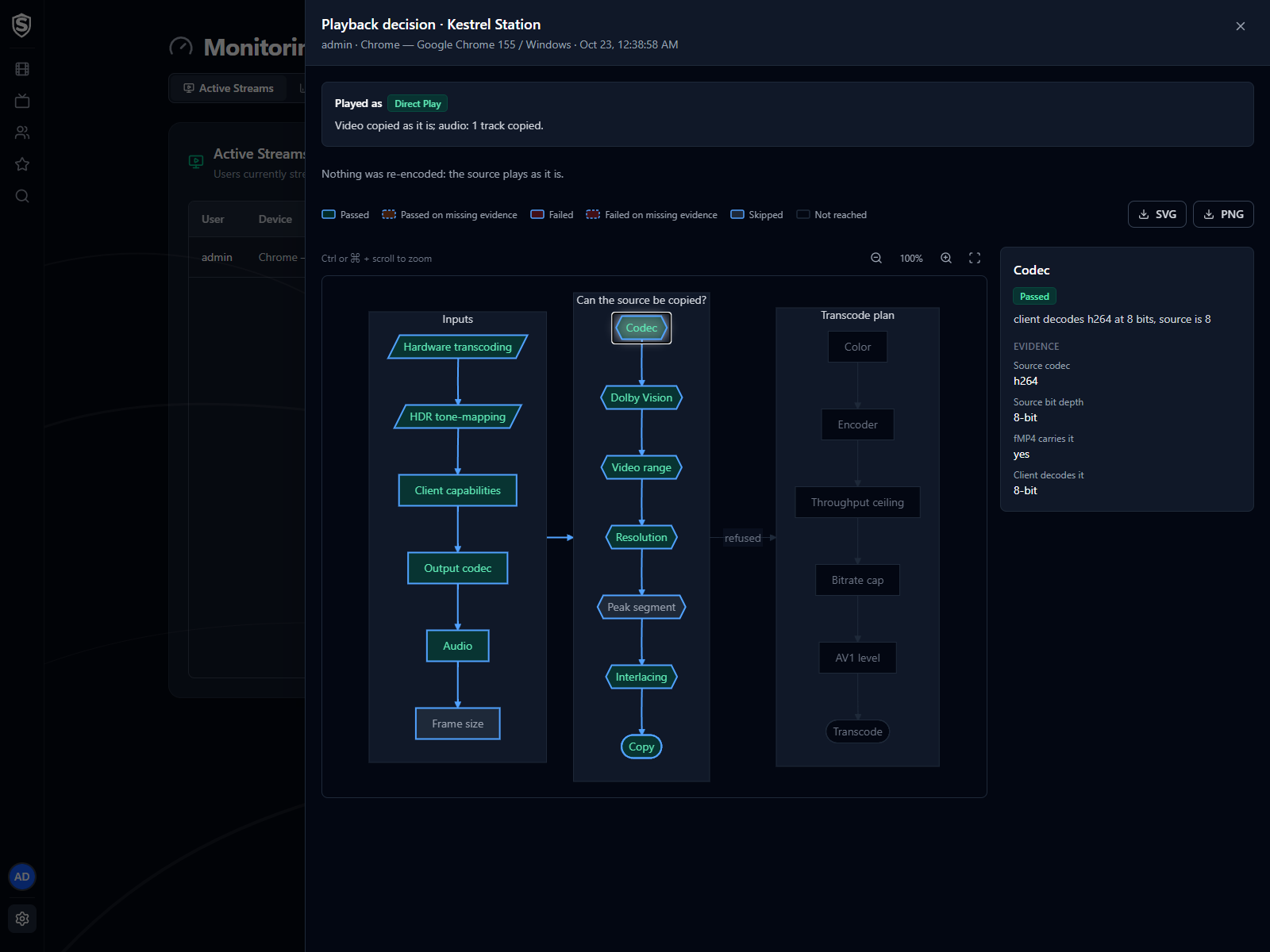
### Activity Logs URL: https://sovereign.watch/docs/configuration/playback-decisions/#activity-logs
A play's entry in **Monitoring > Activity Logs** has the same **Playback decision** icon, so you can look at a play after it has finished. The route is the one stored when the play started, drawn as the server that made the decision drew it. After an update that changes these steps, an older play still shows the steps it really took.
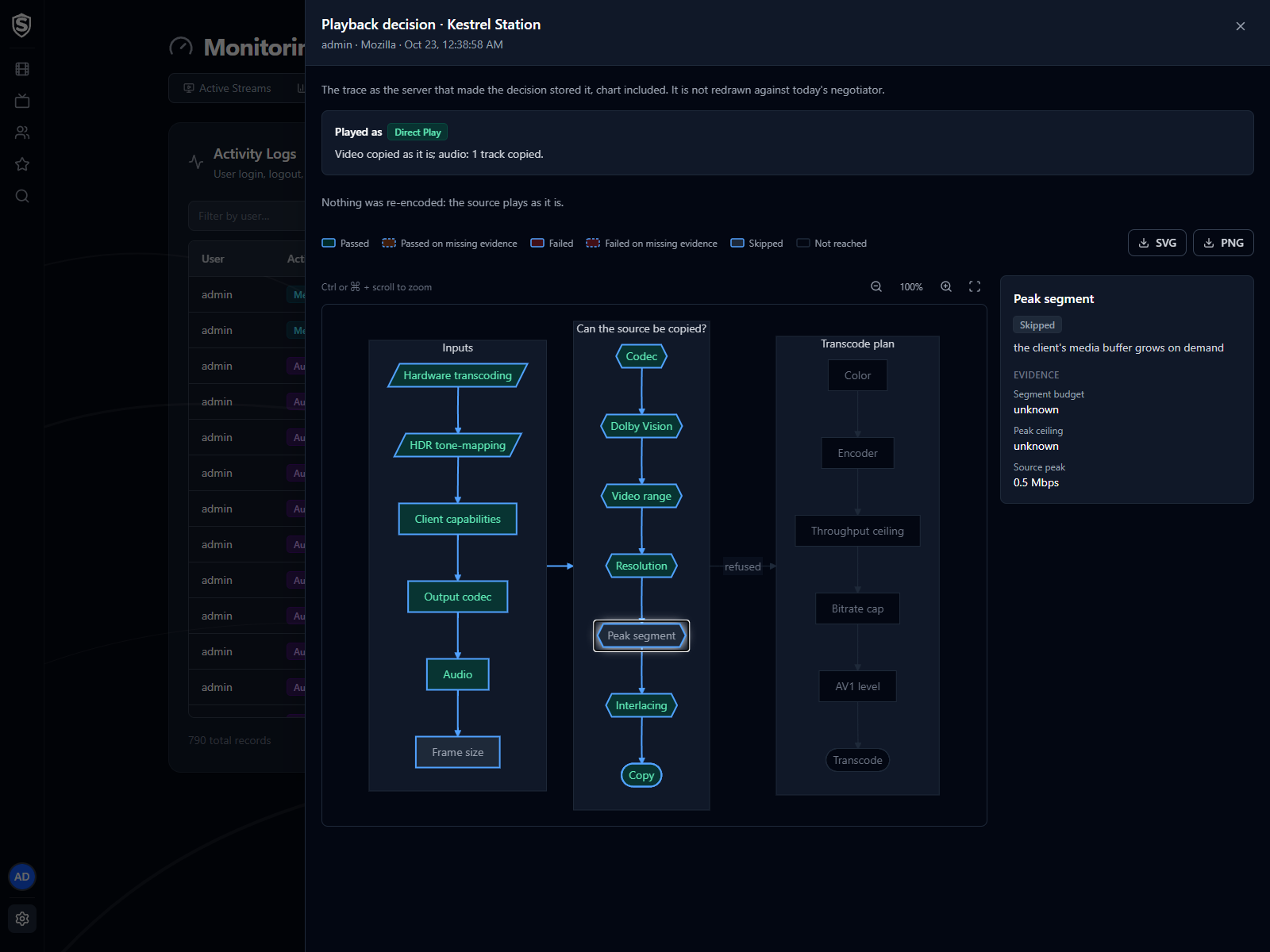
### Playback Simulator URL: https://sovereign.watch/docs/configuration/playback-decisions/#playback-simulator
**Library > Playback Simulator** answers the question before anyone presses play: would this device direct play this title? Pick a title, a device, and optionally a bitrate limit, a video quality and an audio language, and it shows the mode and route a start would take, without starting a stream. Its headline reads **Predicted** rather than **Played as**. The [Playback Simulator](https://sovereign.watch/docs/interface/web/admin/playback-simulator/) page describes its controls.
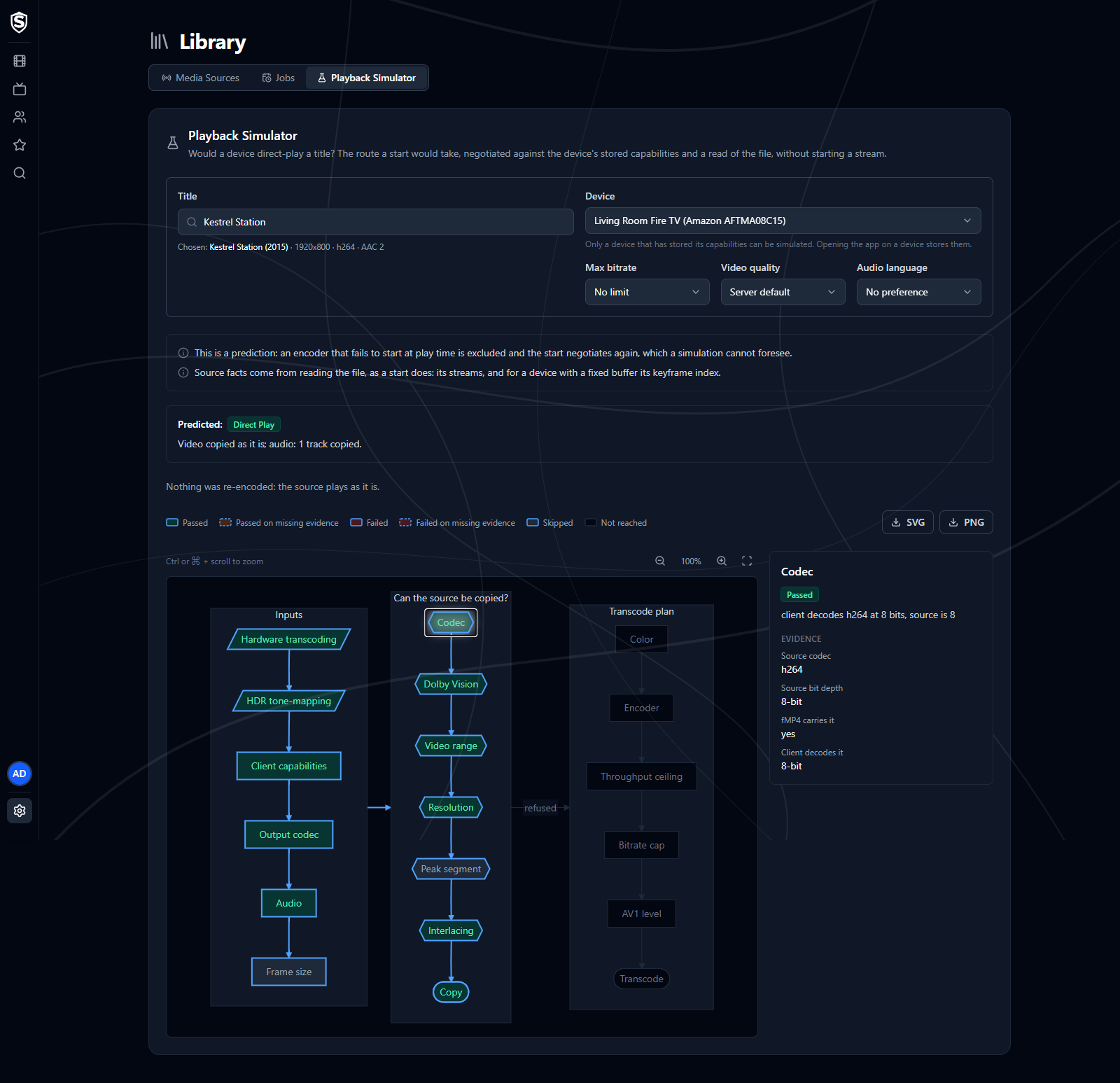
Only a device that has told the server what it can play can be simulated, and opening the app on a device is what does that. The simulator then reads the file the way a start would: its streams, and for a device with a fixed buffer, how heavy its segments get. So it predicts from the same facts a real play would use. It never transcodes anything, and asking about the same file again within five minutes reuses the read.
The answer is still a prediction, and the page lists what it's based on. Two things can still make it differ from a real play. An encoder that fails to start at play time is set aside and the start tries again, which the simulator can't foresee. And if the file's storage doesn't answer in time, the simulator falls back to the library's record of the file, and its notes say so. A stalled network mount shows up this way.
========================================================================
# Transcoding (source: docs/configuration/transcoding) URL: https://sovereign.watch/docs/configuration/transcoding/
========================================================================
# Transcoding
Sovereign re-encodes as little as possible. Every time a title starts, it compares the source file against what the client says it can decode and picks the cheapest delivery that will play. It also records **reasons** for that choice, every way the stream differs from the file, and they're the first thing to check when a stream is heavier than you expected.
---
## The Three Playback Modes URL: https://sovereign.watch/docs/configuration/transcoding/#the-three-playback-modes
Whatever the source, Sovereign delivers HLS with fMP4 segments. What differs is how much of the file has to be rebuilt to get there.
| Mode | Video | Audio | Cost |
| --------------- | ------------ | ----------------------------- | -------------------------------------------------- |
| **Direct Play** | Copied as-is | Every track copied as-is | Near zero: the file is repackaged, not re-encoded |
| **Remux** | Copied as-is | At least one track converted | Low: audio encoding only |
| **Transcode** | Re-encoded | Copied or converted per track | High: this is the one that uses your CPU or GPU |
Remux is reported as its own mode because video encoding is where nearly all of the cost lives. A session that only had to fix an audio track is far closer to a direct play than to a full transcode.
:::note
Video is copied whenever it can be, **regardless of audio**. An audio track that needs converting will never, on its own, cause the video to be re-encoded.
:::
---
## How the Decision Is Made URL: https://sovereign.watch/docs/configuration/transcoding/#how-the-decision-is-made
Every playback start runs the same decision before the first segment exists. The client says what it can play, Sovereign compares the source against it, and the result fixes the play mode for the whole session. [Playback Decisions](https://sovereign.watch/docs/configuration/playback-decisions/) walks through every step of it, with a chart, and covers what each check does when it has nothing to go on.
```mermaid
sequenceDiagram
participant C as Client device
participant S as Sovereign
participant E as Encoder
C->>S: Start playback, with device capabilities
alt Capabilities incomplete
S-->>C: Refuse the start
else Capabilities complete
loop Each audio track
Note over S: Copy it if the client decodes it,
otherwise convert it to the
best format the client named
end
Note over S: Video checks, in order:
format, bit depth, colour,
display range, frame size,
segment size, scan type
alt Every check passes
Note over S: Copy the video. Direct Play,
or Remux if any audio converts
else A check fails
Note over S: Every failing check
becomes a reason
S->>E: Re-encode the video
Note over E: HDR is kept only if the
client and GPU support it
end
S-->>C: Playlist, play mode and reasons
loop While playing
C->>S: Next segment
S-->>C: Segment, copied or encoded
end
end
```
Every client describes itself completely when it asks to play: the codecs it decodes and at what bit depth and resolution, which dynamic ranges its display shows, how much video it can buffer, and any alignment its decoder needs. A description with anything missing is refused before any of the checks run, and the error says what was missing. So Sovereign never guesses on a device's behalf, and there's no fallback transcode for a device that said nothing.
For the video stream, Sovereign works through a series of checks. Every one of them has to pass for the video to be copied. It runs all of them on every play, so when several fail, each one is reported:
1. **Container compatibility** - the source codec must be one that's valid in fMP4: H.264, H.265, VP9, or AV1.
2. **Client support** - the client must have advertised that codec as decodable.
3. **Bit depth** - the client must have advertised that codec at or above the source's bit depth. Advertising "HEVC" isn't the same as advertising 10-bit HEVC.
4. **Dolby Vision base layer** - a Dolby Vision source is only copyable if the picture underneath its Dolby Vision data is a standard one that an ordinary decoder renders correctly.
5. **Display range** - the source's dynamic range (SDR, HLG or PQ) has to be one the client said its display can show.
6. **Geometry** - the source frame must be within the client's decode resolution tier and must satisfy any frame-alignment requirement the client's hardware decoder imposes.
7. **Peak segment size** - if the client's media buffer is a fixed size, the heaviest stretch of the source has to fit inside it.
8. **Progressive video** - an interlaced source is never copied.
A transcode forced by something other than colour (a frame too large for the device, a segment too heavy for its buffer, an interlaced source) can keep an HDR title in HDR. Sovereign keeps the picture in HDR when the transcode emits H.265 or AV1, the client said its display shows that HDR format and decodes that codec at 10 bits, and the GPU passed a 10-bit encode test at startup. A transcode emits H.264 unless the client can't take the full frame in H.264 and your GPU can encode H.265 or AV1 for it, so in practice HDR survives on 4K titles sent to a device whose H.264 decoding stops at 1080p, as Roku's does. If any of those conditions is missing, the picture is converted to SDR, which is also what always happens to a Dolby Vision Profile 5 source.
Audio is planned separately, one decision per track. Each track is copied when its codec is fMP4-valid (AAC, AC3, EAC3, Opus, FLAC, DTS, TrueHD, AC-4) **and** the client can decode it. Both conditions matter: a format Sovereign can package is still converted unless the client says it can play it.
That second condition is what makes lossless passthrough work. No browser can decode DTS or TrueHD, so on the web those tracks are always converted. A living-room device wired to an AV receiver is a different matter: it reports the formats the receiver accepts, and Sovereign then hands the bitstream over untouched. This is also how a Dolby Atmos mix survives, because the object metadata rides inside the TrueHD (or E-AC-3) track and doesn't survive any conversion.
When a track does have to be converted, Sovereign picks the best format the client advertised: EAC3 first, then AC3, then AAC as the fallback every client accepts. The two Dolby formats carry up to six channels, so a 5.1 mix stays 5.1 instead of folding down to stereo, and a 7.1 mix becomes 5.1. Sovereign never adds channels that weren't in the source, so a stereo track stays stereo.
---
## Playback Reasons URL: https://sovereign.watch/docs/configuration/transcoding/#playback-reasons
A direct play carries no reasons: nothing about the stream differs from the file. Every other play carries one or more, and each is one of two kinds:
- **Cause** - why the source couldn't be sent as it is: a check the video failed, or an audio track the client can't play.
- **Consequence** - what a re-encode that was already happening lost on the way: the HDR it couldn't keep, the frame size it had to cap, audio channels it folded down.
The video's causes come first, in the order of the checks above, then what the re-encode lost, then the audio. A misaligned frame or an oversized peak reported alongside another cause is marked **minor**: the transcode the other cause forced repairs it anyway, so it changes nothing about what you get.
### Causes URL: https://sovereign.watch/docs/configuration/transcoding/#causes
| Reason | Resulting Mode | What It Means |
| ------------------------------------------------------- | -------------- | ----------------------------------------------------------------------------------------------------------------- |
| [`AudioTranscode`](https://sovereign.watch/docs/configuration/transcoding/#audiotranscode) | Remux | Video is copied, but at least one audio track isn't playable as-is and is re-encoded. |
| [`VideoCodecNotStreamable`](https://sovereign.watch/docs/configuration/transcoding/#videocodecnotstreamable) | Transcode | The source video codec can't be carried in fMP4 at all, whatever the client decodes. |
| [`VideoCodecUnsupported`](https://sovereign.watch/docs/configuration/transcoding/#videocodecunsupported) | Transcode | The client can't decode the source video codec, or the codec was never identified. |
| [`VideoBitDepthUnsupported`](https://sovereign.watch/docs/configuration/transcoding/#videobitdepthunsupported) | Transcode | The client can't decode the source's bit depth (e.g. 10-bit HEVC on an 8-bit client), so the video is re-encoded. |
| [`DolbyVisionUnsupported`](https://sovereign.watch/docs/configuration/transcoding/#dolbyvisionunsupported) | Transcode | The source is a Dolby Vision format no ordinary decoder can render, so the video is re-encoded and tone-mapped. |
| [`VideoRangeUnsupported`](https://sovereign.watch/docs/configuration/transcoding/#videorangeunsupported) | Transcode | The client's display can't present the source's HDR format, so the video is re-encoded and tone-mapped. |
| [`ExceedsDecodeResolution`](https://sovereign.watch/docs/configuration/transcoding/#exceedsdecoderesolution) | Transcode | The source resolution exceeds the client's decode limit, so the video is re-encoded and downscaled. |
| [`NonAlignedResolution`](https://sovereign.watch/docs/configuration/transcoding/#nonalignedresolution) | Transcode | The source display dimensions violate the client's macroblock alignment, so the video is re-encoded and padded. |
| [`ExceedsPeakBitrate`](https://sovereign.watch/docs/configuration/transcoding/#exceedspeakbitrate) | Transcode | The source's heaviest stretch is larger than the client's media buffer can hold, so the video is re-encoded. |
| [`InterlacedSource`](https://sovereign.watch/docs/configuration/transcoding/#interlacedsource) | Transcode | The source is interlaced, so the video is re-encoded with the fields woven back into whole frames. |
`AudioTranscode` also appears on a transcode whose audio had to be converted too, alongside the video's own causes.
### Consequences URL: https://sovereign.watch/docs/configuration/transcoding/#consequences
| Reason | What It Means |
| ------------------------------------------------------- | -------------------------------------------------------------------------------------------------------------- |
| [`ThroughputCapDolbyVision`](https://sovereign.watch/docs/configuration/transcoding/#throughput-caps) | A 4K Dolby Vision Profile 5 title was held to 1080p, because converting it on this Intel GPU is too slow at 4K. |
| [`ThroughputCapSoftware`](https://sovereign.watch/docs/configuration/transcoding/#throughput-caps) | A 4K HDR title was held to 1080p, because its tone-map runs on the processor and is too slow at 4K. |
| [`HdrOutputUnsupported`](https://sovereign.watch/docs/configuration/transcoding/#hdroutputunsupported) | An HDR title was converted to SDR, because the client can't decode 10-bit HEVC or AV1. |
| [`HdrEncodeUnavailable`](https://sovereign.watch/docs/configuration/transcoding/#hdrencodeunavailable) | An HDR title was converted to SDR, because no encoder on the server can produce 10-bit HEVC or AV1 for it. |
| [`AudioDownmixedToStereo`](https://sovereign.watch/docs/configuration/transcoding/#audio-downmixes) | The default audio track was mixed down to stereo, because the client named no surround format. |
| [`AudioDownmixedToFiveOne`](https://sovereign.watch/docs/configuration/transcoding/#audio-downmixes) | A 7.1 default audio track was mixed down to 5.1, the most the AC3 and EAC3 encoders carry. |
A consequence another reason already explains isn't repeated: a Profile 5 source, or a display that can't show HDR, accounts for its own SDR output.
---
## Direct Play URL: https://sovereign.watch/docs/configuration/transcoding/#direct-play
**Mode: Direct Play. Nothing is re-encoded, and no reason is reported.**
The source video codec is fMP4-compatible, the client advertised it at the source's bit depth, the frame geometry is fine, and every audio track is independently copyable. Sovereign repackages the existing streams into HLS segments and hands them over untouched.
This is the outcome to aim for. It costs almost nothing and preserves the source exactly, including lossless and Atmos audio that a conversion would lose. No encoder runs, so the [Video Quality](https://sovereign.watch/docs/configuration/video-quality/) settings have no effect. The same is true of a Remux, whose video is copied too.
---
## AudioTranscode URL: https://sovereign.watch/docs/configuration/transcoding/#audiotranscode
**Mode: Remux. Video copied, audio partially converted.**
The video passed every check and is being copied. One or more audio tracks, however, are in a format the client can't decode, most often DTS or TrueHD on a client with no receiver attached, but also any codec the client didn't advertise. Those tracks are re-encoded; any track that _is_ playable is still copied alongside them.
You'll see this on remuxed Blu-ray sources, which routinely carry a lossless TrueHD or DTS-HD track as the primary audio. It's a cheap outcome, since audio encoding is a rounding error next to video, and the surround layout is preserved whenever the client can take EAC3 or AC3. Only a client limited to AAC receives a stereo fold-down.
**To get a copy instead:** play the title on a device that can pass the format through to an AV receiver, or add an AAC, AC3, or EAC3 track to the file alongside the lossless one. Sovereign builds one HLS rendition per source track, so a compatible track is available for selection and is copied intact.
---
## VideoCodecNotStreamable URL: https://sovereign.watch/docs/configuration/transcoding/#videocodecnotstreamable
**Mode: Transcode. Full video re-encode.**
The source video codec can't live in an fMP4 container at all: MPEG-2, VC-1, MPEG-4 Part 2, and anything else outside H.264, H.265, VP9, and AV1. It doesn't matter what the client decodes, because the format Sovereign streams can't carry the video as it is.
This covers older library content: DVD rips, TV recordings, and early encodes. There's no way around a re-encode for these titles.
**To avoid it:** re-encode the affected titles in your library to H.264, which every client Sovereign supports can decode. This trades disk space for never paying the transcode cost again.
---
## VideoCodecUnsupported URL: https://sovereign.watch/docs/configuration/transcoding/#videocodecunsupported
**Mode: Transcode. Full video re-encode.**
The source codec is one Sovereign can stream, but the client never advertised it. AV1 is the common example: a modern browser on a recent machine decodes it, an older TV or streaming stick doesn't. Browser support for HEVC is patchy too. The same file can direct play in one room and transcode in another, and that's expected.
The same reason appears when the source's codec was never identified at all, typically because the library recorded nothing for it. Sovereign can't show that a copy of an unknown codec would play, so it re-encodes.
**To avoid it:** play the title on a device that decodes the codec, or re-encode the title to H.264, which every client Sovereign supports can decode.
---
## VideoBitDepthUnsupported URL: https://sovereign.watch/docs/configuration/transcoding/#videobitdepthunsupported
**Mode: Transcode. Full video re-encode.**
The client advertised the source's codec, but only at a lower bit depth than the source actually uses. In practice this always means a 10-bit source (usually HEVC Main 10, which most HDR and a good deal of modern SDR content uses) on a client that only decodes 8-bit HEVC.
It's checked separately from codec support because a codec name alone doesn't say enough. A client that reports "HEVC" while meaning "8-bit HEVC only" will accept a 10-bit stream and then fail to decode it: playback appears to start, then stalls with no useful error. So if the client didn't advertise the bit depth the file uses, Sovereign re-encodes the file to something the client can play.
**To avoid it:** nothing on the server side. This is a property of the playback device. A client that decodes 10-bit HEVC will direct play the same file that forced a transcode elsewhere.
---
## DolbyVisionUnsupported URL: https://sovereign.watch/docs/configuration/transcoding/#dolbyvisionunsupported
**Mode: Transcode. Video re-encoded and tone-mapped.**
Most Dolby Vision files are a normal HDR10, HLG or SDR picture with Dolby Vision instructions riding alongside it. A device that knows nothing about Dolby Vision ignores the instructions and shows the ordinary picture, which is correct, so those files copy like anything else.
Profile 5 is the exception. Its base picture isn't a standard one: handed to a decoder that does no Dolby Vision processing, it renders in lurid green and purple. Sovereign never sends Profile 5 to a client as it is, so the only way to show the film is to convert it. Like an interlaced source, it's converted whichever device you watch on. A Dolby Vision file whose base picture can't be identified at all is treated the same way.
How good the converted picture looks depends on your GPU. On an NVIDIA GPU set up for [HDR tone mapping](https://sovereign.watch/docs/hardware-acceleration/nvidia/#hdr-tone-mapping), and on an AMD GPU whose [Vulkan tone-map](https://sovereign.watch/docs/hardware-acceleration/vaapi/#hdr-tone-mapping) passed its startup check, the conversion applies the file's Dolby Vision reshaping data and the colours come out right. Intel's own tone-map and the CPU conversion can't apply it, so on those hosts a Profile 5 title plays, but with a colour cast.
**To avoid it:** nothing on the server side. A Profile 5 file is the problem; a copy of the title in any other Dolby Vision profile, or in plain HDR10, direct plays.
---
## VideoRangeUnsupported URL: https://sovereign.watch/docs/configuration/transcoding/#videorangeunsupported
**Mode: Transcode. Video re-encoded and tone-mapped to SDR.**
Every client tells Sovereign which dynamic ranges its display can actually show, and the source's isn't one of them. The usual case is an HDR10 title on a device with an SDR panel: the decoder would handle the stream, but the picture would come out washed out and dark with no error to show anything went wrong. Converting it to SDR avoids that.
Browsers are included. The web app asks the browser whether the screen it's on shows HDR, so a browser on an ordinary SDR monitor gets a tone-mapped transcode of an HDR title rather than the copy, and the same browser on an HDR display gets the copy.
**To avoid it:** watch HDR content on a display that reports HDR support. The conversion is the fallback for a screen that can't show it.
---
## ExceedsDecodeResolution URL: https://sovereign.watch/docs/configuration/transcoding/#exceedsdecoderesolution
**Mode: Transcode. Video re-encoded and downscaled.**
The source frame is larger than the resolution the client advertised it can decode for that codec, such as a 4K source on a client that reported decoding only up to 1080p. The video is re-encoded and scaled down to a size the client can handle.
The limit that matters is the client's advertised **decode** capability, not the size of its screen. Sovereign doesn't downscale to panel size: a 4K file plays fine on a 1080p display if the device can decode it, and a transcode there would cost hardware time for no visible benefit.
The target is also sized against the codec being emitted, not the source codec. A client that decodes 4K H.264 but only 1080p HEVC will take a 4K HEVC source, re-encode it to H.264, and keep it at 4K, because in H.264 the client can handle that frame size. The same works the other way: when a title is re-encoded for another reason and the frame has to be scaled down to fit the codec it's re-encoded to, this reason is reported alongside the cause.
**To avoid it:** this one is largely inherent to mixing 4K sources with 1080p-class devices. If a specific device is transcoding everything, confirm what it actually advertises before assuming it's capable of more.
---
## NonAlignedResolution URL: https://sovereign.watch/docs/configuration/transcoding/#nonalignedresolution
**Mode: Transcode. Video re-encoded and padded.**
The client requires that a copied stream's display dimensions be a multiple of a fixed block size, and the source isn't. The video is re-encoded and padded up to an aligned size.
This is the least intuitive reason on the list. H.264 encodes in 16x16 blocks, which means a frame whose display height isn't a multiple of 16 is physically stored as a larger aligned frame plus an instruction to crop it on output. Browsers apply that crop. Some hardware decoders, Roku's among them, refuse the stream instead, even though the frame is legal.
Where this bites is cinematic aspect ratios. A film letterboxed to 2.40:1 and encoded at 1920x800 is fine, but the same film at 1920x1036 isn't, and neither is anything else that lands on an odd height. It's common enough in real libraries that you'll see it, and it has nothing to do with quality or bitrate.
Sovereign repairs it by padding the frame up to the next aligned size (1920x1036 becomes 1920x1040) so that the stored frame and the displayed frame are identical and no crop survives for the decoder to reject. When another cause has already forced a transcode, this reason is marked minor, because that transcode pads the frame anyway.
:::note
This reason can also appear when Sovereign couldn't read the source file's dimensions at all, typically because the storage holding your library was slow or unreachable at the moment playback started. Rather than assume an unverified file is safe to copy, it re-encodes with the alignment repaired. A device that suddenly transcodes titles it used to direct play is often a sign of a struggling media mount; see [NFS Media Storage](https://sovereign.watch/docs/configuration/nfs-media-storage/) if your library lives on a NAS.
:::
---
## ExceedsPeakBitrate URL: https://sovereign.watch/docs/configuration/transcoding/#exceedspeakbitrate
**Mode: Transcode. Video re-encoded under the client's bitrate ceiling.**
Some devices buffer each segment of the stream whole, in a fixed amount of memory. A copied stream carries the source's own bitrate, so a dense passage of a high-bitrate remux can produce a segment that doesn't fit, and playback stops partway through the film rather than at the start.
Sovereign measures the heaviest stretch of the file rather than its average, because the average predicts nothing here: an action sequence routinely runs two or three times the mean for a whole segment. Where a copy would overflow the buffer, Sovereign first tries cutting the stream into shorter segments, which is enough to rescue most titles and costs nothing in quality. This reason appears only when even that doesn't fit. Behind another cause it's marked minor, since the transcode's bitrate cap keeps its segments inside the buffer anyway.
A file whose peak can't be measured is given the benefit of the doubt and copied, so this never fires speculatively. A browser's buffer grows as it needs to, so a browser never sees this reason.
**To avoid it:** the constraint is the playback device's memory, so it's largely inherent to playing very high-bitrate remuxes on streaming sticks and TVs. A lower-bitrate copy of the title direct plays.
---
## InterlacedSource URL: https://sovereign.watch/docs/configuration/transcoding/#interlacedsource
**Mode: Transcode. Video re-encoded with the fields woven into whole frames.**
The source stores each frame as two interlaced half-frames, the way broadcast television and DVDs did. Handed to a modern progressive decoder, that shows as combing on anything moving, and MPEG-2 interlaced sources often don't play at all.
You'll see this on DVD rips, off-air recordings and older TV content, often beside `VideoCodecNotStreamable`, since those sources tend to be MPEG-2 as well. A title that reports this reason alone passed every other check: the codec, bit depth, geometry and bitrate were all fine. A file that doesn't say how it's scanned is treated as progressive.
The deinterlace filter runs in system memory, so this is one of the transcodes a GPU can't fully take off your processor. See [System Requirements](https://sovereign.watch/docs/configuration/system-requirements/) for what that means for sizing.
**To avoid it:** re-encode the affected titles as progressive video. There's no way to copy an interlaced source safely.
---
## Throughput Caps URL: https://sovereign.watch/docs/configuration/transcoding/#throughput-caps
**Consequences: `ThroughputCapDolbyVision` and `ThroughputCapSoftware`. Output held to 1080p.**
Two ways of converting HDR to SDR can't keep up with a 4K picture in real time, so when a 4K HDR title has to be converted on one of them, Sovereign holds the output to 1080p rather than let playback stall:
- `ThroughputCapDolbyVision` - a Dolby Vision Profile 5 title on an Intel GPU. The conversion that applies its reshaping data runs well below real time at 4K there.
- `ThroughputCapSoftware` - any HDR title whose tone-map runs on the processor, because no GPU on the server can do it. That's below real time even at 1080p on a four-core machine, and far below it at 4K.
Every other GPU tone-map has the headroom for 4K, so nothing else is capped. **To avoid it:** give the server a GPU whose tone-map passes its startup check; see [Hardware Acceleration](https://sovereign.watch/docs/hardware-acceleration/overview/).
---
## HdrOutputUnsupported URL: https://sovereign.watch/docs/configuration/transcoding/#hdroutputunsupported
**Consequence. HDR title converted to SDR.**
A transcode can keep HDR only in 10-bit HEVC or 10-bit AV1. This client decodes neither at 10 bits, so the HDR title it's being re-encoded for comes out in SDR. Its display may well show HDR; it's the decoder that can't take an HDR stream.
**To avoid it:** nothing on the server side. A device that decodes 10-bit HEVC or AV1 keeps the HDR.
---
## HdrEncodeUnavailable URL: https://sovereign.watch/docs/configuration/transcoding/#hdrencodeunavailable
**Consequence. HDR title converted to SDR.**
The client could have taken HDR, but no encoder on this server can produce 10-bit HEVC or AV1 for this transcode, so the title comes out in SDR. A server with no GPU always lands here, since Sovereign has no software encoder for either codec at 10 bits. So does a GPU that failed the 10-bit encode test Sovereign runs at startup.
**To avoid it:** use a GPU that encodes 10-bit HEVC or AV1. The [Hardware Acceleration](https://sovereign.watch/docs/hardware-acceleration/overview/) page lists what each family supports.
---
## Audio Downmixes URL: https://sovereign.watch/docs/configuration/transcoding/#audio-downmixes
**Consequences: `AudioDownmixedToStereo` and `AudioDownmixedToFiveOne`. The default track lost channels.**
These report what converting the default audio track cost:
- `AudioDownmixedToStereo` - a surround track was converted for a client that named no surround format, so it ends up as stereo AAC.
- `AudioDownmixedToFiveOne` - a 7.1 track was converted to EAC3 or AC3, which carry at most 5.1.
Only the default track is reported, because that's the one playback starts on. **To avoid it:** play on a device that passes the original format through to a receiver, or add a 5.1 AC3 or EAC3 track to the file.
---
## Where to Find the Reason URL: https://sovereign.watch/docs/configuration/transcoding/#where-to-find-the-reason
Three places report it.
The admin **[Active Streams](https://sovereign.watch/docs/interface/web/admin/active-streams/)** page shows the mode as a badge for every live session, with the **Playback decision** icon (?) beside it. That opens the reasons and the whole route the server took to them, gate by gate, which [Playback Decisions](https://sovereign.watch/docs/configuration/playback-decisions/) explains. This is the fastest way to answer "why is this one transcoding right now", and the same view is kept on each play in the activity log for after it has ended.
The server log records the reasons when the session starts, minor ones marked, alongside the encoder that was selected, any geometry change that was applied, whether the source was deinterlaced and what happened to its colour:
```
Stream started for user 4, media 812, device roku-1: Transcode (reasons=VideoCodecUnsupported,
NonAlignedResolution(minor), video=h264_qsv, geometry=pad=1920x1040, deinterlace=False,
color=none, audioTracks=2, acceleration=HardwareEncoding, hwAccel=none)
```
The log is the better source when you want to see the pattern across a whole library rather than one title.
Whoever is watching can see them as well, without an admin account. Every client shows the play mode in its playback info panel with a line for each reason beneath it: "This device cannot decode the video codec", "Resolution is above this device's limit", and so on. The wording is composed on the server rather than in the app, so every client words it identically and one that predates a reason still renders it correctly. A direct play shows no reason, because nothing was re-encoded.
---
## Reducing Transcodes URL: https://sovereign.watch/docs/configuration/transcoding/#reducing-transcodes
If your server is working harder than you'd like, the reasons tell you where to aim:
- **`VideoCodecNotStreamable` or `VideoCodecUnsupported` dominating** - your library and your clients disagree about codecs. Re-encoding the offending titles to H.264 permanently removes the cost.
- **`AudioTranscode` dominating** - cheap, and usually not worth chasing. If you want the surround mix preserved, add a compatible audio track to the file.
- **`VideoBitDepthUnsupported` or `ExceedsDecodeResolution` dominating** - the constraint is the playback device, not the server. Either accept the transcode or use a more capable client.
- **`VideoRangeUnsupported` dominating** - HDR titles meeting SDR screens. The conversion is right for those screens; an HDR display gets the copy.
- **`NonAlignedResolution` on titles that used to be fine** - suspect storage before you suspect the file.
- **`InterlacedSource` dominating** - an older library. Re-encoding those titles as progressive video is the only fix, and it also buys back the processor time the deinterlace filter costs.
- **`ExceedsPeakBitrate` dominating** - very high-bitrate remuxes meeting a device with a small media buffer. Keeping a lighter copy of those titles removes it.
To find out whether a device would direct play a title before anyone presses play, use the [Playback Simulator](https://sovereign.watch/docs/configuration/playback-decisions/#playback-simulator). Where a transcode can't be avoided, you can still make it cheaper: [Hardware Acceleration](https://sovereign.watch/docs/hardware-acceleration/overview/) moves the encode onto a GPU, and the [Video Quality](https://sovereign.watch/docs/configuration/video-quality/) settings control how many bits each transcode is allowed to spend.
---
## Next Steps URL: https://sovereign.watch/docs/configuration/transcoding/#next-steps
- [Playback Decisions](https://sovereign.watch/docs/configuration/playback-decisions/) - every step of the decision, and what each check does without evidence
- [Video Quality](https://sovereign.watch/docs/configuration/video-quality/) - quality tiers and the bitrate ceiling applied to a transcode
- [Hardware Acceleration](https://sovereign.watch/docs/hardware-acceleration/overview/) - GPU encoding and how a device is selected
- [Active Streams](https://sovereign.watch/docs/interface/web/admin/active-streams/) - the live view of every session and its mode
- [Configuration Overview](https://sovereign.watch/docs/configuration/overview/) - full environment variable reference
========================================================================
# Video Quality (source: docs/configuration/video-quality) URL: https://sovereign.watch/docs/configuration/video-quality/
========================================================================
# Video Quality
The **Video Quality** settings control how much visual detail Sovereign preserves when it has to transcode a stream, and the peak bandwidth that transcode is allowed to use. Together they let you trade picture quality against bandwidth and hardware load.
---
## When These Settings Apply URL: https://sovereign.watch/docs/configuration/video-quality/#when-these-settings-apply
Sovereign only re-encodes video when it has to. When the source video and audio codecs are already playable on the client, the stream is **Direct Played**, copied through untouched, and neither quality setting has any effect. The same goes for a Remux, where the video is copied and only audio is converted. See [Transcoding](https://sovereign.watch/docs/configuration/transcoding/) for when a re-encode is required and how to read the reason Sovereign records for it.
When a transcode _is_ required, two settings shape the result:
- **Quality tier** (`Sovereign__Transcoding__VideoQualityTier`) - the target level of detail. This drives how many bits each frame receives, so busy, fast-motion scenes (action, sports, grain) get more data than calm ones.
- **Bitrate ceiling** (`Sovereign__Transcoding__MaxVideoBitrateBps`) - a hard cap on peak bandwidth. The transcode never exceeds it, regardless of the quality tier (Intel Quick Sync is the one exception, explained below).
Sovereign spends bits to hit the quality target but doesn't go past the ceiling, on software and GPU encoders alike. Each client also reports the highest bitrate it can take at the frame size it's being sent, and when that's lower than your ceiling it becomes the cap for that session. Sovereign's clients report 10 Mbps for 1080p and below and 40 Mbps for 4K, so at the default 30 Mbps ceiling a 1080p transcode is held to 10 Mbps, and your ceiling is what caps a 4K one.
:::note
Intel Quick Sync can't hold a quality target and a bitrate cap at the same time. A Quick Sync transcode limited only by the global ceiling therefore encodes to the quality tier with no cap at all. When a viewer has asked for a lower bitrate, or the device reported a lower one (as every client does at 1080p and below), it targets that bitrate instead, and the tier no longer applies.
:::
:::note
A transcode keeps the source resolution unless the client can't decode it: a 4K source stays 4K for a client that handles 4K, and is downscaled only when the client advertised a lower decode limit. Sovereign never downscales to fit a display, so the bitrate ceiling is the main lever that softens very high-bitrate 4K content down to a size your network can carry.
:::
---
## Quality Tiers URL: https://sovereign.watch/docs/configuration/video-quality/#quality-tiers
The quality tier is a single, encoder-independent setting. Sovereign translates it to the right internal quality target for whichever encoder ends up being used (software or GPU), so the same tier gives a comparable result across your hardware.
| Tier | Picture Quality | Relative Size | Use For |
| ------------- | ------------------------------------ | ------------- | ----------------------------------------------------------------- |
| `Efficient` | Good | Smallest | Bandwidth-constrained remote streaming, limited server capacity |
| `Balanced` | High | Moderate | A middle ground for mixed libraries and networks |
| `HighQuality` | Best, fewest artifacts (**default**) | Largest | Local playback with ample bandwidth; fast-motion / action content |
`HighQuality` is the default. Drop to `Balanced` or `Efficient` if your server is bandwidth-constrained or struggling to keep ahead of playback.
:::tip
Because the bitrate cap still applies, raising the tier helps most on calmer content and on GPU transcodes. In _sustained_ high motion the cap is what limits quality, so for action-heavy libraries raise the tier **and** make sure the ceiling has headroom.
:::
---
## Choosing Settings for Your Scenario URL: https://sovereign.watch/docs/configuration/video-quality/#choosing-settings-for-your-scenario
Pick the row that best matches how your server is used. The ceiling values are starting points; adjust them to your upload bandwidth. A ceiling above 10 Mbps only changes 4K transcodes, since clients already cap 1080p at that.
| Scenario | `VideoQualityTier` | `MaxVideoBitrateBps` | Why |
| ------------------------------------------------------ | ------------------ | ---------------------------------- | ----------------------------------------------------------------------------------------- |
| Local network playback, plenty of bandwidth | `HighQuality` | `20000000`-`40000000` (20-40 Mbps) | Nothing to conserve, so spend bits freely for the best picture |
| Remote streaming over the internet with limited upload | `Efficient` | `4000000`-`8000000` (4-8 Mbps) | Keeps streams within a modest upload budget and avoids buffering |
| Action, sports, or film-grain heavy content | `HighQuality` | Raise until artifacts clear | Fast motion needs both a high quality target and ceiling headroom to look clean |
| Low-power server or GPU that struggles to keep up | `Efficient` | Lower the ceiling | Fewer bits per frame is faster to encode; pair with a faster encoder preset (see below) |
| Mostly Direct Play library (already-compatible codecs) | Leave default | Leave default | These settings rarely engage, since most playback is copied through without transcoding |
| Mixed audience, want per-user control | `HighQuality` | Generous (e.g. `30000000`) | Set a high global cap and let individual users turn their own streams down (see below) |
:::tip
The encoder speed preset (`Sovereign__Transcoding__VideoEncoderPreset`, one of `fast` / `medium` / `slow`) is a separate knob that trades encoding _speed_ for compression efficiency. It defaults to `medium`. On a server that struggles to keep up during playback, drop it to `fast`; on a powerful machine, `slow` can squeeze more quality into the same bitrate. VAAPI encoders ignore the preset.
:::
---
## Per-User Preferences URL: https://sovereign.watch/docs/configuration/video-quality/#per-user-preferences
Each user can override both the quality tier and the bitrate ceiling on the **Preferences** tab of [User Settings](https://sovereign.watch/docs/interface/web/user-settings/#preferences), and an admin can set them for any user from the [Users](https://sovereign.watch/docs/interface/web/admin/users/) page. That helps when one server feeds a mix of local TVs and remote phones on cellular data.
A user preference can only make playback **lighter**, never heavier:
- A requested quality tier is clamped to the global tier. A user may pick an equal or lower tier, never a higher one.
- A requested bitrate is clamped to the global ceiling. A user may request a lower cap, never a higher one.
So you can set a generous global tier and ceiling for your best clients, and bandwidth-limited users can still turn their own streams down without raising the load past the limits you set.
---
## Example URL: https://sovereign.watch/docs/configuration/video-quality/#example
```bash
# Best quality for a fast home network
Sovereign__Transcoding__VideoQualityTier=HighQuality
Sovereign__Transcoding__MaxVideoBitrateBps=30000000
# Conservative settings for remote streaming
Sovereign__Transcoding__VideoQualityTier=Efficient
Sovereign__Transcoding__MaxVideoBitrateBps=6000000
```
---
## Next Steps URL: https://sovereign.watch/docs/configuration/video-quality/#next-steps
- [Transcoding](https://sovereign.watch/docs/configuration/transcoding/) explains when Sovereign transcodes versus Direct Plays, and the reason recorded for every session.
- The full [Configuration Overview](https://sovereign.watch/docs/configuration/overview/) lists every transcoding variable and its default.
- [Hardware Acceleration](https://sovereign.watch/docs/hardware-acceleration/overview/) explains how a GPU is detected and selected for a transcode.
========================================================================
# Authentication (source: docs/configuration/authentication) URL: https://sovereign.watch/docs/configuration/authentication/
========================================================================
# Authentication & Security
This page covers how to **configure sign-in** and the **security model** behind it, from how users authenticate to how media links are protected.
Sovereign supports two ways for users to sign in:
- **Local accounts** - a username and password validated directly by Sovereign. It's always available and needs no external services.
- **Social sign-in** - optional "Sign in with Google" and "Sign in with Microsoft" buttons backed by external identity providers.
Both are configured through environment variables.
---
## Local Login URL: https://sovereign.watch/docs/configuration/authentication/#local-login
Local login works out of the box. Sovereign creates a default `Administrator` account on first run from the credentials you provide, and you can add more users from the admin interface afterward.
| Environment Variable | Description | Default | Sensitive |
| ------------------------------------------ | ---------------------------------------------------------- | ------------------------- | --------- |
| `Sovereign__Authentication__AdminUsername` | Username for the default admin account seeded on first run | _(random 12-char string)_ | [x] |
| `Sovereign__Authentication__AdminPassword` | Password for the default admin account seeded on first run | _(random 12-char string)_ | [x] |
If you leave these unset, a random username and password are generated. Either way, the pair is **printed once to the server's console output** on first start, where `docker logs ` or `docker compose logs server` shows them. They're never written to the log files you can download from the admin interface. Anything that collects the container's output, such as a log shipper, will keep a copy. It's better to set them explicitly so you know your first-login credentials, and either way, change the password after your first sign-in. See [Authorization & Roles](https://sovereign.watch/docs/configuration/authentication/#authorization--roles) below for the role model.
Outside the development environment, a password you set has to meet the same rules as any other account's: at least six characters, with an upper-case letter, a lower-case letter, a digit and a symbol. A seed password that falls short stops the server on first start with the reason in the log. Five wrong passwords in a row lock an account for five minutes.
:::note
Local login **doesn't** use any redirect URL. Only social sign-in needs the provider-side redirect configuration described below.
:::
---
## The Issuer - Required for Any Non-`localhost` Deployment URL: https://sovereign.watch/docs/configuration/authentication/#the-issuer---required-for-any-non-localhost-deployment
The **issuer** is used both as the token issuer and as the address the browser uses to reach the sign-in endpoints, so it must be the **public origin** that clients actually use to reach your server.
| Environment Variable | Description | Default |
| ----------------------------------- | ------------------------------------------------------------- | ------------------------ |
| `Sovereign__Authentication__Issuer` | Public origin clients use to reach the server (scheme + host) | `http://localhost:5000/` |
Set it to the exact URL your users type into their browser, including `https://`:
```bash
Sovereign__Authentication__Issuer=https://media.example.com/
```
Sovereign doesn't terminate TLS itself, so put a reverse proxy in front of it and point the issuer at the proxy's public HTTPS URL (see [TLS](https://sovereign.watch/docs/configuration/authentication/#tls) below).
:::note
The default `http://localhost:5000/` is enough to try Sovereign on the machine it runs on: open `http://localhost:5000` there and sign in. Any other device needs the issuer set to the address it uses, and the sign-in page on such a device says so. If you map the container to a different host port, the issuer's port has to match it, for example `http://localhost:8080/` with `-p 8080:5000`. While the issuer is a `localhost` address the server logs a warning at startup, and it refuses to start only when the issuer isn't an `http://` or `https://` URL at all.
:::
---
## The Client ID URL: https://sovereign.watch/docs/configuration/authentication/#the-client-id
The **client ID** identifies the web app to Sovereign's sign-in. Leave it unset and Sovereign generates one on first start, writes it to the data volume as part of `server.json`, and reads it back on every start after. Each install gets its own id rather than a well-known one, and it survives restarts with no configuration on your part. The web app picks up the current value by itself, so nothing else needs changing when it does.
Set a fixed value when you want to choose the id yourself:
```bash
Sovereign__Authentication__ClientId=your-fixed-client-id
```
A configured value always wins and is never written to the data volume. Remove the setting and Sovereign goes back to the stored id, generating one if it has never needed to.
Refresh tokens are tied to the client that issued them, so changing the client ID signs every browser out: the next start removes the superseded registration along with its tokens. An ordinary restart keeps the same ID, so this only happens when you change it. The Roku and Android apps authenticate as a separate device client with an id of their own, also kept in `server.json`, whether they were paired with a code or signed in with a password, so changing the web client ID leaves them signed in.
---
## Session Length URL: https://sovereign.watch/docs/configuration/authentication/#session-length
Three settings decide how long a viewer stays signed in, and each is set twice: once for the web app (`Web`) and once for the Roku and Android apps (`Device`). The two get different defaults because they keep their sign-in in different places. A browser holds it in the page's own storage, where a bug in the page could expose it, so a web sign-in has an end. A television keeps it in the app's own storage on the device and is often used only every few weeks, so it stays signed in for as long as it keeps being used.
```bash
Sovereign__Authentication__Tokens__Web__AccessTokenMinutes=15
Sovereign__Authentication__Tokens__Web__RefreshTokenDays=30
Sovereign__Authentication__Tokens__Web__MaxSessionDays=90
Sovereign__Authentication__Tokens__Device__AccessTokenMinutes=15
Sovereign__Authentication__Tokens__Device__RefreshTokenDays=90
Sovereign__Authentication__Tokens__Device__MaxSessionDays=0
```
The **access token** is what every API call carries. It's self-contained, so the server doesn't look it up in the database on each request. That makes it fast, and it also means a role change (for example moving someone back to Unapproved) can take until the token expires to apply, while a deleted account stops working on its next request. Every app renews it quietly before it runs out, so the 15-minute default signs nobody out, and the longer you make it the longer a role change can take to apply.
The **refresh token** decides how long a device may sit unused before it asks for a sign-in. Sovereign rotates refresh tokens and slides their expiry forward each time, so the clock only runs while a device sits idle. With the defaults, a browser left alone for a month asks for a sign-in, and so does a television nobody has touched in three months.
The **session cap** (`MaxSessionDays`) is the longest one sign-in may last, however often it's used. When it's reached, the app asks the viewer to sign in again, which also ends any copy of that sign-in someone else may have taken. The web app's is 90 days. `0` turns the cap off, which is the default for the Roku and Android apps.
So if viewers are complaining about being signed out of a television, raise `Device__RefreshTokenDays`. Raising an access token's minutes instead buys nothing and widens the window in which a disabled account still has access.
:::note
The access and refresh lifetimes must be positive, the refresh token must outlast the access token, and the session cap must be `0` or more. Sovereign checks this at startup and refuses to start on a configuration where a refresh token expires first, since it could never be used. An access token lifetime above a day (1440 minutes) only logs a warning in development, and stops the server from starting anywhere else.
:::
:::danger[Renamed settings]
`Sovereign__Authentication__Tokens__AccessTokenMinutes` and `Sovereign__Authentication__Tokens__RefreshTokenDays` have been replaced by the `Web` and `Device` settings above. If either is still set, Sovereign refuses to start and names the settings to use instead. Remove it, and set the `Web` or `Device` value you meant.
:::
---
## Social Sign-In URL: https://sovereign.watch/docs/configuration/authentication/#social-sign-in
Social sign-in is **optional and disabled by default**. Each provider is enabled only when **both** its client ID and client secret are supplied; if they're absent, the provider's button is hidden and local login keeps working as normal.
Every provider needs a **redirect URI** registered on its side. The redirect URI is your issuer origin followed by a provider-specific callback path:
| Provider | Redirect URI to register |
| --------------- | ------------------------------------------------ |
| Google | `https:///callback/login/google` |
| Microsoft Entra | `https:///callback/login/microsoft` |
Sovereign only requests the user's basic profile and email so it can create and identify their account.
### Google URL: https://sovereign.watch/docs/configuration/authentication/#google
Create an **OAuth 2.0 Client ID** of type _Web application_ in the [Google Cloud Console](https://console.cloud.google.com/apis/credentials). Add the redirect URI above to the client's _Authorized redirect URIs_, then supply the credentials:
| Environment Variable | Description | Sensitive |
| ------------------------------------------------- | ----------------------------------------------------- | --------- |
| `Sovereign__Authentication__Google__ClientId` | OAuth 2.0 client ID from the Google Cloud Console | |
| `Sovereign__Authentication__Google__ClientSecret` | OAuth 2.0 client secret from the Google Cloud Console | [x] |
### Microsoft Entra URL: https://sovereign.watch/docs/configuration/authentication/#microsoft-entra
Create an **App registration** in the [Microsoft Entra admin center](https://entra.microsoft.com/). Add the redirect URI above as a _Web_ platform redirect, create a client secret, then supply the credentials:
| Environment Variable | Description | Default | Sensitive |
| ------------------------------------------------ | -------------------------------------------------------------------- | -------- | --------- |
| `Sovereign__Authentication__Entra__ClientId` | Application (client) ID from the app registration | | |
| `Sovereign__Authentication__Entra__ClientSecret` | Client secret from the app registration | | [x] |
| `Sovereign__Authentication__Entra__TenantId` | Directory (tenant) ID, or `common` to allow sign-ins from any tenant | `common` | |
---
## Example URL: https://sovereign.watch/docs/configuration/authentication/#example
A minimal `sovereign.env` for a public deployment with local login and Google sign-in enabled:
```bash
# Local admin account (first-run seed)
Sovereign__Authentication__AdminUsername=admin
Sovereign__Authentication__AdminPassword=
# Public origin - must match the URL users browse to
Sovereign__Authentication__Issuer=https://media.example.com/
# Optional: enable "Sign in with Google"
Sovereign__Authentication__Google__ClientId=
Sovereign__Authentication__Google__ClientSecret=
```
:::caution
Client secrets and admin passwords are sensitive. Inject them through your platform's secret mechanism (`--env-file`, Compose `env_file:`, or a Kubernetes `Secret`) rather than inline. A Compose `secrets:` entry won't work, because Sovereign doesn't read secrets mounted as files. See the [Configuration Overview](https://sovereign.watch/docs/configuration/overview/#sensitive-values) for details.
:::
---
## OAuth 2.0 / OpenID Connect URL: https://sovereign.watch/docs/configuration/authentication/#oauth-20--openid-connect
Sovereign uses [OpenIddict](https://github.com/openiddict/openiddict-core) to implement a full OAuth 2.0 / OpenID Connect server, backed by ASP.NET Core Identity.
It uses these OAuth flows:
| Flow | Purpose |
| ------------------------- | ----------------------------------------------------------------------------------------- |
| Password (Resource Owner) | Primary flow the web app uses to sign in with a username and password |
| Device Authorization | Signs a television in from a browser: the TV shows a short code, and you approve it there |
| Refresh Token | Silently renews short-lived access tokens without user interaction |
The Roku channel and the Android apps offer the device flow at sign-in, so nobody has to type a password with a remote. The television shows an eight-character code, you enter it at `/app/link` on your server while signed in, and the television signs in as you. A code lasts ten minutes. [Device Pairing](https://sovereign.watch/docs/interface/web/device-pairing/) walks through the approval page.
The sign-in endpoints under `/connect` accept 30 requests a minute from any one address and answer `429` beyond that. Behind a reverse proxy every client shares the proxy's address unless you list the proxy in `Sovereign__Network__TrustedProxyNetwork__0`, as described in the [Configuration Overview](https://sovereign.watch/docs/configuration/overview/#trusted-proxy-networks).
Token signing and encryption certificates are covered separately under [Token Certificates](https://sovereign.watch/docs/configuration/authentication/#token-certificates) below.
---
## Token Certificates URL: https://sovereign.watch/docs/configuration/authentication/#token-certificates
Sovereign protects the OAuth tokens it issues with two certificates: one signs every token, and the other encrypts the tokens only Sovereign itself reads, such as refresh tokens. On first startup it generates a pair of self-signed RSA certificates, writes them to the `certificates` folder on the persistent data volume, and reuses them across restarts so existing tokens survive an upgrade or container restart. This path needs no configuration and suits a single server with persistent storage.
These certificates are internal. They protect tokens Sovereign issues to its own clients, are never presented to a browser, and never leave the server. Because nothing external validates them, they don't need to come from a certificate authority, and there's no certificate to buy or request. Self-signed is the right choice here.
You can supply your own certificates instead, for example to share signing keys across load-balanced replicas or to rotate them on your own schedule. Provide each as a base64-encoded PKCS#12 (`.p12`/`.pfx`) archive:
| Environment Variable | Description | Sensitive |
| ------------------------------------------------------------------------ | ------------------------------------------------------------------------------- | --------- |
| `Sovereign__Authentication__Certificates__SigningCertificate` | Base64-encoded PKCS#12 archive holding the token-signing certificate and key | [x] |
| `Sovereign__Authentication__Certificates__SigningCertificatePassword` | Password protecting the signing archive, if it has one | [x] |
| `Sovereign__Authentication__Certificates__EncryptionCertificate` | Base64-encoded PKCS#12 archive holding the token-encryption certificate and key | [x] |
| `Sovereign__Authentication__Certificates__EncryptionCertificatePassword` | Password protecting the encryption archive, if it has one | [x] |
A certificate you supply is used in place of a generated one, and is written to the `certificates` folder on every start, replacing whatever was there. The two settings are independent. Leave one empty and that role keeps the certificate already in the folder, or gets a newly generated one if the folder has none.
:::caution
Don't reuse your TLS certificate here. The certificate your reverse proxy presents to browsers (see [TLS](https://sovereign.watch/docs/configuration/authentication/#tls)) serves a different purpose, is public, and is usually rotated automatically by your proxy or an ACME client such as Let's Encrypt. Each renewal would invalidate every token Sovereign has issued. Generate certificates dedicated to token signing and encryption, and keep them separate from your TLS material.
:::
### Generating Self-Signed Certificates URL: https://sovereign.watch/docs/configuration/authentication/#generating-self-signed-certificates
Generate two independent certificates with OpenSSL, one for signing and one for encryption. For each, create the certificate and its key, bundle them into a PKCS#12 archive, then base64-encode the archive for the environment variable:
```bash
# Signing certificate (2048-bit RSA, valid five years)
openssl req -x509 -newkey rsa:2048 -sha256 -days 1825 -nodes \
-keyout signing.key -out signing.crt -subj "/CN=Sovereign Token Signing"
openssl pkcs12 -export -inkey signing.key -in signing.crt \
-out signing.p12 -passout pass:
base64 -w0 signing.p12
# Encryption certificate
openssl req -x509 -newkey rsa:2048 -sha256 -days 1825 -nodes \
-keyout encryption.key -out encryption.crt -subj "/CN=Sovereign Token Encryption"
openssl pkcs12 -export -inkey encryption.key -in encryption.crt \
-out encryption.p12 -passout pass:
base64 -w0 encryption.p12
```
Pass the base64 output of each `.p12` as the matching `*Certificate` variable, and the archive password as the matching `*CertificatePassword` variable. To skip the password, omit `-passout` and leave the password variable empty.
:::caution
The `.p12` archives and their passwords are private keys. Inject them through your platform's secret mechanism rather than committing them to a file in source control. See the [Configuration Overview](https://sovereign.watch/docs/configuration/overview/#sensitive-values) for details.
:::
---
## Authorization & Roles URL: https://sovereign.watch/docs/configuration/authentication/#authorization--roles
Every API endpoint is protected by default, and access is controlled by four roles:
| Role | Description |
| ----------------------- | -------------------------------------------------------------------------------------------------------------------------------------------- |
| `Administrator` | Full access. Can manage users, configure the server, and access all content. |
| `ReadOnlyAdministrator` | Can view administrative dashboards and settings, but can't make changes. |
| `Viewer` | Standard user. Can browse and play media but has no administrative access. |
| `Unapproved` | Holding role assigned to new social sign-ups pending administrator approval. Grants no access until the account is promoted to another role. |
Sovereign creates a default `Administrator` account on first run from the credentials in `Sovereign__Authentication__AdminUsername` and `Sovereign__Authentication__AdminPassword` (see [Local Login](https://sovereign.watch/docs/configuration/authentication/#local-login)). These credentials are printed once to the server's console output, never to its log files, and you should change them after your first sign-in.
---
## ID Obfuscation URL: https://sovereign.watch/docs/configuration/authentication/#id-obfuscation
The IDs in Sovereign's links and in the app don't reveal how many titles you have, and nobody can guess one from another.
Each install writes its IDs differently. The character set behind them is generated on first start, saved to the data volume as part of `server.json`, and read back on every start after, so a link you bookmarked or shared keeps working after a restart, an upgrade, or a database rebuild.
To choose the character set yourself, set `Sovereign__Obfuscation__Alphabet` to a reordering of the 62 characters `0-9a-zA-Z`. A configured value always wins and is never written to the data volume. Keep it private.
Changing a configured alphabet, or deleting `server.json`, invalidates every ID Sovereign has already handed out. Bookmarks and deep links stop resolving until they're followed from the library again. Nothing on disk is orphaned by it, though, and no data is lost.
---
## Signed Asset URLs URL: https://sovereign.watch/docs/configuration/authentication/#signed-asset-urls
Every link to a video, image, seek preview or subtitle track is handed out only to a signed-in user, and works only for the file it names. A link that's been changed, or has expired, is refused, so nothing can be embedded elsewhere for long. Until it expires, though, a link works for whoever has it, much like a shared download link.
Media links last about a day. Download links for exports and log files last an hour at most.
The key behind these links is `Sovereign__Obfuscation__AssetSecuritySecretKey`. Leave it unset and Sovereign generates one on first start, writes it to the data volume as part of `server.json`, and reads it back on every start after, so outstanding links survive a restart. A configured value always wins and is never written to the data volume.
Rotating the key, whether by changing a configured value or deleting `server.json`, immediately invalidates every outstanding link. Images and playback fail mid-session until each client asks for fresh ones, which a page refresh does.
---
## TLS URL: https://sovereign.watch/docs/configuration/authentication/#tls
Sovereign doesn't terminate TLS itself. Put a reverse proxy in front of it and set `Sovereign__Authentication__Issuer` to the public HTTPS URL clients use to reach the server. [Traefik](https://traefik.io/), [Caddy](https://caddyserver.com/) and [Nginx Proxy Manager](https://nginxproxymanager.com/) are popular choices.
With an HTTPS issuer, Sovereign sends `Strict-Transport-Security` itself, alongside a `Content-Security-Policy` for its web app, so the proxy doesn't need to add either. [Production Hardening](https://sovereign.watch/docs/configuration/production-hardening/#everything-else-a-production-instance-needs) explains what each covers and when to set your own at the proxy instead.
If that proxy also authenticates (Cloudflare Access, Pomerium or Authelia, say), the television clients need a credential of their own and the Roku channel needs a path carved out for artwork. If you put the server on a private network such as Tailscale instead, every device has to join it. [Remote Access](https://sovereign.watch/docs/configuration/remote-access/) covers both, along with what the carve-out does and doesn't expose.
---
See the [Configuration Overview](https://sovereign.watch/docs/configuration/overview/) for the complete environment-variable reference.
========================================================================
# Remote Access (source: docs/configuration/remote-access) URL: https://sovereign.watch/docs/configuration/remote-access/
========================================================================
# Remote Access
Putting an access layer in front of your Sovereign server means a request has to prove who sent it, or which network it came from, before it reaches the server at all. This page covers the two kinds in common use, what each one changes for the clients, and the bypass the Roku channel needs for artwork.
:::danger[Check your provider's terms before you stream through it]
Every video a viewer watches travels through whatever sits in front of your server: every segment, for every minute of every film. Many proxy, tunnel and relay services restrict video or other large-file traffic, cap bandwidth, or apply fair-use limits, and a service that's comfortably within its limits for a web app can suspend or throttle an account that streams a film library through it. Read your provider's terms of service and acceptable use policy against how much you plan to stream before you rely on it. Sovereign can't tell you whether your setup is within them.
:::
---
## Two Kinds of Access Layer URL: https://sovereign.watch/docs/configuration/remote-access/#two-kinds-of-access-layer
**An identity-aware proxy** sits in front of a public hostname and answers any request it doesn't recognise with its own login page. Cloudflare Access, Pomerium, oauth2-proxy, and Authelia or Authentik in forward-auth mode all work this way. The server stays reachable from the internet, and the proxy decides who gets through.
**A private network** takes the server off the public internet instead. Tailscale, ZeroTier, NetBird and plain WireGuard all work this way: only devices that have joined the network can reach the server, and nothing answers anyone else.
| | Identity-aware proxy | Private network |
| --------------------------- | -------------------------------------------------------- | ------------------------------------------------------------------------------------------ |
| Who gets through | Anyone who signs in, or presents a credential | Any device that has joined the network |
| A browser | Signs in to the proxy once, then carries its session | Nothing extra, once the device has joined |
| Roku | Custom headers, plus a bypass for artwork | Can't join. Reaches the server on the same local network, or through a router that has joined |
| Android, Fire TV, Google TV | Custom headers | The network's own app, where one exists for the device |
The next four sections cover identity-aware proxies, and [Private Networks](https://sovereign.watch/docs/configuration/remote-access/#private-networks) follows them.
---
## What an Identity-Aware Proxy Changes URL: https://sovereign.watch/docs/configuration/remote-access/#what-an-identity-aware-proxy-changes
The proxy answers any request it doesn't recognise with its login page. A browser gets past that once, interactively, and the proxy gives it a session cookie the browser then sends on everything after. Every failure on this page comes from that. Anything that can't complete an interactive login, and anything fetched by a component that won't send credentials, receives the login page where it expected JSON, an image, or a video segment.
It rarely announces itself as an error. A television client reports that it can't reach the server, or signs in and shows a library with no artwork in it. Underneath, the request got a redirect and a page of HTML where the client wanted data.
Each kind of client gets past the proxy its own way, except Roku's artwork, which needs a bypass:
```mermaid
sequenceDiagram
participant B as Browser
participant T as TV client
participant A as Access proxy
participant S as Sovereign
B->>A: First request, no session
A-->>B: Login page
B->>A: Sign in
A-->>B: Session cookie
B->>A: Requests, with the cookie
A->>S: Forwarded
T->>A: Requests, with its headers
A->>S: Forwarded, no prompt
T->>A: Roku artwork, no credentials
alt A bypass covers the path
A->>S: Forwarded
S-->>T: The image, if its signature is valid
else No bypass
A-->>T: Login page, so nothing is drawn
end
```
Your issuer doesn't change. `Sovereign__Authentication__Issuer` stays the public hostname the proxy protects, as [Authentication](https://sovereign.watch/docs/configuration/authentication/#the-issuer---required-for-any-non-localhost-deployment) describes it. Pointing it at an internal address to route around a blocked request breaks sign-in a different way, because tokens are then issued for one origin and presented to another.
### Setting Up the Protected Application URL: https://sovereign.watch/docs/configuration/remote-access/#setting-up-the-protected-application
Protect the Sovereign hostname as a single application, whatever sits behind it. A tunnel from the provider and a proxied DNS record pointing at your own reverse proxy are equivalent here: the access layer protects the hostname, so neither the tunnel nor your reverse proxy configuration changes.
Start with one policy, which allows the people who may sign in from a browser: email addresses, an email domain, or a group from your identity provider. The television clients get a policy of their own, described below.
Session length is worth more thought here than on an ordinary web application. A browser session that expires part-way through a film turns the next segment request into a login redirect, and the player stalls on what looks like a broken stream rather than prompting anyone to sign in again. A session measured in days costs you very little, because the identity check still happens the first time and the cookie is scoped to the one hostname.
---
## Credentials for the Television Clients URL: https://sovereign.watch/docs/configuration/remote-access/#credentials-for-the-television-clients
Interactive login only works where there's a browser. The Roku channel and the Android apps talk to the server directly, so they need a credential they can present on every request instead: one or more HTTP headers the proxy checks.
Most identity-aware proxies have a name for this. Cloudflare Access calls it a **service token** and checks it as two headers, `CF-Access-Client-Id` and `CF-Access-Client-Secret`. A forward-auth setup in Authelia or Authentik, or your own reverse proxy, can check a static header you choose. The clients send whatever name and value pairs you give them, so any of these is configured the same way.
Give the credential a policy of its own, separate from the browser policy, that admits that credential alone and never prompts for a login. Name the specific credential rather than admitting any machine credential in the account, and leave the browser policy alone: the two serve different populations, and widening one to cover the other is how a television credential ends up granting more than it should.
Many providers show the secret half once, at creation, and never again, and many put an expiry on it. Note when yours runs out. A device holding an expired credential starts receiving login pages, with nothing on screen to explain why.
### Rotating a Credential URL: https://sovereign.watch/docs/configuration/remote-access/#rotating-a-credential
Both halves change together, and a device holding the old pair is refused the moment that pair stops being admitted. Roll a new one out in this order:
1. Create the new credential and record it.
2. Admit it in the policy **alongside** the old one.
3. Update each device.
4. Remove the old credential from the policy, then revoke it.
Every device keeps working throughout, because for the overlap both are admitted. Revoking first locks out every television in the house at once, and each one is recovered by typing a long secret with a D-pad.
### Storing the Secret URL: https://sovereign.watch/docs/configuration/remote-access/#storing-the-secret
A television credential is long-lived, and whoever holds it gets past your proxy to Sovereign's own sign-in, so it belongs in the same category as the asset signing key on [Production Hardening](https://sovereign.watch/docs/configuration/production-hardening/#the-asset-signing-key). Keep it in the secret store the rest of your deployment's secrets live in.
:::caution
If your provider shows the secret only once and you lose it, there's no way to read it back. The only remedy is to create a replacement and re-enter it on every device.
:::
---
## Configuring Each Client URL: https://sovereign.watch/docs/configuration/remote-access/#configuring-each-client
### Web URL: https://sovereign.watch/docs/configuration/remote-access/#web
Nothing to configure. The browser holds the proxy's session cookie and sends it on same-origin requests, which covers the API, the signed asset URLs, and every image on the page.
Do check the live updates. Surfaces such as the admin log stream and active streams update over a WebSocket, and a proxy that mishandles the upgrade shows no error: the pages load, but those surfaces never change. Open one and check that it updates, because nothing on screen says the connection was refused.
### Roku URL: https://sovereign.watch/docs/configuration/remote-access/#roku
The channel ships an editor for this. On the server setup screen, before you sign in, select **Custom headers** and add each pair one at a time.
They live on the setup screen rather than in Account because the channel's first request, an anonymous probe of the address you typed, already has to get past the proxy. There's no session yet at that point, and there won't be one until the probe succeeds.
- Up to five pairs, stored on the device beside the server address.
- Applied to the next request, with no reconnect and no restart.
- Names are validated as you enter them, so a space or a colon is refused rather than producing a malformed request.
- Names the channel sets for itself (`Authorization`, `Content-Type`, `Content-Length`, `Host`, `X-Sovereign-Device-Id`) can't be overridden.
Artwork is the exception, and it's the reason for [the bypass below](https://sovereign.watch/docs/configuration/remote-access/#artwork-needs-a-bypass-and-only-on-roku). Everything else the channel asks for carries the headers, including video segments.
### Android, Fire TV and Google TV URL: https://sovereign.watch/docs/configuration/remote-access/#android-fire-tv-and-google-tv
The same place and the same limits: **Custom headers** on the server setup screen, before sign-in, up to five pairs with the same reserved names.
On Android the API, the artwork and the video player share one HTTP client, so a header entered here is sent on all three. Posters load, scrub previews load, playback works, and there's nothing to bypass.
---
## Artwork Needs a Bypass, and Only on Roku URL: https://sovereign.watch/docs/configuration/remote-access/#artwork-needs-a-bypass-and-only-on-roku
On Roku the custom headers reach the API, the token endpoint and every video segment. They can't reach artwork. Roku's image node accepts a URL and nothing else, with no header, cookie, or request hook of any kind, so those fetches arrive at the proxy carrying no credential. The proxy answers with its login page and the channel draws nothing.
The install looks like it's working, which makes this hard to spot. The channel connects, signs in, browses and plays; every poster, backdrop, still, headshot, scrub preview and profile picture is blank, and an image-based subtitle track never draws a line.
Add a rule that lets these paths through the proxy without a login (Cloudflare Access calls it a **Bypass** policy; other proxies call it a public path, an allow list or an exception):
| Path | Serves |
| ------------------ | --------------------------------------------------------------------------------------------- |
| `/media/images` | Posters, backdrops, stills and headshots |
| `/media/trickplay` | Scrub-preview sprite sheets |
| `/media/subtitles` | Caption images for [image-based subtitle tracks](https://sovereign.watch/docs/metadata/subtitles/#image-based-tracks) |
| `/users` | Profile pictures |
`/media/videos` doesn't belong on that list. Segments carry the headers already, so bypassing it widens what's reachable and gains nothing.
Only Roku needs this. Android sends the headers on artwork like everything else, and a browser sends the proxy's cookie on same-origin subresources, so neither needs it.
### Why a Bypassed Path Isn't an Open Path URL: https://sovereign.watch/docs/configuration/remote-access/#why-a-bypassed-path-isnt-an-open-path
Sovereign checks every request on the paths in that table itself, with or without a proxy in front of it. Each link is handed out only to a session that has already signed in, works for one file, and expires, and a request without a valid one is refused. [Signed Asset URLs](https://sovereign.watch/docs/configuration/authentication/#signed-asset-urls) covers what those links guarantee.
The cost is that anyone holding a valid signed URL can fetch that one asset until the signature expires, with no proxy identity behind it. That's the same exposure the signing model already assumes, and it's only safe while `Sovereign__Obfuscation__AssetSecuritySecretKey` is a real secret. If you've never pinned it, read [The Asset Signing Key](https://sovereign.watch/docs/configuration/production-hardening/#the-asset-signing-key) before you bypass anything.
### What Stays Behind the Proxy URL: https://sovereign.watch/docs/configuration/remote-access/#what-stays-behind-the-proxy
`/api/graphql` carries every piece of application data Sovereign holds and stays protected, as does the interface itself. Don't bypass either.
Two paths need a decision rather than a default:
- **`/health`** returns an empty `200` and nothing else. Bypass it when your uptime monitor or container platform probes it from outside, since a probe has neither a cookie nor a credential and would otherwise record your server as permanently down.
- **`/connect`** handles sign-in and device pairing, and needs no bypass provided the clients carry their headers. Pairing works because both halves are authenticated: the television polls the token endpoint with its headers, and you approve the code in a browser that has the cookie. See [Device Pairing](https://sovereign.watch/docs/interface/web/device-pairing/).
---
## Private Networks URL: https://sovereign.watch/docs/configuration/remote-access/#private-networks
A private network doesn't intercept anything. A device that has joined reaches the server as if it were on the same local network, and a device that hasn't gets no answer at all, so there's no login page to land on, no credential for the clients to carry, and no artwork bypass to add. Custom headers stay empty.
Instead, every device has to join the network, and not every client can:
- **Browsers, phones and computers** join by running the network's own app on the device, and then reach the server like any other address.
- **Android, Fire TV and Google TV** can join where the network publishes an app for that device. Where it doesn't, they're in the same position as Roku.
- **Roku** can't run any network's app. It reaches the server only when it's on the same local network as the server, or through a router on its own network that has joined the private network on its behalf.
Set the issuer to the address every client uses to reach the server over that network, usually the server's name on it, and keep serving it over HTTPS as [Getting Started](https://sovereign.watch/docs/getting-started/) describes. The rules in [Authentication](https://sovereign.watch/docs/configuration/authentication/#the-issuer---required-for-any-non-localhost-deployment) apply unchanged: one address, reachable by every client.
When two devices can't connect to each other directly, some private networks fall back to relaying their traffic through the provider's own servers. That's slower, and it's where a film library's worth of video runs into the provider's fair-use limits (see the warning at the top of this page). Check whether your devices connect directly before you rely on the network for playback.
---
## Keep Video Out of the Cache URL: https://sovereign.watch/docs/configuration/remote-access/#keep-video-out-of-the-cache
Some access layers are part of a content delivery network, and cache whatever passes through them that they're allowed to. Cloudflare's [service-specific terms](https://www.cloudflare.com/service-specific-terms-application-services/) for its Free, Pro and Business plans, for example, restrict using the CDN to serve video, or a disproportionate share of pictures, audio or other large files, without one of its paid media services. Other providers have terms of their own.
Sovereign marks every video segment and playlist it serves `no-store`, so a provider that honours the server's cache headers stores none of your video. Keep it that way:
- **Add a rule that bypasses the cache for `/media/videos`**, if your provider lets you write caching rules. Everything Sovereign streams is under that path, and the rule holds even if a broader one is added later. On Cloudflare it's a Cache Rule with the expression `starts_with(http.request.uri.path, "/media/videos")` and **Bypass cache** as the action.
- **Don't cache everything on the hostname**, or add any rule that overrides the server's cache headers there. That's the setting that would put your library's video in the provider's cache.
Artwork, scrub-preview sheets and caption images are small, and Sovereign marks them cacheable for a month. Leaving the provider to cache those is fine, and it saves your server answering the same poster twice.
:::caution
A cache bypass stops the provider holding copies of your video. It doesn't take the video off the provider's network: every segment still passes through it on its way to the client.
:::
---
## Verification URL: https://sovereign.watch/docs/configuration/remote-access/#verification
For an identity-aware proxy, check these from outside your network, with no session, before you touch a client. It's the quickest way to tell "the proxy is misconfigured" from "Sovereign is misconfigured": an interception is a redirect toward the proxy's login, or a page of HTML where you asked for data or an image. A response from Sovereign, even a rejection, means the request got through.
```bash
# Protected path, no credentials. Expect a redirect to the proxy's login.
curl -sI https://media.example.com/api/graphql
# Same path with the television credential. Expect a response from
# Sovereign rather than a redirect, which proves the credential policy
# matches. Add one -H per header your proxy checks.
curl -sI https://media.example.com/api/graphql \
-H ": "
# Bypassed artwork path, no credentials. Expect 401 from Sovereign,
# which is the proxy letting it through and Sovereign refusing it for
# want of a signature. A redirect here means the bypass isn't matching.
curl -sI https://media.example.com/media/images/anything.jpg
# Health, if you bypassed it. Expect 200 and an empty body.
curl -s -o /dev/null -w '%{http_code}\n' https://media.example.com/health
```
For a private network, run the same health check from a device that has joined (expect `200`) and from one that hasn't (expect no answer at all).
Then walk one device: connect, sign in, open a library and confirm the artwork appears, and play something for longer than a few segments.
---
## Troubleshooting URL: https://sovereign.watch/docs/configuration/remote-access/#troubleshooting
| Symptom | Cause |
| -------------------------------------------------------- | ---------------------------------------------------------------------------------------------------------------------------------------------------------------------------- |
| The browser bounces between the proxy's login and sign-in | The issuer no longer matches the hostname the proxy protects. Set it back to the public origin. |
| A television reports it can't reach the server | Behind a proxy: the headers are missing, mistyped, or the credential has expired. Re-enter them on the setup screen; header names are case-insensitive but values aren't. On a private network: the device isn't on the network or the local network the server is on. |
| The channel connects but every image is blank | The artwork bypass is missing or its paths don't match. Roku behind a proxy only. |
| A pairing code is approved but the device never signs in | The device's poll of `/connect/token` is being intercepted, so its headers aren't reaching the server. |
| Playback starts and stalls a minute or two in | A browser session expired mid-stream, or a segment request is being intercepted. Lengthen the session, and confirm `/media/videos` isn't caught by a stricter rule. |
| Playback is slow or stutters on a private network | The devices are relaying through the provider rather than connecting directly. |
| Admin pages load but never update | The WebSocket upgrade isn't surviving the proxy. |
| Artwork works on the web and not on a television | Expected on Roku without the bypass. On Android it means the headers weren't entered on that device. |
---
## Next Steps URL: https://sovereign.watch/docs/configuration/remote-access/#next-steps
- [Authentication & Security](https://sovereign.watch/docs/configuration/authentication/) covers the issuer, the sign-in model, and the asset-signing scheme this page depends on.
- [Production Hardening](https://sovereign.watch/docs/configuration/production-hardening/) covers pinning the signing key, which the artwork bypass relies on.
- [Roku Overview](https://sovereign.watch/docs/interface/roku/overview/) describes the setup screen the headers are entered on.
========================================================================
# Email (source: docs/configuration/email) URL: https://sovereign.watch/docs/configuration/email/
========================================================================
# Email
Sovereign can send email over SMTP, and uses it to tell administrators when something needs their attention. It's off by default, and stays off until you give it a server to send through.
---
## Turning It On URL: https://sovereign.watch/docs/configuration/email/#turning-it-on
Setting a host turns email on. There's no separate on/off switch, because a second switch only creates a state where mail is "enabled" but has nowhere to go.
```bash
Sovereign__Notification__Email__Host=smtp.example.com
Sovereign__Notification__Email__Port=587
Sovereign__Notification__Email__Security=StartTls
Sovereign__Notification__Email__Username=sovereign@example.com
Sovereign__Notification__Email__Password=
Sovereign__Notification__Email__FromAddress=sovereign@example.com
```
Leave `Sovereign__Notification__Email__Host` empty and nothing is sent. Nothing else in Sovereign changes, and an install that never configures email is fully supported.
| Environment Variable | Description | Default | Sensitive |
| ------------------------------------------------ | ------------------------------------------------------------------------------- | ----------- | --------- |
| `Sovereign__Notification__Email__Host` | SMTP server hostname. Empty disables email entirely | _(empty)_ | |
| `Sovereign__Notification__Email__Port` | SMTP server port | `587` | |
| `Sovereign__Notification__Email__Security` | Transport security: `None`, `StartTls`, or `SslOnConnect` | `StartTls` | |
| `Sovereign__Notification__Email__Username` | Username for SMTP authentication. Empty means no authentication is attempted | _(empty)_ | |
| `Sovereign__Notification__Email__Password` | Password, app password, or API token for SMTP authentication | _(empty)_ | [x] |
| `Sovereign__Notification__Email__FromAddress` | Address messages are sent from. Required once a host is set | _(empty)_ | |
| `Sovereign__Notification__Email__FromName` | Display name paired with the from address | `Sovereign` | |
| `Sovereign__Notification__Email__TimeoutSeconds` | Seconds a single connect, authenticate, and send may take before it's abandoned | `30` | |
| `Sovereign__Notification__Email__RetentionDays` | Days a sent-message record is kept before the daily maintenance job removes it | `90` | |
Everything sits under `Sovereign__Notification__`, alongside the digest settings further down the page.
:::caution
`Sovereign__Notification__Email__Password` is a real credential. Keep it out of a committed compose file the same way you keep your Radarr and Sonarr API keys out of one. See [Production Hardening](https://sovereign.watch/docs/configuration/production-hardening/) for how secrets are handled elsewhere.
:::
---
## Choosing a Port and Security Mode URL: https://sovereign.watch/docs/configuration/email/#choosing-a-port-and-security-mode
The port and the security mode go together, and getting the pairing wrong is the most common reason a first send fails.
| Port | Security | What happens |
| ----- | -------------- | --------------------------------------------------------------------------------------------------------------- |
| `587` | `StartTls` | Connects in the clear, then upgrades to TLS. The usual choice, and what most providers document as "submission" |
| `465` | `SslOnConnect` | Negotiates TLS immediately on connecting |
| `25` | `None` | Plaintext. Only appropriate for a relay on your own network |
There's no automatic mode, because a relay that didn't advertise STARTTLS would then be sent your credentials in plaintext. Pick the mode your provider documents.
Many providers require an **app password** rather than your account password, and some require the from address to match the authenticated account exactly. Check your provider's SMTP documentation before assuming a rejected login is a Sovereign problem.
---
## The Email Admin Page URL: https://sovereign.watch/docs/configuration/email/#the-email-admin-page
Sign in as an administrator and open **Settings**, then **System > Email**. The page shows the relay this server will send through, a way to send a test message, and every message it has sent.
The test send waits for the SMTP server and shows you what it said, so a rejected credential or an unreachable host comes back as the server's own error text rather than a generic failure. That's the fastest way to tell a wrong password from a wrong port.
If the page says email is disabled, `Sovereign__Notification__Email__Host` didn't reach the server. Confirm the variable name uses double underscores, and remember that configuration is read at startup, so a change needs a restart.
---
## Sent Messages URL: https://sovereign.watch/docs/configuration/email/#sent-messages
Every message Sovereign accepts is recorded, whether or not it arrived. The table on the Email page lists the recipients, the subject, how many attempts were made, and the relay's own error on the most recent failure. Expand a row to see the sender and the message body.
A message is one of four things:
- **Sent** - handed to the SMTP server without error.
- **Queued** - accepted, and waiting on an attempt or a retry.
- **Failed** - every attempt failed. The error column says why.
- **Disabled** - email wasn't configured when the message came up, so nothing was sent.
Records are kept for `Sovereign__Notification__Email__RetentionDays` days (90 by default) and then removed by the daily database maintenance job. Set it to 0 to keep them indefinitely.
---
## Validation at Startup URL: https://sovereign.watch/docs/configuration/email/#validation-at-startup
Once a host is set, Sovereign checks the rest of the section before it finishes starting:
- The port has to be between 1 and 65535.
- `FromAddress` has to be present and a parseable address. Most relays reject a message with no sender, and finding that out at startup is better than finding it out the first time something tried to send.
- The timeout has to be greater than zero.
- While the digest is enabled, its window and its client-error threshold both have to be greater than zero.
A username or password alongside `Security=None` would send the credentials in the clear. In development that's logged as a warning. Anywhere else it stops the server starting, so use `StartTls` or `SslOnConnect` with any relay that needs credentials.
---
## What Sovereign Sends URL: https://sovereign.watch/docs/configuration/email/#what-sovereign-sends
Four messages are automatic.
When somebody signs in with Google or Microsoft for the first time, Sovereign creates their account with no privileges and holds it for approval, and nothing about that is visible until an administrator happens to open the user list. With email configured, every administrator who has an address on their account gets told.
The second is a change in the server's [license standing](https://sovereign.watch/docs/licensing/overview/#standing): a server that had a license and has lost it, or one that's sharing its license with another server. An all-clear follows when the problem goes away. A new server that has never been registered doesn't send one.
The third is a volume running out of room. Sovereign checks free space on the volumes it uses once an hour, and mails administrators when one drops to a warning level (10% or 5 GiB free, whichever comes first) or a critical one (5% or 1 GiB). It's sent when a volume crosses a level, not for every hour it stays there, and a volume that recovers gets an all-clear. The `Sovereign__Storage__*` settings in the [Configuration Overview](https://sovereign.watch/docs/configuration/overview/#environment-variable-reference) move those thresholds, and setting all four to `0` turns the notice off.
The fourth is the [daily digest](https://sovereign.watch/docs/configuration/email/#the-daily-digest) of what went wrong overnight.
Administrators without an email address on their account are skipped, so if nobody has one, nobody is notified. Add an address to your admin account under **Account**, then **Profile**.
Messages are plain and short. Subjects are prefixed with `[Sovereign]` so they're easy to filter, and no message contains a link, so there's nothing in one to click through.
:::note
Password reset and email-based invites aren't implemented yet. Configuring email doesn't add a "forgot password" flow.
:::
---
## The Daily Digest URL: https://sovereign.watch/docs/configuration/email/#the-daily-digest
A failed library sync, or a run of errors coming back from your Roku, is the kind of thing you only find out about by opening Settings and looking. At 04:00 UTC each day Sovereign gathers both and mails administrators one summary.
On a day with nothing to report, nothing is sent. A daily "all clear" soon gets filtered into a folder nobody opens, and the one message that mattered goes with it.
A message reads roughly like this:
```
Subject: [Sovereign] Daily digest: 3 job failures, 41 client errors
Covering 2026-09-04 04:00 to 2026-09-05 04:00 UTC.
Scheduled jobs: 3 failures across 2 jobs.
MovieCredits-job: 2 failures, last at 2026-09-05 03:00 UTC. HttpRequestException: name or service not known
http://sonarr:8989: 1 failure, last at 2026-09-04 22:15 UTC. SocketException: connection refused
Client errors: 41 reports from 6 devices.
By category: Playback 30, Network 9, Rendering 2.
Most frequent: SHAKA_ERROR_3016 22, TypeError 11, NotAllowedError 8.
The full detail is in the Sovereign web interface: Settings, then Jobs for the job history, or Client Errors for the reports.
```
It counts rather than lists. Both sources arrive in bursts, so a client stuck in a retry loop files dozens of reports a minute, and a job that failed at midnight will usually fail again at one. A line per row would bury the fact that only two things are wrong.
| Environment Variable | Description | Default | Sensitive |
| ------------------------------------------------------- | ----------------------------------------------------------------------------- | ------- | --------- |
| `Sovereign__Notification__Digest__Enabled` | Whether the digest is sent at all | `true` | |
| `Sovereign__Notification__Digest__WindowHours` | How far back each digest looks | `24` | |
| `Sovereign__Notification__Digest__ClientErrorThreshold` | Client error reports needed within the window before the digest mentions them | `5` | |
The threshold is there because a handful of client errors is the background noise of any fleet, and a message about three of them is a message you'll learn to ignore. Set it to `1` if you'd rather see every one. It only applies to the client half: a failed scheduled job always earns a digest on its own.
Setting `Sovereign__Notification__Digest__Enabled=false` turns the digest off and leaves email working for everything else. An empty `Sovereign__Notification__Email__Host` turns it off too, along with the rest of Sovereign's mail.
Keep `WindowHours` at `24` unless you have a reason not to. The digest is sent daily, so a shorter window leaves a gap that nothing ever reports, and a longer one repeats what yesterday's message already covered.
:::note
A job that's postponed because another was already running shows up in the job history as a failure, which is the closest status that view has. The digest leaves those out, so a busy server doesn't mail you a fault report every morning.
:::
---
## Sending Is Best Effort URL: https://sovereign.watch/docs/configuration/email/#sending-is-best-effort
Automatic messages are queued and sent in the background, up to three attempts with a growing gap between them. A slow or unreachable server never delays whatever triggered the message, and a social sign-in still completes normally whether or not the notice went out.
A message still queued when the server shuts down survives: it's held in the database, and Sovereign picks it back up on the next start with whatever attempts it had left. It doesn't get a fresh three, so a message nothing can deliver won't retry forever.
Sovereign can tell whether the relay accepted a message, not whether it reached an inbox. A relay that drops mail without reporting an error looks the same as one that delivers it.
========================================================================
# Overview (source: docs/metadata/overview) URL: https://sovereign.watch/docs/metadata/overview/
========================================================================
# Metadata Generation
For the media in your library, Sovereign generates three kinds of derived metadata: **trickplay thumbnails**, **media images**, and **subtitle tracks**. Background workers inside the server produce the thumbnails, the images and the image-based subtitle tracks; text subtitles are written by the stream you're watching.
---
## Common Behaviour URL: https://sovereign.watch/docs/metadata/overview/#common-behaviour
All the metadata pipelines work the same way:
- **Lazy triggering** - generation doesn't start at import time. It starts the first time someone uses the content, by starting playback or requesting an asset.
- **Deduplication** - if a job is already queued or running for a given piece of media, a second request for the same media won't start a duplicate job.
- **Status tracking** - each asset moves through a lifecycle (Queued -> Processing -> Ready, or Error if generation fails). Once an asset is Ready and its files are on disk, it isn't generated again. One that failed is tried again the next time it's needed.
- **Bounded concurrency** - image downloads have their own worker limit. The two heaviest pipelines (trickplay and image-based subtitles) each run one job at a time and share one host-wide ceiling so they can't saturate the server between them, with a slot held back so subtitles a viewer is waiting on never queue behind trickplay. See the [Configuration Overview](https://sovereign.watch/docs/configuration/overview/) for the relevant settings.
- **Secure delivery** - every generated asset is served through a short-lived link handed out only to a signed-in user, and a request without a valid link is refused.
---
## Pipelines URL: https://sovereign.watch/docs/metadata/overview/#pipelines
Media images belong to the media item itself (a movie or TV series), while trickplay thumbnails and subtitles belong to a specific media file. A movie with multiple files (different quality versions, for example) shares one set of artwork but has its own trickplay and subtitle assets for each file.
- [Trickplay Thumbnails](https://sovereign.watch/docs/metadata/trickplay/) - seek preview sprite sheets generated per file on first playback, along with the file's chapter markers and where its end credits begin
- [Media Images](https://sovereign.watch/docs/metadata/media-images/) - posters, backdrops, and artwork shared across all files for a given media item
- [Subtitles](https://sovereign.watch/docs/metadata/subtitles/) - text tracks delivered inside the stream, and image-based tracks prepared per track for the client to draw
========================================================================
# Trickplay Thumbnails (source: docs/metadata/trickplay) URL: https://sovereign.watch/docs/metadata/trickplay/
========================================================================
# Trickplay Thumbnails
Trickplay thumbnails are the seek previews: the small image that appears when you hover over or drag the playback scrubber. They belong to a specific **media file**, so each version of a title (e.g. different quality encodes) has its own set of sprites.
---
## How It Works URL: https://sovereign.watch/docs/metadata/trickplay/#how-it-works
1. When a user starts streaming a media file for the first time, Sovereign queues a trickplay generation job for that file. The job holds off until the stream is 90 seconds old (and starts that wait again if a newer stream or a seek begins), so it doesn't start while a playback is only just getting going.
2. A background worker samples the video every few seconds across its whole duration and packs the frames into JPEG sprite sheets, a grid of thumbnails per sheet.
3. Once the sheets are on disk and the job is marked Ready, the player is given an index that maps each timestamp to a region of the right sheet. That index is built on demand and isn't written to disk.
```mermaid
sequenceDiagram
participant P as Client device
participant S as Sovereign
participant W as Background worker
P->>S: Start streaming a file
S->>W: Queue a preview job
P->>S: Previews?
S-->>P: Being prepared
Note over W: Waits until the stream
is 90 seconds old
W->>W: Sample the video, pack the sheets
W-->>S: Ready
P->>S: Previews?
S-->>P: An index to the sheets
```
Sampling seeks to roughly one keyframe per thumbnail instead of decoding the whole file, so a feature is usually done in seconds. How long it takes depends mostly on how quickly your storage answers a seek, more than on the length of the title or the speed of your processor. A library on a slow or busy network mount is where you'll notice previews taking a while to appear.
---
## Storage URL: https://sovereign.watch/docs/metadata/trickplay/#storage
| Artefact | Location |
| ------------- | ---------------------------------------------------------------------- |
| Sprite sheets | `{assets}/trickplay/{shard}/{mediaId}/{mediaFileId}/trickplay-{n}.jpg` |
| Cue index | Built on demand, not stored on disk |
All asset directories are sharded by parent media ID to keep the filesystem hierarchy shallow.
A title needs as many sheets as its duration calls for, numbered from zero, and the last one is padded out to a full grid. A very long title that would need more thumbnails than the cap allows gets a wider sampling interval instead, so the whole runtime is still covered.
The thumbnail on a Continue Watching card is cut from these sheets too, at the point where the viewer stopped. Each cut is cached as its own small `tile-{n}.jpg` beside the sheets, and the nightly cleanup removes any that are more than 30 days old; one that's asked for again is cut again.
---
## Caching URL: https://sovereign.watch/docs/metadata/trickplay/#caching
Trickplay is generated once and reused. If the sheets already exist and the status is Ready, there's nothing more to do. While a job for a file is in flight, Sovereign won't start a second one for it in the same server session.
Previews only appear once generation has finished. Until then the player's seek readout says they're queued or being generated, or that they're unavailable if generation failed. Because the job waits out the start of playback, a title's first play usually gains its previews a minute and a half or so in, and a title played a second time has them immediately.
---
## Chapters and End Credits URL: https://sovereign.watch/docs/metadata/trickplay/#chapters-and-end-credits
The same pass reads two more things from the file, at no extra cost.
**Chapters.** When the container declares chapters, which roughly half of a typical film library does, Sovereign records where each one starts and what it's called. The players mark them on the scrub bar and name the chapter under the seek preview. Nothing is guessed here: a file with no chapters keeps the plain bar.
**Where the end credits begin.** Sovereign also looks for the start of the end credits, using a chapter named for them where the file has one and the look of the frames where it doesn't. When it finds them, the next-up panel (the next episode, or for a film what to watch next) appears over the credits while the film is still playing, instead of waiting for the stream to end. When it isn't confident, it records nothing and the panel appears at the end as before.
Both arrive with the previews, so on a first play they show up partway through rather than at the start. A file whose previews were generated before Sovereign read chapters and credits keeps its existing previews and never gains either. Deleting that file's trickplay directory makes the next play generate all three again.
========================================================================
# Media Images (source: docs/metadata/media-images) URL: https://sovereign.watch/docs/metadata/media-images/
========================================================================
# Media Images
Media images (posters, backdrops, logos and similar artwork) come from your configured library managers during the library sync, and Sovereign downloads and converts them on demand: **Radarr** supplies movie artwork, **Sonarr** supplies TV series, season, and episode artwork, and cast/crew headshots come from **TMDb**. Titles imported from a [filesystem media source](https://sovereign.watch/docs/configuration/filesystem-media-sources/) take all of their artwork from TMDb. Unlike trickplay and subtitles, images belong to the **media item itself** (a movie or TV series) rather than any individual file, so all versions of a title share the same artwork.
---
## How It Works URL: https://sovereign.watch/docs/metadata/media-images/#how-it-works
1. During a library sync, Sovereign records the remote URLs for each image associated with a movie or TV series. It doesn't download the images yet.
2. When a client asks for an image's address, Sovereign checks whether the converted image is already on disk. If it isn't, Sovereign queues a download job and the client gets no URL yet.
3. A background worker downloads the image from the remote source and converts it to JPEG, scaling it to suit its type (posters and headshots to 640 pixels wide, everything else to 1920).
4. Once the converted image is on disk, the client's next request gets a signed URL for it.
5. Smaller copies for a particular display size are cut from that image the first time a client asks for one, and kept beside it.
```mermaid
sequenceDiagram
participant C as Client device
participant S as Sovereign
participant W as Background worker
participant R as Artwork source
Note over S: The library sync recorded
each image's remote address
C->>S: Address for this image?
alt Not on disk yet
S->>W: Queue a download
S-->>C: No address yet
W->>R: Download the image
W->>W: Convert and scale it
C->>S: Address for this image?
end
S-->>C: A signed address
C->>S: The image, at that address
```
---
## Supported Image Types URL: https://sovereign.watch/docs/metadata/media-images/#supported-image-types
Poster, Backdrop, Banner, Logo, Thumbnail, Screenshot, Fanart, and Headshot (cast/crew).
---
## Storage URL: https://sovereign.watch/docs/metadata/media-images/#storage
Each image is stored as a JPEG file, named by its type, under the directory for its parent media item. The `{kind}` segment is `feature` (movies), `series` (TV), or `person` (headshots). Display-sized copies sit in a subdirectory named for their width:
```
{assets}/images/{kind}/{shard}/{mediaId}/{ImageType}.jpg
{assets}/images/{kind}/{shard}/{mediaId}/w{width}/{ImageType}.jpg
```
---
## Caching URL: https://sovereign.watch/docs/metadata/media-images/#caching
Once an image is converted and its status is Ready, Sovereign serves it from disk on every later request without downloading it again. If the file has gone missing despite a Ready status, the server queues the download again on its own.
========================================================================
# Subtitles (source: docs/metadata/subtitles) URL: https://sovereign.watch/docs/metadata/subtitles/
========================================================================
# Subtitles
Sovereign carries both kinds of embedded subtitle track through to the player, and they take different routes to get there. **Text tracks** (SRT, ASS/SSA) become **native HLS subtitle tracks** that any HLS-capable player discovers, lists and renders like broadcast captions. **Image-based tracks** (PGS, VOBSUB, DVB) carry pixels rather than words, so an HLS player can't render them and HLS can't carry them at all; those are turned into one image per caption and drawn over the video by the client itself.
Both belong to a specific **media file**, so each version of a title has its own set of tracks.
---
## How It Works URL: https://sovereign.watch/docs/metadata/subtitles/#how-it-works
1. The first time a media file is played, Sovereign probes it and records every subtitle track it finds: the language, the track title, whether it's Forced or SDH, and whether it's text or images. The probe takes about a second even on a file carrying dozens of tracks, and it's what fills the track menu.
2. Text tracks are converted to WebVTT by the same pass that produces the video you're watching, so captions can't fall behind the picture.
3. Image-based tracks are prepared separately, and only for the track a viewer actually picks.
Nothing is generated at import time, so a file nobody plays never has its subtitles prepared.
---
## Text Tracks URL: https://sovereign.watch/docs/metadata/subtitles/#text-tracks
Every text track is prepared up front, when the stream starts, not when you pick one. That's what lets you switch languages an hour into a film: by then the pass that produces the cues may well have finished, and a track left out of it would have nothing to fall back on.
They become part of the HLS presentation itself:
- The stream advertises one native subtitle track per text track, labelled with its language and title (for example "English - SDH").
- Content is served in time-aligned pieces that match the video, so captions stay in sync throughout playback, including after seeking to a new position mid-video.
- If your account has a preferred subtitle language and the file has a track in it, that track is marked as the default so the player can turn it on for you. With no preference of your own, the server-wide `Sovereign__Playback__DefaultSubtitleLanguage` applies instead. It's unset out of the box, so unless you set it, subtitles start off.
Because the cues are produced alongside the video rather than by a separate pass over the file, there's no waiting for extraction on a first play and no second reader competing with playback for your storage. They're produced per session instead of cached, which costs nothing measurable, because the pass already reads every byte of the source to build the video.
---
## Image-Based Tracks URL: https://sovereign.watch/docs/metadata/subtitles/#image-based-tracks
A Blu-ray remux commonly carries its subtitles only as PGS, and many such files have no text track at all. Left alone, those titles would play with no subtitles available.
So Sovereign renders each caption of the chosen track to its own image and hands the set to the client, which draws them over the picture in time with playback. The video isn't touched: burning the captions in would force a re-encode of a title that would otherwise have been copied untouched, which on an HDR remux means converting the whole film to get text onto it.
Image-based tracks are the only subtitle work you may have to wait for:
- It runs only when a viewer selects the track, because a single file can carry dozens of image-based tracks and preparing all of them would cost close to a gigabyte to serve the one that gets picked.
- It's cached per track. The wait is paid once; every later playback of that track starts immediately.
- How long it takes depends on the source. Where the file carries an index Sovereign can seek by, which covers most Matroska rips, a feature-length track is ready in well under a minute. Where it doesn't, the whole file has to be read through and the wait runs to tens of minutes.
The player tells you which state you're in and starts drawing captions as soon as they're ready, so you can leave the track selected and keep watching.
---
## Using Subtitles URL: https://sovereign.watch/docs/metadata/subtitles/#using-subtitles
- **Web player** - open the settings menu in the player controls and choose **Subtitles**. Every available track is listed by name, image-based tracks included, and "Off" hides captions again.
- **Roku** - press **Down** during playback to open the options menu and choose **Subtitles**. Text tracks follow the device's system caption settings, so size, colour and style honour your Roku accessibility preferences.
- **Android** - open the options panel (**Down** or **Menu** on a TV remote, the gear on a phone) and choose **Subtitles**. Image-based tracks are marked **(image)**.
---
## Supported Formats URL: https://sovereign.watch/docs/metadata/subtitles/#supported-formats
| Category | Formats |
| ----------------------------------- | -------------------------------------- |
| Delivered as native subtitle tracks | SRT, ASS/SSA |
| Drawn over the video by the client | PGS (Blu-ray), VOBSUB (DVD), DVB, XSUB |
Other text formats, such as MP4's own timed text, are recognised and listed when a file carries one, but Sovereign doesn't deliver their captions. They're rare in a real library.
---
## Language and Metadata URL: https://sovereign.watch/docs/metadata/subtitles/#language-and-metadata
Each track records the language detected from the file, along with any Forced or SDH (hearing impaired) flag. Sovereign composes the name you see from those plus the track's own embedded title, which is what keeps "Spanish - Castilian" and "Spanish - Latin American" apart instead of showing them as "Spanish" and "Spanish (2)". An image-based track also carries its format in the name, so a file offering both an SRT and a PGS English track doesn't present two identical rows when one of them costs a wait.
The names are composed on the server, so every client shows the same wording.
---
## Storage URL: https://sovereign.watch/docs/metadata/subtitles/#storage
Image-based tracks are cached under the media file's asset directory, one directory per track:
```
{assets}/subtitles/{shard}/{mediaId}/{mediaFileId}/{trackIndex}_{language}/
```
`{trackIndex}` is the 0-based position of the track among the file's subtitle tracks.
Text tracks aren't stored here. They live in the stream's working directory for as long as the stream does and are cleaned up with it, the same as the video segments beside them.
---
## Caching URL: https://sovereign.watch/docs/metadata/subtitles/#caching
The probe runs once per file. Once a file has subtitle rows recorded, it isn't probed again, so subtitle tracks added to a file on disk afterwards won't appear until those rows are cleared. Sovereign also remembers, for as long as it's running, which files turned out to have no subtitle tracks at all, so playing an audio-only or subtitle-free file repeatedly doesn't re-probe it.
Prepared image cues are reused indefinitely. If the images for a track go missing on disk while the database still expects them, selecting the track prepares them again.
========================================================================
# Overview (source: docs/hardware-acceleration/overview) URL: https://sovereign.watch/docs/hardware-acceleration/overview/
========================================================================
# Hardware Acceleration
Sovereign automatically uses GPU hardware codecs when they're available to the container. Detection and selection need no configuration; you only need to expose your GPU device to the container in the way your platform requires.
---
## How Detection Works URL: https://sovereign.watch/docs/hardware-acceleration/overview/#how-detection-works
At startup, Sovereign probes the GPUs and video codecs available to the container. It keeps the result until the process exits and reuses it for every playback decision, so you pay the cost once rather than per session.
Sovereign doesn't take a codec's presence in the container's list as proof that it works. It runs every candidate hardware encoder and decoder against a tiny sample clip and only uses the ones that succeed. So a codec your GPU advertises can still be reported as not working: a missing driver library, or a device that was never exposed to the container, shows up here instead of as a failed playback later.
The probe then checks the pieces a transcode combines. It tests whether each H.265 and AV1 encoder can produce 10-bit output, which decides whether an HDR title can stay HDR through a transcode. It runs the GPU's scaling and HDR tone-mapping filters on this driver, because a driver can list a filter it doesn't implement. Last, it runs every complete encode path a session could take, end to end, and decodes the result back. A path that fails any of these is never chosen.
If a transcode still fails to start on the GPU, Sovereign logs the failure, retries that start once with the next option, and stops offering the failed one until the server restarts.
Alongside the codec results, Sovereign records an inventory of the GPUs it can see, tagged as discrete, integrated, or virtual. It recognises the virtual display adapters that hypervisors present and ignores them for encoding. Where the vendor tooling is present, it also captures the driver version, VRAM, and compute capability.
A summary is written to the server log at `Information` level once the probe finishes:
```
GPU capability probe complete: 11 encoder(s), 20 decoder(s) probed
Detected Discrete GPU: NVIDIA GeForce RTX 4090 (driver 550.54.14, 24564 MB VRAM)
Working encoders: h264_nvenc, hevc_nvenc, av1_nvenc
Working decoders: av1_cuvid, h264_cuvid, hevc_cuvid
10-bit capable encoders: hevc_nvenc, av1_nvenc
FFmpeg 8.1.3: 94 filter(s), 40 encoder(s), 98 decoder(s) listed
Working hardware filters: libplacebo_cuda
```
You can browse the same results in the app on the [GPU Capabilities](https://sovereign.watch/docs/interface/web/admin/gpu-capabilities/) admin page, including the failure reason for anything that didn't work, the result of each encode path, and any option excluded since startup. If the probe can't complete at all, an error is logged and the server carries on with software-only transcoding.
---
## How Acceleration is Selected URL: https://sovereign.watch/docs/hardware-acceleration/overview/#how-acceleration-is-selected
When a client starts playback, Sovereign picks the cheapest strategy that the source file, the probe result, and the client's declared codec support all allow:
1. **Direct Play** - the source is already in a container and codec pair the client can handle, so the video and audio are repackaged into HLS segments without re-encoding. Sovereign packages segments as fMP4, so VP9 and AV1 sources are direct-playable on clients that support them.
2. **Hardware transcode** - an available GPU encoder is used, preferring H.264 output over H.265 and AV1 for compatibility. NVENC is preferred, then QSV, then VAAPI, except that a transcode converting HDR to SDR goes to whichever of them can do the conversion on the GPU. Where a matching hardware decoder also works, decode runs on the GPU as well. H.265 or AV1 is emitted instead only when the client decodes that codec at a higher resolution than it decodes H.264, so the picture isn't downscaled, and only from a hardware encoder. H.265 comes first; AV1 is used where the client can't take H.265 or the GPU has no H.265 encoder. Neither is ever encoded in software.
3. **Software transcode** - the fallback when no hardware path is usable. The only software video encoder Sovereign uses is H.264, so a software transcode always emits H.264, with an audio codec the client supports.
The summary above covers how an _encoder_ is chosen. The full set of checks that decides whether a transcode is needed in the first place, including bit depth and frame geometry, is on the [Transcoding](https://sovereign.watch/docs/configuration/transcoding/) page, along with the reason recorded for every session.
### Acceleration Modes URL: https://sovereign.watch/docs/hardware-acceleration/overview/#acceleration-modes
The selected path is recorded and logged as one of four modes:
| Mode | Description |
| ------------------ | --------------------------------------------------------------------------------------------------- |
| `None` | No video encoder runs, because the video is copied rather than re-encoded (Direct Play and Remux) |
| `Software` | Software decode and software encode |
| `HardwareEncoding` | Software decode with hardware encode, when no matching hardware decoder works or the transcode needs a filter the GPU pipeline can't run |
| `HardwarePipeline` | Full hardware pipeline, with decode and encode both on the GPU |
Whichever encoder is selected, the _quality_ and peak bandwidth of a transcode are governed by the [Video Quality](https://sovereign.watch/docs/configuration/video-quality/) settings, which apply equally to software and hardware encoders.
---
## Platform Setup URL: https://sovereign.watch/docs/hardware-acceleration/overview/#platform-setup
See the platform-specific pages for exact container configuration:
- [NVIDIA](https://sovereign.watch/docs/hardware-acceleration/nvidia/) - NVENC encode and CUVID decode via the NVIDIA Container Toolkit
- [Intel QSV](https://sovereign.watch/docs/hardware-acceleration/qsv/) - Intel Quick Sync Video on Docker and Kubernetes
- [VAAPI](https://sovereign.watch/docs/hardware-acceleration/vaapi/) - Intel and AMD hardware encoding via the VA-API Linux interface
For which card to actually buy, and how much CPU to pair with it, see [System Requirements](https://sovereign.watch/docs/configuration/system-requirements/).
---
## Troubleshooting URL: https://sovereign.watch/docs/hardware-acceleration/overview/#troubleshooting
These are the failure reasons the probe reports for an encoder, decoder or hardware filter, what causes each one, and how to fix it.
| Message | Root Cause | Resolution |
| --------------------------------------------------------------------- | -------------------------------------------------------------------------------- | ------------------------------------------------------------------------------------------------------------------------------------------- |
| _NVIDIA encode/decode libraries are not available in the container_ | `libnvidia-encode` or `libnvcuvid` couldn't be loaded | Add `video` to the Docker device capability (`capabilities: [gpu, video]`), or ensure the NVIDIA Container Toolkit is installed correctly |
| _The GPU hardware does not support this codec_ | GPU generation too old for the requested codec (e.g. AV1 requires RTX 40-series) | Use a newer GPU, or accept that only H.264/H.265 NVENC will be available |
| _Intel Quick Sync Video (QSV) is not available_ | No Intel GPU that QSV supports was found | Expose the `/dev/dri` device. QSV needs a Tiger Lake (11th-generation Core) or newer Intel GPU; an older one is used through VAAPI instead |
| _VAAPI is only supported on Linux with VA-API compatible GPU drivers_ | Container or host isn't Linux, or VA-API drivers are missing | VAAPI is Linux-only; ensure the `i915`, `xe` or `amdgpu` kernel driver is loaded and `/dev/dri` is exposed |
| _The VAAPI driver does not implement HDR tone-mapping_ | AMD's VA-API driver has no tone-map of its own | Expected on AMD. Sovereign tone-maps over Vulkan instead where that passed; see [VAAPI](https://sovereign.watch/docs/hardware-acceleration/vaapi/#hdr-tone-mapping) |
| _No Vulkan driver in the image serves this GPU_ | The image's Vulkan drivers cover AMD and Intel GPUs only | HDR titles are tone-mapped on the CPU on this host; everything else is unaffected |
| _No compatible hardware device was found_ | Device not exposed to the container | Verify `--device /dev/dri:/dev/dri` (VAAPI) or `--gpus all` (NVIDIA) is correctly set |
If no hardware encoder works, Sovereign falls back to software transcoding on its own. The startup log lines summarise what it detected.
========================================================================
# NVIDIA (source: docs/hardware-acceleration/nvidia) URL: https://sovereign.watch/docs/hardware-acceleration/nvidia/
========================================================================
# NVIDIA
NVIDIA acceleration uses NVENC for hardware encoding and CUVID for hardware decoding. The [NVIDIA Container Toolkit](https://docs.nvidia.com/datacenter/cloud-native/container-toolkit/latest/install-guide.html) has to be installed on the host before you can expose a GPU to the container.
---
## Giving the Container the GPU URL: https://sovereign.watch/docs/hardware-acceleration/nvidia/#giving-the-container-the-gpu
**Docker**
```bash
docker run --name sovereign \
--gpus all \
-e NVIDIA_DRIVER_CAPABILITIES=compute,video,utility,graphics \
--device-cgroup-rule 'c 195:* rmw' \
-v sovereign-data:/sovereign-data \
-v /path/to/media:/media:ro \
-p 5000:5000 \
--env-file sovereign.env \
:
```
**Docker Compose**
```yaml title="compose.yaml"
services:
server:
image: :
env_file:
- sovereign.env
ports:
- 5000:5000
volumes:
- sovereign-data:/sovereign-data
- /path/to/media:/media:ro
deploy:
resources:
reservations:
devices:
- driver: nvidia
capabilities: [gpu, video, utility, graphics]
volumes:
sovereign-data:
```
**Kubernetes**
Install the [NVIDIA Device Plugin](https://github.com/NVIDIA/k8s-device-plugin) in your cluster, then add a resource limit to the container spec:
```yaml
containers:
- name: sovereign
image: :
resources:
limits:
nvidia.com/gpu: 1
env:
- name: NVIDIA_DRIVER_CAPABILITIES
value: compute,video,utility,graphics
envFrom:
- secretRef:
name: sovereign-secrets
```
:::note
You only need one GPU. Setting `nvidia.com/gpu: 1` grants access to a single GPU and makes NVENC and CUVID available inside the container.
:::
:::caution
The `video` capability is required alongside `gpu`. Without it, the NVIDIA encode libraries (`libnvidia-encode`) aren't accessible and the probe reports the NVENC encoders as not working.
:::
The `graphics` capability mounts the NVIDIA Vulkan driver, which Sovereign uses to tone-map HDR titles on the GPU. Without it, HDR to SDR conversion runs on the CPU, and a 4K HDR title can fall below real time on a modest processor. Everything else works either way. See [HDR Tone Mapping](https://sovereign.watch/docs/hardware-acceleration/nvidia/#hdr-tone-mapping) below. The `utility` capability mounts `nvidia-smi`, which is where the driver version and VRAM in the probe summary come from; without it the GPU is still used, just reported with less detail.
---
## Supported Codecs URL: https://sovereign.watch/docs/hardware-acceleration/nvidia/#supported-codecs
| Codec | Encoder | Decoder | Notes |
| ----- | ------------ | ------------ | ------------------------------------- |
| H.264 | `h264_nvenc` | `h264_cuvid` | Supported on all Kepler+ GPUs |
| H.265 | `hevc_nvenc` | `hevc_cuvid` | Supported on Maxwell 2nd gen+ GPUs |
| AV1 | `av1_nvenc` | `av1_cuvid` | Encode needs RTX 40-series (Ada) or newer; decode RTX 30-series (Ampere) or newer |
---
## HDR Tone Mapping URL: https://sovereign.watch/docs/hardware-acceleration/nvidia/#hdr-tone-mapping
When a client can't display HDR, Sovereign converts the picture to SDR. On an NVIDIA GPU it decodes with CUDA, tone-maps with libplacebo over Vulkan, and encodes with NVENC, so the conversion stays on the GPU. That path needs the `graphics` driver capability shown above.
The GPU takes the tone-map and any downscale that goes with it. A transcode that also has to deinterlace the source, pad the frame or correct its pixel shape tone-maps on the CPU instead. This path also applies a Dolby Vision Profile 5 file's reshaping data, which the CPU conversion can't, so those titles convert with the right colours.
At startup Sovereign runs the whole path once on a short HDR clip. The result is the `libplacebo_cuda` row under the CUDA tab of the [GPU Capabilities](https://sovereign.watch/docs/interface/web/admin/gpu-capabilities/) admin page. When it fails, usually with `VK_ERROR_INITIALIZATION_FAILED` because the Vulkan driver isn't mounted, HDR titles are tone-mapped on the CPU instead.
:::note
Docker Desktop on Windows doesn't expose the NVIDIA Vulkan driver to containers, whatever capabilities you request, so this path is only available on a Linux host.
:::
See [Hardware Acceleration Overview](https://sovereign.watch/docs/hardware-acceleration/overview/) for the full detection and troubleshooting reference.
========================================================================
# Intel QSV (source: docs/hardware-acceleration/qsv) URL: https://sovereign.watch/docs/hardware-acceleration/qsv/
========================================================================
# Intel QSV
Intel Quick Sync Video (QSV) is Intel's proprietary hardware video acceleration API, built on top of the Intel Media SDK (now oneVPL). QSV is Intel-only. The QSV runtime in the Sovereign image supports Tiger Lake (11th-generation Core) and newer Intel GPUs, integrated or discrete, including Alder Lake-N, Iris Xe and Arc. An older Intel iGPU fails the QSV probe; from Broadwell onwards it still transcodes on the GPU through [VAAPI](https://sovereign.watch/docs/hardware-acceleration/vaapi/).
In Sovereign, QSV runs a full hardware pipeline (hardware decode **and** hardware encode) whenever a matching QSV decoder is available for the source codec and the GPU's scaler passed its startup check, and falls back to hardware encode with software decode otherwise. A downscale stays on the GPU in the full pipeline. Deinterlacing and padding the frame can't run there, so a transcode that needs either decodes in software and still encodes on the GPU. HDR conversion is covered [below](https://sovereign.watch/docs/hardware-acceleration/qsv/#hdr-tone-mapping). The host must be running Linux with the Intel `i915` kernel driver loaded; the Intel Media Driver (`iHD`) userspace runtime ships inside the Sovereign image. The iGPU render device (`/dev/dri/renderD128`) must be accessible inside the container.
You can verify QSV is working from inside the container with:
```bash
ffmpeg -f lavfi -i nullsrc -t 1 -vf scale=320:240 -c:v h264_qsv -f null -
```
---
## Giving the Container the GPU URL: https://sovereign.watch/docs/hardware-acceleration/qsv/#giving-the-container-the-gpu
**Docker**
You can share the device in one of two ways. Sharing the whole `/dev/dri` directory is simpler; sharing just the render node is more restrictive.
**Option A - share the entire /dev/dri directory**
```bash
docker run --name sovereign \
--device /dev/dri:/dev/dri \
-v sovereign-data:/sovereign-data \
-v /path/to/media:/media:ro \
-p 5000:5000 \
--env-file sovereign.env \
:
```
**Option B - share only the render node**
Use this to limit the container to a single device. Replace `renderD128` with the output of `ls /dev/dri` on the host.
```bash
docker run --name sovereign \
--device /dev/dri/renderD128:/dev/dri/renderD128 \
-v sovereign-data:/sovereign-data \
-v /path/to/media:/media:ro \
-p 5000:5000 \
--env-file sovereign.env \
:
```
:::caution
Sovereign runs as a non-root user inside the container, so it needs permission to open the render device. If the node is exposed as `root:render 0660`, grant the container the render group by adding `--group-add 44` to the command, with `44` replaced by the host's `render` group GID (find it with `getent group render` or `stat -c '%g' /dev/dri/renderD128`).
If the render node is world-accessible (`crw-rw-rw-`, mode 666) no group membership is needed.
:::
**Docker Compose**
You can share the device in one of two ways. Sharing the whole `/dev/dri` directory is simpler; sharing just the render node is more restrictive.
**Option A - share the entire /dev/dri directory**
```yaml title="compose.yaml"
services:
server:
image: :
env_file:
- sovereign.env
ports:
- 5000:5000
devices:
- /dev/dri:/dev/dri
volumes:
- sovereign-data:/sovereign-data
- /path/to/media:/media:ro
volumes:
sovereign-data:
```
**Option B - share only the render node**
Use this to limit the container to a single device. Replace `renderD128` with the output of `ls /dev/dri` on the host.
```yaml title="compose.yaml"
services:
server:
image: :
env_file:
- sovereign.env
ports:
- 5000:5000
devices:
- /dev/dri/renderD128:/dev/dri/renderD128
volumes:
- sovereign-data:/sovereign-data
- /path/to/media:/media:ro
volumes:
sovereign-data:
```
:::caution
Sovereign runs as a non-root user inside the container, so it needs permission to open the render device. If the node is exposed as `root:render 0660`, grant the container the render group with `group_add` (find the host GID with `getent group render` or `stat -c '%g' /dev/dri/renderD128`):
```yaml
services:
server:
# ...
devices:
- /dev/dri:/dev/dri
group_add:
- '44' # replace with the host's `render` group GID
```
If the render node is world-accessible (`crw-rw-rw-`, mode 666) no group membership is needed.
:::
**Kubernetes**
A container can only open the render device (`/dev/dri/renderD128`) if that device is on the
container's **device cgroup** allowlist. There are two ways to grant that access; pick one.
:::danger
**A `hostPath` mount of `/dev/dri` doesn't work.** A `hostPath` volume bind-mounts the device
_file_ into the pod but does **not** add it to the container's device cgroup, so opening it fails
with `Operation not permitted` even when the node exposes it world-readable (`crw-rw-rw-`, mode
666). The only sign is that Sovereign finds no working encoders and falls back to software
transcoding. Use one of the two options below instead.
:::
**Option A - Intel GPU Device Plugin (recommended)**
Install the [Intel GPU Device Plugin](https://intel.github.io/intel-device-plugins-for-kubernetes/cmd/gpu_plugin/README.html)
in the cluster. It advertises the GPU as a schedulable resource and configures the device cgroup
and permissions for you, with no elevated privileges. Then request the `i915` resource:
```yaml
containers:
- name: sovereign
image: :
resources:
limits:
gpu.intel.com/i915: 1
envFrom:
- secretRef:
name: sovereign-secrets
```
:::note
The same `gpu.intel.com/i915` resource is used for both QSV and VAAPI. Sovereign probes and
selects whichever API has working encoders at startup.
:::
**Option B - privileged container**
If you can't install the device plugin, run the container privileged and expose `/dev/dri`. A
privileged container bypasses the device cgroup entirely. This grants broad host access, so prefer
Option A for production.
```yaml
containers:
- name: sovereign
image: :
securityContext:
privileged: true
envFrom:
- secretRef:
name: sovereign-secrets
volumeMounts:
- name: dri
mountPath: /dev/dri
volumes:
- name: dri
hostPath:
path: /dev/dri
```
:::note
Either way, the pod has to be scheduled on a node that has the Intel GPU (with the `i915`
kernel module loaded). Use a `nodeSelector` or node affinity rule to target those nodes; the Intel
device plugin also labels capable nodes. The `iHD` userspace driver ships inside the Sovereign
image, so it doesn't need to be installed on the node.
:::
---
## Supported Codecs URL: https://sovereign.watch/docs/hardware-acceleration/qsv/#supported-codecs
| Codec | Encoder | Notes |
| ----- | ---------- | ---------------------------------------------------- |
| H.264 | `h264_qsv` | Tiger Lake or newer |
| H.265 | `hevc_qsv` | Tiger Lake or newer |
| AV1 | `av1_qsv` | Requires Intel Arc (Alchemist), Meteor Lake or newer |
---
## HDR Tone Mapping URL: https://sovereign.watch/docs/hardware-acceleration/qsv/#hdr-tone-mapping
QSV can't convert HDR to SDR on the GPU. When an HDR title has to be converted for a client that can't display it, Sovereign hands that session to [VAAPI](https://sovereign.watch/docs/hardware-acceleration/vaapi/#hdr-tone-mapping) on the same GPU instead, whose tone-map does run there. The device setup above exposes both, so nothing extra is needed. If VAAPI can't tone-map on this GPU either, the conversion runs on the CPU.
See [Hardware Acceleration Overview](https://sovereign.watch/docs/hardware-acceleration/overview/) for the full detection and troubleshooting reference.
========================================================================
# VAAPI (source: docs/hardware-acceleration/vaapi) URL: https://sovereign.watch/docs/hardware-acceleration/vaapi/
========================================================================
# VAAPI
VA-API (Video Acceleration API) is a Linux-only hardware acceleration interface supported by Intel and AMD GPUs. Sovereign uses VAAPI for a full hardware pipeline: decode and encode share the same device context, so there's no round trip through the CPU between stages. A downscale runs on the GPU too. Because every step has to run there, a transcode that needs a step VAAPI doesn't do on the GPU (padding the frame for a strict decoder, or deinterlacing an SDR source, where the software filter gives a cleaner picture) goes to the next option instead: Quick Sync on Intel, or the CPU.
The host must be running Linux with the GPU's kernel driver loaded (`i915` or `xe` for Intel, `amdgpu` for AMD). The `/dev/dri` device group must be exposed to the container. The userspace VA-API drivers ship inside the Sovereign image: Intel's `iHD` and Mesa's `radeonsi` for AMD. Sovereign picks the right one for the GPU it finds, so the same image runs on either vendor. You can verify VA-API is working from inside the container with:
```bash
vainfo --display drm --device /dev/dri/renderD128
```
The driver line in the output names the vendor: `Intel iHD driver` on Intel, `Mesa Gallium driver ... (radeonsi, ...)` on AMD. On an Intel host using the newer `xe` kernel driver, the `vainfo` in the image doesn't recognise it and fails to pick a driver on its own. Run it as `LIBVA_DRIVER_NAME=iHD vainfo ...` there. Sovereign itself isn't affected.
:::tip
To force a particular driver, set `LIBVA_DRIVER_NAME` in the container's environment (`iHD` or `radeonsi`). Leave it unset unless automatic selection picks the wrong one.
:::
---
## Giving the Container the GPU URL: https://sovereign.watch/docs/hardware-acceleration/vaapi/#giving-the-container-the-gpu
**Docker**
You can share the device in one of two ways. Sharing the whole `/dev/dri` directory is simpler; sharing just the render node is more restrictive.
**Option A - share the entire /dev/dri directory**
```bash
docker run --name sovereign \
--device /dev/dri:/dev/dri \
-v sovereign-data:/sovereign-data \
-v /path/to/media:/media:ro \
-p 5000:5000 \
--env-file sovereign.env \
:
```
**Option B - share only the render node**
Use this to limit the container to a single device. Replace `renderD128` with the output of `ls /dev/dri` on the host.
```bash
docker run --name sovereign \
--device /dev/dri/renderD128:/dev/dri/renderD128 \
-v sovereign-data:/sovereign-data \
-v /path/to/media:/media:ro \
-p 5000:5000 \
--env-file sovereign.env \
:
```
:::caution
Sovereign runs as a non-root user inside the container, so it needs permission to open the render device. If the node is exposed as `root:render 0660`, grant the container the render group by adding `--group-add 44` to the command, with `44` replaced by the host's `render` group GID (find it with `getent group render` or `stat -c '%g' /dev/dri/renderD128`).
If the render node is world-accessible (`crw-rw-rw-`, mode 666) no group membership is needed.
:::
**Docker Compose**
You can share the device in one of two ways. Sharing the whole `/dev/dri` directory is simpler; sharing just the render node is more restrictive.
**Option A - share the entire /dev/dri directory**
```yaml title="compose.yaml"
services:
server:
image: :
env_file:
- sovereign.env
ports:
- 5000:5000
devices:
- /dev/dri:/dev/dri
volumes:
- sovereign-data:/sovereign-data
- /path/to/media:/media:ro
volumes:
sovereign-data:
```
**Option B - share only the render node**
Use this to limit the container to a single device. Replace `renderD128` with the output of `ls /dev/dri` on the host.
```yaml title="compose.yaml"
services:
server:
image: :
env_file:
- sovereign.env
ports:
- 5000:5000
devices:
- /dev/dri/renderD128:/dev/dri/renderD128
volumes:
- sovereign-data:/sovereign-data
- /path/to/media:/media:ro
volumes:
sovereign-data:
```
:::caution
Sovereign runs as a non-root user inside the container, so it needs permission to open the render device. If the node is exposed as `root:render 0660`, grant the container the render group with `group_add` (find the host GID with `getent group render` or `stat -c '%g' /dev/dri/renderD128`):
```yaml
services:
server:
# ...
devices:
- /dev/dri:/dev/dri
group_add:
- '44' # replace with the host's `render` group GID
```
If the render node is world-accessible (`crw-rw-rw-`, mode 666) no group membership is needed.
:::
**Kubernetes**
A container can only open the render device (`/dev/dri/renderD128`) if that device is on the
container's **device cgroup** allowlist. There are two ways to grant that access; pick one.
:::danger
**A `hostPath` mount of `/dev/dri` doesn't work.** A `hostPath` volume bind-mounts the device
_file_ into the pod but does **not** add it to the container's device cgroup, so opening it fails
with `Operation not permitted` even when the node exposes it world-readable (`crw-rw-rw-`, mode
666). The only sign is that Sovereign finds no working encoders and falls back to software
transcoding. Use one of the two options below instead.
:::
**Option A - GPU device plugin (recommended)**
Install the [Intel GPU Device Plugin](https://intel.github.io/intel-device-plugins-for-kubernetes/cmd/gpu_plugin/README.html)
(Intel) or the [AMD GPU Device Plugin](https://github.com/RadeonOpenCompute/k8s-device-plugin)
(AMD). The plugin advertises the GPU as a schedulable resource and configures the device cgroup and
permissions for you, with no elevated privileges. Then request the matching resource:
_Intel_
```yaml
containers:
- name: sovereign
image: :
resources:
limits:
gpu.intel.com/i915: 1
envFrom:
- secretRef:
name: sovereign-secrets
```
_AMD_
```yaml
containers:
- name: sovereign
image: :
resources:
limits:
amd.com/gpu: 1
envFrom:
- secretRef:
name: sovereign-secrets
```
**Option B - privileged container**
If you can't install a device plugin, run the container privileged and expose `/dev/dri`. A
privileged container bypasses the device cgroup entirely. This grants broad host access, so prefer
Option A for production.
```yaml
containers:
- name: sovereign
image: :
securityContext:
privileged: true
envFrom:
- secretRef:
name: sovereign-secrets
volumeMounts:
- name: dri
mountPath: /dev/dri
volumes:
- name: dri
hostPath:
path: /dev/dri
```
:::note
Either way, the pod has to be scheduled on a node that has the GPU (with the `i915` /
`amdgpu` kernel module loaded). Use a `nodeSelector` or node affinity rule to target those nodes;
the device plugin also labels capable nodes. The Intel `iHD` and AMD `radeonsi` userspace drivers
ship inside the Sovereign image, so neither needs to be installed on the node.
:::
---
## HDR Tone Mapping URL: https://sovereign.watch/docs/hardware-acceleration/vaapi/#hdr-tone-mapping
When an HDR source has to be transcoded for a client that can't display it, VAAPI converts it to SDR on the GPU. How it does that depends on the driver.
On Intel, the `iHD` driver's own tone-map does the conversion. Its curve isn't adjustable, and on the hardware this was measured against it lands dark: bright material comes out about right while shadows crush to black. Sovereign corrects for that by lifting the HDR picture on its way into the curve, with a brightness offset and a matching gain:
```bash
Sovereign__Transcoding__VaapiToneMapBrightness=19
Sovereign__Transcoding__VaapiToneMapContrast=0.95
```
Because the correction acts on the HDR input rather than the SDR output, a contrast below `1.0` is normal, and raising the brightness also moves the picture onto a different part of the driver's curve, so more than the brightness changes. The defaults are fitted to one Intel iGPU and one version of the `iHD` driver, so another card or a newer driver may sit somewhere else. Compare a few frames against the same title played back without the correction, on a dim interior scene and a bright exterior one, and adjust from there. Brightness takes -100 to 100 and contrast 0 to 10; a value outside those ranges is clamped to the nearest end.
Setting brightness to `0` and contrast to `1.0` turns the correction off completely, which is what you want if a future driver ships a curve that needs none.
AMD's `radeonsi` driver has no tone-map of its own. On AMD, Sovereign decodes an H.265 HDR source with the GPU's Vulkan driver (which ships in the image), tone-maps it there, and hands the SDR picture back to VAAPI to encode, so the conversion still stays on the GPU. This also applies a Dolby Vision Profile 5 file's reshaping data, so those titles convert with the right colours. The `libplacebo` row under the VAAPI tab of the [GPU Capabilities](https://sovereign.watch/docs/interface/web/admin/gpu-capabilities/) admin page shows whether this route passed its startup check. An HDR source in any other codec, or a host where the route failed, is tone-mapped on the CPU instead.
The brightness and contrast settings apply only to the Intel tone-map, and only to a transcode that actually tone-maps. Direct play never touches them, and neither does the Vulkan route on AMD, NVENC or QSV.
---
## Supported Codecs URL: https://sovereign.watch/docs/hardware-acceleration/vaapi/#supported-codecs
| Codec | Encoder | Decoder | Notes |
| ----- | ------------ | ---------------- | ------------------------------------------------------------------------------------ |
| H.264 | `h264_vaapi` | `-hwaccel vaapi` | Supported on most Intel and AMD GPUs |
| H.265 | `hevc_vaapi` | `-hwaccel vaapi` | Supported on Intel Skylake+ and AMD Polaris (RX 400) or newer |
| AV1 | `av1_vaapi` | `-hwaccel vaapi` | Requires Intel Arc / Meteor Lake, or AMD RDNA 3 (RX 7000, Radeon 760M/780M) or newer |
VAAPI has no named `*_vaapi` decoders in FFmpeg. Decode runs through `-hwaccel vaapi`, sharing the encoder's device context. A working encoder doesn't mean the GPU can decode every codec, though. Decode support depends on the codec and the GPU generation: AMD GPUs decode VP9 but can't encode it, AV1 decode needs AMD RDNA 2 or Intel Tiger Lake and newer, and an older Intel iGPU encodes H.264 and H.265 but decodes neither VP9 nor AV1.
So at startup Sovereign also decodes a short test clip of each codec through VAAPI, and uses VAAPI for a transcode only when the source's codec passed. The results appear as decoder rows named like `hevc_vaapi` or `vp9_vaapi` on the admin GPU page. A source whose codec failed, or whose codec Sovereign doesn't recognise, is transcoded by the next option instead: Quick Sync on Intel, or the CPU. The test clips are 8-bit, so this check can't catch a GPU that decodes 8-bit H.265 but not 10-bit.
See [Hardware Acceleration Overview](https://sovereign.watch/docs/hardware-acceleration/overview/) for the full detection and troubleshooting reference.
========================================================================
# Overview (source: docs/licensing/overview) URL: https://sovereign.watch/docs/licensing/overview/
========================================================================
# Licensing
Sovereign runs on your own hardware and keeps running whether or not it holds a license. An unlicensed server plays everything a licensed one plays, but it shows a licensing notice, and it can't use [user backups](https://sovereign.watch/docs/licensing/overview/#user-backups), which need a purchased license.
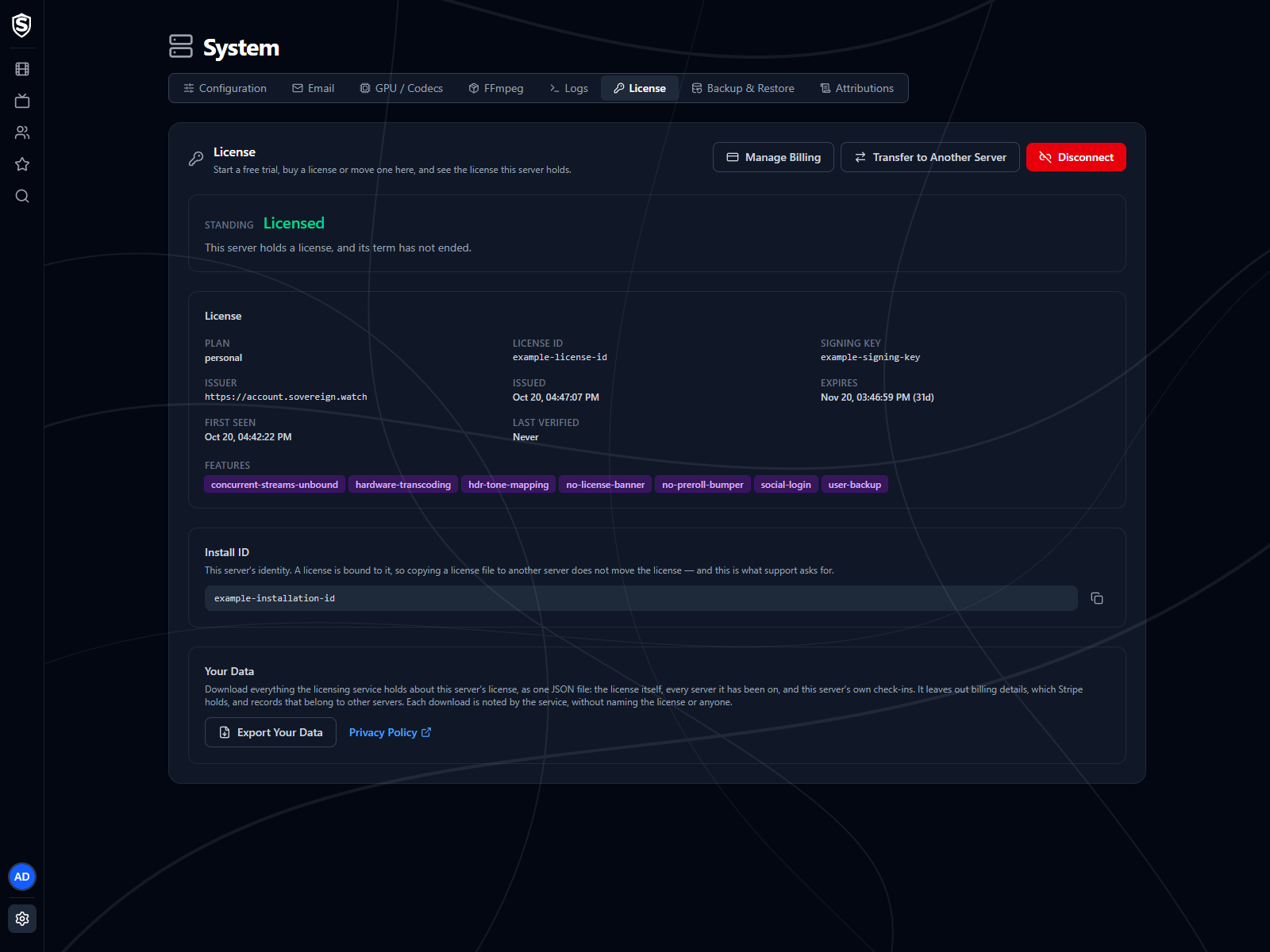
:::note
The License page sits under Admin Settings, so only administrators reach it. Everyone else sees at most the one-sentence notice described below.
:::
---
## What a License Is URL: https://sovereign.watch/docs/licensing/overview/#what-a-license-is
A license is a signed statement that one particular install may run until a particular date. Your server checks the signature itself, without contacting anyone, so a server behind a firewall or with no internet connection at all stays licensed for its whole term.
A license belongs to one install, so copying the license file to another server doesn't move it. The two are tied together by the [install ID](https://sovereign.watch/docs/licensing/overview/#the-install-id).
---
## Unlicensed Servers URL: https://sovereign.watch/docs/licensing/overview/#unlicensed-servers
A server with no license is Unlicensed from the moment it first starts, and it shows the notice straight away. There's no countdown before it and no time limit after it. Playback, transcoding, users, metadata and every client work as they would with a license. What it can't do is export or restore [user backups](https://sovereign.watch/docs/licensing/overview/#user-backups), except to restore a backup made by a licensed server.
While the server is unlicensed, the License page sums this up in one sentence. From there you can start a trial, buy a license, or leave the notice in place.
---
## Free Trials URL: https://sovereign.watch/docs/licensing/overview/#free-trials
Every server can start one free trial from its License page, with no account, no payment details and no limit on viewing. It lasts 30 days from the moment you start it, and [Getting a License](https://sovereign.watch/docs/licensing/getting-a-license/) walks through it.
A trial is one per install, ever. It's tied to the server's [install ID](https://sovereign.watch/docs/licensing/overview/#the-install-id), so disconnecting, updating Sovereign, recreating its container or restoring a backup doesn't bring another one, and a trial can't be moved to a different server.
A trial doesn't include [user backups](https://sovereign.watch/docs/licensing/overview/#user-backups). Everything else works as it does with a license, and when the trial ends the notice comes back. Restoring a backup made by a licensed server still works on a trial server, and replaces the trial with the license in the backup.
---
## User Backups URL: https://sovereign.watch/docs/licensing/overview/#user-backups
**Export Backup** and **Import Backup** on the [Backup & Restore](https://sovereign.watch/docs/interface/web/admin/backup/) page need a purchased license. A free trial doesn't include them, and neither does a server whose license has expired, has moved to another server, can't be verified, or is in use on a second server. Without that rule, a trial could be exported near its end and restored onto a fresh server, which would start another trial, over and over.
There's one exception, for rebuilding a server. A rebuilt server has no license yet, or only a free trial you started to clear the notice while you found the backup, but it can still restore a backup made by a licensed server, because that backup carries the license and restoring it brings the license back. That works when:
- the license in the backup is a purchased one and is still in its term,
- the backup hasn't been edited by hand since it was exported, and
- the server you're restoring onto holds no license of its own, or only its free trial.
A trial is replaced by the license in the backup, and you lose nothing by it: the trial was free, and the server ends up on the license you bought. A purchased license is never replaced, even an expired one.
Otherwise the import is refused before anything is written, and it says why. When export isn't available, the Backup & Restore page disables **Export Backup** and shows the reason beside it.
An expired license loses backups too, even a paid one. Fix the payment in **Manage Billing**, and backups come back when the server picks up the renewal.
---
## What the Notice Looks Like URL: https://sovereign.watch/docs/licensing/overview/#what-the-notice-looks-like
The notice is a bar across the top of the screen, and it says different things depending on who's looking. While it's showing, a ten-second video also plays at the start of each title, on the web app, the Roku channel and the Android app alike. It can be paused but not skipped, and seeking is unavailable until it ends. It plays once per viewing: resuming a title later plays it again, but seeking within a title doesn't. On the occasional stream it can't be added to, the title starts without it.
Administrators get the specifics and an instruction they can act on themselves: start a trial or buy a license, move a license back, update billing, or shut down a copy. Most of them name System > License, the License tab on the System page of the web app's admin settings, as the place to do it. Viewers get one sentence saying the server has a licensing problem and to ask an administrator, and that sentence is the same whatever the underlying reason is. Someone watching a film can't do anything about the difference between an expired license and a corrupt one, so the wording doesn't say which it is.
Some notices arrive before anything is wrong, and only administrators see them. While the server is on a free trial, a blue notice counts down the days left for the whole 30 days, and it turns amber for the last 3. A subscription gets a notice 14 days before its term ends. Only the trial ones ask you to do something.
The subscription notice is there for information. The license your server holds ends where the billing period it was issued in ends, and when the subscription renews, the server picks up a new license for the next term by itself the next time it checks in (see [Staying Connected](https://sovereign.watch/docs/licensing/overview/#staying-connected)). A server that can't reach the licensing service doesn't get it, and reads Expired once the old term ends, until it's back online and checks in again.
With [email](https://sovereign.watch/docs/configuration/email/) configured, administrators are also told when things change for the worse: a server that had a license loses it, or more than one server turns out to be using the same license. A second message follows once the problem clears. A brand-new server starting out unlicensed sends nothing, because whoever installed it already knows.
On the web app the bar isn't permanent during playback. It appears once when a title starts, fades out after about a minute and doesn't come back for the rest of that viewing, so a notice you've already read doesn't sit over the picture for two hours. When the short video plays, that's the notice for that viewing, and the bar doesn't appear over the picture at all. Only red notices appear over playback. Amber and blue ones stay in the rest of the interface. The Roku channel and the Android app never draw the bar over playback.
The wording comes from your server rather than from the app you're reading it in, so the same message reaches the web app, the Roku channel and the Android app word for word.
---
## License Messages URL: https://sovereign.watch/docs/licensing/overview/#license-messages
Every notice Sovereign can show, and what to do about each. Colour carries the urgency: red means something is wrong now, amber means a limit is close and there's something to do before it arrives, and blue is for information only.
**What an administrator sees**
| Colour | Message | What it means | What to do |
| ------ | ------------------------------------------------------------------------------------------------------ | ------------------------------------------------------------------------------------------------------------------------------------------------------------------------------------ | ------------------------------------------------------------------------------------------------------------------------------------------------------------------------------------------------------------------------------------------------------------ |
| Red | **This server is not licensed.** Start a free trial or buy a license in System > License. | No license is stored. A new server starts here, and so does one that has been disconnected. | [Start a free trial or buy a license](https://sovereign.watch/docs/licensing/getting-a-license/), or [move one here](https://sovereign.watch/docs/licensing/moving/) that you already own. |
| Red | **This server's license could not be verified.** Fix it in System > License. | A license file is stored but doesn't verify. It's corrupt, altered, or newer than this server understands. | Move your license here again. If it keeps happening, check for a server update. |
| Red | **This license was issued to a different server.** Fix it in System > License. | The stored license names a different install ID, usually after a license file was copied between servers. | [Move the license here](https://sovereign.watch/docs/licensing/moving/) properly, with a transfer code or the email you paid with. |
| Red | **Another server has taken over this license.** Move it back in System > License. | The same license was moved to a different server, which displaced this one. | Move it back if this is the server that should hold it. Each move counts against the license's 10 server changes. |
| Red | **This server's license has expired.** Buy a license or update billing in System > License. | The license is genuine and belongs to this install, but its term is over. Usually a payment failed, the subscription was cancelled, or the server couldn't check in when it renewed. | If a payment failed, fix it in **Manage Billing** and the server picks up the renewal by itself. If the subscription was cancelled, buy a license. |
| Red | **This server's trial has ended.** Buy a license in System > License. | The server's free trial is genuine and belongs to this install, but its 30 days are over. | Buy a license. A trial is one per server, so another one isn't available. |
| Red | **Another server is using this license.** Both servers still work. Shut down the one you do not need. | Two servers have been checking in with the same license and install identity for at least a day. Usually a copy of one server was restored onto a second machine. | Shut down whichever one shouldn't be running, and the notice clears itself a day or two later. If both should be running, the second needs its own license. If the copy isn't yours to shut down, see [Moving and Disconnecting](https://sovereign.watch/docs/licensing/overview/#moving-and-disconnecting). |
| Blue | **This server is on a free trial.** N days left. Buy a license in System > License. | On a free trial, more than 3 days from its end. | Nothing yet. Buy a license whenever you're ready, and the purchase replaces the trial straight away. The notice turns amber for the last 3 days. |
| Amber | **This server's trial ends in N days.** Buy a license in System > License. | On a free trial, and within 3 days of its end. | Buy a license before it ends. The purchase replaces the trial straight away. |
| Blue | **This server's license expires in N days.** It renews automatically while the subscription is active. | Within 14 days of the term ending. | Nothing. When the subscription renews, the server picks up the new term by itself within about 12 hours. If you cancelled the subscription, the notice turns red when the term ends. |
**What everyone else sees**
| Colour | Message | What it means | What to do |
| ------ | ------------------------------------------------------------------------ | --------------------------------------------------- | --------------------------------------------------------------------------------------------- |
| Red | **This server has a licensing problem.** Ask an administrator to fix it. | The server is in one of the seven red states above. | Tell whoever runs the server. Nothing on your side is restricted, and playback is unaffected. |
Viewers see the same sentence for all seven, because which one applies is a matter for whoever runs the server.
---
## Standing URL: https://sovereign.watch/docs/licensing/overview/#standing
Standing is the one-word answer to where this install stands, shown at the top of the License page.
| Standing | What it means |
| --------------- | --------------------------------------------------------------------------------------------------------------------------------------------- |
| `Licensed` | Holds a paid license, term still running. Viewers see nothing; administrators see a notice in the last 14 days of the term. |
| `Trial` | On its free trial, term still running. Administrators see the days left; viewers see nothing. |
| `Unlicensed` | No license is stored. A new server starts here, and a disconnected one comes back to it. Start a trial or buy a license to remove the notice. |
| `Expired` | A genuine license for this install, but its term has ended. Update billing if a payment failed, or buy a license. |
| `Duplicate` | A genuine license, in term, but more than one server is checking in with it. The notice clears once only one is running. |
| `Superseded` | Another install holds this license now. Move it back to bind it to this server again. |
| `Wrong Install` | The stored license names a different install. Copying a license file between servers doesn't move it; moving it does. |
| `Invalid` | A license is stored but doesn't verify. It's corrupt, altered, or minted by a newer service than this server understands. |
| `Unknown` | Standing couldn't be worked out. Licensing fails open, so nothing is restricted and nothing is shown. |
Every standing except `Licensed`, `Trial` and `Unknown` shows the red notice. A license that can't be verified counts the same as no license at all, and the reason is spelled out on the License page and in the startup log.
---
## The Install ID URL: https://sovereign.watch/docs/licensing/overview/#the-install-id
The Install ID below the license details on the License page is this server's identity, and it's what a license is bound to. It's also what support asks for.
Sovereign keeps that identity across a rebuilt database, a restored backup and a moved data directory, because losing it would leave you holding a license that names an install you no longer are. It travels inside the [user backup](https://sovereign.watch/docs/interface/web/admin/backup/) along with the license itself, so restoring a backup restores both together, as long as nobody has edited the backup by hand.
:::danger
Restoring a backup onto a server that already holds a license doesn't adopt its identity. Only a server with no license stored can take on the identity in a backup, or one holding only its free trial when the backup carries a purchased license in its term, and only when the backup's install is the older of the two. Otherwise importing somebody else's backup would transplant their install onto a working server and take that server's own license with it.
:::
---
## Staying Connected URL: https://sovereign.watch/docs/licensing/overview/#staying-connected
A license that verifies offline can't notice that something changed at the licensing service, so a licensed server asks a couple of times a day whether it still holds its license, and the answer is signed the same way the license is. The result is the Last Verified time on the License page.
The same check is how a renewal arrives. Once your subscription has renewed, the answer also carries a new license for the next term, signed the same way, and the server swaps it in for the old one. Nothing needs doing on the server, and it doesn't count as a server change. A server that can't reach the licensing service keeps the license it has, which runs to its end date, and picks up the renewal at its first check-in once it's back online.
Three things go out with that question. The first is the license file your server already holds, sent back unchanged to the service that signed it. The second is a random value your server invents when it starts up and keeps only in memory, which changes every time the server restarts and isn't derived from your hardware, your library or your users. It exists so the service can tell one server checking in twice from two servers checking in as the same install. The third is the version of Sovereign the server is running.
No viewing data is sent, and there's nothing else in the request.
The service does see the address the request comes from, as any website would. It works out the country, the region (a state or province) and whether the address belongs to a hosting provider, and it doesn't keep the address. The first check of each day then adds your server to that day's totals, counted by region, by hosting or not, by trial or paid, by whether it still holds its license, and by version. Those totals aren't a location record of your server, because no location is stored against any server. They aren't usage data either: nothing about your library, your users or what anyone watches goes into them. For the totals, the only record kept about your server itself is the last day it was counted: its install ID and a date, kept for 90 days. The random value is kept too, against your install ID along with when it was first and last seen, for 30 days after the last check that carried it, because comparing those is how two copies running at once are spotted. A server with no license, or with no internet connection, never checks in and is never counted.
Besides a renewal, three things can come back: another server has taken the license, the term has been cut short (after a refund, for example), or more than one server is checking in with this license. Any of them brings the notice back, and playback carries on as before.
That check never blocks anything. If it can't be made, because the machine is offline or the service is unreachable, the server keeps the last answer it had and carries on. Running offline is supported: a license keeps working until the end of the term it was signed with, connected or not.
```mermaid
sequenceDiagram
participant S as Sovereign server
participant L as Licensing service
loop A couple of times a day
S->>L: Do I still hold this license?
Note over S,L: Sends the license, a random
value and its version
alt Still yours
L-->>S: Signed: still licensed
else The subscription renewed
L-->>S: Signed: a license for the next term
Note over S: Swaps the new license in
else Moved, cut short, or duplicated
L-->>S: Signed: what changed
Note over S: Shows the notice.
Playback carries on
else No answer
Note over S: Keeps the last answer
and carries on
end
end
```
---
## Moving and Disconnecting URL: https://sovereign.watch/docs/licensing/overview/#moving-and-disconnecting
Each license allows 10 server changes in a rolling 30 days. Moving it to new hardware, or onto a rebuilt server with a new identity, spends one, and the limit is what stops two households quietly sharing one license by taking turns. A move past the limit is refused with the date the oldest change stops counting.
Moving a license to a second server takes it away from the first rather than sharing it, and the first server keeps serving everything it already had, with the notice showing, until it holds a license again. [Moving a License](https://sovereign.watch/docs/licensing/moving/) covers both ways of doing it, and [disconnecting](https://sovereign.watch/docs/licensing/moving/#disconnecting), which deletes the license stored on a server without cancelling anything.
Restoring a backup onto a second machine is different, and it catches people out. A restore never moves a license, so you end up with two servers that have the same identity and both hold the license. It's the usual way an accidental duplicate happens: a copy of production goes onto a staging box, the staging box gets left running, and nobody notices for months.
Once both have been checking in for a day, both read Duplicate and show the notice on every client, the original included. The notice can't say which copy is the original, because the two are identical. Playback isn't affected on either, but neither can use user backups while the notice shows. If the second machine is meant to be there, it needs its own license. If it isn't, shut it down and the notice clears itself a day or two after only one copy is still running.
A copy you can't shut down, such as one made from a leaked backup, is handled from your own server instead. Disconnect it, stop it, and delete its identity: the `installation.json` file in the data directory and the installation record in the `ServerInstallations` table of `sovereign.db`. Delete both, because each restores the other. Then start the server and use **Move a License Here** with the email you paid with. It comes up with a new install ID and the license moves to it, so the copy reads Superseded and keeps showing the notice while yours is clean. Your library, accounts and watch history aren't touched, but the move spends one of that license's 10 server changes.
---
## Next Steps URL: https://sovereign.watch/docs/licensing/overview/#next-steps
- [Getting a License](https://sovereign.watch/docs/licensing/getting-a-license/) covers the free trial, buying a license and managing billing.
- [Moving a License](https://sovereign.watch/docs/licensing/moving/) covers transfer codes, recovering a license by email, and disconnecting.
========================================================================
# Pricing (source: docs/licensing/pricing) URL: https://sovereign.watch/docs/licensing/pricing/
========================================================================
# Pricing
Each license covers one server, and you buy it from that server's **System > License** page, as described in [Getting a License](https://sovereign.watch/docs/licensing/getting-a-license/). These are the plans on sale right now:
---
## Before You Buy URL: https://sovereign.watch/docs/licensing/pricing/#before-you-buy
Every server can start a 30-day [free trial](https://sovereign.watch/docs/licensing/getting-a-license/#starting-a-free-trial) first, with no card and no email address. Buying during a trial replaces it.
Our payment processor takes payment at checkout and again at each renewal until you cancel. Any sales tax or VAT due where you live is added at checkout, so the total you pay can be higher than the price above. You get a receipt by email each time.
Cancelling stops the next renewal and takes nothing away: the license runs to the end of the term you've paid for. You can also get a full refund within 30 days of a payment, once per server, from the License page. [Managing Billing](https://sovereign.watch/docs/licensing/getting-a-license/#managing-billing) covers cancelling, refunds and changing your card, and the [Terms of Use](https://sovereign.watch/docs/terms-of-use/#cancelling-refunds-and-chargebacks) give the details.
========================================================================
# Getting a License (source: docs/licensing/getting-a-license) URL: https://sovereign.watch/docs/licensing/getting-a-license/
========================================================================
# Getting a License
Everything about licensing a server happens on the server itself, in **System > License**: a free trial, a purchase, and managing the subscription afterwards. There's no account to create and nothing to sign in to.
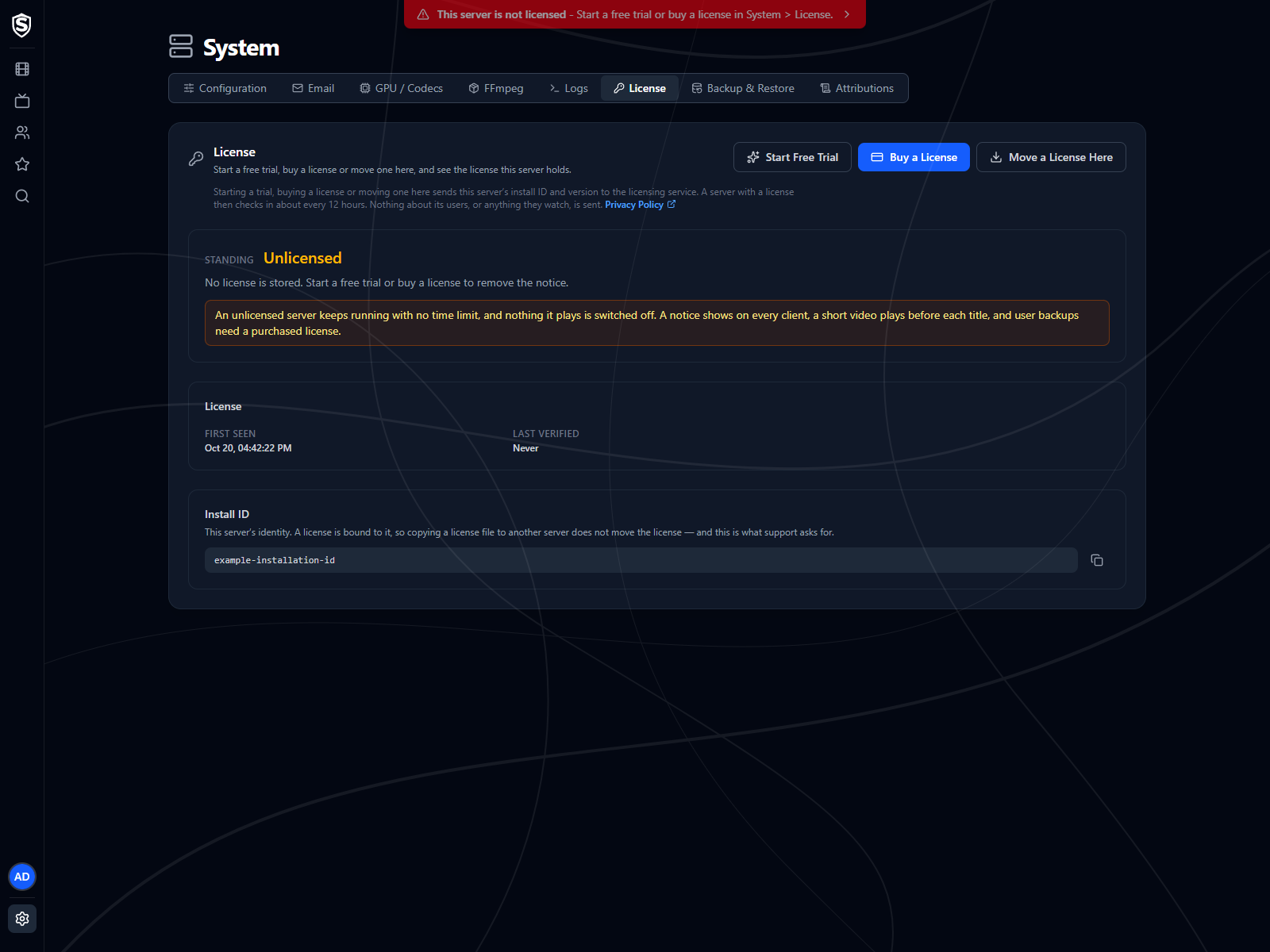
:::note
The License page sits under Admin Settings, so only administrators reach it. The buttons it offers change with the server's [standing](https://sovereign.watch/docs/licensing/overview/#standing), so a server that's already licensed shows a different set from the one above.
:::
---
## Before You Start URL: https://sovereign.watch/docs/licensing/getting-a-license/#before-you-start
You need administrator access to the server, and the server needs to reach the internet while you do this. Once it holds a license it doesn't need to be online again: the license verifies on your own hardware for its whole term.
A server with no license reads **Unlicensed** and shows the notice. It offers three buttons: **Start Free Trial**, **Buy a License** and **Move a License Here**. The last one is for a license you already own; [Moving a License](https://sovereign.watch/docs/licensing/moving/) covers it.
---
## Starting a Free Trial URL: https://sovereign.watch/docs/licensing/getting-a-license/#starting-a-free-trial
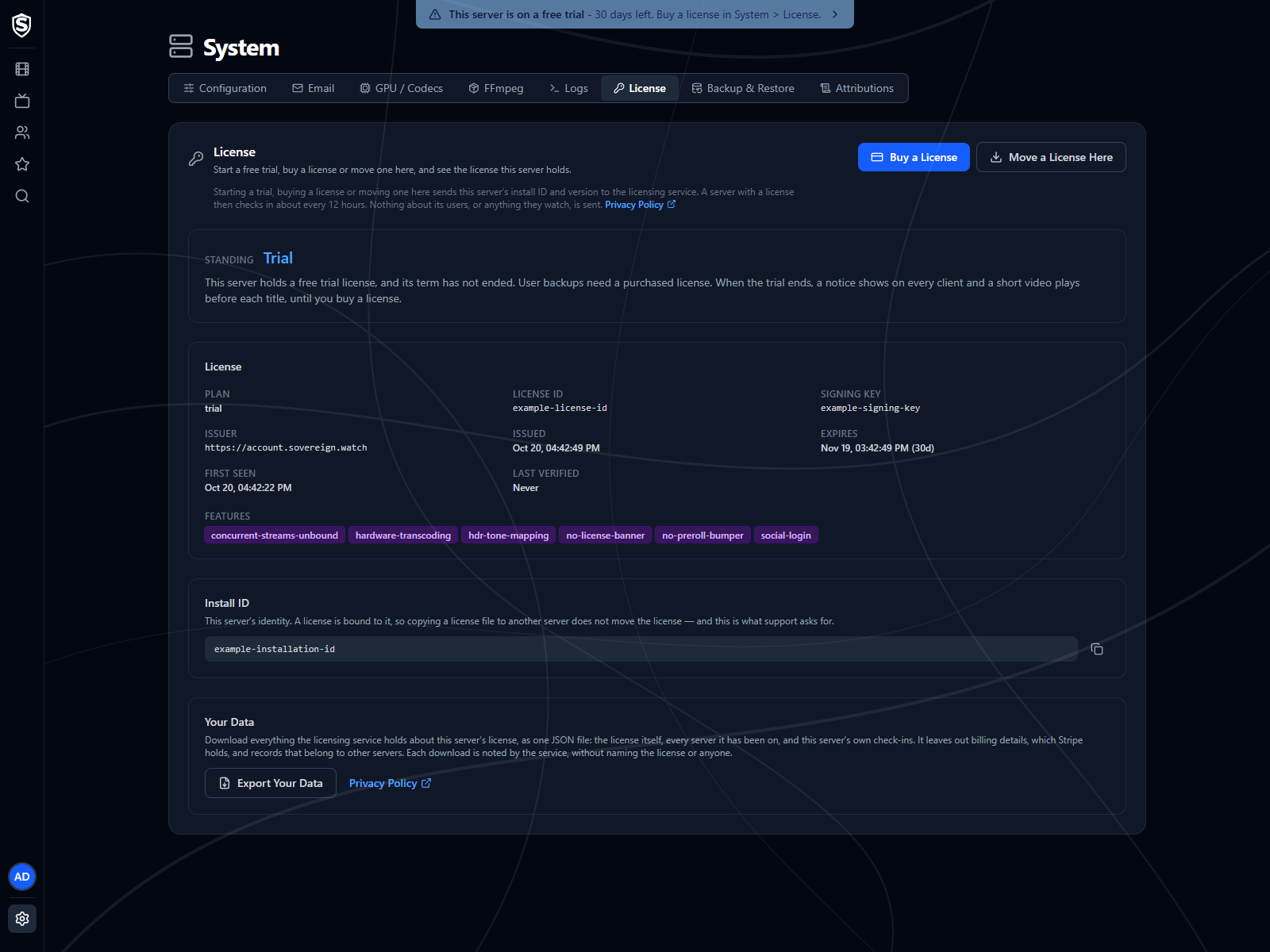
Choose **Start Free Trial** and the server is licensed straight away. Standing reads **Trial**, the notice disappears from every client, and the page shows when the trial ends.
A trial lasts 30 days, needs no card and no email address, and puts no limit on what's watched. Each install gets one, ever. Starting a trial on an install that has already had one is refused with a message saying so, and disconnecting, updating Sovereign or recreating its container doesn't change the answer, because the trial is tied to the server's [install ID](https://sovereign.watch/docs/licensing/overview/#the-install-id).
A trial belongs to the server it was started on. It can't be transferred, and it never renews. While it runs, the page offers **Buy a License** and **Move a License Here**, either of which replaces the trial with a paid license. For the whole trial, administrators see a blue notice with the days left, which turns amber for the last three days, and when it ends the notice comes back and nothing else changes.
:::tip
A trial isn't a step you have to take first. **Buy a License** works on a server that's never had one, and buying during a trial replaces it.
:::
---
## Buying a License URL: https://sovereign.watch/docs/licensing/getting-a-license/#buying-a-license
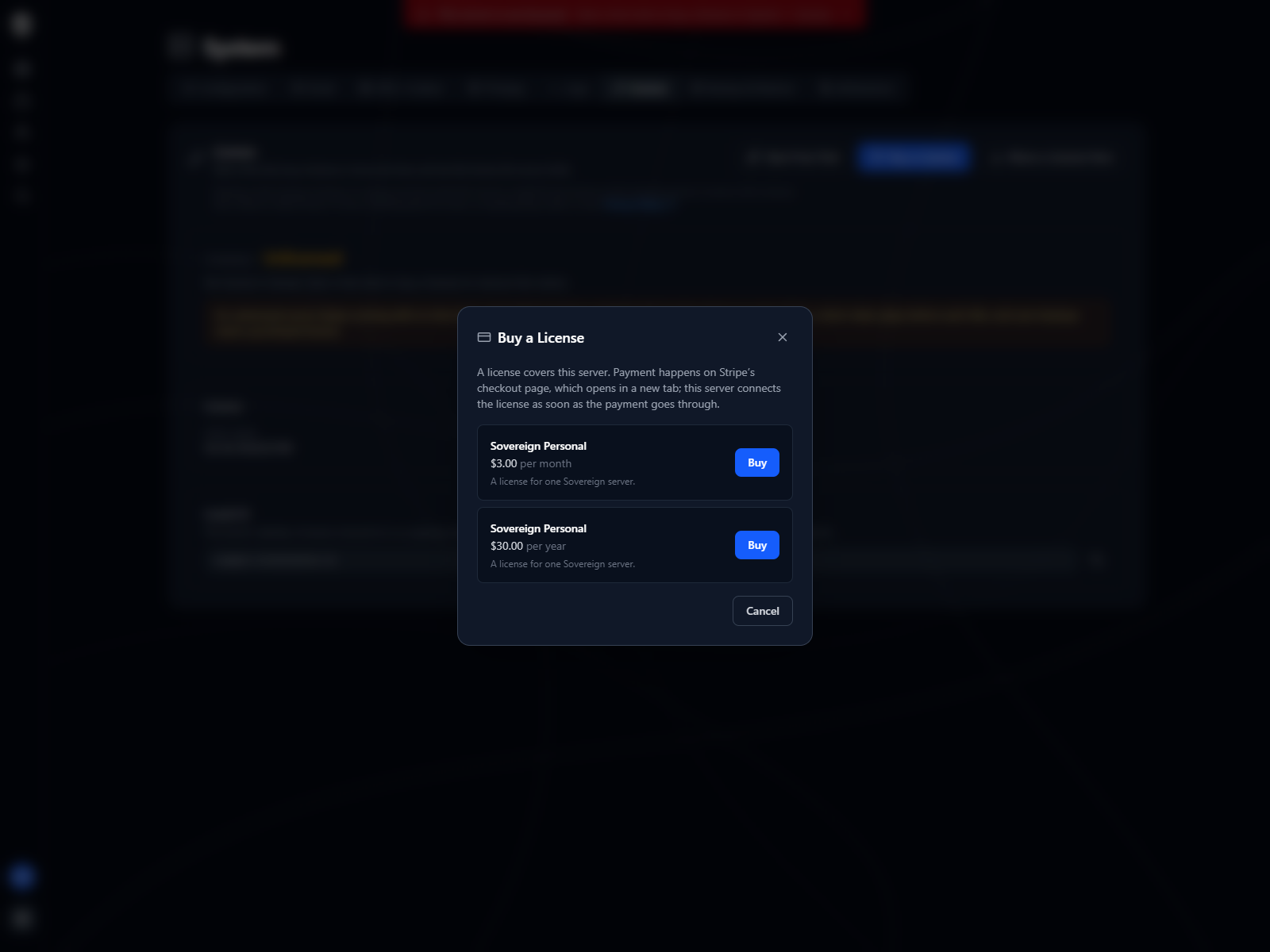
Choose **Buy a License** and the dialog lists what's for sale, with the price and billing period of each: the same plans as [Pricing](https://sovereign.watch/docs/licensing/pricing/). A license covers one server: the one you're buying it from. A second server needs a second license.
Choosing a plan opens our payment processor's checkout page in a new tab. That's where you pay, and where you give the email address the receipt goes to. Sovereign never sees your card details, and the page is hosted by the payment processor, so it works even when you reach your server over plain HTTP on your home network.
Leave the dialog open while you pay. It notices the payment going through and connects the license to this server by itself, usually within a few seconds of you finishing in the other tab. If your browser blocks the new tab, the dialog says so and gives you a link to open it instead.
Your server never has to be reachable from outside. It asks the licensing service every few seconds whether the payment has gone through.
```mermaid
sequenceDiagram
actor Y as You
participant D as License dialog
participant S as Sovereign server
participant L as Licensing service
participant P as Payment processor
Y->>D: Buy a License, choose a plan
D->>S: Start a purchase
S->>L: Open a checkout
L-->>S: Checkout address
S-->>D: Checkout address
D->>P: Open checkout in a new tab
par You pay
Y->>P: Pay, and give the receipt email
P-->>L: Payment confirmed
and The dialog waits
loop Every few seconds
D->>S: Licensed yet?
S->>L: Paid yet?
end
end
L-->>S: The signed license
S-->>D: This server is licensed
```
:::caution
Keep the email address you paid with. It's how you get the license back onto a server if this one is ever lost, and it's the only thing that can do that without the old server's help. See [Moving a License](https://sovereign.watch/docs/licensing/moving/).
:::
---
## After You Pay URL: https://sovereign.watch/docs/licensing/getting-a-license/#after-you-pay
Once the payment goes through, the checkout sends that tab here. Go back to your server's License page: the dialog connects the license by itself, usually within a few seconds, and you can close this tab. The payment processor emails the receipt to the address you gave.
If you closed the dialog before it said the server is licensed, the license is still yours. **Move a License Here** with the email you paid with puts it on this server.
---
## If You Cancel URL: https://sovereign.watch/docs/licensing/getting-a-license/#if-you-cancel
Going back from the checkout page brings you here, and nothing is charged. Closing the tab without paying does the same. The checkout stays open for an hour, after which the dialog says it has closed and you can start a new one.
---
## The License Page Afterwards URL: https://sovereign.watch/docs/licensing/getting-a-license/#the-license-page-afterwards
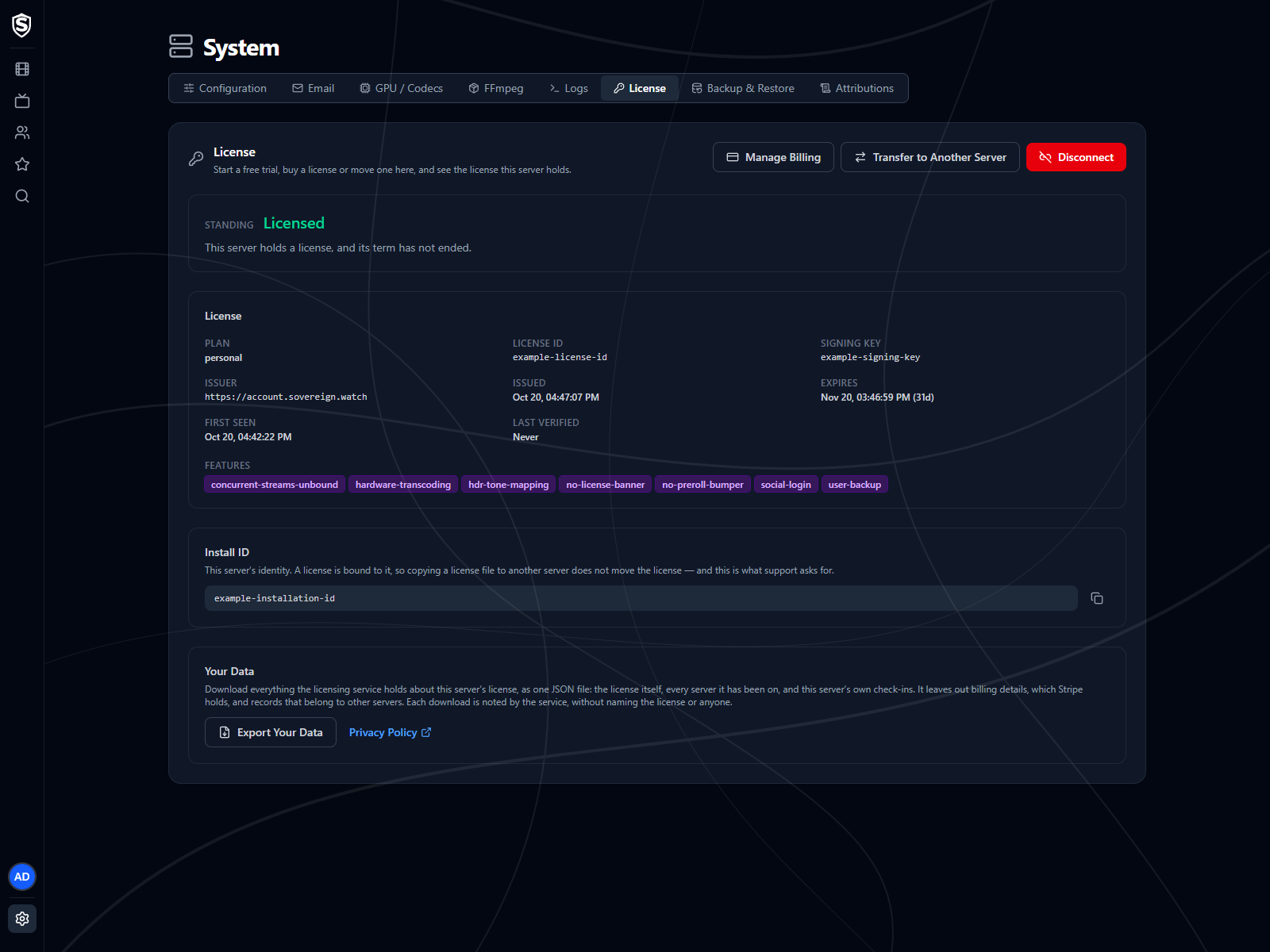
Standing reads **Licensed**, and the page fills in with the plan, the license ID, when the license was issued and when its term ends. The notice is gone from every client.
The buttons change to **Manage Billing**, **Transfer to Another Server** and **Disconnect**, and a **Your Data** section appears at the bottom of the page with **Export Your Data**. [What We Hold About a License](https://sovereign.watch/docs/licensing/your-data/) covers the export, and [Moving a License](https://sovereign.watch/docs/licensing/moving/) the last two buttons.
---
## Managing Billing URL: https://sovereign.watch/docs/licensing/getting-a-license/#managing-billing
**Manage Billing** opens the billing portal for the subscription behind this server's license, in a new tab. That's where you update a card, download invoices, or cancel. Sovereign doesn't hold any of that, so the portal is the only place to change it. The portal's link back brings you to this section, and you can close the tab: whatever you changed reaches the server by itself at its next check-in, within about 12 hours.
Cancelling stops the next renewal and takes nothing away mid-term. The license runs to the date it already carries, and once that passes the server reads **Expired** and the notice comes back. The server carries on working, as it always does.
**Request Refund** gives your money back for a payment made in the last 30 days, a first purchase or a renewal. It's on the License page while a refund is available, and it says until when. A refund ends the license straight away and cancels the subscription, and each server can be refunded this way only once. Sovereign asks you to confirm both before anything happens. The [Terms of Use](https://sovereign.watch/docs/terms-of-use/#cancelling-refunds-and-chargebacks) cover refunds in full.
If a payment fails, the term still runs out on its date, and the server shows a red notice once it has. Fix the card in **Manage Billing**: once the payment goes through, the server picks up the renewed license by itself at its next check-in, within about 12 hours, with nothing else to do.
:::note
With no server left to open it from, the portal is still reachable from [its sign-in page](https://billing.stripe.com/p/login/6oU28qdpPbe437qbaIdjO00), which sends a sign-in link to the email you paid with.
:::
---
## If It's Refused URL: https://sovereign.watch/docs/licensing/getting-a-license/#if-its-refused
The dialog shows the reason in the licensing service's own words. The common ones:
- **This server has already had its free trial** - each server gets one. Buy a license instead.
- **This server is still registered to an active license** - a paid license, still in its term, is already on this server. Disconnect it first if you mean to replace it, or move it to another server. Buying is refused before you're sent to pay, so you aren't charged for a license this server can't take.
- **Your payment went through, but the license could not be connected** - something changed on this server between choosing a plan and paying, usually another license arriving. The license is yours and paid for: move it to this server or another with **Move a License Here** and the email you paid with.
- **Purchasing is not available right now** - the licensing service couldn't reach the payment processor. Try again in a few minutes.
---
## Renewals URL: https://sovereign.watch/docs/licensing/getting-a-license/#renewals
Nothing needs doing when a subscription renews. The server picks up a license for the new term the next time it checks in, which it does a couple of times a day, and the License page shows the new end date. Administrators see a blue notice for the last 14 days of a term, which is information only.
A server that's offline when the renewal happens keeps running to its old end date, then reads **Expired**. Once it's back online it picks up the new term at its next check-in. [Licensing](https://sovereign.watch/docs/licensing/overview/#staying-connected) describes that check and what it sends.
========================================================================
# Moving a License (source: docs/licensing/moving) URL: https://sovereign.watch/docs/licensing/moving/
========================================================================
# Moving a License
A license belongs to one server at a time, and moving it happens on the servers involved, in **System > License**. With the old server still running, a transfer code does it. With the old server gone, the email address you paid with does.
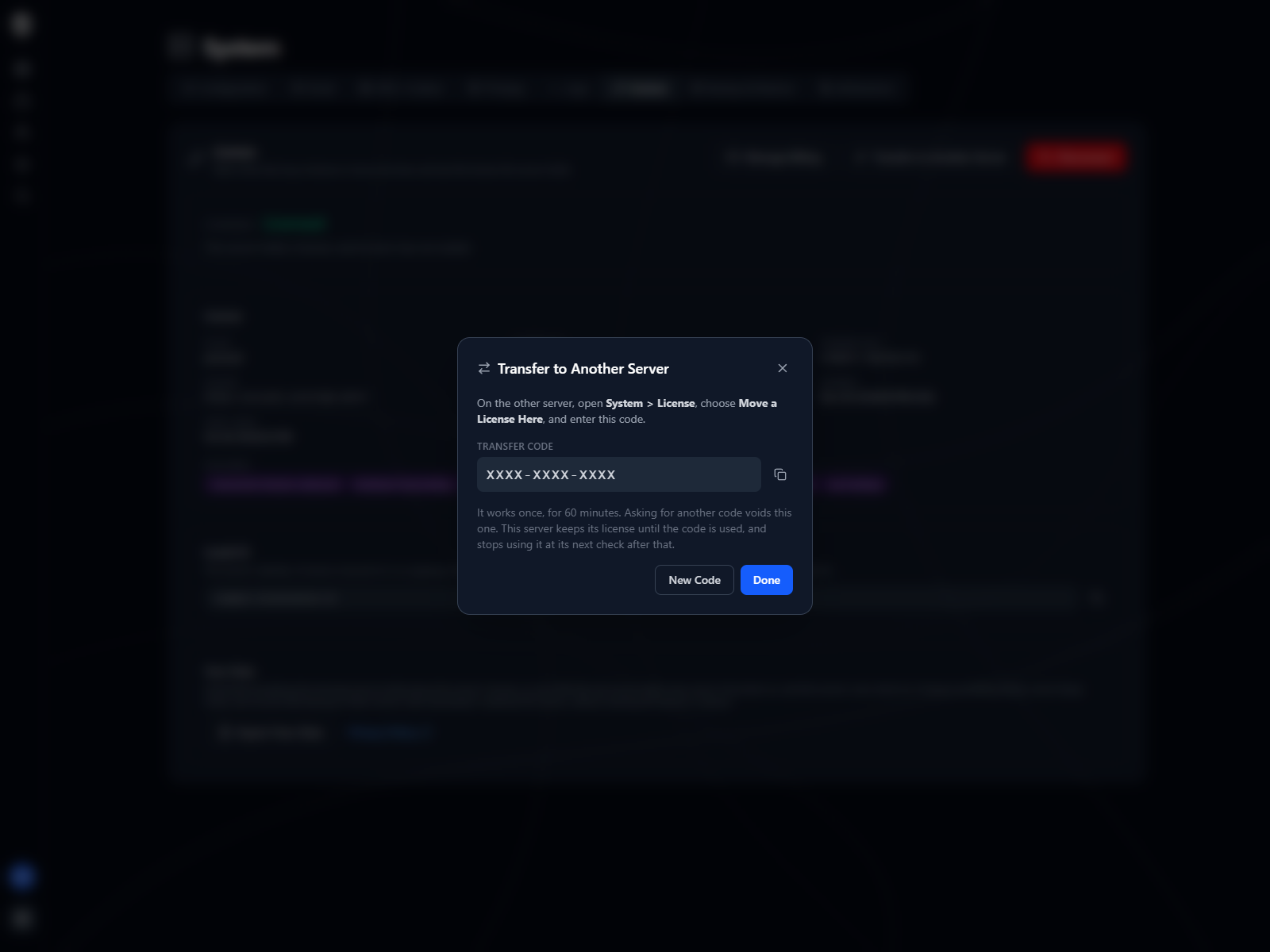
:::note
A free trial can't be moved. It belongs to the server it was started on, and a new server gets a trial of its own. A server that's on its trial can still take a paid license, though: moving one here replaces the trial.
:::
---
## From a Server That's Still Running URL: https://sovereign.watch/docs/licensing/moving/#from-a-server-thats-still-running
On the server that holds the license, choose **Transfer to Another Server**. It shows a code made of twelve letters and digits in three groups. Nothing moves yet, and the server stays licensed while the code is waiting.
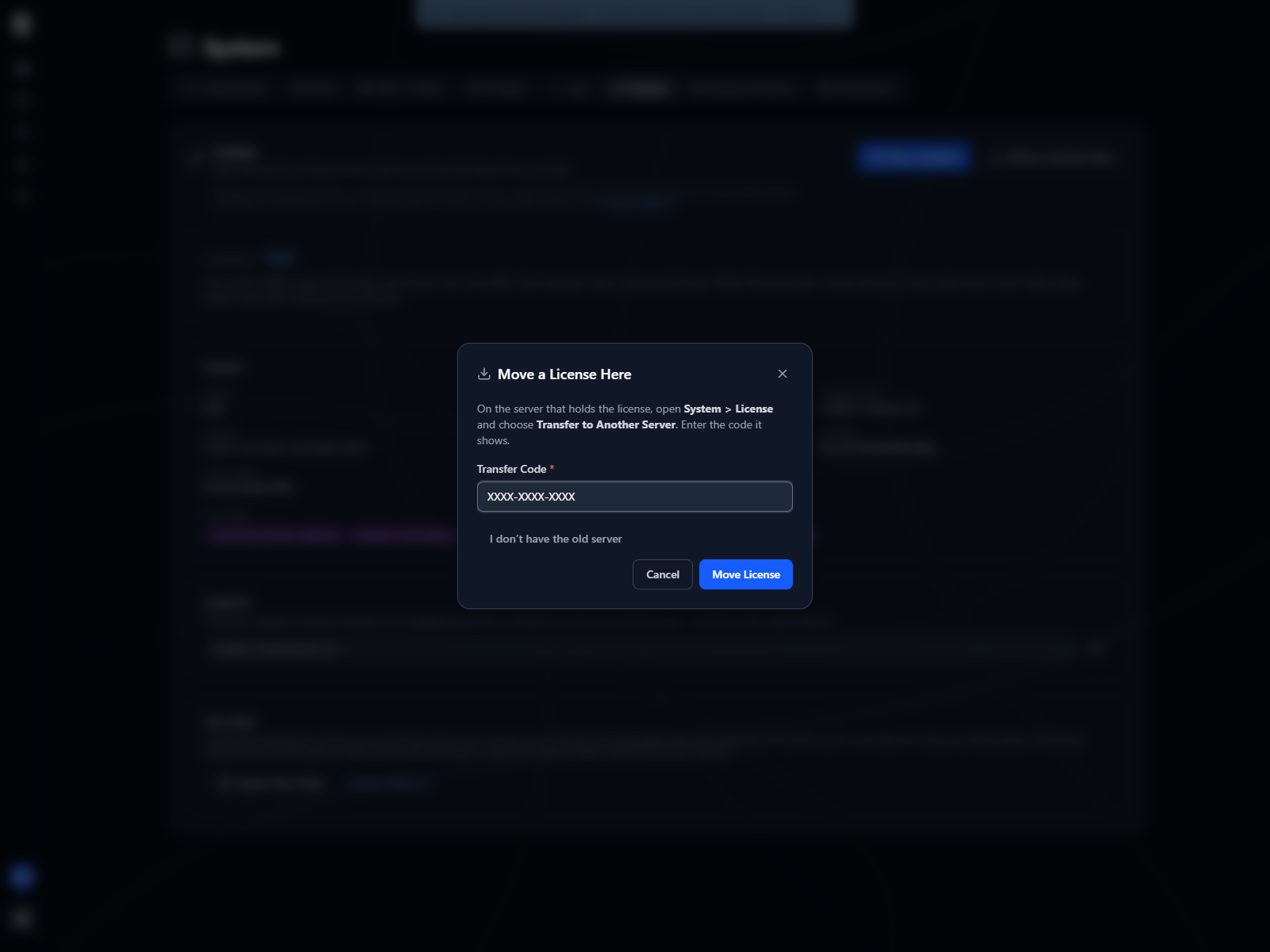
On the new server, choose **Move a License Here** and enter the code. The license connects to the new server straight away. The old server finds out at its next check-in, within about 12 hours, reads **Superseded** and shows the notice. Disconnect it if you're keeping it around.
The code works once and lasts an hour. Asking for another one replaces it, so only the newest code you've been shown will work. It isn't case-sensitive, and the dashes are optional.
```mermaid
sequenceDiagram
actor Y as You
participant O as Old server
participant L as Licensing service
participant N as New server
Y->>O: Transfer to Another Server
O->>L: Ask for a transfer code
L-->>O: A code, good for an hour
Note over O: Stays licensed while
the code waits
Y->>N: Move a License Here, with the code
N->>L: Redeem the code
L-->>N: The license, now this server's
Note over O,L: Within about 12 hours
O->>L: Regular check-in
L-->>O: Superseded
```
---
## From a Server That's Gone URL: https://sovereign.watch/docs/licensing/moving/#from-a-server-thats-gone
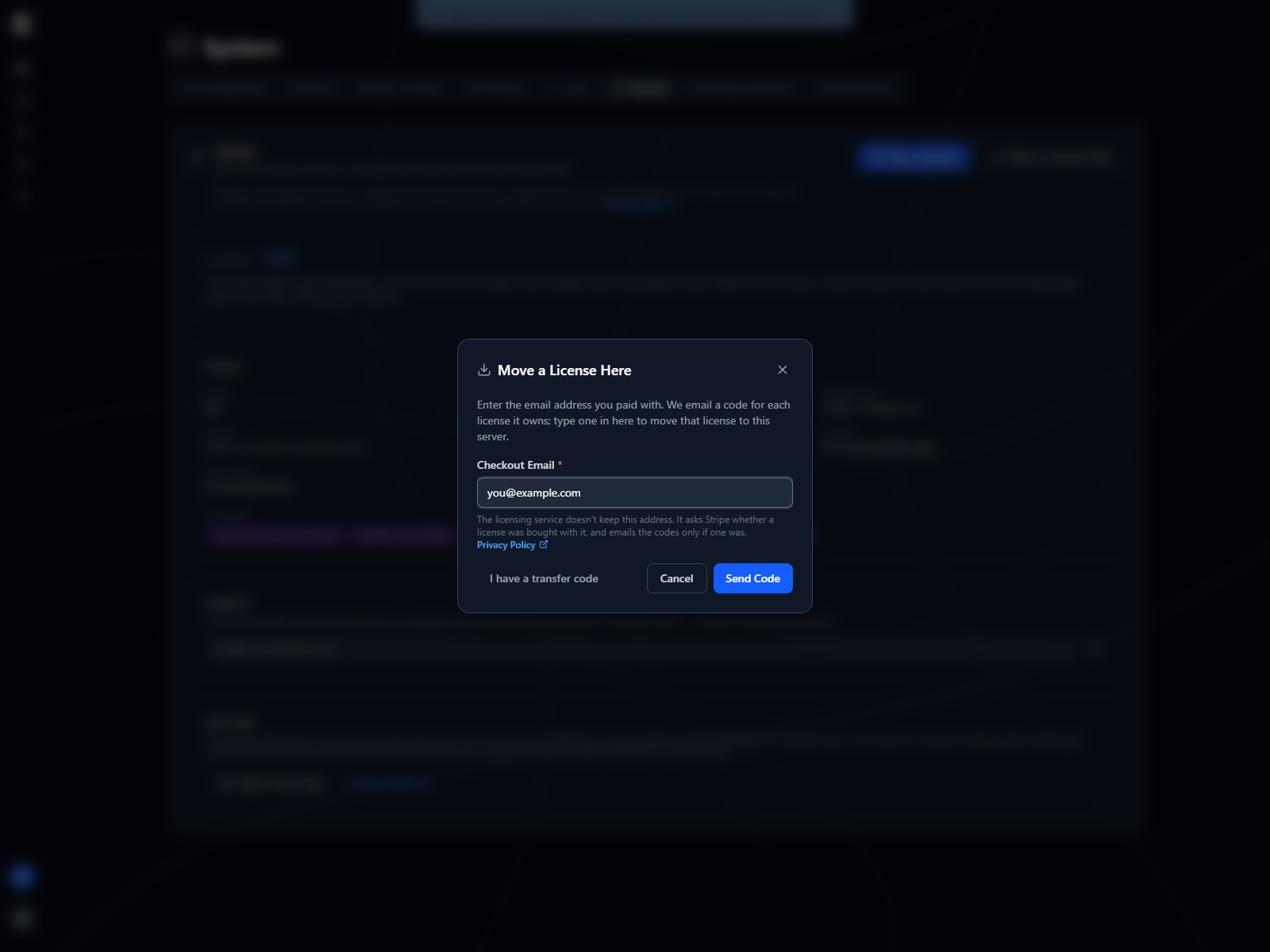
On the new server, choose **Move a License Here**, then **I don't have the old server**. Enter the address you paid with, the one your receipt was sent to. The licensing service emails a code for each license that address has paid for, labelled with its plan and license ID, and you type the right one into the dialog.
The page says the same thing whether or not the address matched anything, so nobody can use it to find out whose email has bought a license. If no email arrives within a few minutes, check the address against your receipt and type it exactly as it appears there, capitals included, then check your spam folder.
The codes last 15 minutes. Five wrong entries close the request, and you'd ask for a new email. At most three emails go to one customer in an hour, however often it's asked for.
```mermaid
sequenceDiagram
actor Y as You
participant N as New server
participant L as Licensing service
participant M as Email inbox
Y->>N: I don't have the old server, and the email you paid with
N->>L: Ask for recovery codes
L-->>N: The same answer, matched or not
L->>M: A code for each license
that address paid for
M-->>Y: Read the code
Y->>N: Type the code
N->>L: Redeem the code
L-->>N: The license, now this server's
```
The code only ever travels from your mailbox to you, and from you into your own server. Nothing in the email talks to a server.
:::danger
A recovery code is typed into your own server's License page and nowhere else. Sovereign never asks anyone to read one out, and that includes anyone claiming to be Sovereign support. The email has no links to click.
:::
The same steps work when the old server is still running but you can't reach its admin settings, and when you closed the purchase dialog before it had connected the license.
---
## Disconnecting URL: https://sovereign.watch/docs/licensing/moving/#disconnecting
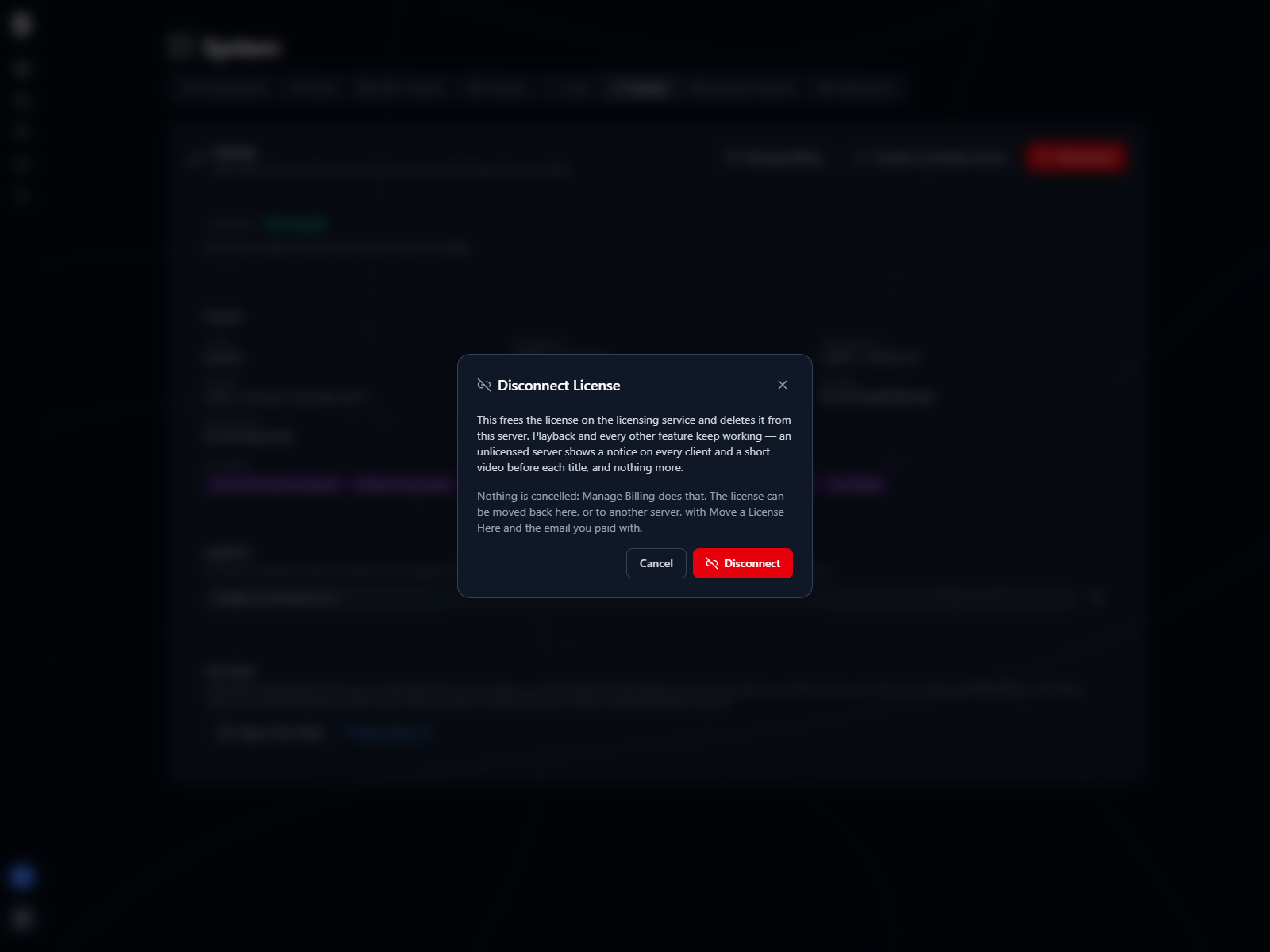
**Disconnect** deletes the license stored on this server and tells the licensing service the server no longer holds it, which leaves the license free to move somewhere else. Nothing is cancelled: the subscription carries on, and **Manage Billing** is where you'd stop it.
Between disconnecting and connecting a license again, the server reads **Unlicensed** and the notice comes back. Playback and everything else keep working.
Disconnecting when the server can't reach the licensing service still deletes the local copy, but the licensing service goes on counting this server as the license's holder. The license can still be moved to another server afterwards with the email you paid with. Until it is, this server can't buy a license or take a different one.
A trial that's still running can't be disconnected, and the License page doesn't offer the button while it is. It's this server's only trial: once released it couldn't be started again, and with no payment behind it there's no email to bring it back with. You don't need to clear it first, either, because buying a license or moving one here replaces the trial. Once a trial has ended, **Disconnect** comes back.
---
## Server Changes URL: https://sovereign.watch/docs/licensing/moving/#server-changes
Each license allows 10 moves in any rolling 30 days. A transfer, a recovery, and reconnecting a rebuilt server that came up with a new identity each spend one, and the limit is what stops one license being passed back and forth between households. A move past the limit is refused with the date the oldest one stops counting, and you'd try again then.
A server rebuilt from its own [user backup](https://sovereign.watch/docs/licensing/overview/#user-backups) doesn't spend one. The backup carries the server's identity along with its license, so the restored server is the same server as far as the licensing service can tell, and nothing moves.
Moves aren't the only thing that can put a license on two machines. Restoring a backup onto a second server copies the license with it, and [Licensing](https://sovereign.watch/docs/licensing/overview/#moving-and-disconnecting) explains what happens then and how to clear it.
---
## When Nothing Else Works URL: https://sovereign.watch/docs/licensing/moving/#when-nothing-else-works
If the old server is gone and you no longer have the email you paid with, [contact us](https://sovereign.watch/docs/privacy-policy/#contact) from wherever you can. Support can check who you are against the purchase and give you a transfer code to enter in **Move a License Here**, as if the old server had shown it to you.
The same goes for a server stuck behind a license that isn't yours, such as one restored from somebody else's backup, where the refusal says another license holds it.
---
## Billing Without a Server URL: https://sovereign.watch/docs/licensing/moving/#billing-without-a-server
The subscription is held by our payment processor, so it carries on whatever happens to your servers. **Manage Billing** on whichever server holds the license opens it. With no server holding it, sign in to the billing portal from [its sign-in page](https://billing.stripe.com/p/login/6oU28qdpPbe437qbaIdjO00) with the email you paid with, to update a card, download invoices or cancel.
========================================================================
# Your License Data (source: docs/licensing/your-data) URL: https://sovereign.watch/docs/licensing/your-data/
========================================================================
# What We Hold About a License
**Export Your Data** on a server's License page downloads everything the licensing service holds about the license that server holds, as a single JSON file. It holds the records we keep about that license, and the rest of this page lists what's left out and why.
:::note
The License page sits under Admin Settings, so only administrators reach it. The server needs to reach the internet while it downloads.
:::
---
## Downloading It URL: https://sovereign.watch/docs/licensing/your-data/#downloading-it
**Export Your Data** sits in the **Your Data** section at the bottom of **System > License**, with a link to this site's privacy policy beside it, whenever the server holds its license: a paid license, a trial, or one whose term has ended. A server the license has moved away from no longer holds it, so it can't download it. Download it from the server the license is on now.
The file is called `sovereign-license-data-.json`. Each download is recorded as having happened, in a record that names no license, server or person.
You don't need to have paid for the license, or to know the email address it was bought with. Whoever runs the server holding a license can already manage it, and reading what's held about it is no different.
---
## What's in the File URL: https://sovereign.watch/docs/licensing/your-data/#whats-in-the-file
The file has three parts: `exportedAt`, when it was made; `tables`, the records themselves, exactly as they're stored; and `notes`, the list of what's left out, with a link back to this page.
| Section | What it holds | How long it's kept |
| --- | --- | --- |
| `license` | The license: its ID, plan, what it includes, its term, and the payment processor's customer and subscription it belongs to, if it was bought | Until two years after it ends |
| `install_bind` | Every server the license has been on, by install ID, with when, the Sovereign version each one ran, and the country each request came from | With the license; the country for 90 days |
| `license_event` | Moves the license refused, and any change our staff made to it, with who and why | With the license |
| `purchase` | The checkout that bought the license | About a day after payment |
| `install_session` | The random values this server's runs generated, with when each was first and last seen | 30 days after it was last seen |
| `install_checkin` | The last day this server was counted | 90 days |
A trial has no customer, and a new purchase's record may already have gone, so some sections can be empty.
---
## What Isn't in It URL: https://sovereign.watch/docs/licensing/your-data/#what-isnt-in-it
The download covers one license, which isn't always the same as one customer. A customer can own several licenses on several servers, and whoever runs one of those servers shouldn't see the others. So it leaves out:
- **The customer record and recovery-email counts** - these belong to whoever pays for the license, who may hold other licenses. The license itself includes the customer's ID at the payment processor.
- **Recovery emails** - the emails sent when someone uses **Move a License Here**. Each record says whether the address that was typed belonged to a customer and how many licenses it had. That's about whoever owns the address, not about this license, and including it would let anyone with a server find out whether an address belongs to a customer by typing it in. They're kept for 90 days.
- **Requests to move a license by email** - for the same reason. They last 15 minutes.
- **Other servers' records** - every server the license has been on is listed, but only this server's own runs and check-in are included.
- **The payment processor's records** - invoices, the card on file, and the email address and name the license was bought with are held by our payment processor, not by us. **Manage Billing** opens them.
- **The trial marker** - when a trial's records are deleted, a form of its install ID that can't be turned back into it is kept, so the server can't start a second trial. It names nothing.
- **The refund marker** - when a server is refunded from its License page, the same kind of form of its install ID is kept for good, so it can't be refunded that way again. It names nothing.
- **The record of requests like this one** - it names no license, server or person.
- **Diagnostic messages** - the service keeps no log of the requests it receives. Its own diagnostic messages can name a license, and Cloudflare keeps them for up to 7 days.
---
## Everything About You URL: https://sovereign.watch/docs/licensing/your-data/#everything-about-you
A full copy of everything we hold about you as a customer, across all your licenses, or erasing it, is a request to **privacy@sovereign.watch**. [Your Rights](https://sovereign.watch/docs/privacy-policy/#your-rights) in the privacy policy says how to make one and what we need from you. The same goes for recovery emails sent to your address.
========================================================================
# Overview (source: docs/troubleshooting/overview) URL: https://sovereign.watch/docs/troubleshooting/overview/
========================================================================
# Troubleshooting
When an app shows an error, the code under the message is the quickest way in. [Error Codes](https://sovereign.watch/docs/troubleshooting/error-codes/) lists every code with its likely cause and what to do.
---
## Where Else to Look URL: https://sovereign.watch/docs/troubleshooting/overview/#where-else-to-look
Several pages end with a troubleshooting table for their own area:
- [Remote Access](https://sovereign.watch/docs/configuration/remote-access/#troubleshooting) covers proxies, private networks and the television clients' headers.
- [NFS Media Storage](https://sovereign.watch/docs/configuration/nfs-media-storage/#troubleshooting) covers a media share that stops answering.
- [Hardware Acceleration](https://sovereign.watch/docs/hardware-acceleration/overview/#troubleshooting) covers a GPU that isn't being used.
- [Getting a License](https://sovereign.watch/docs/licensing/getting-a-license/#if-its-refused) covers a trial or purchase that doesn't go through.
When a title transcodes and you expected it not to, [Playback Reasons](https://sovereign.watch/docs/configuration/transcoding/#playback-reasons) explains why.
An admin can see what went wrong on each device on the [Client Errors](https://sovereign.watch/docs/interface/web/admin/client-errors/) page, and what the server did on the [Logs](https://sovereign.watch/docs/interface/web/admin/logs/) and [Activity Logs](https://sovereign.watch/docs/interface/web/admin/activity-logs/) pages.
========================================================================
# Error Codes (source: docs/troubleshooting/error-codes) URL: https://sovereign.watch/docs/troubleshooting/error-codes/
========================================================================
# Error Codes
When something goes wrong, every Sovereign app shows a short sentence and a code beneath it, such as `Error PLAY-201`. This page lists every code, what usually causes it and what you can do about it.
---
## Reading a Code URL: https://sovereign.watch/docs/troubleshooting/error-codes/#reading-a-code
A code has two parts. The letters say which area failed: reaching the server, signing in, playing a stream, loading a screen, saving one of your own settings, licensing, or an admin page. The number says who spotted the problem. Codes in the 100s come from your Sovereign server, which knows exactly what went wrong. Codes in the 200s come from the app itself, describing what it saw, such as a request that got no answer or a video the device couldn't decode.
The same failure has the same code in the web app, on Roku, Android TV, Fire TV, Apple TV, and on phones and tablets. An admin can match a code a viewer reads out to the reports on the [Client Errors](https://sovereign.watch/docs/interface/web/admin/client-errors/) page, which list the same codes.
---
## Reaching the Server URL: https://sovereign.watch/docs/troubleshooting/error-codes/#reaching-the-server
| Code | Message | Likely Cause | What to Do |
|---|---|---|---|
| `CONN-201` | Could not reach the server. Check that it is still running and on the same network. | Nothing answered at the server's address. The server is down, the address is wrong, or the device is on a different network. | Check that the server is running and that the device can reach it. Away from home, see [Remote Access](https://sovereign.watch/docs/configuration/remote-access/). |
| `CONN-202` | The server timed out. | The server accepted the connection but didn't answer in time. | Try again. If it keeps happening, check how busy the server is and whether its media storage is responding. |
| `CONN-203` | The security certificate for the server could not be verified. | The server's HTTPS certificate is expired, self-signed, or issued for a different name than the address you entered. | Renew or fix the certificate, or connect using the exact name the certificate is for. |
| `CONN-204` | That server refused the connection. | Something in front of Sovereign, such as a reverse proxy or an identity-aware proxy, turned the request away. | Check the proxy's access rules and, on a television, the [headers it expects](https://sovereign.watch/docs/configuration/remote-access/#credentials-for-the-television-clients). |
| `CONN-205` | The server answered with an error. Give it a moment and try again. | Usually a proxy whose Sovereign server is down or still starting. | Wait for the server to finish starting, then check its log. |
| `CONN-206` | Something answered at that address, but it is not a Sovereign server. | The address points at a different service or web page. | Check the address and port. |
| `CONN-207` | That Sovereign server could not be set up on this device. Give it a moment and try again. | A Sovereign server answered but couldn't describe itself to the app, often because the server is much older than the app. | Update the server, and check its log if it still happens. |
| `CONN-208` | The server is busy. Try again in a moment. | The server asked the app to slow down. | Wait a moment and try again. |
---
## Signing In URL: https://sovereign.watch/docs/troubleshooting/error-codes/#signing-in
| Code | Message | Likely Cause | What to Do |
|---|---|---|---|
| `AUTH-101` | Incorrect username or password. | The username or password is wrong, or the account is locked after too many attempts. | Check what you typed. An admin can unlock the account on the [Users](https://sovereign.watch/docs/interface/web/admin/users/) page. |
| `AUTH-103` | Your account is not allowed to do that. | The account's role doesn't permit what was asked. | Ask an admin. |
| `AUTH-201` | Your session expired. Sign in again to continue. | The session ran out or was signed out from another device. | Sign in again. [Session Length](https://sovereign.watch/docs/configuration/authentication/#session-length) controls how long a session lasts. |
| `AUTH-202` | Sign-in failed. Please try again. | The server turned the sign-in down without saying why. | Try again, and check the server's log. |
| `AUTH-203` | The server is having trouble signing you in. Give it a moment and try again. | The server failed while signing you in. | Wait a moment, then check the server's log. |
| `AUTH-204` | The server rejected the sign-in request. | Something in front of the server, usually a proxy, rejected the sign-in. | Check the proxy's rules for the sign-in paths. |
| `AUTH-205` | Too many sign-ins on this network just now. Try again in a moment. | Sovereign limits how often one network can sign in, and everyone on your network shares that limit. | Wait a minute and try again. |
| `AUTH-206` | The server no longer recognizes this device. Sign in again to continue. | The server was reset or reinstalled since this device signed in, or the account belongs to a different server. | Sign in again. |
| `AUTH-207` | This device can't hold another user. | A device keeps at most five accounts. | Sign one account out first. |
| `AUTH-208` | That code expired before it was approved. Get a new code to try again. | A [pairing code](https://sovereign.watch/docs/interface/web/device-pairing/) wasn't approved in time. | Get a new code. |
| `AUTH-209` | The sign-in request was declined. Get a new code if that was not you. | Someone declined the pairing request on their phone or computer. | Get a new code if you meant to sign in. |
| `AUTH-210` | That code has already been used. Get a new code to try again. | The pairing code was approved for a different device. | Get a new code. |
| `AUTH-211` | Pairing could not be completed. Get a new code to try again. | Pairing failed for a reason the app couldn't identify. | Get a new code. If it keeps happening, update the server. |
---
## Playing a Stream URL: https://sovereign.watch/docs/troubleshooting/error-codes/#playing-a-stream
| Code | Message | Likely Cause | What to Do |
|---|---|---|---|
| `PLAY-101` | This video is no longer on the server. | The file was removed or replaced since the page was opened, often by a library refresh. | Go back and open the title again. |
| `PLAY-102` | This title's rating is above the limit set for your account. | The account has a maximum content rating, and this title is rated above it. | An admin can change the limit on the [Users](https://sovereign.watch/docs/interface/web/admin/users/) page. |
| `PLAY-103` | This server is already playing as many streams as its license allows. Stop one to watch this. | Every stream the license allows is in use. | Stop another stream. The [Active Streams](https://sovereign.watch/docs/interface/web/admin/active-streams/) page shows what's playing. |
| `PLAY-104` | This app described the device incompletely. Update the app and try again. | The app left out part of what the server needs to know about the device. | Update the app. |
| `PLAY-105` | The server could not read this video. The storage holding it is not responding. | The server couldn't read the file in time, usually because a network share has stopped answering. | Check the media storage. [NFS Media Storage](https://sovereign.watch/docs/configuration/nfs-media-storage/#troubleshooting) covers the common causes. |
| `PLAY-106` | The video could not be prepared for playback. Please try again. | The server couldn't produce a playable stream for this title. | Try again. An admin can look for the cause in the server log and the [Activity Logs](https://sovereign.watch/docs/interface/web/admin/activity-logs/), and on the [Hardware Acceleration](https://sovereign.watch/docs/hardware-acceleration/overview/#troubleshooting) page. |
| `PLAY-199` | The server could not start this video. | The server hit an unexpected problem starting the stream. | Try again. An admin can find the details in the server log. |
| `PLAY-201` | This title's format isn't supported on this device. | The device can't decode the video or audio it was sent. | Play it on another device. An admin can check the title's codecs and [Playback Reasons](https://sovereign.watch/docs/configuration/transcoding/#playback-reasons). |
| `PLAY-202` | The server refused this stream. Try again to restart it. | The stream's link expired or was turned away. | Try again. Behind a proxy, check that the video paths aren't held to a stricter rule. |
| `PLAY-203` | The server ended this stream. | The server stopped the stream and its video is gone. | Try again. If it keeps happening, check the server log. |
| `PLAY-204` | The server stopped responding. | Requests for the video got no answer. | Check the server and the network between it and the device. |
| `PLAY-205` | The stream stalled and could not recover. | The video stopped arriving and recovery didn't bring it back. | Try again. On a slow connection, a lower [video quality](https://sovereign.watch/docs/configuration/video-quality/) helps. |
| `PLAY-206` | The stream stopped before the end of the title. Please try again. | The stream ended well before the title's running time. | Try again, and resume from where it stopped. |
| `PLAY-207` | The stream could not be played. | The player hit an error it couldn't classify. | Try again. The device's report on the [Client Errors](https://sovereign.watch/docs/interface/web/admin/client-errors/) page has the details. |
| `PLAY-208` | The stream could not be started. | The stream failed to start for a reason the app couldn't identify. | Try again. |
---
## Loading a Screen URL: https://sovereign.watch/docs/troubleshooting/error-codes/#loading-a-screen
| Code | Message | Likely Cause | What to Do |
|---|---|---|---|
| `DATA-101` | This title's rating is above the limit set for your account. | The title is rated above the account's maximum content rating. | An admin can change the limit on the [Users](https://sovereign.watch/docs/interface/web/admin/users/) page. |
| `DATA-102` | The server ran into a problem loading this. Try again in a moment. | The server hit an unexpected problem loading the screen. | Try again. An admin can find the details in the server log. |
| `DATA-103` | This app asked the server for something it does not understand. Update the app or the server. | The app and the server are different versions. | Update whichever is older. |
| `DATA-201` | That movie could not be found. | The title isn't in the library any more. The message names what's missing: a movie, episode, series, collection or person. | Go back. The library may have changed since the page was opened. |
| `DATA-202` | The server sent an answer this app could not read. | The app couldn't understand the server's answer, often because one of them is out of date. | Update the app. |
| `DATA-299` | This could not be loaded. | Loading failed for a reason the app couldn't identify. | Try again. |
---
## Your Settings URL: https://sovereign.watch/docs/troubleshooting/error-codes/#your-settings
Where a row's message is in parentheses, the server writes the words for the case, such as the password rules a new password broke.
| Code | Message | Likely Cause | What to Do |
|---|---|---|---|
| `ACCT-101` | Your current password is incorrect. | The current password typed to change it was wrong. | Type it again. |
| `ACCT-102` | (the password rules it broke) | The new password doesn't meet the server's password rules. | Choose a password that does. |
| `ACCT-103` | That email address is already in use. | Another account has that address. | Use another address. |
| `ACCT-104` | Please enter a valid email address. | The address isn't a valid email address. | Correct it. |
| `ACCT-105` | (why the picture was turned down) | The profile picture is too large, empty, or not a JPG or PNG. | Choose another picture. |
| `ACCT-199` | (what failed) | Another change to your account was turned down. | Try again. |
| `ACCT-201` | Could not save your preferences. | Saving a preference failed. | Try again. |
| `ACCT-202` | Could not update your favorites. | Adding or removing a favorite failed, so the star went back to how it was. | Try again. |
| `ACCT-203` | Could not save your profile. | Saving your profile details failed. | Try again. |
| `ACCT-204` | Could not change your password. | Changing the password failed for a reason the app couldn't identify. | Try again. |
---
## Licensing URL: https://sovereign.watch/docs/troubleshooting/error-codes/#licensing
These appear on the [License](https://sovereign.watch/docs/interface/web/admin/license/) page. A failure between your browser and your server shows one of the [Reaching the Server](https://sovereign.watch/docs/troubleshooting/error-codes/#reaching-the-server) codes instead, because only your server can tell whether the licensing service answered.
| Code | Message | Likely Cause | What to Do |
|---|---|---|---|
| `LIC-101` | The licensing service could not be reached. Check this server's internet connection and try again. | Your server got no answer from the licensing service. | Check that the server can reach the internet. |
| `LIC-102` | (the reason, as given) | The action was turned down or ended, and the message says why: a license that can't move, a wrong recovery code, a server with no license to transfer. | Read the message. [If It's Refused](https://sovereign.watch/docs/licensing/getting-a-license/#if-its-refused) covers the common ones. |
---
## Admin Pages URL: https://sovereign.watch/docs/troubleshooting/error-codes/#admin-pages
These appear only to administrators, on the web app's admin pages.
| Code | Message | Likely Cause | What to Do |
|---|---|---|---|
| `ADMIN-101` | That user no longer exists. | The user was deleted after the page loaded. | Reload the page. |
| `ADMIN-102` | You can't delete your own account here. | You tried to delete yourself from the [Users](https://sovereign.watch/docs/interface/web/admin/users/) page. | Delete your own account from your profile instead. |
| `ADMIN-103` | You can't change your own role. | You tried to change your own role. | Ask another administrator. |
| `ADMIN-104` | A username is required. | The new user's username was blank. | Enter one. |
| `ADMIN-105` | That username is already taken. | Another account has that username. | Choose another. |
| `ADMIN-106` | That email address is already in use. | Another account has that address. | Use another address. |
| `ADMIN-107` | (why the username or email isn't valid) | The username has characters the server doesn't allow, or the email address isn't valid. | Correct it. |
| `ADMIN-108` | (the password rules it broke) | The password doesn't meet the server's password rules. | Choose a password that does. |
| `ADMIN-109` | That job no longer exists. | The scheduled job is gone. | Reload the page. |
| `ADMIN-110` | The scheduler could not do that. The server log has the details. | Starting or stopping a job failed. | Read the server log. |
| `ADMIN-111` | (the upload limit) | The backup file is larger than the server, or a proxy in front of it, accepts. | Use a smaller backup, or raise the limit on the proxy. |
| `ADMIN-112` | (why the import was turned down) | The file is missing, unreadable, or not a Sovereign backup. | Check you chose a backup exported from Sovereign. |
| `ADMIN-199` | (what failed) | Another change to a user was turned down. | Read the message. |
| `ADMIN-201` | That media source no longer exists. | The source was removed after the page loaded. | Reload the page. |
| `ADMIN-202` | The live log stream disconnected. | The [Logs](https://sovereign.watch/docs/interface/web/admin/logs/) page lost its live connection. | Reload the page. |
| `ADMIN-203` | That change could not be made. Try again. | An admin action failed for a reason the page couldn't identify. | Try again, and read the server log if it keeps happening. |
========================================================================
# Overview (source: docs/interface/overview) URL: https://sovereign.watch/docs/interface/overview/
========================================================================
# Interface Overview
Sovereign serves its library to more than one kind of client. They all talk to the same server, so your library, watch progress, favorites, and account settings follow you between them.
---
## The Web Interface URL: https://sovereign.watch/docs/interface/overview/#the-web-interface
[Web](https://sovereign.watch/docs/interface/web/overview/) is the client Sovereign serves itself, so there's nothing to install: browse to your server's address and sign in. It works on any modern browser, on a desktop or a phone, and it's the only client with the administration pages. Users, jobs, logs and a read-only view of the server's settings are all there, whichever device you watch on.
---
## The Roku Channel URL: https://sovereign.watch/docs/interface/overview/#the-roku-channel
The [Roku](https://sovereign.watch/docs/interface/roku/overview/) channel puts the library on the TV, driven entirely by the remote. It mirrors the web interface's look and feel and covers browsing, search, playback, favorites, and your account; administration stays on the web.
---
## The Android Apps URL: https://sovereign.watch/docs/interface/overview/#the-android-apps
The [Android](https://sovereign.watch/docs/interface/android/overview/) apps come in three builds: one for phones and tablets, one for Android TV and Google TV, and one for Amazon Fire TV. The TV builds follow the Roku channel's look and screen flow, and the phone app covers the same screens with touch controls. Like the Roku channel, they sign in, browse, and play, and leave administration to the web.
---
## What Carries Across Clients URL: https://sovereign.watch/docs/interface/overview/#what-carries-across-clients
Playback position is reported to the server as you watch, so a title you stop halfway through on one device resumes at the same point on another. Favorites, watched state, and the playback preferences on your account work the same way.
What doesn't carry across is anything the device decides for itself. Playback is negotiated per client from what that device can decode and how much bandwidth it has, which is why the same title may play untouched on one screen and be transcoded on another. [Transcoding](https://sovereign.watch/docs/configuration/transcoding/) explains how that decision gets made.
========================================================================
# Overview (source: docs/interface/web/overview) URL: https://sovereign.watch/docs/interface/web/overview/
========================================================================
# Web Overview
The web interface is what you get by browsing to your Sovereign server. It's where you browse and stream your library and run the server, and this section covers each of its pages.
---
## Signing In URL: https://sovereign.watch/docs/interface/web/overview/#signing-in
Browse to your Sovereign URL and sign in with your username and password. If Google or Microsoft sign-in has been configured, a **Sign in with Google** or **Sign in with Microsoft** button appears below the form and you can use that instead.
On first run, the administrator account is created from the credentials in your server configuration. [Getting Started](https://sovereign.watch/docs/getting-started/) covers how to set them.
:::note
A new account created through social sign-in needs an administrator's approval before it can use the library. Until then, signing in shows an **Account pending approval** page with a **Sign out** button and nothing else.
:::
---
## Navigation URL: https://sovereign.watch/docs/interface/web/overview/#navigation
Once you're signed in, the left rail is always there:
| Icon | Destination |
| -------------------------- | ---------------------------------------------------- |
| Sovereign logo | [Home](https://sovereign.watch/docs/interface/web/home/) |
| Film strip | [Movies](https://sovereign.watch/docs/interface/web/movies/library/) |
| TV | [TV Series](https://sovereign.watch/docs/interface/web/tv-series/library/) |
| People | [People](https://sovereign.watch/docs/interface/web/people/library/) |
| Star | [Favorites](https://sovereign.watch/docs/interface/web/favorites/) |
| Magnifying glass | [Search](https://sovereign.watch/docs/interface/web/search/) |
| Gear (administrators only) | [Admin Settings](https://sovereign.watch/docs/interface/web/admin/overview/) |
**Search** looks across the whole library at once. Type at least two characters and the results come back as rows of matching movies, collections, TV series, episodes, and people. The gear at the foot of the rail opens a menu of the admin pages.
On a details page or in the player, a back arrow joins the rail just below the logo and returns you to where you came from.
Your avatar sits at the foot of the rail (just above the gear, if you're an administrator) and opens the account menu, with links to [User Settings](https://sovereign.watch/docs/interface/web/user-settings/) and **Sign out**. On a phone, where the navigation moves to a bar along the bottom of the screen, the avatar sits in the top-right corner instead.
When the server's license needs attention, a notice bar runs across the top of every page. [Licensing](https://sovereign.watch/docs/licensing/overview/) explains what it says and why.
========================================================================
# Home (source: docs/interface/web/home) URL: https://sovereign.watch/docs/interface/web/home/
========================================================================
# Home
The home page is your landing spot after signing in. It shows what's new and what's airing across your library.
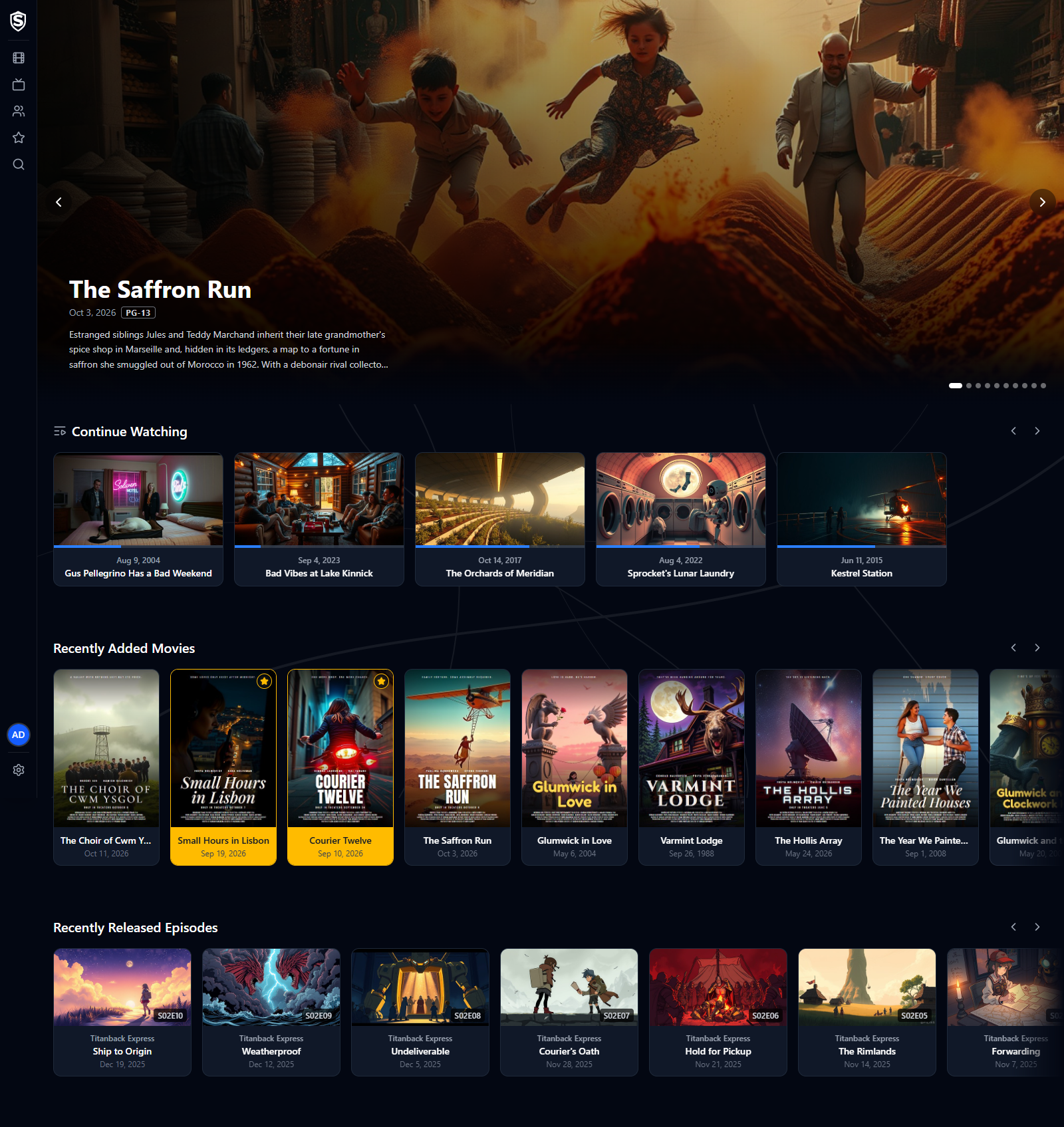
---
## Hero Carousel URL: https://sovereign.watch/docs/interface/web/home/#hero-carousel
The top of the page is a spotlight on the ten movies in your library that are most popular right now. Each slide shows the title's backdrop, release date, content rating, critic scores, and a short synopsis. Click the title to jump straight to its details page. The slides don't advance on their own: use the arrows, the dots, or the left and right arrow keys to move between them.
## Continue Watching URL: https://sovereign.watch/docs/interface/web/home/#continue-watching
Titles you started but didn't finish, each showing how far through you are. Click one to go straight into the player and resume where you left off. The row only appears when you have something in progress.
## Recently Added Movies URL: https://sovereign.watch/docs/interface/web/home/#recently-added-movies
A horizontally scrolling row of the movies most recently added to the library, each showing its poster, title, and release date, with a gold border and star on the ones you've favorited. Use the arrow buttons (or scroll) to move through the row, and click any poster to open the [movie's details](https://sovereign.watch/docs/interface/web/movies/movie-details/).
## Recently Released Episodes URL: https://sovereign.watch/docs/interface/web/home/#recently-released-episodes
A matching row for TV, ordered by episode air date. Each card shows the episode still, its season/episode number, the series name, the episode title, and the air date. Clicking a card opens the [episode's details](https://sovereign.watch/docs/interface/web/tv-series/episode-details/).
========================================================================
# Library (source: docs/interface/web/movies/library) URL: https://sovereign.watch/docs/interface/web/movies/library/
========================================================================
# Movies Library
The movies library lists every movie in your collection as a poster grid. The tabs across the top (**Movies**, **Trending**, **New Releases**, **Collections**, and **Genres**) switch between different ways of browsing your movies.
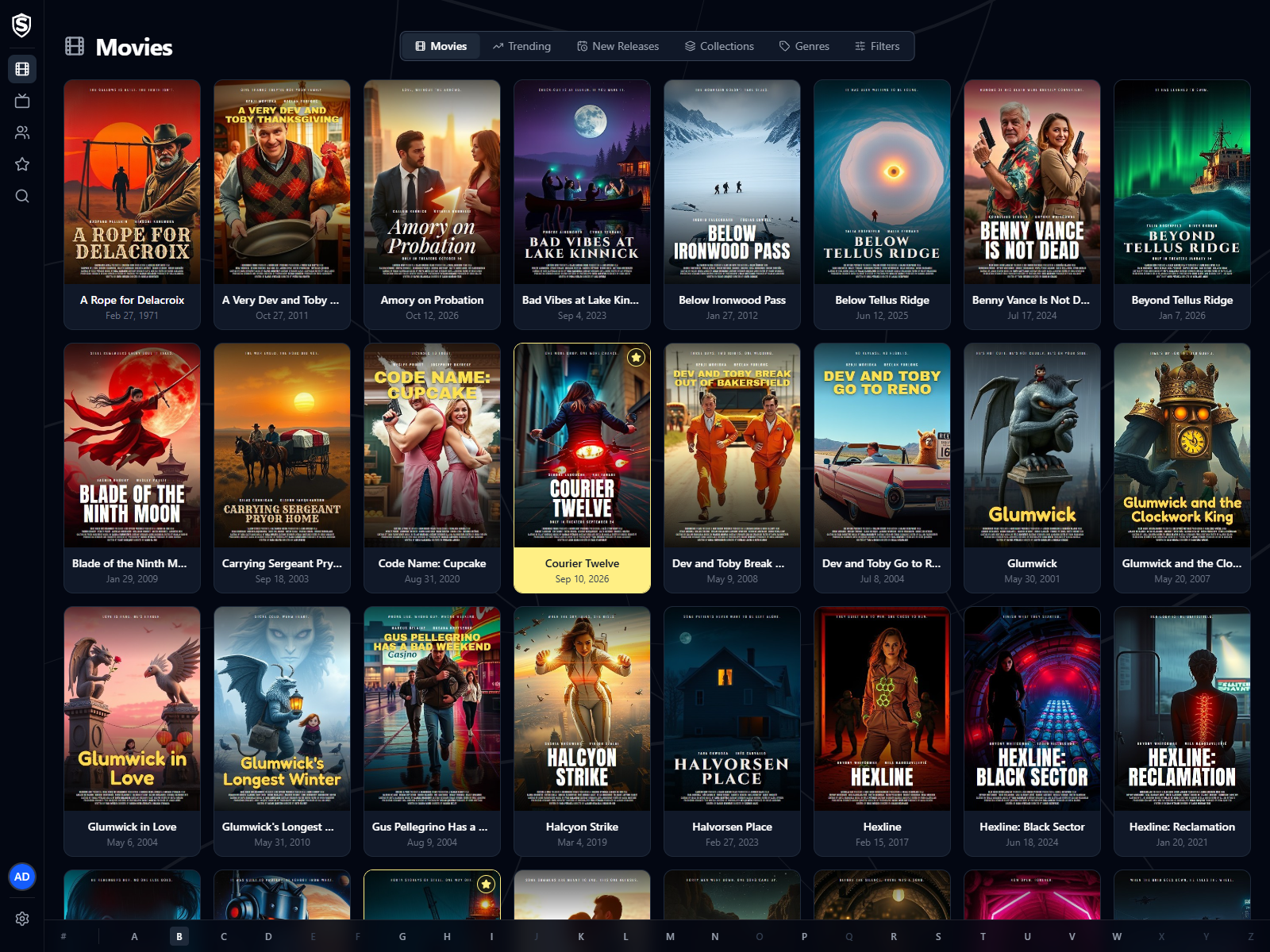
---
## Browsing URL: https://sovereign.watch/docs/interface/web/movies/library/#browsing
- **Alphabet bar** - jump directly to titles starting with a given letter (or `#` for numeric titles). Letters with no matching titles are disabled.
- **Infinite scroll** - the grid loads more posters as you scroll.
- **Filters** - the **Filters** button beside the tabs opens a side panel where you can search by title and narrow the grid by genre, a range of release years, and content rating. The button reads **Filters active** while any of them is set.
Click any poster to open the [movie's details page](https://sovereign.watch/docs/interface/web/movies/movie-details/).
## Shelves URL: https://sovereign.watch/docs/interface/web/movies/library/#shelves
**Trending** and **New Releases** show movies in a fixed order instead of alphabetically, so they have no alphabet bar and no filters.
- **Trending** - the library ordered by how popular each title is right now.
- **New Releases** - the newest titles by release date, capped at the most recent 100. Titles whose release date is still in the future are left out.
## Related Views URL: https://sovereign.watch/docs/interface/web/movies/library/#related-views
- [Collections](https://sovereign.watch/docs/interface/web/movies/collections/) - browse movies grouped into film series.
- [Genres](https://sovereign.watch/docs/interface/web/movies/genres/) - browse movies by genre.
========================================================================
# Movie Details (source: docs/interface/web/movies/movie-details) URL: https://sovereign.watch/docs/interface/web/movies/movie-details/
========================================================================
# Movie Details
The movie details page shows everything Sovereign knows about a title, and is the starting point for playback.
---
## Details Tab URL: https://sovereign.watch/docs/interface/web/movies/movie-details/#details-tab
- **Poster and Play** - the large **Play** button starts the highest-quality file immediately in the [video player](https://sovereign.watch/docs/interface/web/video-player/). Once you've watched part of the movie, it reads **Resume** with the time you stopped at, and a **Restart** button beside it starts again from the beginning.
- **Title, release date, and favorite** - the star toggle next to the title adds or removes the movie from your [Favorites](https://sovereign.watch/docs/interface/web/favorites/).
- **Genres** - chips naming each genre the movie is filed under.
- **Synopsis** - the plot overview, under the genres.
- **Scores and details** - the content rating, critic scores, TMDb popularity, the release date, a link to the movie on TMDb, and when it was added to and last updated in your library.
- **Series** - when the movie belongs to a film series, this links to that [collection](https://sovereign.watch/docs/interface/web/movies/collections/).
- **Cast** - the director and billed cast, when available from the metadata provider. Each card opens that [person's page](https://sovereign.watch/docs/interface/web/people/person-details/).
- **Related Movies** - a scrollable row of similar titles.
The **Files** tab replaces the scores, details and series link with the file list. Everything else on the page stays where it is.
## Files Tab URL: https://sovereign.watch/docs/interface/web/movies/movie-details/#files-tab
The **Files** tab lists each video file available for the movie.
Each row shows the file's resolution, size, and the date it was added. For every file you can:
- **Expand details** - inspect the file's path, the media source it came from, whether its [trickplay](https://sovereign.watch/docs/metadata/trickplay/) previews are ready, and its media information: video and audio codecs, bitrates, HDR format, audio languages, subtitles, and so on.
- **Play** - start playback of that specific file, rather than letting Sovereign pick the highest-quality one.
========================================================================
# Collections (source: docs/interface/web/movies/collections) URL: https://sovereign.watch/docs/interface/web/movies/collections/
========================================================================
# Collections
Collections group the movies in your library by film series, so a trilogy and its sequels sit together. Open the list from the **Collections** tab of the movies library.
The layout mirrors the [movies library](https://sovereign.watch/docs/interface/web/movies/library/): a poster grid with an alphabet jump bar and infinite scrolling. A badge in the corner of each poster says how many movies the collection holds.
---
## Collection Details URL: https://sovereign.watch/docs/interface/web/movies/collections/#collection-details
Clicking a collection opens its details page, with the collection's overview, a link to it on TMDb, a star toggle that adds it to your [Favorites](https://sovereign.watch/docs/interface/web/favorites/), and a row of every movie in the series that exists in your library, in release order.
Click any movie to open its [details page](https://sovereign.watch/docs/interface/web/movies/movie-details/).
========================================================================
# Genres (source: docs/interface/web/movies/genres) URL: https://sovereign.watch/docs/interface/web/movies/genres/
========================================================================
# Genres
The **Genres** tab of the movies library breaks the catalog down by genre.
Every genre found in your library gets a card: Action, Adventure, Animation, Comedy, Crime, Documentary, Drama, Family, and so on.
---
## Genre Details URL: https://sovereign.watch/docs/interface/web/movies/genres/#genre-details
Selecting a genre shows a poster grid of every movie tagged with it, with the same count, alphabet bar, and infinite scrolling as the [main library](https://sovereign.watch/docs/interface/web/movies/library/) but no filters. **Back to Genres** in the header returns to the full list.
========================================================================
# Library (source: docs/interface/web/tv-series/library) URL: https://sovereign.watch/docs/interface/web/tv-series/library/
========================================================================
# TV Series Library
The TV series library lists every show in your collection as a poster grid, with the same browsing tools as the movies library: an alphabet jump bar, infinite scrolling, and a **Filters** panel for searching by title and narrowing by genre, a range of years, and content rating.
Click any poster to open the [series details page](https://sovereign.watch/docs/interface/web/tv-series/series-details/), where you can browse seasons and episodes.
========================================================================
# Series Details (source: docs/interface/web/tv-series/series-details) URL: https://sovereign.watch/docs/interface/web/tv-series/series-details/
========================================================================
# Series Details
The series details page has a show's artwork, metadata, and full episode list.
---
## Series Information URL: https://sovereign.watch/docs/interface/web/tv-series/series-details/#series-information
The top of the page shows the series poster, title, genres, the number of seasons, and the synopsis, along with a favorite toggle to add the show to your [Favorites](https://sovereign.watch/docs/interface/web/favorites/). Below them sit the content rating, the community rating and how many votes it's based on, the date the show first aired, a link to it on TheTVDB, and when it was added to and last updated in your library.
## Episodes URL: https://sovereign.watch/docs/interface/web/tv-series/series-details/#episodes
The **Episodes** section is organized by season. The list of seasons beside the episodes switches between them, with season 0 shown as **Specials**; each episode row shows its still image, title, air date, and synopsis.
Click an episode to open its [episode details page](https://sovereign.watch/docs/interface/web/tv-series/episode-details/), where playback starts.
========================================================================
# Episode Details (source: docs/interface/web/tv-series/episode-details) URL: https://sovereign.watch/docs/interface/web/tv-series/episode-details/
========================================================================
# Episode Details
The episode details page is the TV equivalent of the movie details page.
---
## Details Tab URL: https://sovereign.watch/docs/interface/web/tv-series/episode-details/#details-tab
- **Series link** - the link at the top, labelled with the series name, returns to the [series details page](https://sovereign.watch/docs/interface/web/tv-series/series-details/).
- **Episode still and Play** - the **Play** button starts the highest-quality file in the [video player](https://sovereign.watch/docs/interface/web/video-player/). As on a movie, it becomes **Resume** with a timecode once you've started the episode, with **Restart** beside it.
- **Title and air date** - shown together at the top of the page.
- **Season and episode** - chips showing the season (or **Specials**) and the episode number.
- **Synopsis and details** - the episode overview, a link to the episode on TheTVDB when the library knows it, the air date, and when it was added to and last updated in your library.
## Previous and Next URL: https://sovereign.watch/docs/interface/web/tv-series/episode-details/#previous-and-next
Cards below the episode step to the previous and next episodes in the series, each showing that episode's still and title. Stepping runs straight across season boundaries and includes specials. The cards appear on both tabs. At the first or last episode of the series, the card for that direction isn't shown.
## Files Tab URL: https://sovereign.watch/docs/interface/web/tv-series/episode-details/#files-tab
The **Files** tab lists each video file available for the episode, with the same expandable details and per-file **Play** action as [movie files](https://sovereign.watch/docs/interface/web/movies/movie-details/).
========================================================================
# Library (source: docs/interface/web/people/library) URL: https://sovereign.watch/docs/interface/web/people/library/
========================================================================
# People Library
The people library lists everyone credited on a movie in your collection, as a grid of headshots with the number of movies each appears in. Only movie credits count, so your TV series don't add anyone here. The chips across the top switch between **All**, **Actors** and **Directors**.
---
## Browsing URL: https://sovereign.watch/docs/interface/web/people/library/#browsing
- **Alphabet bar** - jump directly to names starting with a given letter (or `#` for names starting with a digit). Letters with nobody behind them are disabled.
- **Infinite scroll** - the grid loads more headshots as you scroll. This list is usually far longer than your movie list, since every film credits dozens of people.
- **Filters** - the **Filters** button beside the chips opens a panel with a search box that matches any part of a name, so "whit" finds Ambrose Whitlock.
Click any card to open that [person's page](https://sovereign.watch/docs/interface/web/people/person-details/).
## Actors and Directors URL: https://sovereign.watch/docs/interface/web/people/library/#actors-and-directors
The three chips filter the same list, and the count above the grid changes with them.
**Actors** and **Directors** each narrow to people holding that kind of credit, so someone who both acted in and directed something in your library appears under both. **All** is everyone. The movie count on each card follows the chip you're on: a director's card under **Directors** counts the films they directed, not everything they're credited on.
Which list someone appears in depends on their credits on the movies you hold, whatever the metadata provider lists as their usual department. An actor who directed the one film you own shows up under **Directors** for that film.
:::note
A person is only listed if you can reach at least one of their credits. On an account with a content rating limit, that shrinks both lists, and someone whose every credit is on a restricted title doesn't appear at all.
:::
========================================================================
# Person Details (source: docs/interface/web/people/person-details) URL: https://sovereign.watch/docs/interface/web/people/person-details/
========================================================================
# Person Details
A person's page carries their headshot and biography above their filmography, split by what they did on each film.
---
## Biography URL: https://sovereign.watch/docs/interface/web/people/person-details/#biography
The header pairs the headshot with the name, the department the metadata provider files them under, and the biography. Born, Died and Birthplace are always shown, with a dash where the detail isn't known yet, so the page keeps its layout as the detail fills in. The TMDb Person link opens their entry on the metadata provider's own site.
Biographical detail arrives in the background over many runs of the metadata jobs rather than all at once, so a page you open the day a title is imported may have a name and a headshot and nothing else until later runs fill in the rest.
## Filmography URL: https://sovereign.watch/docs/interface/web/people/person-details/#filmography
**Acting** and **Directing** are separate sections, each counting and listing only that kind of credit. A person with only one kind of credit gets only that section.
Films someone both acted in and directed appear in both sections. Each section runs newest release first, and every poster opens that [movie's details page](https://sovereign.watch/docs/interface/web/movies/movie-details/).
Only titles you're allowed to see are listed, so the sections on an account with a content rating limit are shorter than on an unrestricted one, and the counts match what's shown.
## Related Views URL: https://sovereign.watch/docs/interface/web/people/person-details/#related-views
- [People Library](https://sovereign.watch/docs/interface/web/people/library/) - browse everyone in the collection.
- [Movie Details](https://sovereign.watch/docs/interface/web/movies/movie-details/) - the cast row on a movie, where every card opens one of these pages.
========================================================================
# Favorites (source: docs/interface/web/favorites) URL: https://sovereign.watch/docs/interface/web/favorites/
========================================================================
# Favorites
Favorites collects the movies, TV series, and collections you've starred.
---
## Adding Favorites URL: https://sovereign.watch/docs/interface/web/favorites/#adding-favorites
Use the star toggle on any [movie details](https://sovereign.watch/docs/interface/web/movies/movie-details/) or [series details](https://sovereign.watch/docs/interface/web/tv-series/series-details/) page to add (or remove) a title. Collections can be favorited from their details page as well.
## Browsing URL: https://sovereign.watch/docs/interface/web/favorites/#browsing
The page is split into three tabs (**Movies**, **TV Series**, and **Collections**), each showing a poster grid of your starred items. A tab with nothing starred on it says so.
========================================================================
# Search (source: docs/interface/web/search) URL: https://sovereign.watch/docs/interface/web/search/
========================================================================
# Search
The **Search** page finds anything in the library from a single term. Open it from the magnifying glass on the navigation rail.
Results start appearing once you've typed two characters, and they come back as rows of **Movies**, **Collections**, **TV Series**, **Episodes** and **People**. A category with no match is left out, so a search for an actor's name may show only the People row. Each row scrolls sideways, and clicking a result opens its details page.
The term is kept in the page address, so the back button returns you to the same results and a search can be bookmarked or shared with another user on the same server.
The **Filters** button on [Movies](https://sovereign.watch/docs/interface/web/movies/library/), [TV Series](https://sovereign.watch/docs/interface/web/tv-series/library/) or [People](https://sovereign.watch/docs/interface/web/people/library/) narrows a single library instead of searching everything.
========================================================================
# Video Player (source: docs/interface/web/video-player) URL: https://sovereign.watch/docs/interface/web/video-player/
========================================================================
# Video Player
Pressing **Play** anywhere in the interface opens the full-screen video player.
---
## Player Controls URL: https://sovereign.watch/docs/interface/web/video-player/#player-controls
- **Title bar** - the current title, year, runtime, and content rating, plus a back button to return to where you came from.
- **Play mode and full screen** - the top-right corner shows how the title is being delivered (**Direct Play**, **Remux**, or **Transcode**) next to the full screen toggle.
- **Timeline** - scrub anywhere in the video. Once preview thumbnails have been generated for the title, hovering the timeline shows a thumbnail of the scene at that position. On first playback a "Generating previews" badge (or "Queued for previews" while it waits its turn) stands in for the thumbnail, and "Previews unavailable" means they couldn't be made. [Trickplay](https://sovereign.watch/docs/metadata/trickplay/) covers how they're produced.
- **Chapters** - when the file carries chapters, the timeline is split into a segment per chapter, hovering names the chapter under the time, and the name of the chapter you're in sits beside the elapsed time.
- **Play/Pause**, elapsed / total time.
- **Volume** - a mute button and a volume slider.
- **Settings** - the gear opens a small menu with three entries: **Audio track**, **Subtitles**, and **Playback info**. Audio and subtitles open their list in the same menu, and are greyed out on a title that offers no choice.
While the controls are showing on a movie, portraits of up to six of its billed cast line the edges of the picture, each with the actor's name and the character they play. Episodes don't have a cast list, so they don't get the portraits.
Clicking the picture plays or pauses, and so does the space bar. **Escape** leaves the player.
## Audio and Subtitles URL: https://sovereign.watch/docs/interface/web/video-player/#audio-and-subtitles
The audio list shows every track the file carries, named by language, with **5.1** or **7.1** beside a surround track. The subtitle list shows the file's subtitle tracks, including image-based tracks such as the PGS subtitles common on Blu-ray rips, which the player draws over the picture itself. Image-based tracks are grouped by language and named by whatever the file calls them. Picking one of those the first time can take a moment while it's prepared; the player says so and starts drawing captions as soon as they're ready. [Subtitles](https://sovereign.watch/docs/metadata/subtitles/) covers both kinds in more detail.
The server applies your account's preferred audio language when the stream starts, so a title carrying a matching track opens on it. Changing tracks mid-film doesn't interrupt playback, though a seek that has to start a fresh stream puts audio back to your preferred language. A subtitle you've picked stays on through such a seek.
## Playback Info URL: https://sovereign.watch/docs/interface/web/video-player/#playback-info
**Playback info** opens the session details for what you're watching now: the play mode, the video and audio codecs, the resolution, your position, and the bandwidth the player is measuring.
When the server had to re-encode anything, a **Reason** line says why in one sentence, such as "This device cannot decode the video codec". A remux has one too, since it re-encodes an audio track. A direct play has no such line, because nothing was re-encoded. [Transcoding](https://sovereign.watch/docs/configuration/transcoding/) explains every reason and what, if anything, you can do about each.
## When a Title Ends URL: https://sovereign.watch/docs/interface/web/video-player/#when-a-title-ends
Where Sovereign knows when the credits start, the player offers what's next shortly after they begin, as a small card in the bottom-right corner while the credits keep playing. Otherwise the offer fills the screen when the video ends.
After an episode, the **Up next** card shows the next episode with a 15-second countdown ("Playing in 15s") that starts it automatically. **Play now** skips the wait. On the full-screen card, **Cancel** leaves the player; the corner card has a dismiss button instead, so you can carry on watching the credits. Moving the mouse over the card, clicking or scrolling on it, or pressing any key stops the countdown but leaves the card where it is, and so does pausing while the credits play. The countdown also waits while the browser tab is hidden. With **Autoplay Next Episode** turned off in [User Settings](https://sovereign.watch/docs/interface/web/user-settings/), the card still appears, just without the countdown. After the last episode of a series, the card offers similar shows instead.
After a movie, nothing starts on its own. The panel offers the next movie in its collection, with **View details** to open its page, and a **More like this** row of similar titles once the movie has ended. Over the credits, the corner card appears only for a movie with a next entry in its collection.
## When Something Goes Wrong URL: https://sovereign.watch/docs/interface/web/video-player/#when-something-goes-wrong
If the stream stalls, the player tries to restart it from where you were and shows **Reconnecting...** while it does. When a restart works, playback carries on with no further message. After a few failed attempts it gives up and shows a **Playback error** message over the picture. A stream that won't start in the first place gets a **Playback could not start** page with the reason and a **Retry stream** button.
## License Notice URL: https://sovereign.watch/docs/interface/web/video-player/#license-notice
While the server's license needs attention, a short notice video may play before the title. It can't be skipped, so the timeline is locked until it finishes. When the server can't play the notice video for a title, the notice bar fades in briefly as the title starts instead, and doesn't come back for the rest of it. [Licensing](https://sovereign.watch/docs/licensing/overview/) explains when it appears.
## Playback Quality URL: https://sovereign.watch/docs/interface/web/video-player/#playback-quality
Sovereign picks the delivery method for your device when the stream starts: it plays the file directly when the browser supports it, and transcodes on the server when it doesn't. There's nothing to set up for this, though the **Preferences** tab of [User Settings](https://sovereign.watch/docs/interface/web/user-settings/) lets you cap the bitrate and quality of transcoded video. [Hardware Acceleration](https://sovereign.watch/docs/hardware-acceleration/overview/) covers how to make transcoding faster.
Sovereign remembers your playback position, so a partly watched title resumes where you left off.
========================================================================
# User Settings (source: docs/interface/web/user-settings) URL: https://sovereign.watch/docs/interface/web/user-settings/
========================================================================
# User Settings
Open the account menu (your avatar at the foot of the rail, or in the top-right corner on a phone) and choose **User Settings** to manage your account and see your own activity and device details. The page has six tabs: **Profile**, **Preferences**, **Stats**, **Activity**, **Client Profile**, and **Privacy**.
---
## Profile URL: https://sovereign.watch/docs/interface/web/user-settings/#profile
Update how you appear in Sovereign.
- **Profile Picture** - upload a JPG or PNG to use as your avatar. Large images are scaled down automatically, so there's no need to resize them first. Once set, a **Remove** option lets you clear it and fall back to your initials.
- **Display Name** - the name shown next to your avatar and throughout the app.
- **Email** - the email address on your account. If you signed in with Google or Microsoft, your email is managed by that provider and shown here for reference only.
- **Password** - change the password you use to sign in by entering your current password and your new one. It only appears for accounts with a local password; accounts that sign in with Google or Microsoft don't have one.
Select **Save changes** to apply your display name and email; picture changes take effect immediately.
## Preferences URL: https://sovereign.watch/docs/interface/web/user-settings/#preferences
Playback choices applied every time you start something, on any client you sign in to.
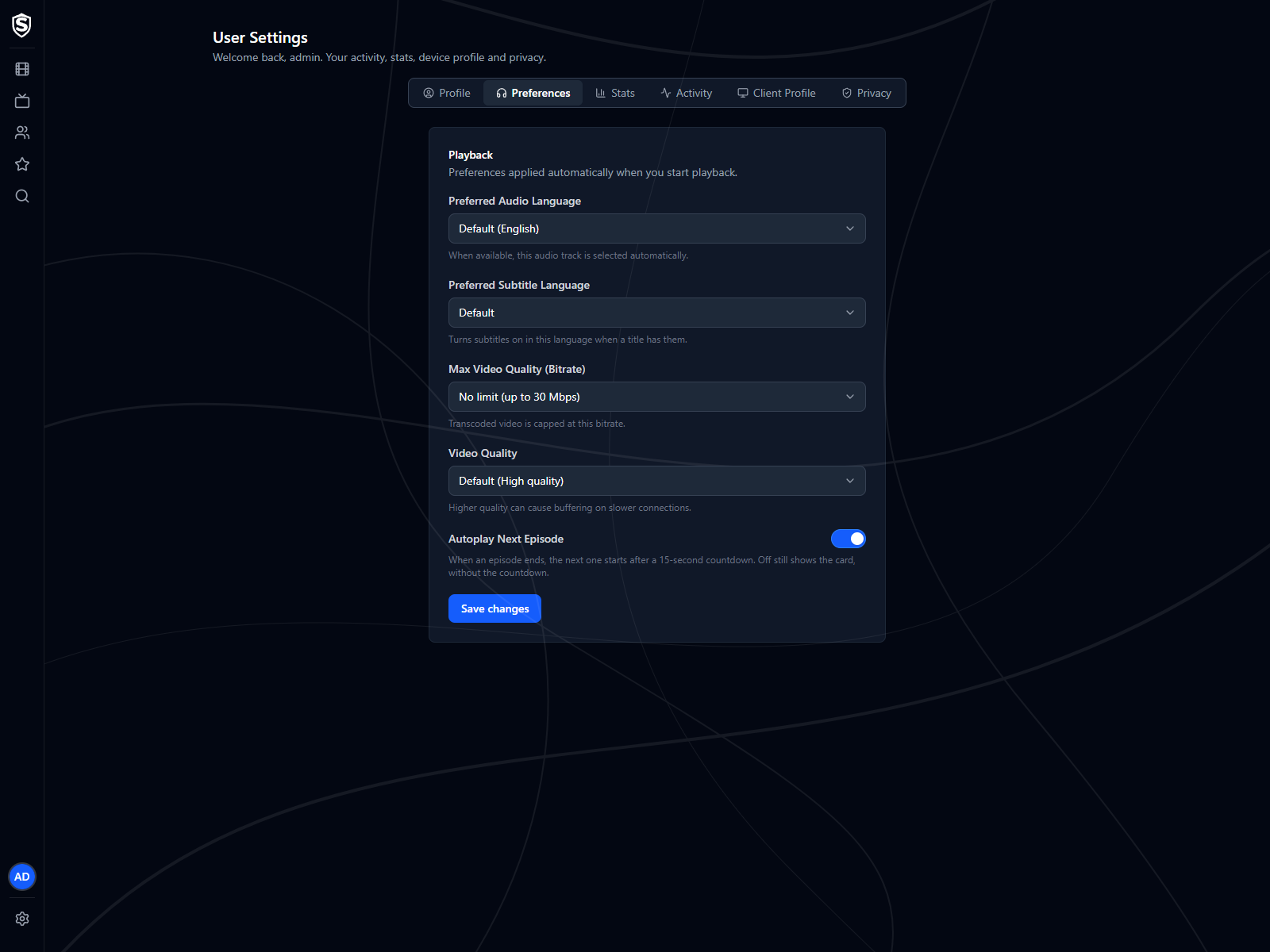
- **Preferred Audio Language** - when a title has a track in this language, it's the one that plays. Leave it on **Default** to use the server's setting. Languages your library actually carries are listed first.
- **Max Video Quality (Bitrate)** - a ceiling for transcoded video. Lower it if playback buffers on a slow connection. The list stops at the limit set for the whole server.
- **Video Quality** - how the server trades file size against picture quality when it has to re-encode.
- **Autoplay Next Episode** - when **On**, the next episode starts after a 15-second countdown when one ends. **Off** still shows the next-episode card, without the countdown. See the [video player](https://sovereign.watch/docs/interface/web/video-player/#when-a-title-ends).
Select **Save changes** to apply. These apply to future playback, not to a stream already running.
## Stats URL: https://sovereign.watch/docs/interface/web/user-settings/#stats
Your personal viewing activity over a selectable window of 7, 30, or 90 days. Across the top are counts of plays, titles, active days, watch time, favorites, and titles in progress, with the titles you're partway through listed below them.
The charts cover when you watch (daily activity and the hours of the week), what you watch (most watched, movies against episodes, and plays by genre), and how it reaches you: how far into titles you get, how often your streams direct play rather than transcode, and the devices you watch on. **Last Active** is your most recent sign-in.
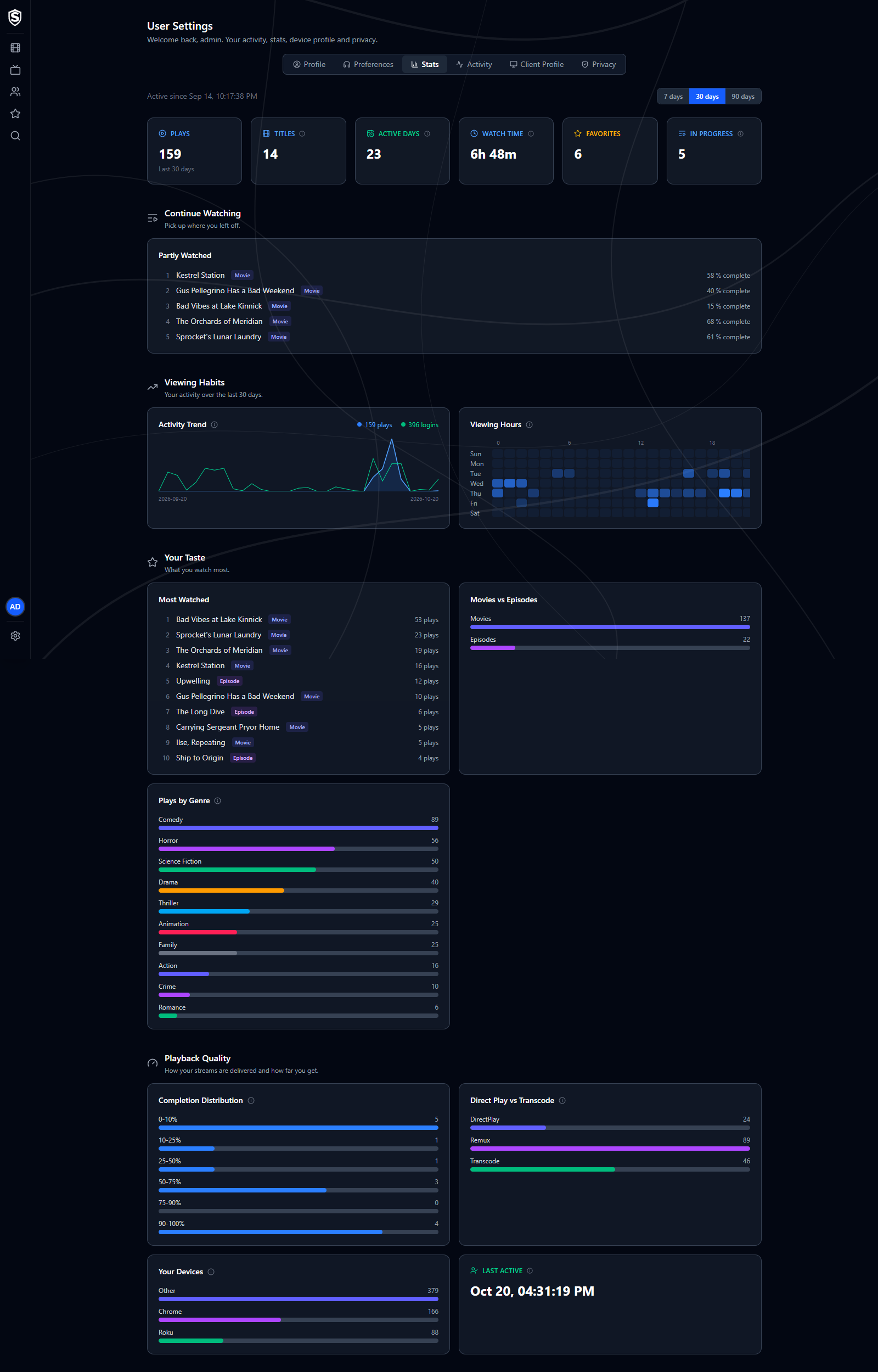
## Activity URL: https://sovereign.watch/docs/interface/web/user-settings/#activity
A log of your account events, including logins, logouts, and media playback, with the time, IP address, and device for each. You can filter by action type or action and page back through your full history.
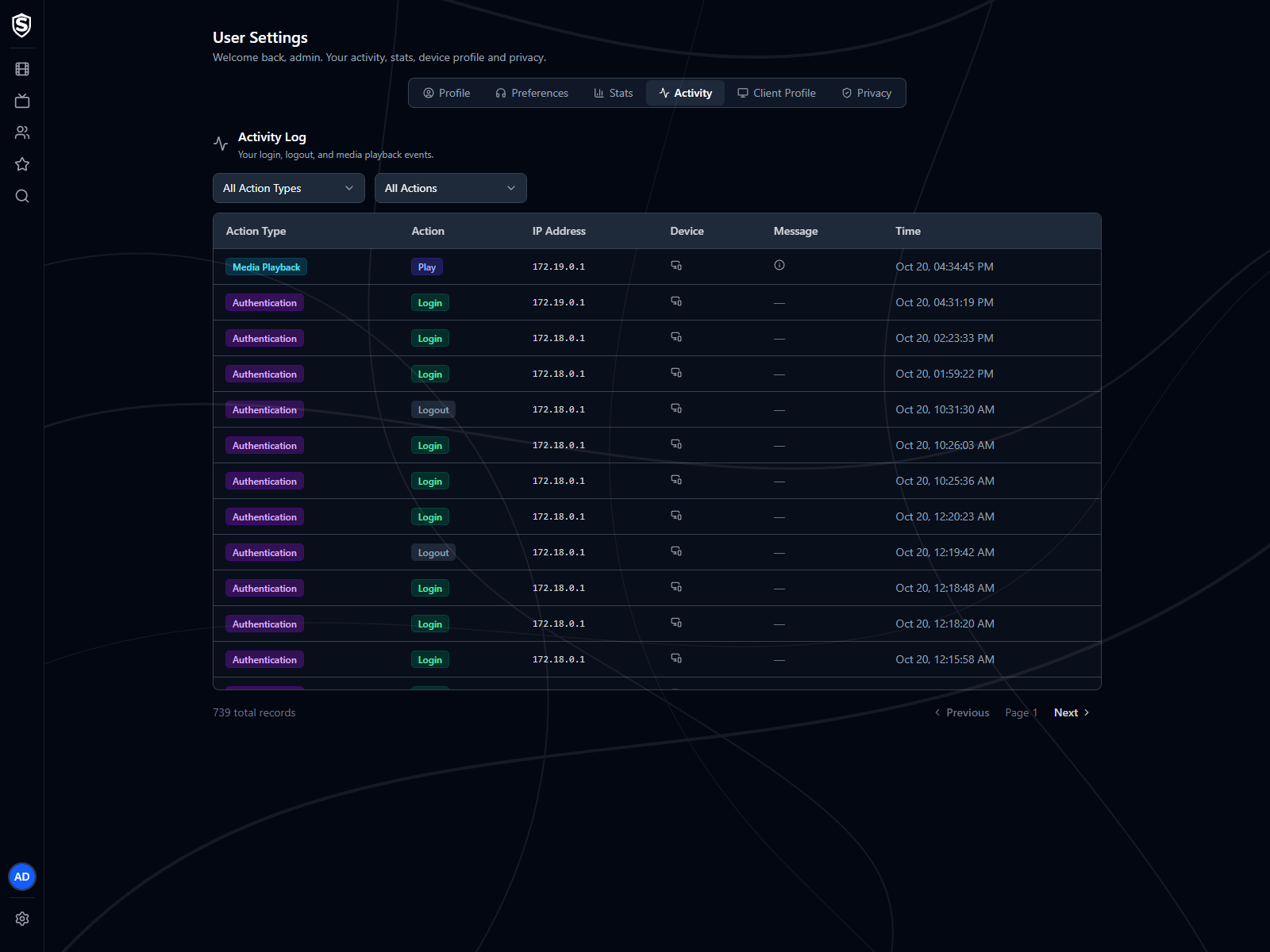
## Client Profile URL: https://sovereign.watch/docs/interface/web/user-settings/#client-profile
What Sovereign has detected about the browser you're using right now, which it uses to decide how media is delivered to you. Other devices you sign in on aren't listed here; they show up under **Your Devices** on the **Stats** tab.
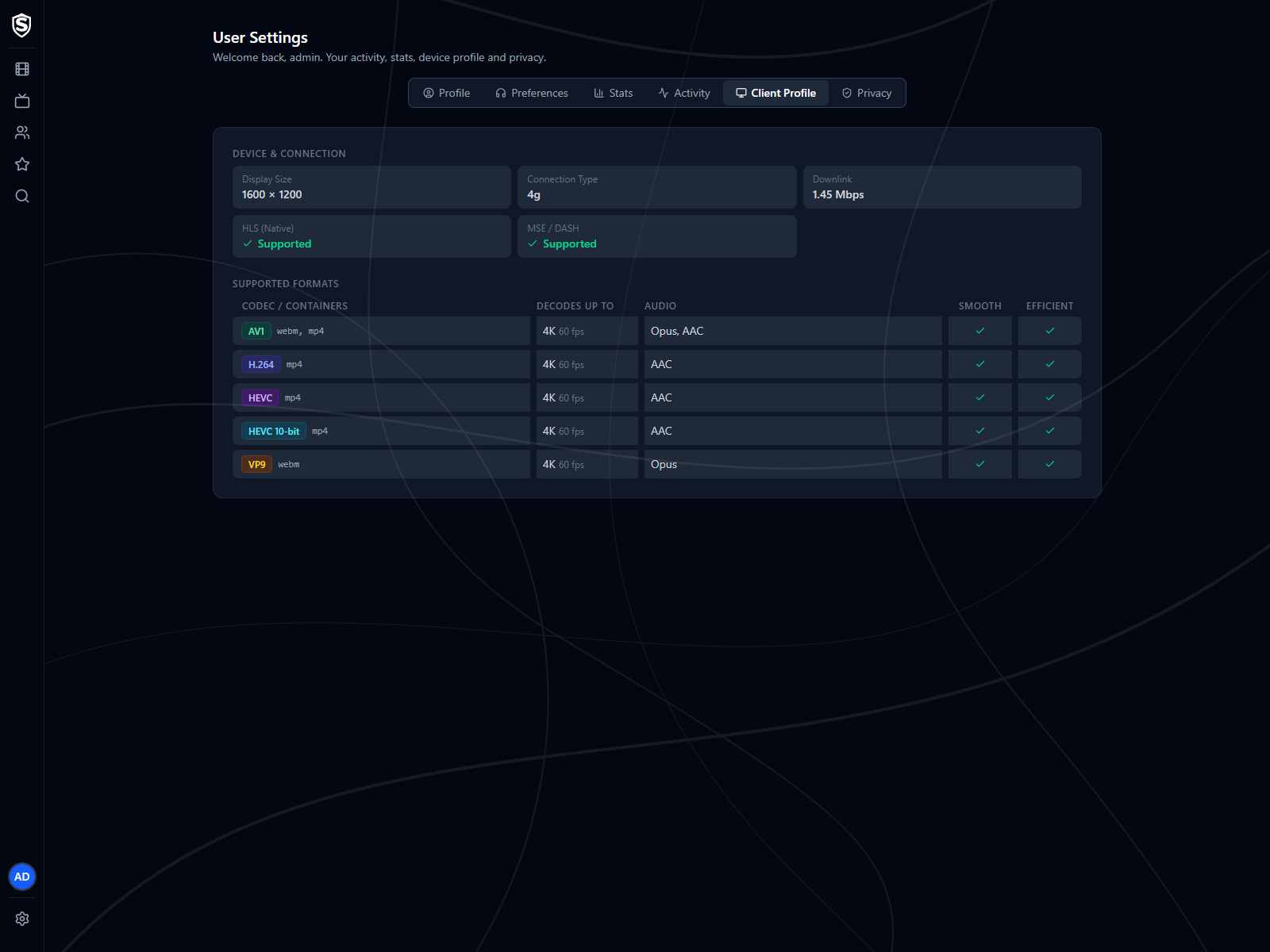
- **Device & Connection** - display size, connection type, estimated bandwidth, and whether the browser supports native HLS or MSE playback.
- **Supported Formats** - each video codec your browser reports it can play, with its containers, the largest resolution and frame rate it decodes, the audio codecs that go with it, and whether playback is expected to be smooth and power-efficient.
There's nothing to configure on this tab.
## Privacy URL: https://sovereign.watch/docs/interface/web/user-settings/#privacy
Take a copy of what the server holds about you, or delete your account, without asking an administrator. Both are only on the web interface; the TV and phone apps don't offer them.
- **Download My Data** - saves a zip of everything this server holds about you: your account and its settings, favorites, watch progress named by title, your activity log, the devices you've signed in on, error reports from your apps, and your profile picture. Your password and sign-in tokens are never included, and the file can't be restored onto a server. It's for you to keep and read, not a backup.
- **Delete My Account** - permanently removes your account and everything that belongs only to you. Before anything is deleted, Sovereign lists exactly what goes and what stays behind. A device another person also signs in on stays, with only your link to it removed, and server log files and sent-email records are kept until they age out. Confirm with your current password, or by typing your username if you sign in with Google or Microsoft.
Deleting your account signs you out everywhere at once, and it can't be undone, so download your data first if you want a copy. If you're the server's only administrator, the deletion is refused until you make someone else an administrator with **Change Role** on the [Users](https://sovereign.watch/docs/interface/web/admin/users/) page.
========================================================================
# Device Pairing (source: docs/interface/web/device-pairing) URL: https://sovereign.watch/docs/interface/web/device-pairing/
========================================================================
# Device Pairing
The **Pair a Device** page signs a TV or other remote-control device in to your account by having you type a short code, so you never have to spell out a password with a D-pad.
---
## How It Works URL: https://sovereign.watch/docs/interface/web/device-pairing/#how-it-works
A device that can't offer a comfortable keyboard asks Sovereign for a pairing code instead of credentials. It then shows you two things: a short code, and the address of this page. You open that address on a phone or laptop, sign in there as you normally would, and enter the code. The device checks back every ten seconds or so, notices the approval, and signs itself in as you.
Nothing is typed on the device itself, and your password never travels through it.
The device waits and you approve at the same time, on different screens:
```mermaid
sequenceDiagram
participant D as TV
participant S as Sovereign
participant B as Phone or laptop
actor Y as You
D->>S: Ask for a pairing code
S-->>D: A code and this page's address
Note over D: Shows the code,
the address and a QR code
par The device waits
loop About every ten seconds
D->>S: Approved yet?
end
and You approve
Y->>B: Open the address
B->>S: Sign in, if you aren't already
Y->>B: Enter the code
B->>S: Approve this code
S-->>B: Device approved
end
S-->>D: Signed in as you
```
1. On the device, choose the option to sign in with a code.
2. On a phone or laptop, go to the address the device displays. If the device also shows a QR code, scanning it opens this page with the code already filled in. If you aren't signed in yet, Sovereign asks you to sign in first and then brings you back here.
3. Enter the code and select **Approve device**. The page changes to **Device approved**.
4. Return to the device. It picks up the approval on its own.
Codes are eight characters and are shown grouped, like `B67X-CT3Y`. They're drawn from a reduced alphabet that leaves out characters commonly misread from across a room, so there's no `O` to confuse with zero and no `I` to confuse with one. Case doesn't matter as you type; the field tidies up what you enter.
## Codes Expire URL: https://sovereign.watch/docs/interface/web/device-pairing/#codes-expire
A code is good for ten minutes and can be used once. If you take longer than that, or the device gives up waiting, ask the device for a new code rather than retrying the old one. An expired or already-used code is reported the same way as a wrong one.
:::caution
Only enter a code that's currently showing on a device you're setting up. Approving a code signs that device in with your account and your access to the library. If a code arrives by message, email, or from someone asking you to enter it, don't.
:::
## After Pairing URL: https://sovereign.watch/docs/interface/web/device-pairing/#after-pairing
The sign-in is recorded on the **Activity** tab of [User Settings](https://sovereign.watch/docs/interface/web/user-settings/) with the time, address, and device it came from, and the device counts toward **Your Devices** on the **Stats** tab. Both are worth a look if you're checking for a device you don't recognise.
========================================================================
# Overview (source: docs/interface/web/admin/overview) URL: https://sovereign.watch/docs/interface/web/admin/overview/
========================================================================
# Admin: Overview
The **Overview** page of Admin Settings is the server dashboard. The queue status updates live, so you can watch background work as it happens, and a connection indicator beside it confirms live updates are flowing.
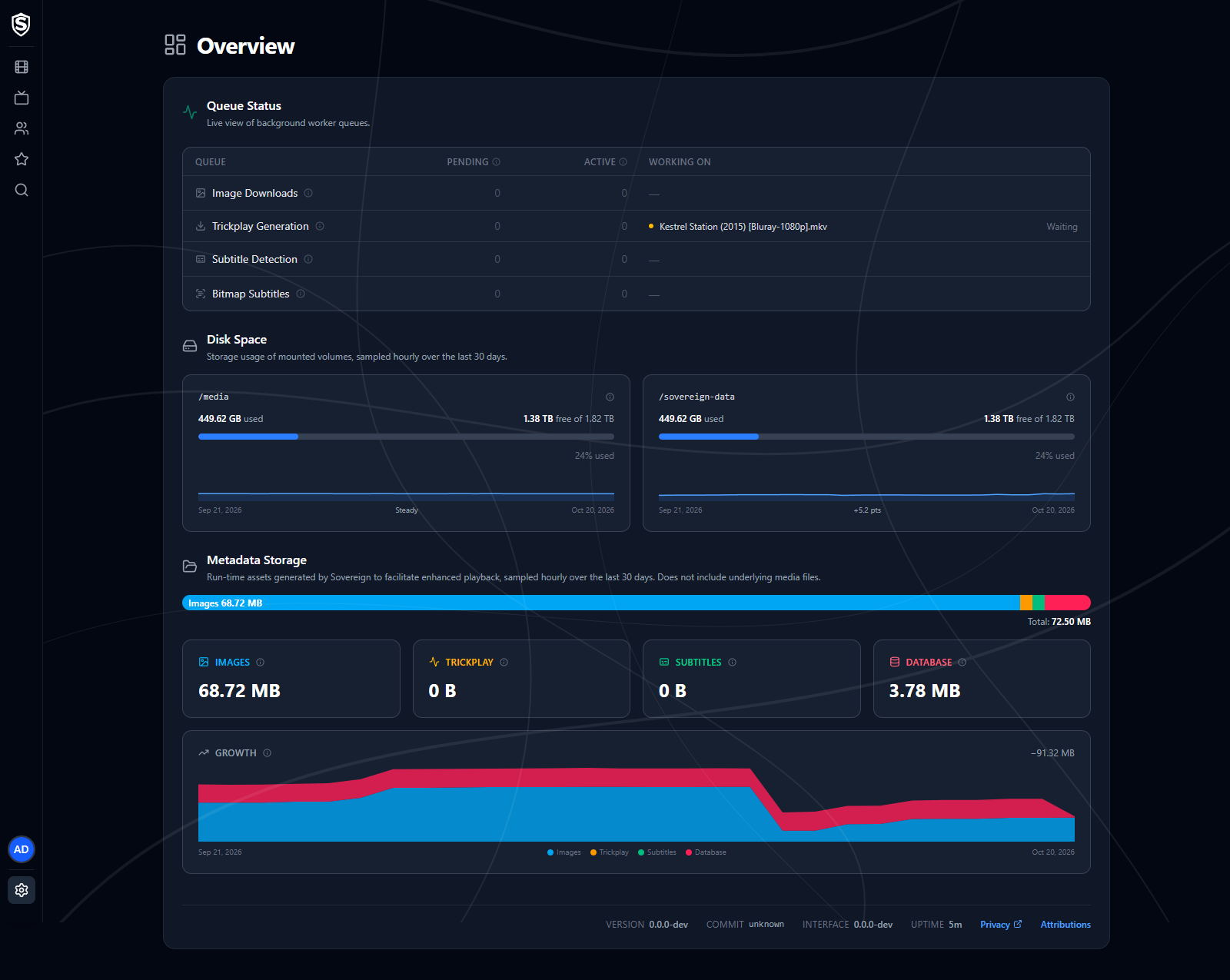
:::note
Admin Settings (the gear icon in the navigation rail) is only visible to administrators.
:::
---
## The Admin Menu URL: https://sovereign.watch/docs/interface/web/admin/overview/#the-admin-menu
The gear icon at the foot of the navigation rail opens the admin menu. **Overview** sits at the top on its own, and every other page belongs to a group with its own submenu:
- **Monitoring** - Active Streams, Analytics, Activity Logs.
- **Library** - Media Sources, Jobs, Playback Simulator.
- **Users & Devices** - Users, Clients, Client Errors.
- **System** - Configuration, Email, GPU / Codecs, FFmpeg, Logs, License, Backup & Restore.
Each page is headed with the name of its group, and a strip of tabs under the heading moves between the pages of that group without reopening the menu.
## Queue Status URL: https://sovereign.watch/docs/interface/web/admin/overview/#queue-status
A live view of the server's background worker queues, one row each:
- **Image Downloads** - fetches poster and backdrop artwork as new media is added.
- **Trickplay Generation** - builds the thumbnail previews used when scrubbing the player timeline. Runs the first time a title is played.
- **Subtitle Detection** - checks a file for its subtitle tracks so they can be offered in the player. Runs the first time a title is played, and takes about a second.
- **Bitmap Subtitles** - turns an image-based track (PGS or VOBSUB, common on Blu-ray rips) into one image per line for the player to draw. Runs when a viewer selects that track, and can be the longest-running job on the server: under a minute where the file carries an index to seek by, and tens of minutes where it doesn't and the whole file has to be read through.
Text subtitle tracks have no row of their own. They're produced by the same pass that produces the video you're watching, so there's no queue for them and nothing to wait on.
Alongside the pending and active counts, each row names what it's working on: the file, plus the track when the job is for a single track. The wording matches the server log, so you can find the log line for a row. Elapsed time sits at the end.
A row can show an item as **Waiting**. That means a worker has picked the item up but hasn't started it, because trickplay and bitmap subtitles share one ceiling and the other one holds it. Waiting items aren't counted as active, which is why a row can name an item next to an active count of zero.
Set how many of those jobs run at once with `Sovereign__AssetWork__MaxConcurrentJobs`. See [system requirements](https://sovereign.watch/docs/configuration/system-requirements/) for what to weigh before raising it.
## Disk Space URL: https://sovereign.watch/docs/interface/web/admin/overview/#disk-space
Storage usage for each mounted volume (typically your media mount and the Sovereign data directory), with a usage bar per mount point and a chart of the last 30 days beneath it. The bar turns amber at 75% and red at 90%.
Reading a mount is slow on a busy or networked volume, so Sovereign records each volume's capacity once an hour and the figure can be up to an hour old. Those samples also build the history, which shows whether a volume that's 94% full got there last week or has been filling all month. A change of less than half a point across the window reads as **Steady**.
Samples are kept for 400 days by default. Set `Sovereign__Storage__RetentionDays` to change that, or to `0` to keep them forever. The same setting covers the Metadata Storage history below, since one hourly job records both. A volume that stops being mounted drops off the page once its last sample ages out of the window.
When a volume Sovereign writes to runs low, a banner naming the mount, its free space and when it crossed the line sits above every admin page, not just this one. It can't be dismissed, and it clears itself once free space recovers. A volume is **Running low** at 10% or 5 GiB free and **Critically low** at 5% or 1 GiB free, whichever trips first. Change those with `Sovereign__Storage__WarningPercentFree`, `Sovereign__Storage__WarningBytesFree` and their `Critical` counterparts, or set all four to `0` to turn the alert off. If email is set up, administrators are mailed about it as well.
## Metadata Storage URL: https://sovereign.watch/docs/interface/web/admin/overview/#metadata-storage
A breakdown of the run-time assets Sovereign generates for playback: artwork, trickplay previews, extracted subtitles, and the database itself. Your media files themselves aren't included.
The bar across the top shows the split, the four cards below give each figure on its own, and the **Growth** chart stacks them over the last 30 days. Hover any day in the chart for that day's full breakdown. Artwork settles once your library has been scanned, while trickplay and subtitles keep climbing as titles are played for the first time, so the chart is where you'll see which of them is growing fastest.
These figures come from the same hourly sample as Disk Space, so they can be up to an hour old, and the chart needs a couple of days behind it before there's a shape to draw. Until then it says so in place of the graph.
Temporary video segments aren't counted here. They're scratch files that exist only while something is playing and are cleaned up when the stream ends, so an hourly reading of them would almost always be zero. Watch playback in progress on the [Active Streams](https://sovereign.watch/docs/interface/web/admin/active-streams/) page instead.
The version and build commit of the running server, the version of the web interface your browser is running, and the server's uptime sit along the bottom of the page. Quote them when you report a problem.
========================================================================
# Active Streams (source: docs/interface/web/admin/active-streams) URL: https://sovereign.watch/docs/interface/web/admin/active-streams/
========================================================================
# Admin: Active Streams
The **Active Streams** page shows everyone currently streaming media from the server, live.
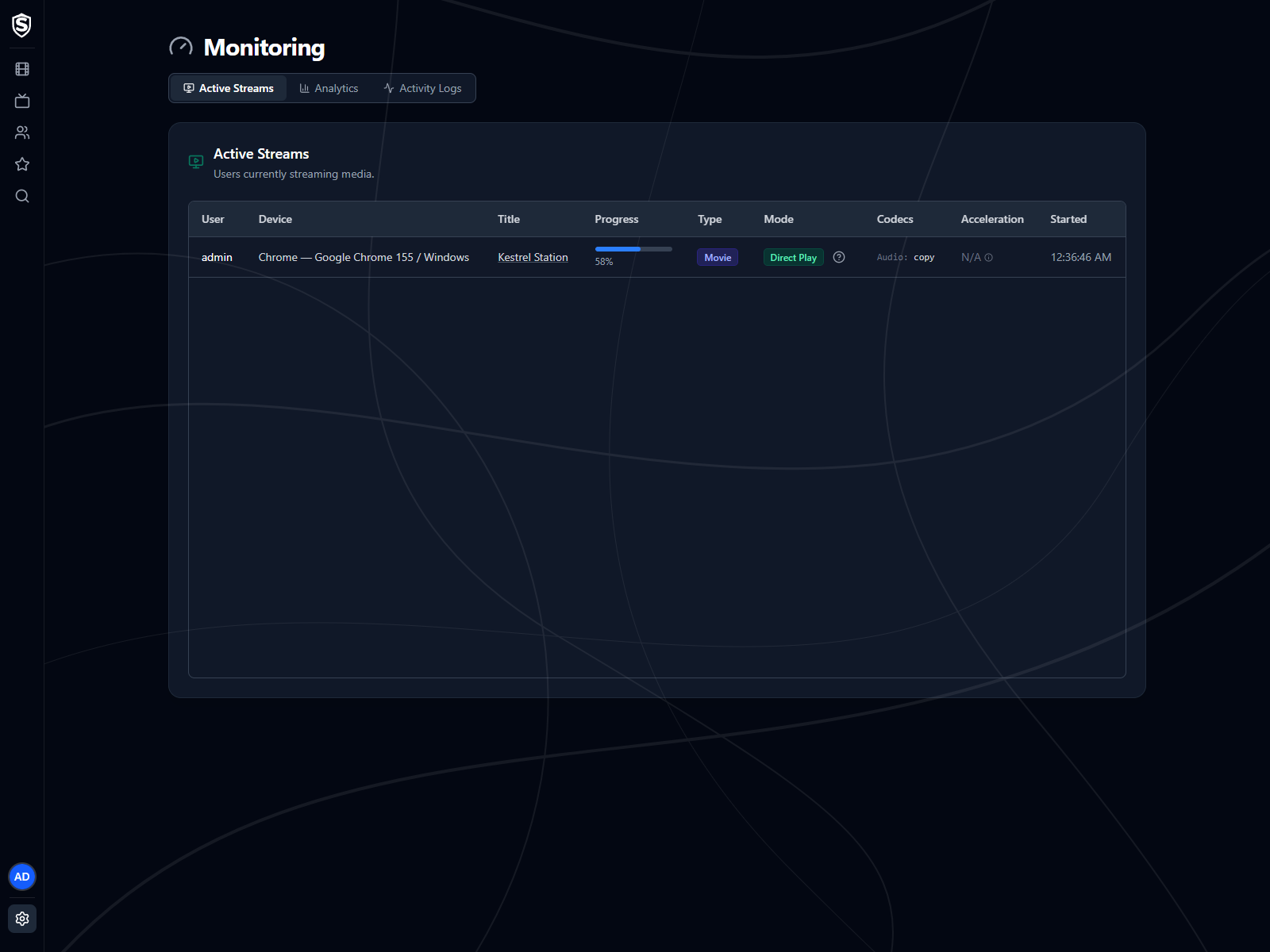
For each stream you can see:
- **User** - who is watching.
- **Device** - the client they're watching on, such as a browser or a Roku.
- **Title** - what they're watching, linked to its details page.
- **Progress** - how far into the title they are.
- **Type** - movie or episode.
- **Mode** - how it's being delivered (direct play, remux, or transcode). The **Playback decision** icon (?) beside it opens the route the server took to that decision, step by step, with the reasons for anything that isn't a direct play; [Playback Decisions](https://sovereign.watch/docs/configuration/playback-decisions/#seeing-a-real-plays-route) explains how to read it, and [Transcoding](https://sovereign.watch/docs/configuration/transcoding/) what each reason means.
- **Codecs** - the video and audio encoders the session is using.
- **Acceleration** - whether the session's encode runs in **Software**, as a **GPU Encode**, or as a **GPU Pipeline** that decodes on the GPU too, with the acceleration API beside it (see [Hardware Acceleration](https://sovereign.watch/docs/hardware-acceleration/overview/)). Direct plays and remuxes copy the video instead of re-encoding it, so no encoder is involved and this column reads N/A.
- **Started** - when the session began.
When nobody is streaming, the page shows an empty state. Sessions disappear automatically shortly after a viewer stops watching.
========================================================================
# Analytics (source: docs/interface/web/admin/analytics) URL: https://sovereign.watch/docs/interface/web/admin/analytics/
========================================================================
# Admin: Analytics
The **Analytics** page summarizes how the server is being used and what the library contains. A window selector (7, 30, or 90 days) scopes the usage sections.
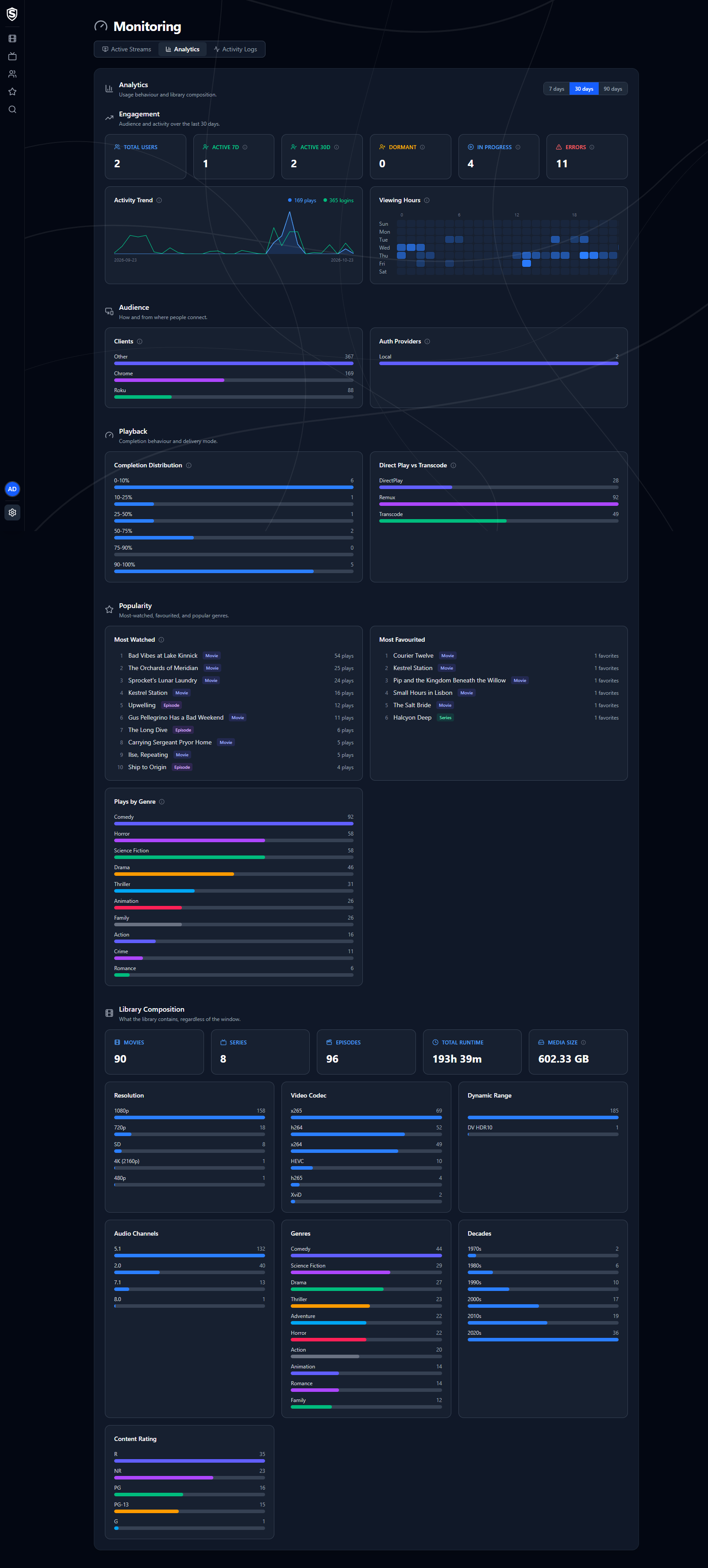
---
## Sections URL: https://sovereign.watch/docs/interface/web/admin/analytics/#sections
- **Engagement** - audience and activity: total users, users active in the last 7 and 30 days, dormant users, titles in progress, and playback start failures, with an **Activity Trend** chart of daily plays and logins and a **Viewing Hours** heatmap of plays by day of week and hour (UTC).
- **Audience** - how people connect: a breakdown by client, and by the identity provider each account signs in with.
- **Playback** - completion behaviour and delivery mode (how often streams are direct played versus transcoded).
- **Popularity** - the most-watched titles, most-favourited titles, and plays by genre.
- **Library Composition** - what the library contains overall, independent of the selected window: movie, series and episode counts, total runtime and media size, broken down by resolution, video codec, dynamic range, audio channels, genre, decade and content rating.
The figures cover the whole server. For who signed in and played what, see the [Activity Logs](https://sovereign.watch/docs/interface/web/admin/activity-logs/).
========================================================================
# Activity Logs (source: docs/interface/web/admin/activity-logs) URL: https://sovereign.watch/docs/interface/web/admin/activity-logs/
========================================================================
# Admin: Activity Logs
The **Activity Logs** page records user-level events such as logins, logouts, and media playback, so you can audit who did what, and when.
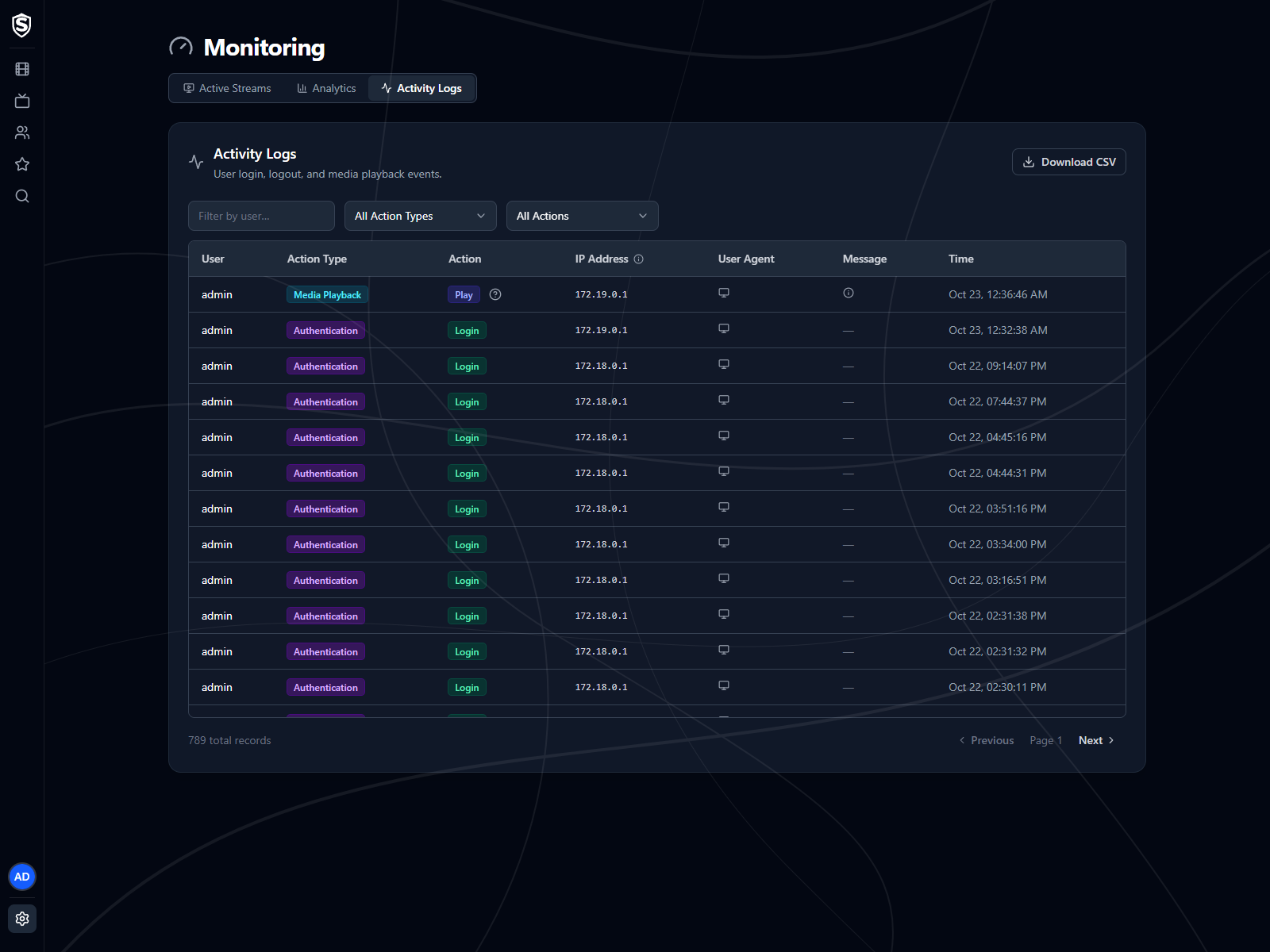
Each record shows:
- The **user**, the **action type** (authentication or media playback), and the **action** itself (login, logout, play, stop, or error when a playback fails to start or is blocked).
- The **IP address** of the device, and its **user agent** on hover.
- An optional **message** with extra detail about the event, also on hover.
- The **time** the event occurred.
- The **Playback decision** icon (?) on a play, which shows the route the server took to deliver it the way it did (see [Playback Decisions](https://sovereign.watch/docs/configuration/playback-decisions/#activity-logs)).
Filter the list by username, action type, or specific action, and use the pagination controls to move through history. **Download CSV** exports the whole activity log, regardless of the filters, for analysis outside Sovereign.
Entries are kept for 90 days by default. Set `Sovereign__ActivityLog__RetentionDays` to change that, or to `0` to keep them forever.
:::note
For server-level diagnostics (rather than user activity), see [Logs](https://sovereign.watch/docs/interface/web/admin/logs/).
:::
========================================================================
# Media Sources (source: docs/interface/web/admin/media-sources) URL: https://sovereign.watch/docs/interface/web/admin/media-sources/
========================================================================
# Admin: Media Sources
The **Media Sources** page lists every media source registered with Sovereign (your Radarr and Sonarr instances, and any directories Sovereign scans itself) along with their current health.
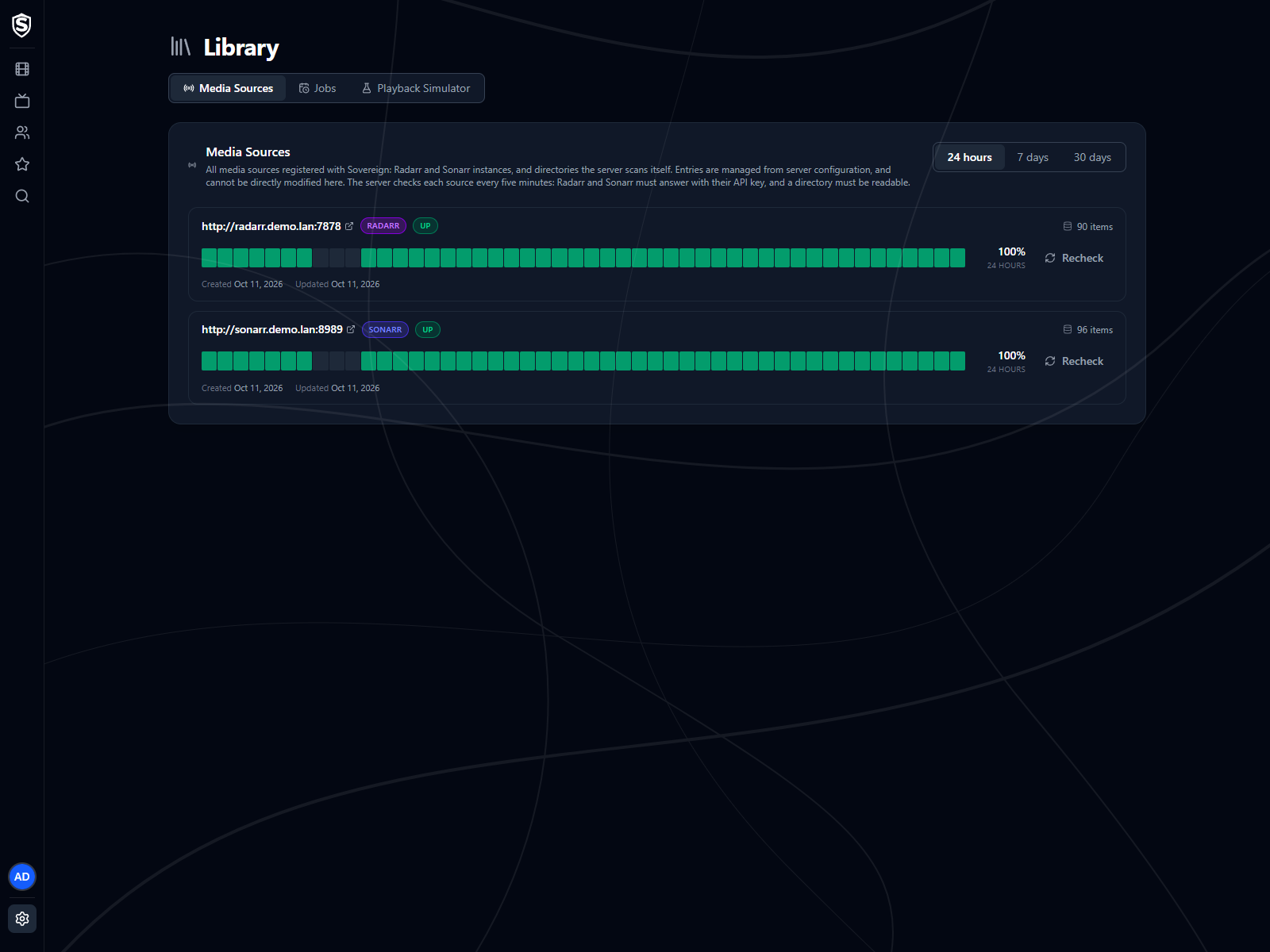
---
Each entry shows:
- For a Radarr or Sonarr source, the instance's URL (linked). For a filesystem source, the directory path the server scans.
- A type badge: Radarr, Sonarr, or Filesystem with what the directory holds (**Movies** or **Television**).
- A status badge saying what the server found when it last checked the source. Hover it for how long ago that was, how long the check took, and the version Radarr or Sonarr reported or why the source isn't up.
- An uptime strip and the source's uptime figure, with a **Recheck** button that checks it again straight away (see [Health and Uptime](https://sovereign.watch/docs/interface/web/admin/media-sources/#health-and-uptime)).
- How many items the source currently contributes to the library.
- A **shared files** badge when another source supplies some of the same files at the same paths, with the other source and the count in its tooltip. That's what a scanned directory overlapping a Radarr library looks like; see [Filesystem Media Sources](https://sovereign.watch/docs/configuration/filesystem-media-sources/).
- When the source was registered, and when it was last updated.
- For a scanned directory, a **paths not imported** line when the last scan found files it couldn't import. Open it for the list.
## Health and Uptime URL: https://sovereign.watch/docs/interface/web/admin/media-sources/#health-and-uptime
The server checks every source every five minutes and keeps the results, so the status you see is what the server can reach, not what your browser can. That matters whenever Radarr or Sonarr sits on a network only the server is on, or a share is mounted only on the server's host. A Radarr or Sonarr source is up when it answers its API with the configured key. A directory is up when the server can read it.
When a source isn't up, the badge says why:
- **Unreachable** - Radarr or Sonarr didn't answer within ten seconds, refused the connection, or a proxy in front of it answered with a server error.
- **Key refused** - it answered, and rejected the API key in your configuration.
- **Error** - something else is wrong with the answer, such as a redirect to a login page or a different application at that address. Hover the badge for what it was.
- **Missing** - the directory doesn't exist, or it's empty, which is what a share that isn't mounted looks like from the server.
- **Unreadable** - the directory exists, and the server isn't allowed to read it.
- **Unresponsive** - the directory didn't answer within ten seconds. A stalled network mount looks like this, and the check gives up rather than waiting for it.
The strip under each source covers the last 24 hours, 7 days or 30 days, chosen at the top of the page. Each slice is green when every check in it found the source up, amber when some did, and red when none did. A grey slice had no checks at all, because the server wasn't running then, which isn't the same as the source being down. The figure beside the strip is the share of checks in that window that found the source up.
**Recheck** runs the same check on the server immediately and adds it to the history, which is the quickest way to confirm a fix. Checks are kept for 30 days by default. Set `Sovereign__MediaSourceHealth__RetentionDays` to change that, or to `0` to keep them forever.
## Paths Not Imported URL: https://sovereign.watch/docs/interface/web/admin/media-sources/#paths-not-imported
A scanned directory can hold files Sovereign skips because it can't identify them with confidence: a folder named _Ninth Take (2026)_ when TMDb has two films by that name and year, a title TMDb doesn't hold, a tag naming an id TMDb no longer has, or a name nothing can be read from. The server log lists them on every scan, and this panel shows the same list with what to do about each one.
Each entry shows the path under the source root, why it was skipped, what was read from the name, and, where TMDb offered candidates, each of them with the tag that would make the next scan take it. Add that tag to the folder name and the entry disappears on the next scan; so does an entry for a file you delete or rename. A television series is listed as its folder, with the number of files behind it, because a series is refused as a whole.
The list scrolls inside its card, so a directory with hundreds of skipped paths doesn't push the sources after it off the page. **Copy as TSV** puts every entry on the clipboard as tab-separated text, one row per path with the full path, the reason, the candidates and the dates, ready to paste into a spreadsheet or hand to a script.
The reasons, and what fixes each:
- **Ambiguous** - several TMDb results match the title and year. Tag the folder with the right one.
- **No close match** - TMDb has results, but none match closely enough. The nearest are listed, which usually shows the name TMDb uses.
- **No title** - TMDb returned several results and there was no title to compare them against. Tag the folder with the right candidate.
- **No results** - TMDb has nothing for the title. Rename the folder to match TMDb, or tag it.
- **Stale tag** - the name carries a TMDb id that TMDb no longer has. Correct or remove the tag.
- **No TheTVDB id** - TMDb knows the series but holds no TheTVDB id for it, and the folder carries none. Add a `[tvdbid-]` tag.
- **Tag disagrees** - the folder's `[tvdbid-]` tag and TMDb's answer name different shows. One of them is wrong.
- **Unreadable name** - no title, year, provider id or episode number could be read. Name it as [Filesystem Media Sources](https://sovereign.watch/docs/configuration/filesystem-media-sources/) describes.
- **Superseded** - another file for the same title or episode was imported instead, because only the largest is. Nothing to do unless this is the one you wanted.
:::note
This page is read-only. Media sources are set in the server's configuration: see the [Configuration reference](https://sovereign.watch/docs/configuration/overview/) for how to add or change them, and [Filesystem Media Sources](https://sovereign.watch/docs/configuration/filesystem-media-sources/) for how to name the files in a scanned directory.
:::
========================================================================
# Jobs (source: docs/interface/web/admin/jobs) URL: https://sovereign.watch/docs/interface/web/admin/jobs/
========================================================================
# Admin: Jobs
The **Jobs** page lists every scheduled background job on the server and its recent run history.
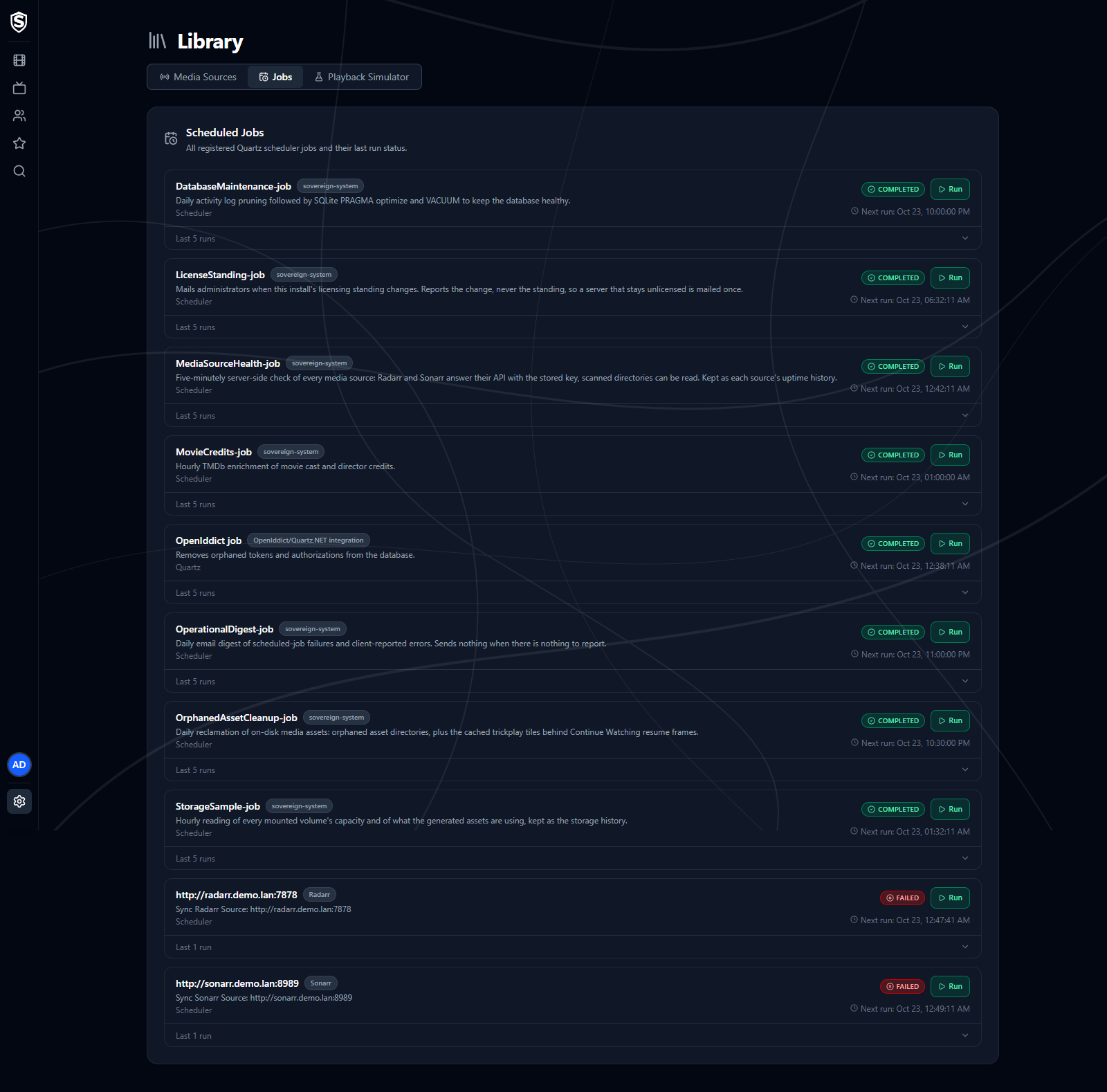
The jobs are:
- **Library sync** - one job per media source (a Radarr or Sonarr instance, or a scanned movie or television directory), run every 15 minutes to keep the library in step with it. After a restart the sources are staggered so they don't all start at once.
- **Credits enrichment** - fetches movie cast and director credits from the metadata provider, hourly on the hour.
- **Database maintenance** - daily at 03:00 UTC. Prunes activity logs, client error reports, inactive devices, sent-email records and storage samples that have passed their retention, then compacts the database.
- **Asset cleanup** - daily at 03:30 UTC. Reclaims on-disk asset directories that no longer belong to anything in the library, and the cached preview frames behind Continue Watching.
- **Operational digest** - daily at 04:00 UTC. Emails administrators a summary of job failures and client-reported errors, and sends nothing when there's nothing to report.
- **License standing** - at startup and every six hours. Emails administrators when this server's license standing changes.
- **Storage sampling** - at startup and then hourly. Records the disk and metadata storage figures shown on the [Overview](https://sovereign.watch/docs/interface/web/admin/overview/) page.
Each entry shows the job's description, the status of its latest run (**Completed**, **Failed**, **Running**, **Vetoed** or **Never run**), and its next scheduled run. **Run** starts a job straight away, and while it's running the button becomes **Stop**. Expand an entry for its last five runs with their start time, duration and status, plus the full error message of any run that failed.
Sovereign runs one job at a time. A job that comes due while another is running waits a few minutes and tries again, and that attempt is listed as **Failed** with a message saying when it was rescheduled.
========================================================================
# Playback Simulator (source: docs/interface/web/admin/playback-simulator) URL: https://sovereign.watch/docs/interface/web/admin/playback-simulator/
========================================================================
# Admin: Playback Simulator
The **Playback Simulator** page tells you whether a device would direct play a title before anyone presses play, by working out the decision a real start would make without starting a stream.

---
Pick what to ask about:
- **Title** - search for a movie or an episode and choose its file. The line under the search box shows the file you chose, with its resolution and codecs.
- **Device** - any device that has told the server what it can play. Opening the app on a device is what does that, so a device that's listed under **No stored capabilities** needs its app opened once first.
- **Max bitrate**, **Video quality** and **Audio language** - optional, standing in for the viewer's own settings. Leave them at **No limit**, **Server default** and **No preference** to ask about a viewer who hasn't changed anything.
The answer updates as soon as both a title and a device are chosen, and again whenever you change one of them. It opens with a few notes on what the prediction is based on, then the headline (**Predicted:** and the mode, with one line on what happens to the video and audio), the reasons, and the chart of the route a start would take. Click a step in the chart to see what it compared.
The simulator reads the file the way a start would, so it works from the same facts as a real play. [Playback Decisions](https://sovereign.watch/docs/configuration/playback-decisions/) explains how to read the chart and what the prediction can't foresee, and [Transcoding](https://sovereign.watch/docs/configuration/transcoding/) what each reason means.
========================================================================
# Users (source: docs/interface/web/admin/users) URL: https://sovereign.watch/docs/interface/web/admin/users/
========================================================================
# Admin: Users
The **Users** page is where you manage every account on the server.
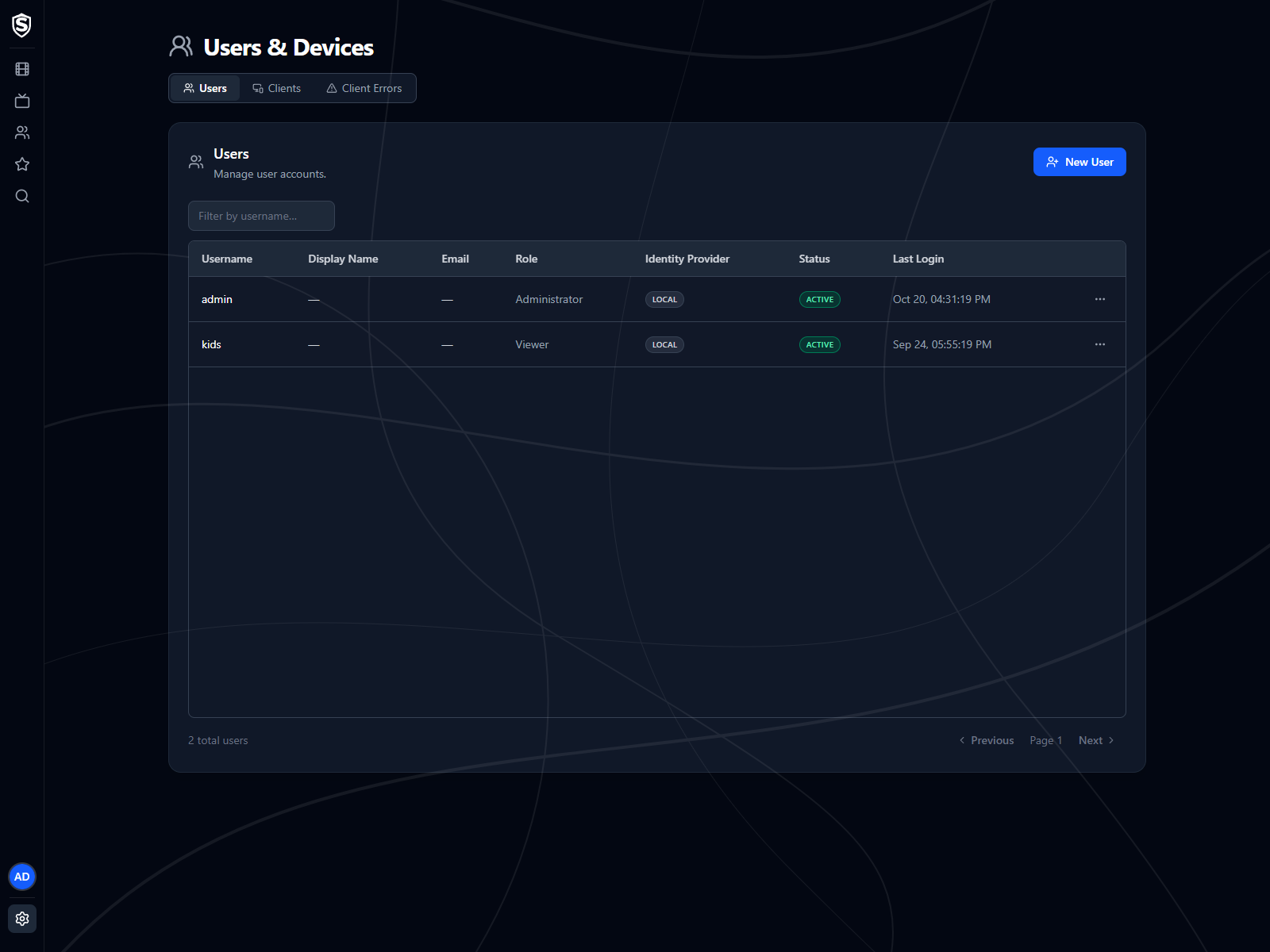
---
The table lists each user's username, display name, email, role, identity provider (local or social sign-in), status (**Active** or **Locked**), and last login. Use the filter box to find a user by username in larger installs, and the pagination controls to page through the list.
## User Actions URL: https://sovereign.watch/docs/interface/web/admin/users/#user-actions
**New User** creates a local account directly, without waiting for someone to sign up: a username, an optional email, a password (**Generate** fills in a random one), and a role. The roles are **Administrator**, **Read-Only Admin**, **Viewer** and **Unapproved**.
The actions menu at the end of each row is where existing accounts are managed:
- **Unlock Account** - clears a lockout after too many failed sign-ins. Only available while the account is locked.
- **Reset Password** - sets a new password for the user.
- **Change Role** - moves the user to another role. This is how you approve someone who signed up through a social identity provider: those accounts start as **Unapproved** and can't do anything until you give them a role. If email is set up, administrators are mailed when one arrives.
- **Preferences** - the user's default audio language, bitrate and quality, plus a **Maximum Content Rating** that hides anything rated above it, and unrated content too. Only an admin can set the rating limit.
- **Delete User** - removes the account and the data that belongs to it, after a confirmation that lists exactly what goes (see below).
You can't change your own role or delete your own account.
## Deleting a User URL: https://sovereign.watch/docs/interface/web/admin/users/#deleting-a-user
The confirmation counts what the deletion removes for that particular user: the account and how it signs in, its signed-in sessions, watch progress, favourites, activity log entries, the devices only that user signed in on (listed by name), the error reports its apps sent, and its profile picture. Categories the user has nothing in are left off. Signed-in sessions end at once, so an app the user is signed in on is refused on its next request rather than when its sign-in would have expired.
A few things outlive the deletion, and the confirmation lists them under **Kept after deletion**:
- **Shared devices** - a device another user also signs in on stays on the [Clients](https://sovereign.watch/docs/interface/web/admin/clients/) list. Only its link to the deleted user goes.
- **Server log files** - they name users beside what they played, and are deleted after 31 days.
- **Sent-email records** - the record of any email that contained the user's address, such as the notice that they asked for an account, is kept for 90 days. [Email](https://sovereign.watch/docs/configuration/email/) covers changing that.
The confirmation shows the periods your server is actually configured with. If you're deleting an account because someone asked you to erase their data, those are what's left on the server afterwards, and when each one goes.
## Related Pages URL: https://sovereign.watch/docs/interface/web/admin/users/#related-pages
- Server-wide viewing behaviour lives in [Analytics](https://sovereign.watch/docs/interface/web/admin/analytics/).
- Sign-in and playback events per user are recorded in the [Activity Logs](https://sovereign.watch/docs/interface/web/admin/activity-logs/).
- Exporting every account to an archive, and restoring one onto a new install, is on [Backup & Restore](https://sovereign.watch/docs/interface/web/admin/backup/).
========================================================================
# Clients (source: docs/interface/web/admin/clients) URL: https://sovereign.watch/docs/interface/web/admin/clients/
========================================================================
# Admin: Clients
The **Clients** page lists every device that has connected to this server, who signed in on it, and what it can play.
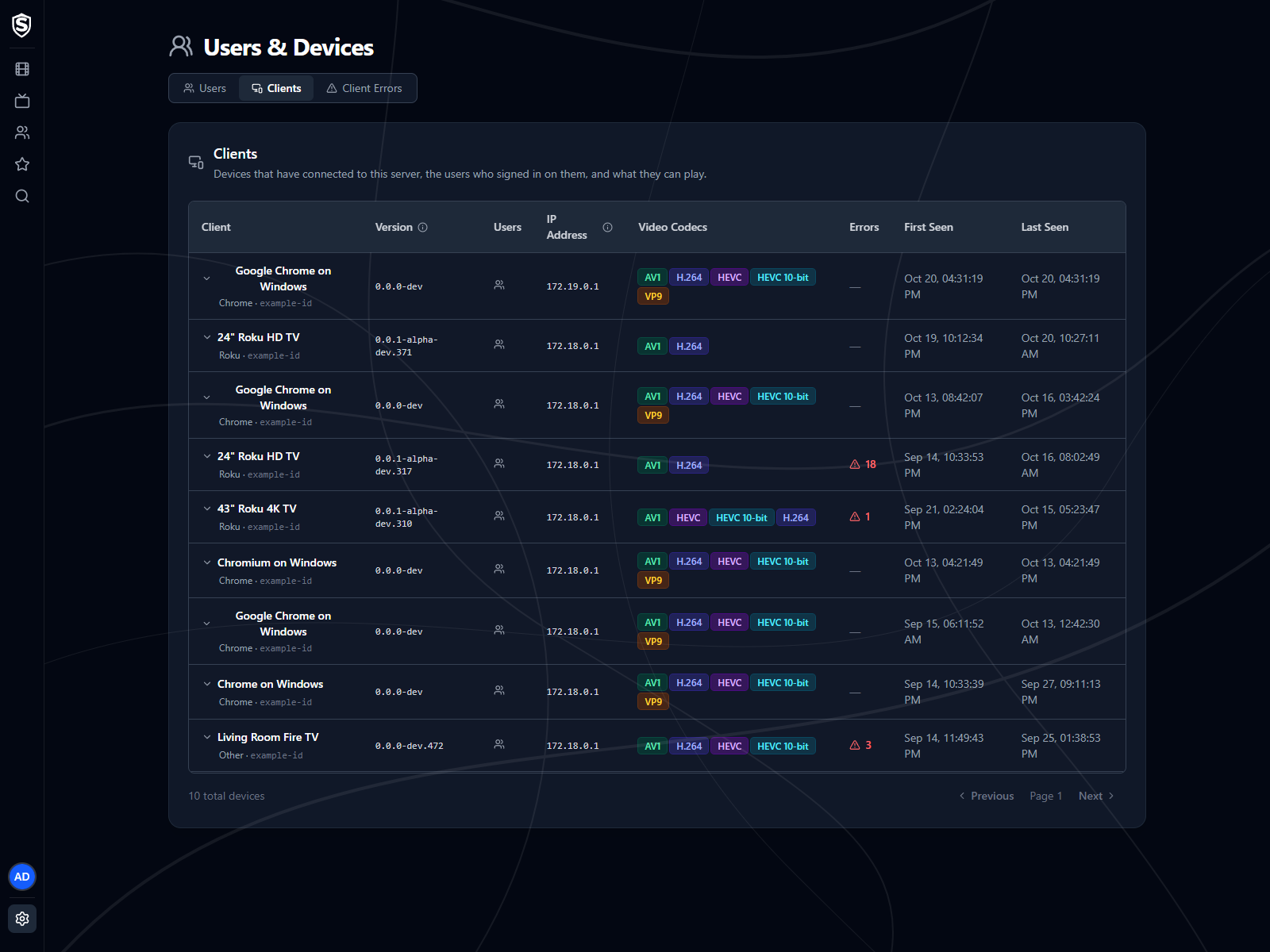
---
## The Table URL: https://sovereign.watch/docs/interface/web/admin/clients/#the-table
Each row is one device:
- **Client** - the name the device gives itself, with the kind of client it is (a browser and operating system, a Roku model, the Sovereign app) and its device identifier beneath.
- **Version** - the build of the client that device is running, the same string its error reports carry. It's reported when the device registers, which happens once per launch or sign-in, so it can be older than **Last Seen**. A device that hasn't reported a version shows a dash.
- **Users** - the accounts that have signed in on that device. Hover the icon to see them.
- **IP Address** - where the device connected from.
- **Video Codecs** - the video formats the device told the server it can decode. This is what playback negotiation works from, so a device missing a codec here will be transcoded to something it does support.
- **Errors** - how many problems that device has reported. Click the count to open [Client Errors](https://sovereign.watch/docs/interface/web/admin/client-errors/) already filtered to that device.
- **First Seen / Last Seen** - when the device first connected and when it was last active.
Expand a row to see the device's full reported capabilities: its display size, connection type and downlink, whether it plays HLS natively or through MSE, its platform, model and user agent, and the full list of formats it supports.
A device that hasn't connected for 90 days is removed from the list. Set `Sovereign__ClientDevices__RetentionDays` to change that, or to `0` to keep every device.
:::note
If every device shows the same IP address, your reverse proxy is being recorded instead of the real client. Set `Sovereign__Network__TrustedProxyNetwork__0` to your proxy's address or CIDR range. See the [Configuration reference](https://sovereign.watch/docs/configuration/overview/).
:::
========================================================================
# Client Errors (source: docs/interface/web/admin/client-errors) URL: https://sovereign.watch/docs/interface/web/admin/client-errors/
========================================================================
# Admin: Client Errors
The **Client Errors** page collects problems the web, Roku and Android clients ran into, so a viewer saying "it didn't work" turns into something you can act on.
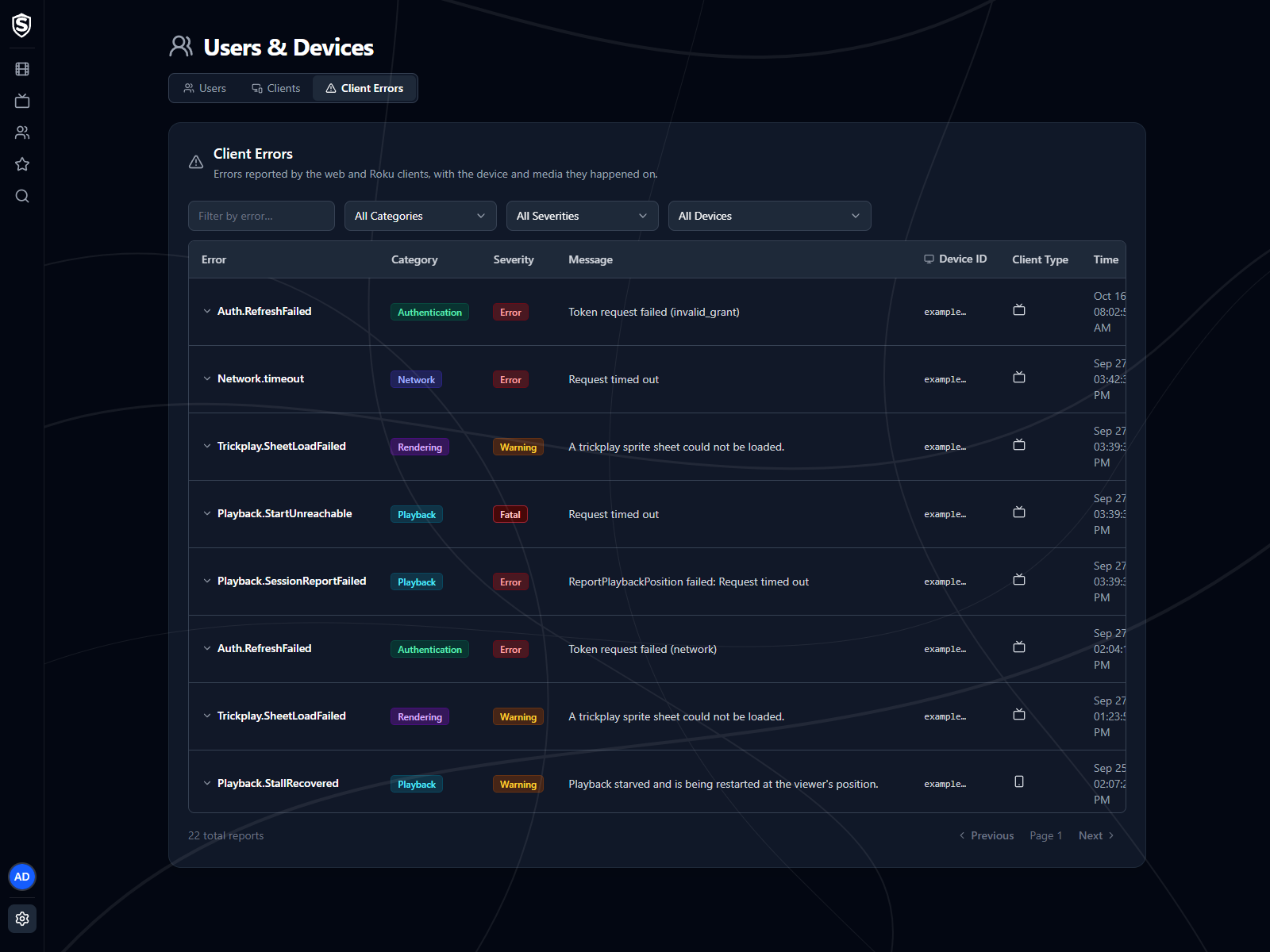
---
## Reading a Report URL: https://sovereign.watch/docs/interface/web/admin/client-errors/#reading-a-report
Each row is one report:
- **Error** - the operation that failed, such as a media player fault or a token refresh.
- **Category** - playback, network, rendering, authentication, unhandled, or other.
- **Severity** - warning, error, or fatal.
- **Message** - what the client said went wrong.
- **Device ID** - the start of the identifier of the device that reported it, matching the entry on the [Clients](https://sovereign.watch/docs/interface/web/admin/clients/) page.
- **Client Type** - an icon for the kind of client that reported it: a TV, a phone, or a browser.
- **Time** - when it happened.
Expand a row for the full detail: the screen and URL it happened on, the client version, platform and model, the user signed in, the title and playback position if it happened during playback, and the full message, stack trace and raw data the platform returned.
Filter by error name, category, severity, or device to narrow a wide list down to the pattern you're chasing. The device list includes every known device, so you can also confirm one has been quiet.
Reports are kept for 30 days by default. Set `Sovereign__ClientErrors__RetentionDays` to change that, or to `0` to keep them forever.
:::note
Reports arrive from the clients themselves, so an error here is what the viewer's device experienced. For what the server was doing at the same moment, check [Logs](https://sovereign.watch/docs/interface/web/admin/logs/).
:::
========================================================================
# Configuration (source: docs/interface/web/admin/configuration) URL: https://sovereign.watch/docs/interface/web/admin/configuration/
========================================================================
# Admin: Configuration
The **Configuration** page lists the server's current runtime settings in a single table, sorted by environment variable name. Each row names the variable exactly as you'd set it, so you can copy it straight into your compose file or environment.
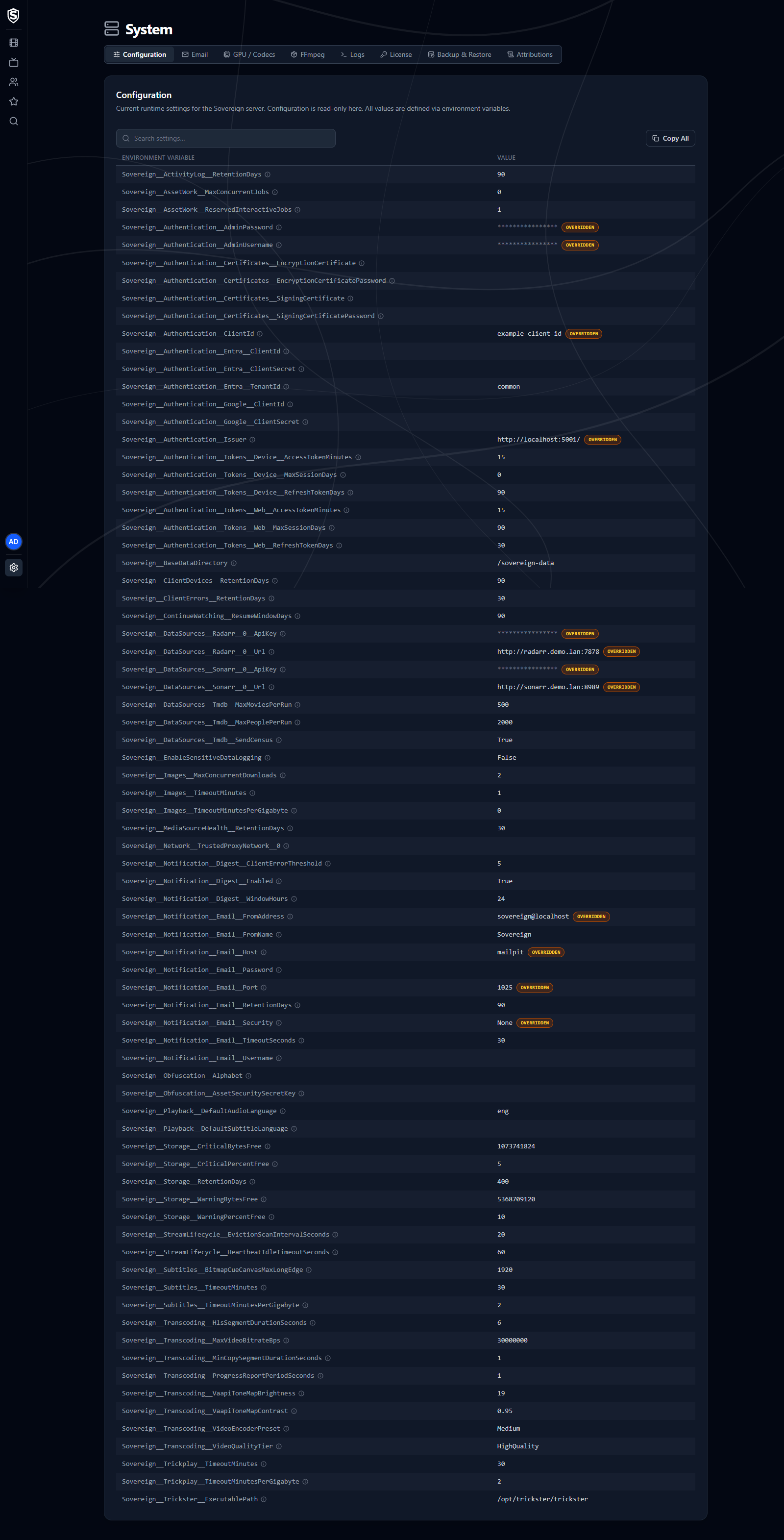
- **Read-only** - values come from environment variables, or are the server's defaults, and can't be edited here. See the [Configuration reference](https://sovereign.watch/docs/configuration/overview/) for how to change them.
- **Redaction** - sensitive values such as passwords, API keys, and connection strings are masked with asterisks. The real value never leaves the server, so it can't be recovered from the page.
- **Override badges** - settings that have been overridden from their defaults are marked, so you can see at a glance which values your deployment has customized.
- **Hints** - the info icon next to a setting explains what it does.
- **Search** - the box above the table filters it as you type, matching setting names, values, and the words in each hint. Paste a name in either spelling (`Sovereign__Notification__Email__Port` or `Email:Port`) to find that one setting. Escape clears it.
- **Copy All** - the button above the table copies every setting, whether it's overridden, and its value to your clipboard as aligned columns, ready to paste into a support thread or a scratch file. It copies the whole table even while a search is narrowing it. Masked values copy as asterisks, not as the secret.
Check this page when you need to confirm the server picked up a setting you deployed.
========================================================================
# Email (source: docs/interface/web/admin/email) URL: https://sovereign.watch/docs/interface/web/admin/email/
========================================================================
# Admin: Email
The **Email** page shows the SMTP relay this server sends through, lets you prove it works with a test message, and lists every message the server has sent. It sits under **System** in the admin menu.
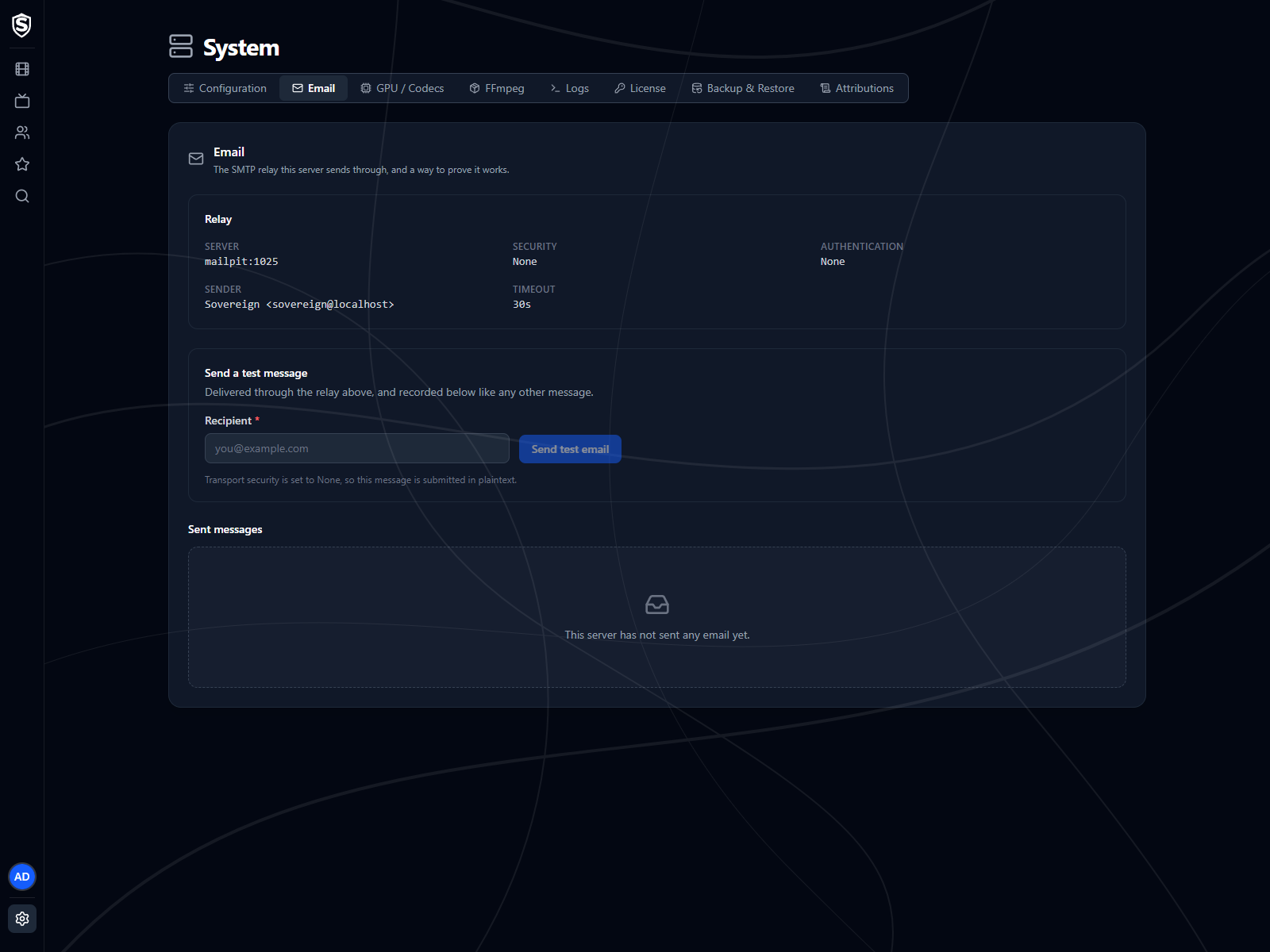
---
## When Email Is Off URL: https://sovereign.watch/docs/interface/web/admin/email/#when-email-is-off
With no relay host configured, the page says email is off and that the server sends nothing until you give it a relay. There's no separate on/off switch: set the relay host and a sender address, restart the server, and email is on. [Email](https://sovereign.watch/docs/configuration/email/) lists the settings, and [Configuration](https://sovereign.watch/docs/interface/web/admin/configuration/) shows the values the server is running with.
## Relay URL: https://sovereign.watch/docs/interface/web/admin/email/#relay
Once a relay is configured, this section shows what the server is using:
- **Server** - the relay's host and port.
- **Security** - how the connection is secured (STARTTLS unless you've changed it).
- **Authentication** - the username the server signs in with, or **None**.
- **Sender** - the name and address messages come from. The name defaults to "Sovereign".
- **Timeout** - how long the server waits on the relay before giving up on an attempt.
## Send a Test Message URL: https://sovereign.watch/docs/interface/web/admin/email/#send-a-test-message
Enter an address under **Recipient** and click **Send test email**. The message goes through the relay above and is recorded in the table below like any other. The page waits for the relay's answer, so a failure shows the relay's own error text straight away. When the relay's security is set to none, the page warns that the message will cross the network unencrypted.
## Sent Messages URL: https://sovereign.watch/docs/interface/web/admin/email/#sent-messages
Every message the server has tried to send, newest first, 25 to a page. The table shows when each was queued, who it went to, the subject, its status, how many attempts it took and the last error. Hover a status for what it means:
- **Sent** - handed to the relay without error.
- **Queued** - waiting for its first attempt or a retry.
- **Failed** - every attempt failed.
- **Disabled** - email wasn't configured when the message came up, so it was recorded and not sent.
Click a row to see the sender, the last attempt, when it was sent, and the full text of the message. The table appears even while email is off, so you can see what would have gone out.
:::note
Sovereign mails every user with the Administrator role who has an email address on their account. [Email](https://sovereign.watch/docs/configuration/email/) describes the messages it sends and when.
:::
========================================================================
# GPU / Codecs (source: docs/interface/web/admin/gpu-capabilities) URL: https://sovereign.watch/docs/interface/web/admin/gpu-capabilities/
========================================================================
# Admin: GPU Capabilities
The **GPU Capabilities** page (**GPU / Codecs** in the admin menu) reports the results of the hardware-acceleration probe that runs at server startup: which encoders, decoders and filters your GPU can run, which complete encode paths work end to end, and the software path a transcode falls back to.
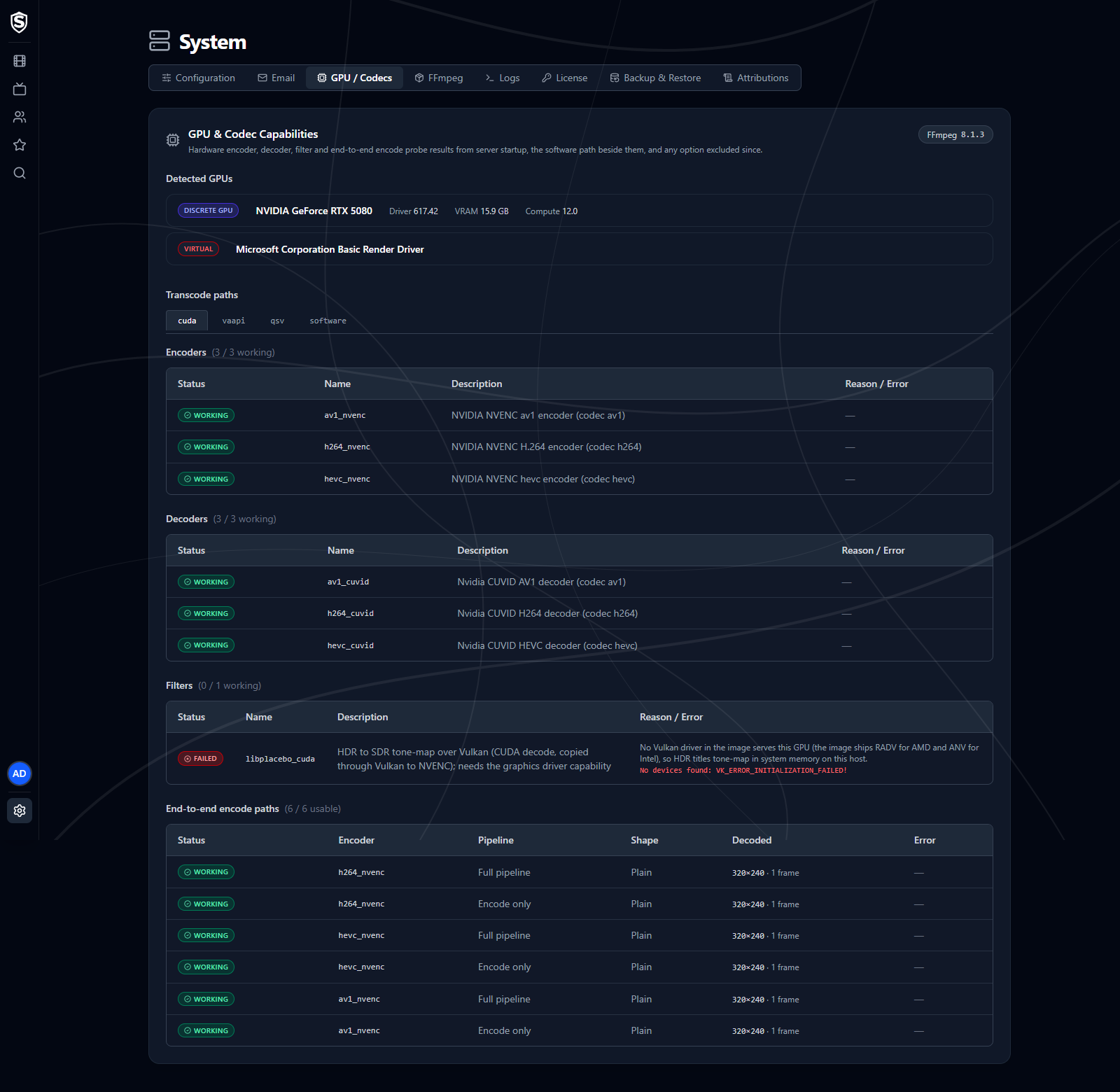
---
## Excluded Encode Options URL: https://sovereign.watch/docs/interface/web/admin/gpu-capabilities/#excluded-encode-options
An encode option can pass the startup probe and still fail to start a real transcode later. When that happens Sovereign stops choosing it, and sessions fall back to the next option, which may be slower or lower quality. A warning at the top of the page lists each excluded option with its encoder, pipeline, shape, error, and when it was excluded. Restarting the server probes them again. When nothing has been excluded, the warning isn't shown.
## Detected GPUs URL: https://sovereign.watch/docs/interface/web/admin/gpu-capabilities/#detected-gpus
Every GPU visible to the server, tagged as discrete, integrated, or virtual, with driver version, VRAM, and compute capability where applicable. Virtual devices are never used for transcoding.
## Transcode Paths URL: https://sovereign.watch/docs/interface/web/admin/gpu-capabilities/#transcode-paths
One tab for each acceleration API FFmpeg reports (such as CUDA, VAAPI or QSV), then a **software** tab. The FFmpeg version beside the page heading links to the FFmpeg page.
Each API tab lists its encoders, its decoders and the GPU filters the transcode pipelines use, each with a count of how many work, and each with a status badge:
- **Working** - probed successfully on this host.
- **Not Tested** - the probe didn't exercise this decoder or filter.
- **Failed** - the probe failed. The reason or error message sits beside it.
Below them, **End-to-end encode paths** runs each encoder the way a real session would, through its filters and the muxer and then decoded back, for each pipeline (**Software**, **Encode only**, or **Full pipeline** with hardware decode too) and shape (**Plain**, **Scale**, or **HDR tone-map**). A path reads **Working**, **Failed**, or **Excluded** when it passed at startup but has failed a session since. Only paths that work here are ever chosen, however well their encoder and filters did on their own. A tab with no paths says why: the probe didn't run, or none of that API's encoders passed.
The **software** tab covers what a transcode runs in system memory when no hardware path serves it. It lists each software encoder and filter the pipelines use, whether the shipped FFmpeg includes it (**Available**, **Missing**, or **Not Checked**), what it's needed for, and whether a missing one makes that feature fail or falls back to the next option.
If a codec you expect is missing or failing, see the [Hardware Acceleration](https://sovereign.watch/docs/hardware-acceleration/overview/) guides for driver and container setup.
========================================================================
# FFmpeg (source: docs/interface/web/admin/ffmpeg) URL: https://sovereign.watch/docs/interface/web/admin/ffmpeg/
========================================================================
# Admin: FFmpeg
The **FFmpeg** page describes the FFmpeg build this server ships with and everything compiled into it. It sits under **System** in the admin menu, beside [GPU / Codecs](https://sovereign.watch/docs/interface/web/admin/gpu-capabilities/).
---
## Version and Requirements URL: https://sovereign.watch/docs/interface/web/admin/ffmpeg/#version-and-requirements
The top of the page gives the FFmpeg version and a one-line verdict on the components Sovereign's pipeline needs: all present, some not checked, some missing but none of them required, or some required ones missing. **Checklist** links to the GPU / Codecs page, whose software tab lists each component, what it's needed for and what happens without it.
## Compiled In URL: https://sovereign.watch/docs/interface/web/admin/ffmpeg/#compiled-in
Three folded lists (**Filters**, **Encoders** and **Decoders**) name everything the build includes, each with a count. Type into the search box to find a name such as `zscale` or `libx264`; every list opens on its matches, and a search with no hits says so.
A hardware encoder or filter appearing here only means it was compiled in. It doesn't prove your GPU and driver can run it. The startup probe results on [GPU / Codecs](https://sovereign.watch/docs/interface/web/admin/gpu-capabilities/) show whether they can.
If the server couldn't read FFmpeg's lists at startup, the page says so and points you at the server log.
========================================================================
# Logs (source: docs/interface/web/admin/logs) URL: https://sovereign.watch/docs/interface/web/admin/logs/
========================================================================
# Admin: Logs
The **Logs** page shows the server's log output as it happens, along with the log files it has kept, for troubleshooting.
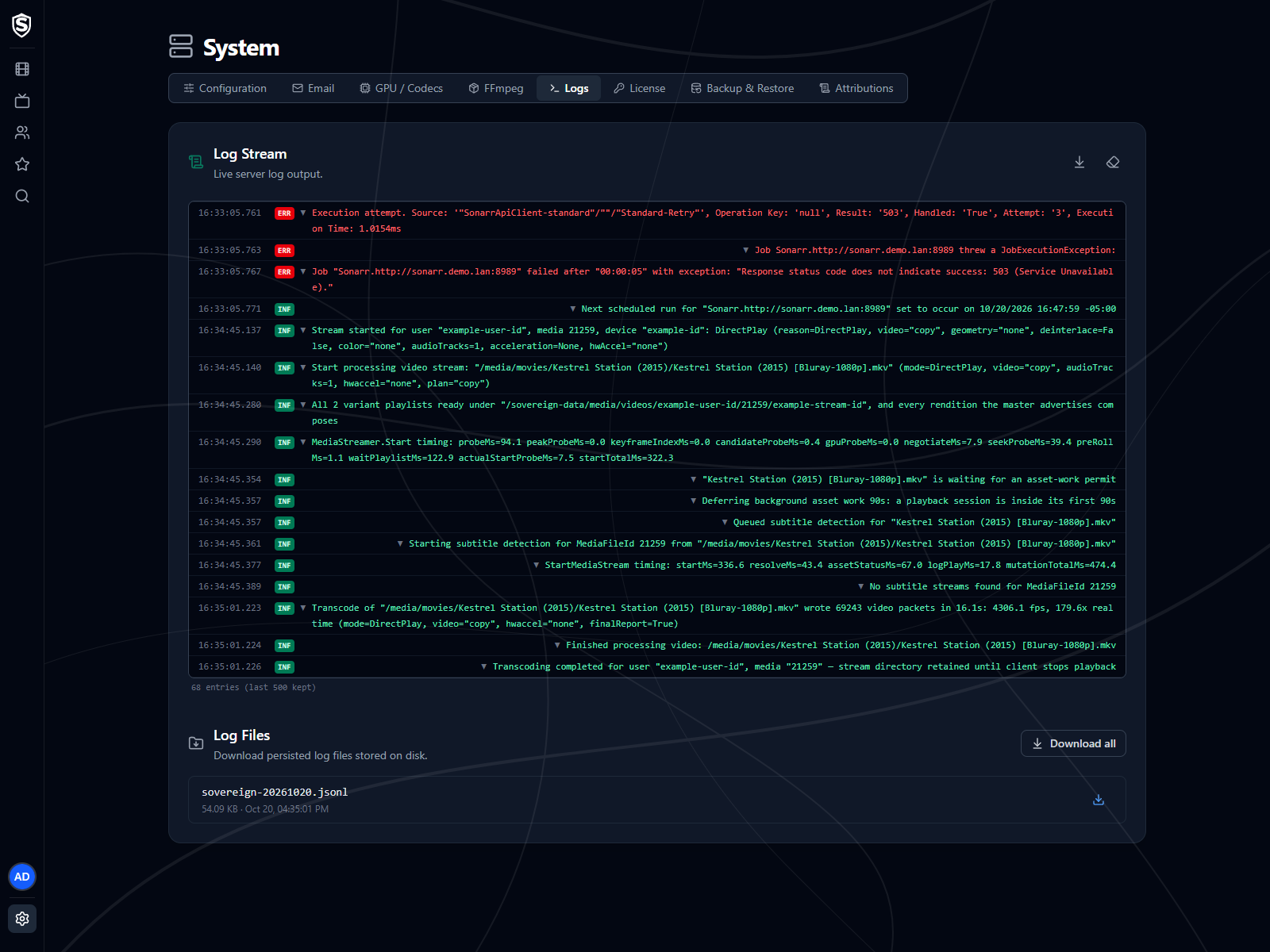
---
## Log Stream URL: https://sovereign.watch/docs/interface/web/admin/logs/#log-stream
A live tail of server log output. Each entry shows its timestamp, level badge, and message, and an entry carrying an exception or extra properties can be expanded for full details. Controls in the corner turn auto-scroll on or off and clear the view. The view keeps the most recent 500 entries, and older ones roll off.
## Log Files URL: https://sovereign.watch/docs/interface/web/admin/logs/#log-files
The log files persisted on disk, one per day, with their size and last-write time. Download an individual file, or use **Download all** to grab everything as a single zip archive for offline analysis or a bug report.
:::note
For user-level events (logins and playback) rather than server diagnostics, see [Activity Logs](https://sovereign.watch/docs/interface/web/admin/activity-logs/).
:::
========================================================================
# License (source: docs/interface/web/admin/license) URL: https://sovereign.watch/docs/interface/web/admin/license/
========================================================================
# Admin: License
The **License** page shows the license this server holds and is where you start a trial, buy a license, or move one here. It sits under **System** in the admin menu, beside [Backup & Restore](https://sovereign.watch/docs/interface/web/admin/backup/).
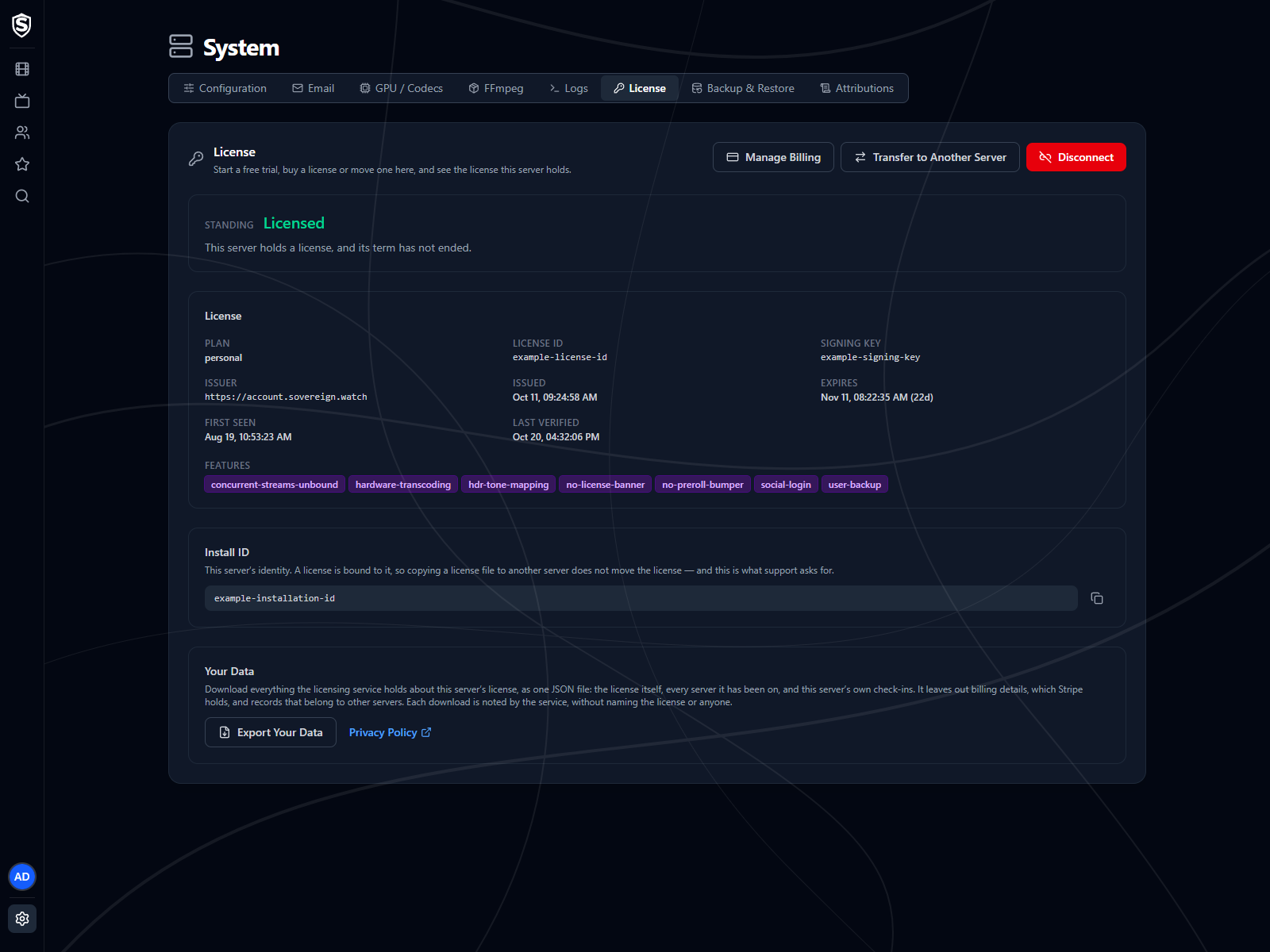
---
## Standing URL: https://sovereign.watch/docs/interface/web/admin/license/#standing
The top of the page names this server's [standing](https://sovereign.watch/docs/licensing/overview/#standing) in one word, with a sentence under it saying what that means for your viewers and what, if anything, you can do about it.
## License URL: https://sovereign.watch/docs/interface/web/admin/license/#license
Once the server holds a license, this section gives its plan, its license ID, when it was issued and when it expires, when this server first saw it, and when the server last checked in with the licensing service. The features the plan includes are listed beneath.
## Install ID URL: https://sovereign.watch/docs/interface/web/admin/license/#install-id
The [install ID](https://sovereign.watch/docs/licensing/overview/#the-install-id) below the license details is this server's identity. A license is bound to it, and it's what support asks for. The button beside it copies it.
## Your Data URL: https://sovereign.watch/docs/interface/web/admin/license/#your-data
Once the server holds a license, the section at the bottom of the page holds **Export Your Data**, which downloads everything the licensing service keeps about this license as one JSON file, with a link to the [privacy policy](https://sovereign.watch/docs/privacy-policy/) beside it. [What We Hold About a License](https://sovereign.watch/docs/licensing/your-data/) says what the file includes and leaves out.
## Actions URL: https://sovereign.watch/docs/interface/web/admin/license/#actions
The buttons in the top corner change with the standing, so the page only offers what can work from where the server is:
- **Start Free Trial** - starts this server's one free trial. It's gone for good once the server has had a trial. See [Starting a Free Trial](https://sovereign.watch/docs/licensing/getting-a-license/#starting-a-free-trial).
- **Buy a License** - offered while the server has no working license, or is on its trial. See [Buying a License](https://sovereign.watch/docs/licensing/getting-a-license/#buying-a-license).
- **Move a License Here** - brings a purchased license over from another server, with a transfer code or the email you paid with. See [Moving a License](https://sovereign.watch/docs/licensing/moving/).
- **Manage Billing** and **Transfer to Another Server** - offered once the server holds a purchased license. See [Managing Billing](https://sovereign.watch/docs/licensing/getting-a-license/#managing-billing).
- **Request Refund** - shown for a purchased license while its latest payment can still be refunded, within 30 days of it. It asks you to confirm that the license ends straight away and that this server can't be refunded again before it does anything. See [Managing Billing](https://sovereign.watch/docs/licensing/getting-a-license/#managing-billing).
- **Disconnect** - deletes the license stored on this server without cancelling anything. A trial still in its term can't be disconnected. See [Disconnecting](https://sovereign.watch/docs/licensing/moving/#disconnecting).
========================================================================
# Backup & Restore (source: docs/interface/web/admin/backup) URL: https://sovereign.watch/docs/interface/web/admin/backup/
========================================================================
# Admin: Backup & Restore
The **Backup & Restore** page exports this server's accounts and license to a single archive, and restores one. It sits under **System** in the admin menu, beside **License**, because a backup carries the license as well as the users.
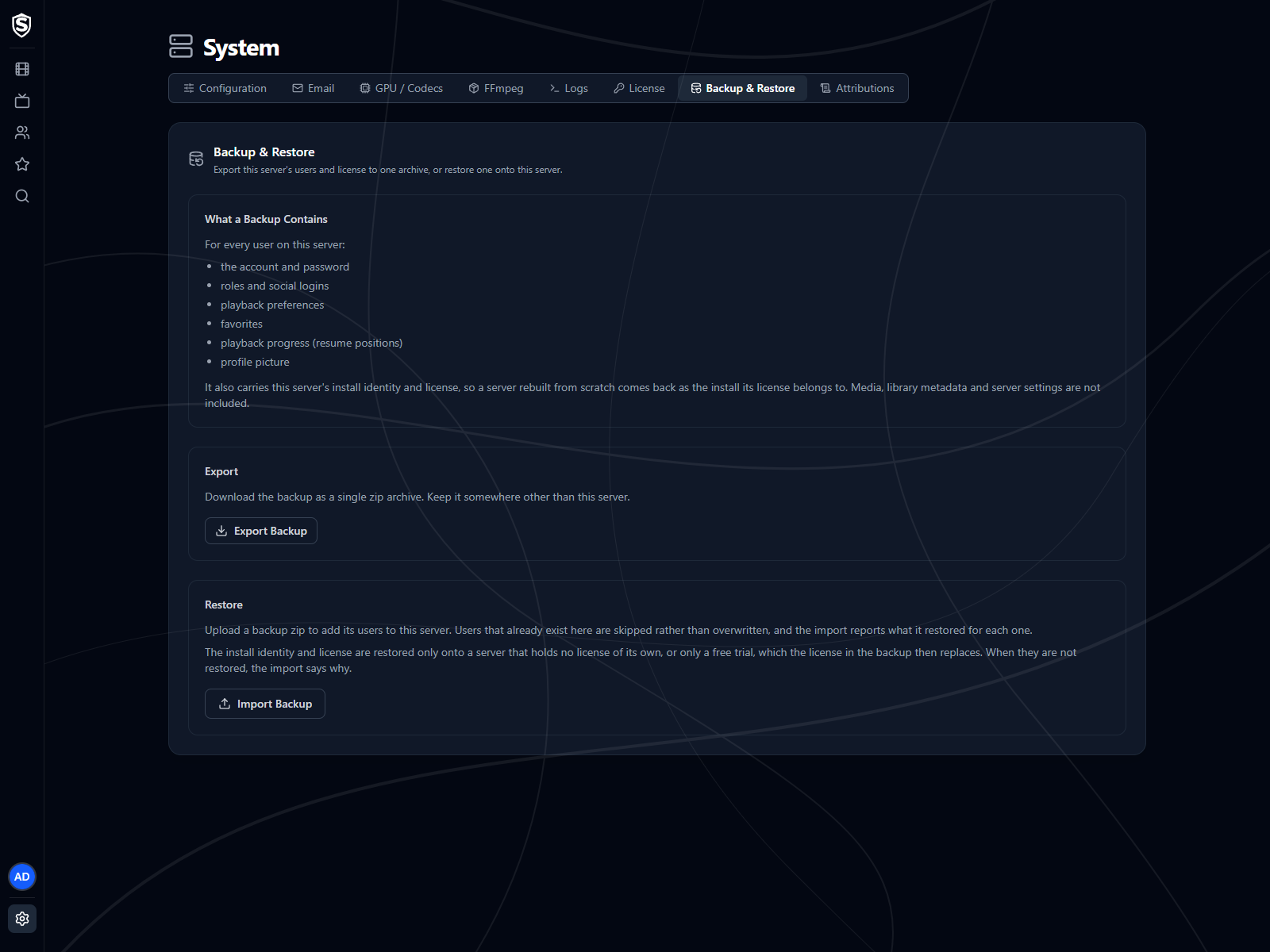
:::caution[Backups need a purchased license]
A free trial can't export a backup, and neither can an unlicensed server or one whose license has expired, so don't plan on a backup to carry users off a trial server. If you're trying Sovereign on one machine and mean to settle on another, buy a license before you move, or expect to set the accounts up again on the new server. A backup never carries a trial, and restoring one never starts a new trial: each install gets one, ever. A server without a purchased license can only restore a backup made by a licensed server.
These limits are what keep a free trial from running forever. If a trial could be exported near its end and restored onto a fresh server with a trial of its own, the same users and history could hop from one trial to the next indefinitely.
:::
---
## What a Backup Contains URL: https://sovereign.watch/docs/interface/web/admin/backup/#what-a-backup-contains
For every user on the server, a backup holds the account and password, roles and social logins, playback preferences, favorites, playback progress, and profile picture.
It also carries the server's install identity and its license. That's what lets a server rebuilt from scratch come back as the install its license belongs to, rather than as a new server with no license at all. Media, library metadata and server settings aren't included. A rebuilt server picks those up again from its media sources and configuration.
:::caution
A backup carries account data. Keep it somewhere you'd be comfortable keeping your own credentials.
:::
## Export URL: https://sovereign.watch/docs/interface/web/admin/backup/#export
**Export Backup** downloads the archive. Keep it somewhere other than the server it came from, or it won't help when that server is lost.
Backups need a purchased license. On a free trial, on a plan that doesn't include backups, or on a server whose license isn't in good standing, **Export Backup** is disabled with the reason beside it. [User Backups](https://sovereign.watch/docs/licensing/overview/#user-backups) has the details.
## Restore URL: https://sovereign.watch/docs/interface/web/admin/backup/#restore
**Import Backup** restores an archive, which is how you move users onto a new install without asking everyone to start over. Accounts that already exist on the server are skipped rather than overwritten, and the import reports what it restored for each user.
Import your media before you restore a backup. A favorite or resume position whose movie, series or file isn't in the library yet is dropped from the restored user, and importing that media afterwards won't bring it back.
The install identity and license are restored only onto a server that holds no license of its own, or only a free trial, which the license in the backup then replaces. They're restored only from a backup that hasn't been edited by hand since it was exported. On a server whose own license includes backups, an edited backup still restores its accounts. Whenever the identity and license aren't restored, the import says why.
**Import Backup** stays available even when export isn't, because a rebuilt server with no license, or on a free trial, can restore an unedited backup made by a licensed server, and that brings the license back. Any other import on a server without backups in its license is refused before anything is written.
## Related Pages URL: https://sovereign.watch/docs/interface/web/admin/backup/#related-pages
- The accounts a backup restores are managed on [Users](https://sovereign.watch/docs/interface/web/admin/users/).
- What each license standing allows is covered in [Licensing](https://sovereign.watch/docs/licensing/overview/).
========================================================================
# Overview (source: docs/interface/roku/overview) URL: https://sovereign.watch/docs/interface/roku/overview/
========================================================================
# Roku Overview
The **Roku** channel brings your Sovereign library to the TV. It mirrors the web interface's look and feel, and everything on your account (watch progress, favorites, preferences) follows you between the two.
Administration stays on the [web interface](https://sovereign.watch/docs/interface/web/admin/overview/); the channel covers browsing, playback and your own account.
---
## Connecting and Signing In URL: https://sovereign.watch/docs/interface/roku/overview/#connecting-and-signing-in
On first launch the channel asks for your server's address and probes it as soon as you confirm. A **Secure connections only (https)** toggle (on by default) restricts the channel to `https://` with verified certificates; turn it off to allow a plain `http://` address on a trusted network. If your server sits behind an authenticating proxy, the setup screen's **Custom headers** row lets you add up to five name/value pairs it expects. They're sent with sign-in, library and video requests, but the Roku can't attach them when it loads artwork, so a proxy that demands them on every request will block posters and backdrops.
Once connected, the sign-in screen offers two ways in. You can enter the same username and password you use on the web, or choose **Sign in with your phone**: the channel shows a QR code, the address of the [Device Pairing](https://sovereign.watch/docs/interface/web/device-pairing/) page and a short code, and signs itself in as soon as you approve that code from a phone or laptop, so nothing gets typed on the TV. A **Change server** button on the same screen takes you back to the address step. The channel remembers your session across launches, so this is a one-time step.
An account that an administrator hasn't approved yet signs in to an **Awaiting approval** screen instead, with a **Check again** button and a **Sign out** button.
---
## More Than One Person on a TV URL: https://sovereign.watch/docs/interface/roku/overview/#more-than-one-person-on-a-tv
Everyone in the house can stay signed in on the same Roku. Once two or more people are signed in to your server, the channel opens on **Who's watching?**, a tile for each of them, and starts as whoever you pick. Each person's tile shows their profile picture, or their initials if they haven't set one.
**Add user**, the last tile on the picker and a button on the **Profile** tab of [Account](https://sovereign.watch/docs/interface/roku/account/), opens the sign-in screen for someone new. Whoever is signed in stays signed in until the new sign-in succeeds, so pressing **Back** changes nothing. **Switch user** on the same tab brings the picker back, and **Sign out** there signs out only you.
**Change server** is on the sign-in screen, the picker and the **Profile** tab. Moving the channel to another server doesn't sign anybody out: the people signed in to the old server stay on the Roku, and they're back on the picker when you change back to it.
---
## Up to Five People per Roku URL: https://sovereign.watch/docs/interface/roku/overview/#up-to-five-people-per-roku
A Roku holds five signed-in people at most. The limit comes from the device, not from Sovereign: Roku gives each channel 16 KB of storage on the device for everything it keeps, your server's address and any custom headers included, and each signed-in person's session takes a few kilobytes of it. Five is what fits, and with several custom headers saved it can be fewer. No server setting or Sovereign update can raise it.
The five counts everyone signed in on the Roku, on every server. At the limit **Add user** disappears, and when some of those people are signed in to another server, the picker and the **Profile** tab say so: "This device holds 5 users, and some are signed in to other servers. Change server to sign one out." A sign-in that wouldn't fit is refused with the same line, or with "This device can't hold another user." when everyone is on this server. Nobody already signed in is signed out to make room. To free a place, use **Change server** to go back to the other server, pick someone there and choose **Sign out** on their **Profile** tab, which also ends their session on that server.
---
## Navigation URL: https://sovereign.watch/docs/interface/roku/overview/#navigation
You drive everything with the remote's directional pad: move focus with the arrows, confirm with **OK**, and step back with **Back**. To reach the slim rail on the left edge, press **Left** from the content (or **Back** from the top of a section):
| Icon | Destination |
| -------------- | --------------------------------------------------- |
| Sovereign logo | [Home](https://sovereign.watch/docs/interface/roku/home/) |
| Film strip | [Movies](https://sovereign.watch/docs/interface/roku/movies/library/) |
| TV | [TV Series](https://sovereign.watch/docs/interface/roku/tv-series/library/) |
| Two figures | People |
| Star | [Favorites](https://sovereign.watch/docs/interface/roku/favorites/) |
| Magnifier | Search |
| Your avatar | [Account](https://sovereign.watch/docs/interface/roku/account/) |
Your avatar sits on its own at the foot of the rail, below the other icons.
**People** is a grid of everyone in your library's credits, with **All**, **Actors** and **Directors** tabs and a **Search** chip that narrows it by name. Opening a person shows their headshot, biography, birth and death dates and birthplace, with their **Acting** and **Directing** credits in rows below.
**Search** reaches the whole library from one term. Press **OK** on the search field to enter a term of two or more characters, and the results come back as rows of **Movies**, **Collections**, **TV Series**, **Episodes** and **People**, leaving out any category with no match. The filter pane on the [Movies](https://sovereign.watch/docs/interface/roku/movies/library/) and [TV Series](https://sovereign.watch/docs/interface/roku/tv-series/library/) libraries still narrows a single grid by title.
When your server has a licensing notice to show, it appears at the top of these screens, in the same words the web interface uses. It never appears over playback; see [Licensing](https://sovereign.watch/docs/licensing/overview/#what-the-notice-looks-like) for what it says and why.
========================================================================
# Home (source: docs/interface/roku/home) URL: https://sovereign.watch/docs/interface/roku/home/
========================================================================
# Home
The **Home** screen is your landing spot after the channel starts. It shows what's new and what you're in the middle of watching.
---
## Hero Carousel URL: https://sovereign.watch/docs/interface/roku/home/#hero-carousel
The top band spotlights the most popular movies in your library, rotating through them automatically. Each slide shows the title's backdrop, release date, content rating, and a short synopsis; press **OK** while the hero is focused to open the title's details page, or use **Left** and **Right** to browse the other slides.
## Continue Watching URL: https://sovereign.watch/docs/interface/roku/home/#continue-watching
Titles you've started appear here with a progress bar under each card. Once preview thumbnails exist for a title, its card shows the frame you stopped on rather than the usual artwork. Pressing **OK** on a card resumes playback immediately in the [video player](https://sovereign.watch/docs/interface/roku/video-player/), right where you left off, without stopping at the details page.
## Recently Added Movies and New Episodes URL: https://sovereign.watch/docs/interface/roku/home/#recently-added-movies-and-new-episodes
Below that, two scrolling rows show the movies most recently added to the library and the episodes that aired most recently. Press **OK** on any card to open its details page.
========================================================================
# Library (source: docs/interface/roku/movies/library) URL: https://sovereign.watch/docs/interface/roku/movies/library/
========================================================================
# Movies Library
The **Movies** library lists every movie in your collection as a poster grid. The tabs on the title row switch between ways of browsing the catalog: **All**, **Trending**, **New Releases**, and [Collections](https://sovereign.watch/docs/interface/roku/movies/collections/).
---
## Browsing URL: https://sovereign.watch/docs/interface/roku/movies/library/#browsing
- **Filters** - the **Filters** chip beside the tabs opens the filter pane, which narrows the **All** grid by title, genre, year range, or content rating. The chip reads **Filters active** while any of them is set, and **Clear all** at the foot of the pane removes them. Title search lives here, matching the web; to search the whole library at once, use **Search** on the left rail.
- **Alphabet bar** - the A-Z band along the bottom edge jumps straight to titles starting with a letter (or `#` for numeric titles). The **Jump** chip beside the tabs moves into it. **Trending** and **New Releases** aren't in title order, so they have no alphabet bar.
- **Paging** - the grid loads more posters as you scroll down, so large libraries stay responsive.
Press **OK** on any poster to open the [movie's details](https://sovereign.watch/docs/interface/roku/movies/movie-details/).
========================================================================
# Movie Details (source: docs/interface/roku/movies/movie-details) URL: https://sovereign.watch/docs/interface/roku/movies/movie-details/
========================================================================
# Movie Details
The **Movie Details** screen shows everything Sovereign knows about a title, and it's where playback starts.
---
## Details Tab URL: https://sovereign.watch/docs/interface/roku/movies/movie-details/#details-tab
- **Play / Resume** - the primary button starts playback in the [video player](https://sovereign.watch/docs/interface/roku/video-player/). Once you've watched part of the title it reads **Resume** with your timecode, and a **Restart** button appears beside it to start over.
- **Favorite** - the star in the top-right corner adds or removes the movie from your [Favorites](https://sovereign.watch/docs/interface/roku/favorites/).
- **Genres** - the movie's genres, listed under the title.
- **Metadata** - the rating, release date, critic scores, and library dates, alongside the synopsis.
- **Cast** - press **Down** to scroll to the **Cast** row, directors first, and a **More Like This** row of related titles below it. Press **OK** on anyone in the cast row to open their page, with their acting and directing credits.
## Files Tab URL: https://sovereign.watch/docs/interface/roku/movies/movie-details/#files-tab
The **Files** tab lists each video file available for the movie, with the resolution, codec, dynamic range, audio, and size that tell two files apart. Press **OK** on a file to play that specific one, rather than letting Sovereign pick.
========================================================================
# Collections (source: docs/interface/roku/movies/collections) URL: https://sovereign.watch/docs/interface/roku/movies/collections/
========================================================================
# Collections
The **Collections** tab of the Movies library groups movies into their film series, each card showing the collection artwork and how many of its movies you have.
---
Press **OK** on a collection to see its artwork and description above its movies in release order. The **Jump** chip beside the tabs enters the alphabet bar, the same way it does on the [library](https://sovereign.watch/docs/interface/roku/movies/library/). The filter pane doesn't apply to this tab.
========================================================================
# Genres (source: docs/interface/roku/movies/genres) URL: https://sovereign.watch/docs/interface/roku/movies/genres/
========================================================================
# Genres
On the channel, you browse movies by genre from the **Genres** row of the filter pane. The Movies library has no separate Genres tab.
The pane opens from the **Filters** chip on the [library's](https://sovereign.watch/docs/interface/roku/movies/library/) **All** tab, and its **Genres** row shows every genre in your collection as tiles on one screen. **OK** on a tile chooses it, and **Back** returns to the pane with your choice applied to the grid behind it. Choosing more than one genre shows only the movies that carry all of them, and the genres combine with the pane's year and rating rows. The grid keeps its alphabet bar while a filter is applied, and the [TV Series](https://sovereign.watch/docs/interface/roku/tv-series/library/) library's pane has the same row.
========================================================================
# Library (source: docs/interface/roku/tv-series/library) URL: https://sovereign.watch/docs/interface/roku/tv-series/library/
========================================================================
# TV Series Library
The **TV Series** library lists every series in your collection as a poster grid, with each card showing the series poster, name, and first-air date.
---
There are no tabs here, but browsing otherwise works the way the [movies library](https://sovereign.watch/docs/interface/roku/movies/library/) does: the **Filters** chip opens the filter pane to narrow the grid by title, genre, year range, or content rating, the **Jump** chip enters the A-Z bar along the bottom, and the grid pages in more posters as you scroll. Press **OK** on a poster to open the [series details](https://sovereign.watch/docs/interface/roku/tv-series/series-details/).
========================================================================
# Series Details (source: docs/interface/roku/tv-series/series-details) URL: https://sovereign.watch/docs/interface/roku/tv-series/series-details/
========================================================================
# Series Details
The **Series Details** screen shows the series poster, genres, synopsis, and metadata, with the episode browser below.
---
## Episodes URL: https://sovereign.watch/docs/interface/roku/tv-series/series-details/#episodes
Press **Down** to scroll to the Episodes section: a season column on the left and that season's episode list beside it, each row carrying the episode still, its number and title, and a short synopsis.
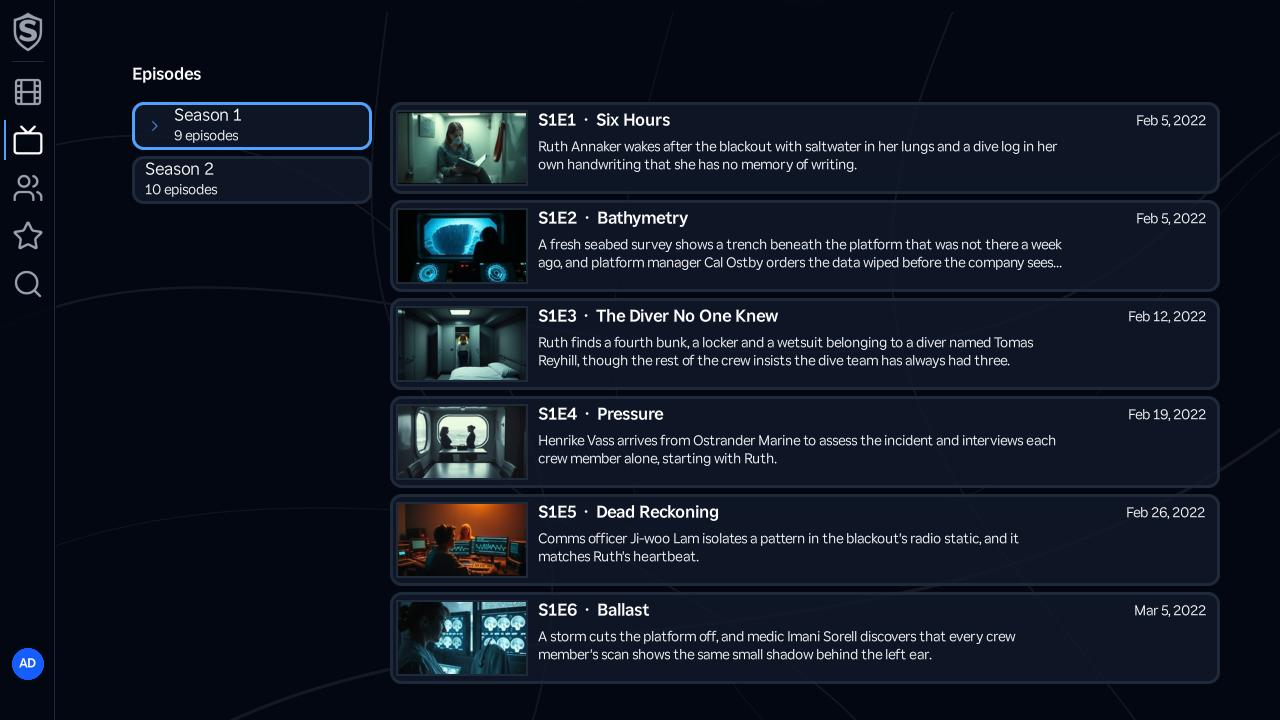
Seasons that have no episodes in your library are hidden, and the screen opens on the first season that has any. Press **OK** on an episode to open its [details](https://sovereign.watch/docs/interface/roku/tv-series/episode-details/).
The star in the top-right corner adds the series to your [Favorites](https://sovereign.watch/docs/interface/roku/favorites/).
========================================================================
# Episode Details (source: docs/interface/roku/tv-series/episode-details) URL: https://sovereign.watch/docs/interface/roku/tv-series/episode-details/
========================================================================
# Episode Details
The **Episode Details** screen shows a single episode: its still, season and episode number, air date, runtime, and synopsis, with the name of its [series](https://sovereign.watch/docs/interface/roku/tv-series/series-details/) above the title.
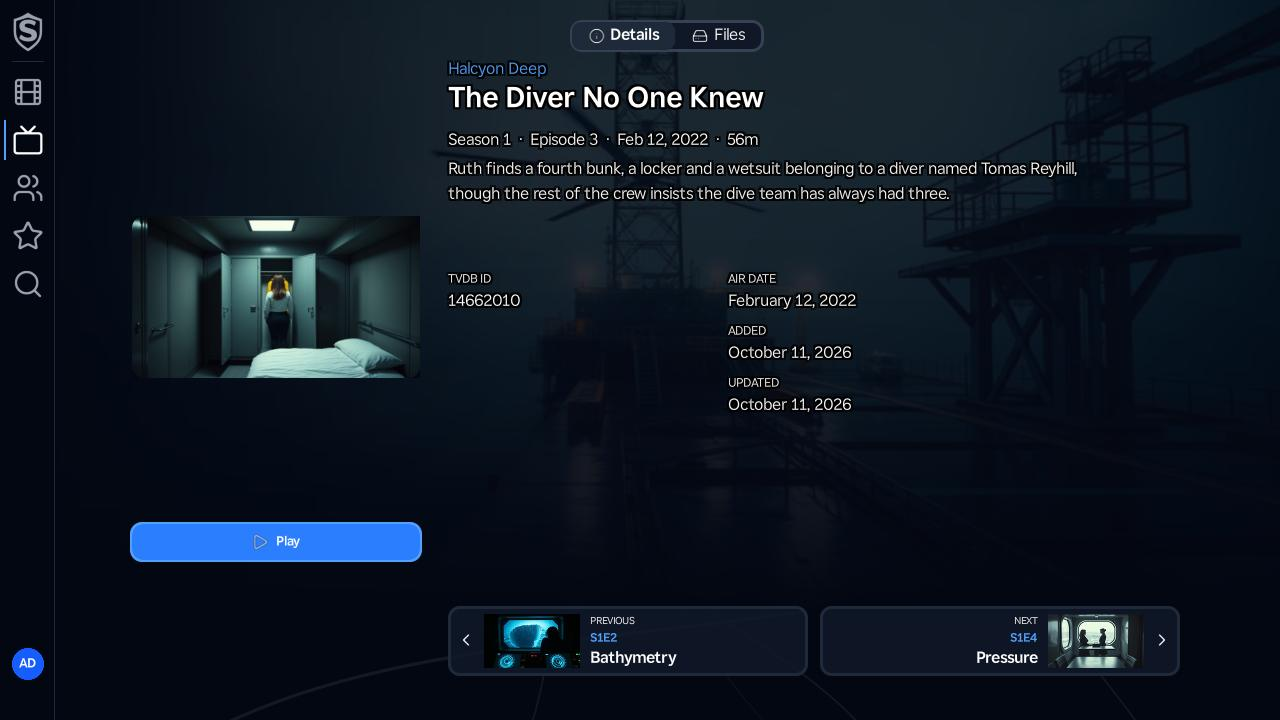
---
**Play** starts the episode in the [video player](https://sovereign.watch/docs/interface/roku/video-player/) (or resumes it, with a **Restart** button beside it, once you've watched part of it). The **Files** tab lists the video files available for the episode, the same way it does on a [movie](https://sovereign.watch/docs/interface/roku/movies/movie-details/).
Along the bottom, **Previous** and **Next** cards show the neighbouring episodes with their stills. Pressing **OK** on one loads that episode in place, so **Back** still returns straight to where you came from, however many episodes you've stepped through. The first and last episodes show only the card that leads somewhere.
========================================================================
# Favorites (source: docs/interface/roku/favorites) URL: https://sovereign.watch/docs/interface/roku/favorites/
========================================================================
# Favorites
The **Favorites** screen collects everything you've starred, with tabs for **Movies**, **TV Series**, and **Collections**.
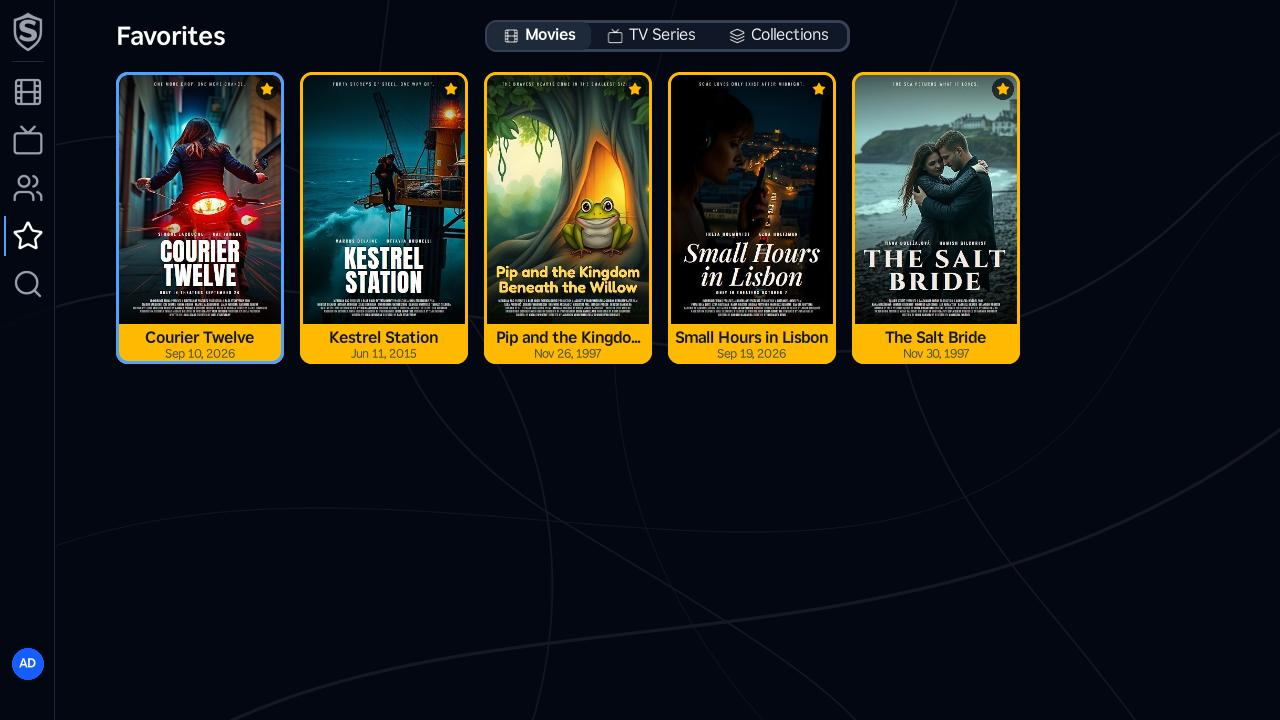
---
Favorited cards wear an amber outline and a star badge so they stand out anywhere they appear. Favorites are stored on your account, so the same titles show up here and on the [web interface](https://sovereign.watch/docs/interface/web/favorites/). Add or remove a movie or series with the star toggle on its details screen. Collections can't be starred from the channel, so the **Collections** tab shows the ones you've favorited on the web.
========================================================================
# Video Player (source: docs/interface/roku/video-player) URL: https://sovereign.watch/docs/interface/roku/video-player/
========================================================================
# Video Player
Pressing **Play** anywhere in the channel opens the full-screen video player. The overlay appears when you pause or press **OK**, and hides itself while you watch.
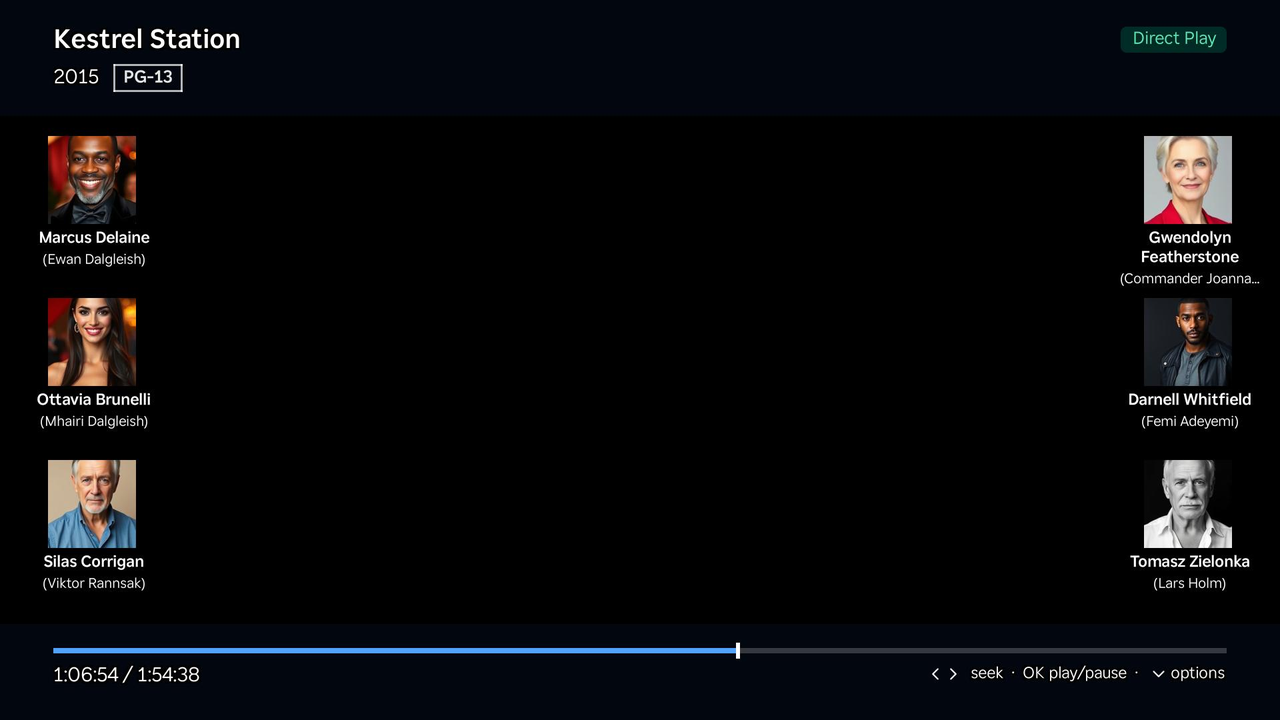
---
## Player Controls URL: https://sovereign.watch/docs/interface/roku/video-player/#player-controls
- **Title bar** - the current title, year, and content rating, with a badge showing how the stream is being delivered (**Direct Play** when the file plays untouched, **Remux** when the video is copied but another track is converted, **Transcode** when the server is re-encoding the video).
- **Cast** - on a movie, up to six of the billed cast line the left and right edges of the picture, with their names and characters, while the overlay is up.
- **Timeline** - press **Left** or **Right** to move a marker along the timeline, 15 seconds a press and faster while held (the rewind and fast-forward buttons move it a minute at a time). Press **OK** to jump to the marker, or **Back** to stay where you are. Once preview thumbnails have been generated for the title, the marker shows the scene at that position; a note on the readout tells you when previews are still being generated on a first watch. When the file declares chapters, the timeline is split into one segment per chapter and the box above the marker names the chapter at that point.
- **OK** - play or pause.
- **Down** - opens the options menu: subtitle track selection, audio track selection, and a playback info dialog with the technical details of the current session. The subtitle list includes image-based tracks such as the PGS subtitles common on Blu-ray rips, which the channel draws over the picture itself; picking one for the first time prepares it, and the menu says so while you wait. On a title with nothing to choose between, the menu opens straight on playback info.
## When a Title Ends URL: https://sovereign.watch/docs/interface/roku/video-player/#when-a-title-ends
At the end of an episode, an **Up next** card offers the next one, with a 15-second countdown and **Play now** and **Cancel** buttons. The next episode starts by itself when the countdown runs out, unless you press any button first, which stops the countdown and leaves the choice to you. With **Autoplay next episode** turned off in your [Account](https://sovereign.watch/docs/interface/roku/account/) preferences, the card appears without a countdown. After the last episode of a series, the card offers a **More like this** row of similar series instead.
At the end of a movie, a panel offers the next movie in its collection under **Up next in this collection**, above a **More like this** row of similar titles. Nothing on it starts by itself: choosing a title opens its details page.
When Sovereign knows where a title's credits begin, it doesn't wait for the end. The episode card appears as the credits start, and a movie gets a single suggestion rather than the full panel, both over the still-playing picture. **Back** puts either away so you can keep watching the credits.
## Playback Quality URL: https://sovereign.watch/docs/interface/roku/video-player/#playback-quality
Sovereign picks the delivery method for each device: a file the Roku can decode plays directly, and anything else is transcoded on the server. When it has to transcode, the playback info dialog carries a **Reason** line saying why in one sentence; [Transcoding](https://sovereign.watch/docs/configuration/transcoding/) explains each one. The player reports your position as you watch, so a title you stop partway through resumes at the same point here or on any other client.
If the stream stalls, the player reconnects by itself and carries on from where it was. When that doesn't work, an error screen offers **OK** to try again and **Back** to leave.
On a server showing a [licensing notice](https://sovereign.watch/docs/licensing/overview/#what-the-notice-looks-like), a short notice video plays before the title, and seeking stays unavailable until it finishes.
========================================================================
# Account (source: docs/interface/roku/account) URL: https://sovereign.watch/docs/interface/roku/account/
========================================================================
# Account
The **Account** screen opens from your avatar at the foot of the rail. It covers your profile and preferences on the device.
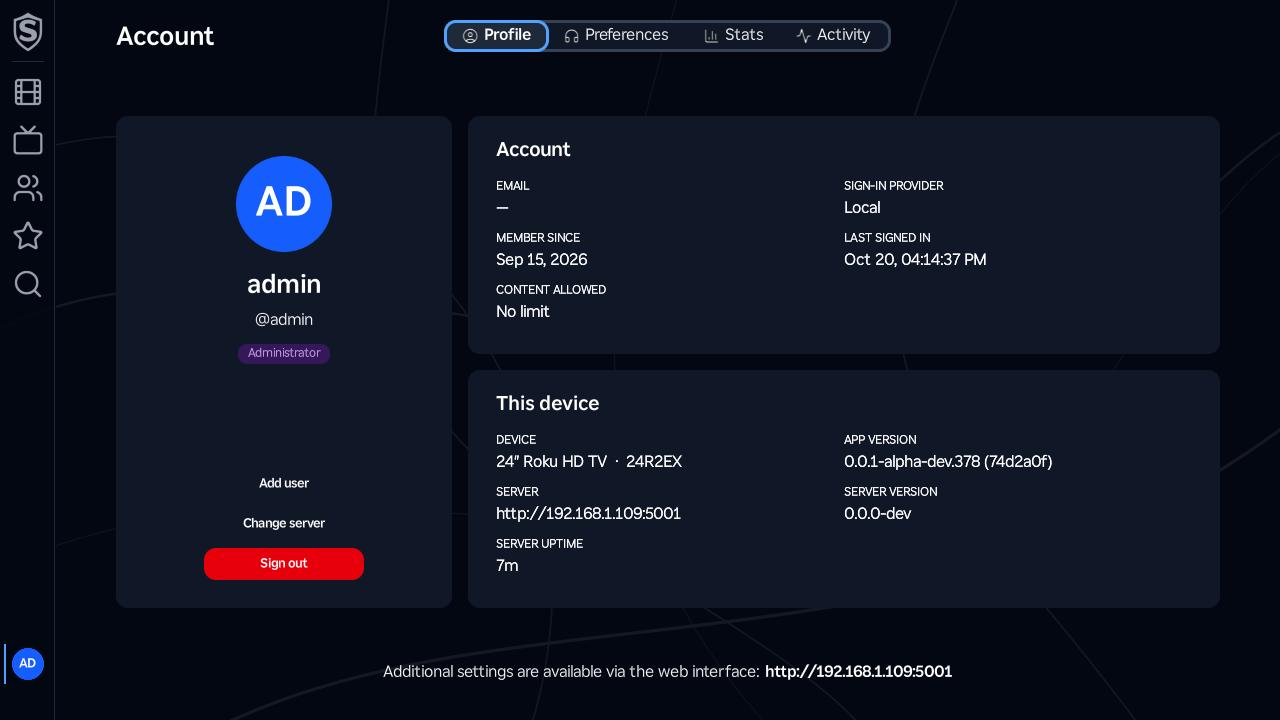
---
The tabs across the top switch between the panes:
- **Profile** - your avatar, name, username and role, with **Switch user** (when two or more people are signed in), **Add user**, **Change server** and **Sign out** beneath them, beside two cards. **Account** lists your email, how you sign in, when you joined, when you last signed in and what your account is allowed to watch. **This device** names the Roku and shows the channel's version, the server you're connected to, and that server's version and how long it's been running. Each version comes with its commit, so these are the details to include when you report a problem.
- **Preferences** - audio language, subtitle language, maximum video quality, video quality and **Autoplay next episode**, the same playback settings your account has on the web. Each change saves as you make it. The language and quality settings apply from the next stream you start, and **OK** on **Autoplay next episode** switches it on or off.
- **Stats** - your viewing figures: headline totals such as plays and watch time over the last 30 days, most-watched titles, plays by genre, movies against episodes, how far you get through what you start, direct play against transcode, and a day-by-hour heatmap of when you watch, shown in the device's local time.
- **Activity** - a table of your account's recent activity.
Everything else about your account is on the web, and the bottom of the **Profile** tab shows your server's address as a reminder. Your display name, email, profile picture and password, downloading your data and deleting your account are all in [User Settings](https://sovereign.watch/docs/interface/web/user-settings/).
**Sign out** signs out only you. **Change server** moves the channel to a different server without signing anyone out, and **Add user** and **Switch user** are for the other people in the house: [More Than One Person on a TV](https://sovereign.watch/docs/interface/roku/overview/#more-than-one-person-on-a-tv) covers all three, and the five-person limit.
========================================================================
# Overview (source: docs/interface/android/overview) URL: https://sovereign.watch/docs/interface/android/overview/
========================================================================
# Android Overview
The **Android** apps bring your Sovereign library to phones, tablets and Android-based TVs. Like the [Roku](https://sovereign.watch/docs/interface/roku/overview/) channel, they cover browsing, playback, favorites and your own account, and everything on your account follows you between clients.
Administration stays on the [web interface](https://sovereign.watch/docs/interface/web/admin/overview/).
---
## The Three Apps URL: https://sovereign.watch/docs/interface/android/overview/#the-three-apps
Sovereign builds three Android apps, one per kind of device:
| App | For |
| ---------- | ------------------------------------ |
| Mobile | Android phones and tablets |
| Android TV | Android TV and Google TV devices |
| Fire TV | Amazon Fire TV sticks, cubes and TVs |
The two TV apps share every screen and differ only in how they present themselves to their platform's launcher. Both are built for the remote's directional pad. The Mobile app has its own touch layout covering the same screens.
All three need Android 8.0 or newer. On Fire TV that rules out the oldest Fire OS 5 and 6 devices, which can't install the app.
## Installing URL: https://sovereign.watch/docs/interface/android/overview/#installing
The apps aren't in the Google Play Store or the Amazon Appstore. Each release publishes one APK per app, and you sideload the one that matches your device: **FireTV** for Amazon Fire TV, **AndroidTV** for Android TV and Google TV, **Mobile** for phones and tablets. All three share a version number.
:::note[Not released yet]
No APK has been published yet. The three apps arrive with Sovereign's first release; see [Availability](https://sovereign.watch/docs/getting-started/#availability).
:::
:::caution
Uninstall the previous version before installing a new APK. Each build is signed with a fresh key, so Android refuses to install it over an older one and reports that the update is incompatible.
:::
The app's version and commit appear on the server setup screen and on the **Profile** tab of [Account](https://sovereign.watch/docs/interface/android/account/).
## Connecting and Signing In URL: https://sovereign.watch/docs/interface/android/overview/#connecting-and-signing-in
On first launch the app asks for your server's address. It tries a bare host name over `https` first and then `http`, unless the **Secure connections only (https)** toggle is on, when it tries only `https`. The toggle starts on for a new install. If your server sits behind an authenticating proxy, **Custom headers** on the same screen lets you add up to five name/value pairs that are sent with every request; [Remote Access](https://sovereign.watch/docs/configuration/remote-access/) explains when you need them.
The sign-in screen takes the same username and password you use on the web. When the server supports it, the screen also offers to sign in from another device: **Sign in on another device** on the TV apps, **Sign in with a code** on Mobile. The app shows an address and a short code; open the address on a phone or computer where you're already signed in, enter the code on the [Device Pairing](https://sovereign.watch/docs/interface/web/device-pairing/) page, and the app signs itself in once you approve it. **Change server** returns to the address step.
An account an administrator hasn't approved yet signs in to an **Awaiting approval** screen with a **Sign out** button. When a session expires, the app returns to the sign-in screen and says so.
## More Than One Person on a Device URL: https://sovereign.watch/docs/interface/android/overview/#more-than-one-person-on-a-device
Everyone in the house can stay signed in on the same TV or phone. Once two or more people are signed in to your server, the app opens on **Who's watching?** and starts as whoever you pick: tiles on the TV apps, a list on a phone. The app also asks again when it comes back after an hour in the background, but never during playback; your administrator can change that hour with the `UserPickerAfterMinutes` setting in [Configuration](https://sovereign.watch/docs/configuration/overview/).
**Add user**, at the end of the picker and on the **Profile** tab of [Account](https://sovereign.watch/docs/interface/android/account/), opens the sign-in screen for someone new. Whoever is signed in stays signed in until the new sign-in succeeds. **Switch user** on the same tab brings the picker back, and **Sign out** there signs out only you.
**Change server** is on the sign-in screen, the picker and the **Profile** tab. Moving the app to another server doesn't sign anybody out: the people signed in to the old server stay on the device, and they're back on the picker when you change back to it.
## Up to Five People per Device URL: https://sovereign.watch/docs/interface/android/overview/#up-to-five-people-per-device
Each device holds five signed-in people at most, the same limit as the [Roku channel](https://sovereign.watch/docs/interface/roku/overview/#up-to-five-people-per-roku). The limit comes from the Roku's hardware rather than from Sovereign: a Roku gives each channel 16 KB of storage for everything it keeps, and five sessions is what fits. The Android apps keep the same five so that every TV in the house follows one rule.
The five counts everyone signed in on the device, on every server. At the limit **Add user** disappears, and when some of those people are signed in to another server, the picker and the **Profile** tab say so: "This device holds 5 users, and some are signed in to other servers. Change server to sign one out." A sign-in that wouldn't fit is refused with the same line, or with "This device can't hold another user." when everyone is on this server. Nobody already signed in is signed out to make room. To free a place, use **Change server** to go back to the other server, pick someone there and choose **Sign out** on their **Profile** tab, which also ends their session on that server.
## Navigation URL: https://sovereign.watch/docs/interface/android/overview/#navigation
On the TV apps, an icon rail down the left edge leads to Home, Movies, TV Series, People, Favorites and Search, with your avatar at its foot opening Account.
On Mobile, the menu button at the top left opens a drawer with Home, Movies, TV, People, Favorites and Search, and the avatar at the top right opens Account.
When your server has a licensing notice to show, it appears as a bar across the top of these screens, coloured by how urgent it is. It never covers playback; see [Licensing](https://sovereign.watch/docs/licensing/overview/#what-the-notice-looks-like) for what it says and why.
[Browsing](https://sovereign.watch/docs/interface/android/browsing/) covers the library screens, [Video Player](https://sovereign.watch/docs/interface/android/video-player/) the player, and [Account](https://sovereign.watch/docs/interface/android/account/) your profile and preferences.
========================================================================
# Browsing (source: docs/interface/android/browsing) URL: https://sovereign.watch/docs/interface/android/browsing/
========================================================================
# Browsing
The **Android** apps share one set of library screens. The TV apps lay them out for the remote and the Mobile app for touch, but the content of each screen is the same.
---
## Home URL: https://sovereign.watch/docs/interface/android/browsing/#home
A hero carousel of the most popular movies in your library sits at the top and moves on every 30 seconds, pausing while you're on it. On the TV apps, press **OK** on the hero to open the movie; on Mobile it carries **Play** (or **Resume**) and **More info** buttons and can be swiped.
Below it come **Continue Watching** (only when you have something in progress), **Recently Added Movies** and **New Episodes**. A Continue Watching card goes straight into the player at your saved position.
## Movies URL: https://sovereign.watch/docs/interface/android/browsing/#movies
Movies has five tabs: **All**, **Trending**, **New Releases**, **Collections** and **Genres**. A genre opens a grid of its movies, and a collection opens a page with the collection's artwork above its movies.
The **All** tab can be filtered by title, genres, a range of release years and content ratings, with **Clear all** to start over. While any filter is set, the **Filters** chip says so (**Filters active** on the TV apps). A letter bar jumps through the grid alphabetically on All and Collections; on the TV apps the **Jump** chip moves to it, and on Mobile it appears as a rail on tablets.
## TV Series URL: https://sovereign.watch/docs/interface/android/browsing/#tv-series
One grid of every series, with the same filters and letter bar as the movie library.
## Details URL: https://sovereign.watch/docs/interface/android/browsing/#details
A movie's or episode's details page leads with **Play**, which reads **Resume** with the saved time when you've watched part of it. **Restart** appears beside it in that case and plays from the beginning. The **Details** tab holds ratings, dates and links; the **Files** tab lists each file with its resolution, codecs, HDR format, audio and size, and choosing a file plays that one. Movies and series carry a star to add them to your favorites, and a movie's page ends with **Cast** and **More Like This** rows.
A series page has a season selector (season 0 is **Specials**) above that season's episodes. An episode page adds **Previous** and **Next** cards that step through the series without returning to it.
## People URL: https://sovereign.watch/docs/interface/android/browsing/#people
**All**, **Actors** and **Directors** tabs over a grid of everyone in your library's credits, with a **Search** chip that narrows it by name. A person's page shows their biography, birth and death dates and birthplace, with their **Acting** and **Directing** credits in rows.
## Search URL: https://sovereign.watch/docs/interface/android/browsing/#search
Search reaches the whole library from one term of two or more characters. Results come back as rows of **Movies**, **Collections**, **TV Series**, **Episodes** and **People**. On Mobile the results update as you type; on the TV apps the keyboard opens when you arrive, and you press **OK** on the field to type again.
## Favorites URL: https://sovereign.watch/docs/interface/android/browsing/#favorites
Everything you've starred, on **Movies**, **TV Series** and **Collections** tabs. Collections are starred from the [web interface](https://sovereign.watch/docs/interface/web/movies/collections/); the Android collection page has no star.
========================================================================
# Video Player (source: docs/interface/android/video-player) URL: https://sovereign.watch/docs/interface/android/video-player/
========================================================================
# Video Player
Pressing **Play** anywhere in the Android apps opens the full-screen video player. The controls appear when you need them and hide while you watch.
---
## TV Controls URL: https://sovereign.watch/docs/interface/android/video-player/#tv-controls
On the TV apps you drive the player with the remote:
- **Up**, or any transport button - shows the controls.
- **Left** / **Right** - moves a marker along the timeline, 15 seconds a press and faster while held. The rewind and fast-forward buttons move it a minute at a time.
- **OK** - jumps to the marker when you've moved it, and otherwise plays or pauses.
- **Down** or **Menu** - opens the options panel.
- **Back** - cancels a seek, then hides the controls, then leaves the player.
The top of the screen shows the title, year and content rating, with a badge saying how the stream is delivered: **Direct Play** when the file plays untouched, **Remux** when the video is copied but another track is converted, **Transcode** when the server re-encodes the video. On a movie, up to six of the billed cast line the edges of the picture while the controls are up.
## Mobile Controls URL: https://sovereign.watch/docs/interface/android/video-player/#mobile-controls
On Mobile, tap the picture to show or hide the controls, and drag along the timeline to seek, which happens when you let go. The same delivery badge sits at the top, between the back arrow that closes the player and a full-screen button that turns the phone to landscape and hides the system bars. The gear opens the options sheet.
A video keeps playing in a picture-in-picture window when you leave the app, and continues with the screen off, controlled from the notification and the lock screen. On the TV apps, pressing **Home** pauses playback instead.
## Timeline URL: https://sovereign.watch/docs/interface/android/video-player/#timeline
Once preview thumbnails exist for a title, moving along the timeline shows the scene at each position; on a first watch a note says the previews are still being generated. When the file declares chapters, the timeline is split into one segment per chapter and the chapter's name appears beside the time.
## Audio and Subtitles URL: https://sovereign.watch/docs/interface/android/video-player/#audio-and-subtitles
The options panel (the options sheet on Mobile) offers **Audio** (**Audio track** on the TV apps), **Subtitles** and **Playback info**. The audio track that starts is the one matching the **Audio language** preference on your account. The subtitle list includes **Off** and image-based tracks such as the PGS subtitles common on Blu-ray rips, marked **(image)**; the player draws these over the picture itself, and picking one for the first time prepares it, with a message while you wait.
**Playback info** shows the delivery mode, the server's reason when it's transcoding, the codecs, resolution, HDR mode, measured bandwidth and the current position. [Transcoding](https://sovereign.watch/docs/configuration/transcoding/) explains each reason.
## When a Title Ends URL: https://sovereign.watch/docs/interface/android/video-player/#when-a-title-ends
At the end of an episode, an **Up next** card offers the next one with a 15-second countdown and **Play now** and **Cancel** buttons. Pressing anything stops the countdown and leaves the choice to you. With **Autoplay next episode** turned off in your [Account](https://sovereign.watch/docs/interface/android/account/) preferences, the card appears without a countdown, and after the last episode of a series it offers a **More like this** row of similar series instead. When Sovereign knows where the credits begin, a smaller card appears in the corner as they start, over the still-playing picture.
At the end of a movie, a panel offers the next movie in its collection under **Up next in this collection**, above a **More like this** row. Nothing on it starts by itself: choosing a title opens its details page.
## When Something Goes Wrong URL: https://sovereign.watch/docs/interface/android/video-player/#when-something-goes-wrong
If the stream stalls, the player shows **Reconnecting** and picks up from where it was, trying a few times before it gives up. When it can't recover, a **Playback error** screen offers to try again or leave.
On a server showing a [licensing notice](https://sovereign.watch/docs/licensing/overview/#what-the-notice-looks-like), a short notice video plays before the title, and seeking stays unavailable until it finishes.
========================================================================
# Account (source: docs/interface/android/account) URL: https://sovereign.watch/docs/interface/android/account/
========================================================================
# Account
The **Account** screen holds your profile, playback preferences, viewing statistics, recent activity and version details. Open it from your avatar: at the foot of the rail on the TV apps, or at the top right of any screen on Mobile.
---
## Tabs URL: https://sovereign.watch/docs/interface/android/account/#tabs
- **Profile** - your avatar, name, username and role, with **Switch user** (when two or more people are signed in), **Add user**, **Change server** and **Sign out**, and two cards. **Account** lists your email, how you sign in, when you joined, when you last signed in and what your account is allowed to watch. **This device** names the device and shows the app's version, the server you're connected to, and that server's version and uptime. Each version comes with its commit, so include these when you report a problem.
- **Preferences** - **Audio language**, **Subtitle language**, **Max video quality** and **Video quality**, which apply to the next stream you start, and an **Autoplay next episode** switch. Each change saves as you make it.
- **Stats** - plays, titles watched, watch time, active days, favorites and titles in progress, with your most-watched titles and a breakdown by genre. The TV apps add the split between movies and episodes, how far you get through titles, how often they play untouched versus transcoded, and a heatmap of the hours you watch.
- **Activity** - your recent sign-ins and plays, with the address each came from.
Everything else about your account is on the web, on all three apps, and the bottom of the **Profile** tab shows your server's address as a reminder. Your display name, email, profile picture and password, downloading your data and deleting your account are all in [User Settings](https://sovereign.watch/docs/interface/web/user-settings/).
**Sign out** signs out only you: the app goes to the picker when two or more people are still signed in, to the other person's Home when one is, and to the sign-in screen when nobody is. **Change server** moves the app to another server without signing anyone out. [More Than One Person on a Device](https://sovereign.watch/docs/interface/android/overview/#more-than-one-person-on-a-device) covers **Add user**, **Switch user** and the five-person limit.
========================================================================
# Privacy Policy (source: docs/privacy-policy) URL: https://sovereign.watch/docs/privacy-policy/
========================================================================
# Privacy Policy
This policy covers the three services Sovereign Media LLC runs for Sovereign, the licensing service, the metadata service and the download service, and this documentation site. It also describes what the self-hosted Sovereign software stores and sends, which we don't receive.
Last updated: 31 October 2026
---
## Summary URL: https://sovereign.watch/docs/privacy-policy/#summary
Sovereign is self-hosted. Your media, your accounts and everything anyone watches stay on the server you or your administrator runs, and none of it reaches us. The client apps for web, Roku, Android, Google TV and Fire TV talk to that server and nowhere else, apart from loading artwork from The Movie Database.
We run two services that every server can talk to:
- **The licensing service**, at account.sovereign.watch, issues free trials and sells licenses. It knows a server by its install ID. If you buy a license, it also keeps a reference to you as a Stripe customer and a history of the servers each license has been on. Your email address and name stay with Stripe, and the service asks Stripe for them when it needs them. It keeps a customer's records until two years after their last license ends, and the country each request came from for 90 days.
- **The metadata service** looks up films and shows on The Movie Database for every server. It keeps the answers in a shared cache, counts how many servers use it each day, and keeps nothing that names a server for more than a day or two.
And one you download Sovereign from:
- **The download service** hands out the Sovereign server image when you or your tools download it with Docker, Podman or Kubernetes. It counts downloads by version, place and kind of tool, doesn't store your address, and keeps nothing that could tell one downloader from another for more than a day or two.
We show no advertising, sell no data and don't track you. You can ask us at any time for a copy of what we hold about you, or for it to be erased.
---
## Who We Are URL: https://sovereign.watch/docs/privacy-policy/#who-we-are
Sovereign Media LLC runs the licensing service, the metadata service, the download service and this site, and is the controller for the personal data they handle.
For anything about your data, write to **privacy@sovereign.watch**.
---
## The Licensing Service URL: https://sovereign.watch/docs/privacy-policy/#the-licensing-service
The licensing service is where a server starts a free trial, buys a license, renews it and moves it to another server. Everything starts from the server's own License page, and there's no account to create. A server that never asks for a license never contacts it. The [licensing pages](https://sovereign.watch/docs/licensing/overview/) describe what it does.
| Data | Why we use it | Legal basis | How long we keep it | Who else sees it |
| --- | --- | --- | --- | --- |
| Your server's install ID | To issue a trial or license for that server, and keep each license's history | Contract; legitimate interests, for a trial | Until two years after your last license ends | Your server, in its license |
| Your email address and name, read from Stripe when needed | To email you codes that move a license, and to find your licenses when you ask for help | Contract | Not kept: read from Stripe each time | Stripe, which holds them; Cloudflare, which sends the email |
| References to your Stripe customer and subscription | To keep your licenses in step with your subscription | Contract | As above | Stripe |
| Your licenses: plan, what it includes, term | It's what you bought | Contract | Until two years after the license ends | Your server |
| Each license's history: the servers it has been on, their Sovereign version, and when | Support, and the limit on how often a license can move | Contract; legitimate interests | With the license | No one |
| The country each request came from, on that history and on the events below | Support, and spotting misuse | Legitimate interests | 90 days | No one |
| Events on a license: a move it refused, and any change our staff made to it, with who and why | Support, and a record of what we changed | Legitimate interests | With the license | No one |
| A random value each server run generates, with when it was first and last seen | Spotting two copies of one server | Legitimate interests | 30 days after it was last seen | No one |
| The last day a server was counted, and which of our signing keys its license carries | Counting servers once a day | Legitimate interests | 90 days | No one |
| A purchase in progress: the server's install ID, version and country | Completing the purchase | Contract | About a day after you pay, or an hour after an unpaid checkout closes | Stripe, which receives only the price |
| A request to move a license by email: the codes, the asking server's install ID, version and country, and which customer each email went to | Sending the codes, at most three an hour to any one customer | Legitimate interests | Up to an hour and a quarter | Stripe, which is asked whose the address is; Cloudflare, which sends the email |
| A record of each recovery email we tried to send, naming the customer the address belonged to, if anyone | Answering "I never got the email" | Legitimate interests | 90 days | No one |
**Trials.** When a trial's records are deleted, the service keeps only a form of its install ID that can't be turned back into it, so that server can't start a second trial.
**Refunds.** When a server refunds its license from its License page, the service keeps the same kind of one-way form of its install ID, for good, so that server can't be refunded that way a second time. It names nothing. The refund itself is recorded by Stripe.
**Recovery emails.** The address you type isn't kept, in any form. The service asks Stripe which customers hold it, and sends the codes to it if anyone does. The codes work for 15 minutes. Each record of an attempt holds whether the email went, which customer the address belonged to (or that it belonged to no one), the asking server's install ID, and how many licenses it covered. An attempt for an address no customer holds names no one, so it can't be found again by that address.
**Where the data comes from.** Your email address and name come from Stripe, which collects them at checkout and keeps them. The country is worked out from the address a request comes from. Everything else comes from your server or is created by the service.
**Buying a license needs an email address**, which you give Stripe at checkout. Without one, a license can't be moved to a new server by email.
**Check-ins.** A server with a license checks in about every 12 hours, and each time it starts, to confirm it still holds its license and to collect a renewed one. The check-in carries the license, the random value described above, and the server's version number. Nothing about the server's users, or anything anyone has watched, is sent. A server with no license never checks in.
**Location and counting.** From the address a request comes from, the service works out the country, the region (a state or province, never anything finer) and whether the address belongs to a hosting provider. It doesn't store the address, look up the city or anything more precise, or record the network's name. The country is kept as the table says. The region and the hosting flag go only into daily totals of how many servers there are, by region, plan and version, which name no server and in which no figure describes fewer than three servers.
**Decisions made automatically.** The service decides some things on its own: whether a server can start a trial, and whether two copies of one server seem to be sharing a license. Either result shows a notice on the server. Neither stops the server or anything it plays, so neither is a decision with legal or similarly significant effects on you.
**Logs.** The service doesn't keep a log of the requests it receives. Its own diagnostic messages can name a license or a purchase, never an email address, a name or a request's address, and Cloudflare keeps them for up to 7 days.
---
## The Metadata Service URL: https://sovereign.watch/docs/privacy-policy/#the-metadata-service
Every Sovereign server looks up films and shows on The Movie Database through Sovereign's metadata service, so no server needs an API key of its own. A server uses it when its library changes: to identify a new file, fetch a title's details and artwork addresses, and fill in cast and crew.
| Data | Why we use it | Legal basis | How long we keep it | Who else sees it |
| --- | --- | --- | --- | --- |
| The address the request comes from | To limit requests per address, and to work out the country, region and hosting provider for the daily totals | Legitimate interests | Not stored | No one |
| What's looked up: an ID, or a title and year read from a file or folder name | To answer it from a cache shared by every server | Legitimate interests | Up to about two weeks, without which server asked | The Movie Database, without anything about your server |
| An anonymous token your server makes afresh each day, and the license standing it reports | To count each server once a day | Legitimate interests | The token isn't kept; the day's count is deleted after a day or two | No one |
| The kind of lookup, whether the cache answered, the result, and the version of Sovereign that asked | Running the service | Legitimate interests | Up to 7 days in logs; counts for about three months | No one |
Your server makes the token from the date and a secret key that never leaves it. Nothing about your server goes into it, so neither service, and nobody at Sovereign, can tell which server sent it, and because it changes every day, one day's token can't be matched to another's. The token is used only to count servers.
Versions before 0.0.10 send a token derived from the install ID instead. The licensing service holds install IDs, so for a server on one of those versions we could work out whether it was counted on a given day. Updating your server stops that.
To send neither the token nor the license standing, set `Sovereign__DataSources__Tmdb__SendCensus` to `false` (see the [configuration reference](https://sovereign.watch/docs/configuration/overview/)). Your server then isn't counted, and its lookups work exactly as before.
The daily totals count servers by country, region, hosting provider and license standing. They name no server, and no figure describes fewer than three servers.
---
## The Download Service URL: https://sovereign.watch/docs/privacy-policy/#the-download-service
The download service hands out the Sovereign server image to Docker, Podman, Kubernetes and the tools that keep a container up to date. It only ever sends the image: nothing is uploaded to it, and your server never contacts it once it's running.
| Data | Why we use it | Legal basis | How long we keep it | Who else sees it |
| --- | --- | --- | --- | --- |
| The address the request comes from | To limit requests per address, to work out the country, region and hosting provider for the daily totals, and to count how many different downloaders there were each day | Legitimate interests | Not stored | No one |
| A daily key made from that address and a secret that changes every day | To count each downloader once a day, and to tell which tag a download asked for | Legitimate interests | Deleted after a day or two | No one |
| Which version was downloaded, the tag asked for (such as `latest` or a version number), whether the download finished, and how much was sent | Running the service, and counting downloads by version | Legitimate interests | Up to about three months for each request; daily totals, by country only after 90 days | No one |
| The kind of tool that asked (Docker, Podman, Kubernetes, an update checker and so on) and the operating system and processor type it reports | Knowing which tools to support | Legitimate interests | The tool's own description isn't stored, only the kind it falls into, in the daily totals | No one |
**Counting downloads.** Most tools download an image in two steps: they ask which version a tag such as `latest` points at, then fetch that version. To count which tag a download asked for, the service remembers the tag under the daily key for two minutes and then forgets it. A tool that only asks whether a newer version exists, without downloading it, is counted as an update check.
**The daily key** can't be turned back into your address, and because the secret behind it changes every day, one day's key can't be matched to another's. It's used only to count downloaders and to link those two steps.
**Location.** As with the other services, the country, region (a state or province, never anything finer) and whether the address belongs to a hosting provider are worked out from the address and go only into the daily totals. The address itself isn't stored, and the city and network name aren't looked up.
The daily totals count downloads by version, tag, kind of tool, processor type, country, region and hosting provider. They name no one, and no place is shown with fewer than three downloads. A download through a mirror or a company proxy is counted where the mirror is.
**Logs.** The service doesn't keep a log of the requests it receives. Its own diagnostic messages never include an address, and Cloudflare keeps them for up to 7 days.
---
## This Site URL: https://sovereign.watch/docs/privacy-policy/#this-site
This site sets no cookies and loads nothing from Google. If you choose a light or dark theme, your browser remembers the choice in its own storage. Search runs in your browser against an index downloaded with the pages, so what you search for isn't sent anywhere.
Cloudflare hosts the site and handles every request to it. We count visits with Cloudflare Web Analytics, which adds a small script from Cloudflare to each page. It records the address of the page you read (leaving out anything after a `?`), the page that linked you here, your browser, operating system and kind of device, the country you're in, and how quickly the page loaded. It sets no cookies, stores nothing in your browser and doesn't fingerprint you, so it can't connect one visit of yours to the next or follow you to other sites. We see totals and averages for the past six months, never a record of one visitor. We do this on the basis of our legitimate interest in knowing which pages get read and whether they load quickly.
The [Pricing](https://sovereign.watch/docs/licensing/pricing/) page asks the licensing service for the current prices, from your browser. That request isn't logged.
---
## Who Else Sees Your Data URL: https://sovereign.watch/docs/privacy-policy/#who-else-sees-your-data
- **Cloudflare** hosts the three services and this site, counts this site's visits, stores the services' data and the server images the download service hands out, and sends the licensing service's emails. It keeps the recipient and subject of each email for 31 days, and the services' diagnostic messages for up to 7 days.
- **Stripe** takes payments on its own checkout and billing pages, so we never see your card. It holds your card details, billing address, name, email address, any phone number you give it, your subscription and your invoices. Stripe processes payments for us, and is responsible on its own account for what it must keep for fraud prevention, tax and its regulators.
- **The Movie Database** answers lookups the metadata service's cache can't, without anything about the server that asked. Your devices also load artwork from it directly, as described under [The Self-Hosted Software](https://sovereign.watch/docs/privacy-policy/#the-self-hosted-software).
Within Sovereign Media LLC, only the people who run the licensing service can see what it holds about you, to help when you ask. Only the people who run the services see the metadata and download services' daily totals.
---
## Transfers Outside Your Country URL: https://sovereign.watch/docs/privacy-policy/#transfers-outside-your-country
Cloudflare and Stripe are based in the United States and may process data there. Both are certified under the EU-US Data Privacy Framework and its UK extension, and both include the European Commission's standard contractual clauses in their data processing terms as a further safeguard. You can read [Cloudflare's](https://www.cloudflare.com/cloudflare-customer-dpa/) and [Stripe's](https://stripe.com/legal/dpa) terms on their sites.
---
## Your Rights URL: https://sovereign.watch/docs/privacy-policy/#your-rights
You can ask us for a copy of the personal data we hold about you, in a form you can take elsewhere, and to correct it, erase it, or restrict how we use it. Write to **privacy@sovereign.watch**. We'll answer within a month.
- **If you bought a license**, write from the email address you paid with, or tell us what it is, and we'll reply to that address.
- **If you only ever used a trial**, we have no email address for you. Tell us your server's install ID, which only someone with access to the server can read.
For a single license, you don't need to write: **Export Your Data** on the License page of the server that holds it downloads everything we keep about that license. [What We Hold About a License](https://sovereign.watch/docs/licensing/your-data/) says what it includes and leaves out.
While a license is still active we need its records to keep it working. We'll erase them once it has been cancelled, and if you cancel because you want your data erased, say so and we'll do both. What Stripe holds about your payments, your email address and name included, is covered by Stripe's own privacy policy, and **Manage Billing** on your server's License page is where you change your billing details yourself. A new email address there is the one a license recovery uses from then on.
---
## Your Right to Object URL: https://sovereign.watch/docs/privacy-policy/#your-right-to-object
Where we rely on legitimate interests (keeping trials to one per server, spotting two copies of one server, counting servers, keeping a short history of where requests came from and of the emails we sent, the metadata service's counting token, and the download service's counting), you can object at any time, on grounds relating to your situation. Write to privacy@sovereign.watch, and we'll stop unless we have compelling legitimate grounds that override your interests, or need the data to establish or defend a legal claim.
---
## Complaints URL: https://sovereign.watch/docs/privacy-policy/#complaints
You can complain to the data protection authority where you live or work, or where you think the problem arose. In the United Kingdom that's the Information Commissioner's Office. We'd like the chance to put it right first, so please write to us too.
---
## The Self-Hosted Software URL: https://sovereign.watch/docs/privacy-policy/#the-self-hosted-software
Sovereign Media LLC publishes the Sovereign server and its client apps, but doesn't run your server and receives nothing from it apart from what the licensing and metadata services above describe. The person or organisation running a server is responsible for the personal data it holds. If you run your own, that's you. If someone invited you onto theirs, it's them, and questions about your data on that server go to them.
The rest of this section describes what the software stores and sends, so that you, or whoever runs your server, can rely on it.
**What the server stores.**
- **Accounts** - username, email address, display name, a hash of the password, roles, preferences, the content rating limit, and the last sign-in. Kept until the account is deleted.
- **Social sign-in** - if your administrator turns on Sign in with Google or Microsoft, the provider returns your email address, name and a link to your profile picture. The email address becomes your username, and the server downloads the picture once, when the account is created. Google and Microsoft learn that you signed in, under their own privacy policies; we don't.
- **New accounts** - when someone asks for an account, the server emails its administrators the person's name and email address, through the mail server the administrator configures, and keeps a record of the email for 90 days.
- **Activity** - sign-ins, what was played and when, with the IP address and user agent of each request. Kept for 90 days.
- **Playback progress and favourites** - kept until the account, or the title, is deleted.
- **Devices** - each device's identifier, the name set on the device (which is often a person's name), its make and model, its user agent and last IP address, and what it can play. Kept for 90 days after the device was last seen.
- **Error reports** - the error message and stack trace, where in the app it happened, the app version and platform, and the account, device, IP address and user agent the server attaches. When a report arrives, the server removes email addresses, sign-in tokens and the query strings of web addresses from its text, before storing it or writing it to the log. The account stays attached, so your administrator can follow up. Kept for 30 days, and also written to the server's log files.
- **Log files** - the server's own log, including usernames, which accounts started and stopped playing what, and error reports. Kept for 31 days, and administrators can download them.
Deleting an account removes it together with its playback progress, favourites, activity, error reports, profile picture and signed-in sessions, and every device only that account used. A device another account also uses stays, without its link to the deleted one. Two records outlive the deletion and age out as above: the log files, and the record of any email that contained the person's address. The administrator is shown both before confirming the deletion. On a server with a purchased license, administrators can make a backup of every account on the server, which includes each account's email address and password hash; it isn't a per-person export.
**What the apps send.**
The apps send everything to the server whose address you enter, and nowhere else, apart from artwork (below):
- **Sign-in details** - your username and password, or the result of a social sign-in, exchanged for access and refresh tokens.
- **Device information** - a random identifier the app creates for itself, the name set on the device, the app version, the platform, model, screen and HDR support, connection type and measured speed, and the video formats the device can play.
- **Playback** - what you're watching and how far into it you are.
- **Favourites and preferences** - titles you mark, your audio and subtitle languages, and your quality settings.
- **Error reports** - when something goes wrong, the error and where it happened. Web addresses in a report have their query strings removed first.
**Artwork.** Until your server has cached an image, the app loads it straight from The Movie Database's image servers, which see your device's IP address. The web app also tells them the address of your server, as a browser does with any image. The Android apps currently also send their device identifier and any custom headers you've set with those requests.
**Administrators' browsers.** On the web app's admin pages, your browser checks Radarr and Sonarr directly, and opens Stripe's checkout and billing pages.
**What the server sends out.**
- **To the licensing service**, if it has a trial or a license: its install ID, version, license and the random value described above.
- **To the metadata service**, always: its lookups, its version, the counting token and its license standing.
- **To The Movie Database, TheTVDB and the image hosts your Radarr or Sonarr report**, to download artwork.
- **To Radarr and Sonarr**, with your administrator's API keys, and **to Google or Microsoft**, for social sign-in.
- **To your administrator's mail server**, for the emails above.
It sends no telemetry, analytics or crash reports anywhere.
**What's stored on your device.**
- **Web** - the device identifier, and your sign-in session in the browser's storage, which includes your name, email address and role from the sign-in.
- **Roku** - the server address, a refresh token, the device identifier and any custom headers you entered, in the channel's storage.
- **Android, Google TV and Fire TV** - the server address, the device identifier, any custom headers, and a refresh token encrypted with a key held in the Android Keystore, plus a cache of artwork. Android's own backup and device transfer can copy the app's settings, including the server address, device identifier and custom headers, to your Google account and restore them on a new device.
Signing out deletes the stored tokens.
The phone app shows what's playing in its notification and on the lock screen, which can also reach Bluetooth devices, Android Auto and watches. The Android apps ask for internet access, to check whether the device is connected, and to keep the device awake while a video plays. The phone app also asks to keep playing with the screen off and to show a notification while it does, asking for the notification permission on Android 13 and later. None of the apps asks for contacts, location, storage, camera or microphone access, and none contains an advertising, analytics or crash-reporting library.
---
## Children URL: https://sovereign.watch/docs/privacy-policy/#children
Neither the services nor the apps are directed at children. Accounts on a server are created by its administrator, who decides who gets one, and administrators can set a content rating limit for each account.
---
## Changes URL: https://sovereign.watch/docs/privacy-policy/#changes
If this policy changes, the new version will be published here with a new date, and material changes will be noted in the release notes.
---
## Contact URL: https://sovereign.watch/docs/privacy-policy/#contact
For anything about your data held by the licensing, metadata or download services, or about this policy, write to privacy@sovereign.watch. For your data on a media server, ask whoever runs it.
========================================================================
# Terms of Use (source: docs/terms-of-use) URL: https://sovereign.watch/docs/terms-of-use/
========================================================================
# Terms of Use
These terms are an agreement between you and Sovereign Media LLC ("we", "us"), which runs the Sovereign licensing service and publishes the official Sovereign client applications. They cover your use of the client applications for web, Roku, Android, Google TV and Fire TV, and of the licensing service at account.sovereign.watch, including any trial or license you obtain from it.
Last updated: 31 October 2026
---
## Accepting These Terms URL: https://sovereign.watch/docs/terms-of-use/#accepting-these-terms
Installing or using a Sovereign client application, or starting a trial or buying a license from the licensing service, means you accept these terms. If you don't accept them, don't install or use the applications, and don't start a trial or buy a license.
---
## What You're Getting URL: https://sovereign.watch/docs/terms-of-use/#what-youre-getting
Sovereign is self-hosted software. The client applications are viewers: they connect to a media server that you run, or that someone else runs and has invited you onto. The applications are supplied free of charge. There's no hosting, no storage and no streaming infrastructure behind them, and whether they work at all depends on a server and a network you control.
What we do sell is licenses for Sovereign servers, through the licensing service. A license is described under [Licenses and Subscriptions](https://sovereign.watch/docs/terms-of-use/#licenses-and-subscriptions) below. It affects the licensing notice and whether user backups are available, and nothing else about how the software works.
Use of the Sovereign source code is governed by the licence published in its repositories at `https://github.com/sovereign-media`. These terms govern your use of the built client applications and of the licensing service, and don't restrict any rights that licence grants you.
---
## Your Server, Your Responsibility URL: https://sovereign.watch/docs/terms-of-use/#your-server-your-responsibility
You're responsible for the server you connect to and everything on it. That includes:
- **The media.** You must hold the rights to the files you store and play, or otherwise have permission to use them. Sovereign doesn't supply, host, index or distribute any media, and downloading or sharing content you have no right to isn't something these applications sanction.
- **Access.** Deciding who gets an account on your server, what they can see, and what content ratings apply to them is yours to manage.
- **Security.** Exposing a server to the internet, choosing credentials, configuring TLS and keeping the software updated are your decisions. The [Production Hardening](https://sovereign.watch/docs/configuration/production-hardening/) guide covers what's recommended.
- **The data on it.** Your server holds account details, viewing history and activity logs for everyone using it, as described in the [Privacy Policy](https://sovereign.watch/docs/privacy-policy/). If other people use your server, you're the one answerable to them for it.
If you're connecting to a server that belongs to somebody else, your relationship over accounts, content and data is with them. These terms don't create any obligation between you and us.
---
## Licenses and Subscriptions URL: https://sovereign.watch/docs/terms-of-use/#licenses-and-subscriptions
A Sovereign server runs whether or not it holds a license. A server without a valid license shows a licensing notice: a bar across the top of the screen in the client applications, and a ten-second video at the start of each title on clients that can play one. The video can be paused but not skipped, and plays once per viewing. A license removes the notice. A server without one plays everything a licensed server plays. The one feature it lacks is exporting and restoring user backups, which needs a purchased license and isn't part of a free trial. The [Licensing](https://sovereign.watch/docs/licensing/overview/) pages describe the notice and backups in full.
**No accounts.** There's no account on the licensing service. A server starts a trial, buys a license and moves one from its own License page. You're responsible for everything done from the servers you administer, and for keeping access to the email address you pay with, because it's how a license is recovered when its server is gone.
**Free trials.** Each server can currently start one free trial, which runs for 30 days from when it's started. A trial belongs to the server it was started on and can't be moved to another. The length and availability of trials may change.
**Subscriptions.** Each license covers one server and is bought from that server's License page, as described in [Getting a License](https://sovereign.watch/docs/licensing/getting-a-license/). Payment is taken by Stripe when you buy, and again each time the subscription renews at the end of a billing period, until you cancel. The license takes hold on the server it was bought from as soon as the payment goes through. Each license's term runs to the end of the billing period it was issued in, and a server that checks in picks up the next term by itself when the subscription renews. Prices and plans are listed on the [Pricing](https://sovereign.watch/docs/licensing/pricing/) page, and shown again on the License page before you buy.
**One server per license.** A license is bound to one server at a time. Moving it to another server, as described in [Moving a License](https://sovereign.watch/docs/licensing/moving/), takes it away from the server it left, which shows the notice again. Each license allows 10 server changes in any rolling 30 days; past that, a move is refused until the oldest change ages out, and the refusal says when that will be. The limit exists to stop one license being shared between households, and you mustn't use a license, or copy a licensed server, to avoid paying for another one.
**Two servers on one license.** If more than one server is found checking in with the same license, every copy shows the notice, and none can use user backups, until only one is left. Nothing else is restricted.
**Support.** We may adjust a license's term, release it from a server, issue a code to move it, or revoke it, for example to correct a billing error, to help somebody who has lost access to their server and their email, or where these terms have been broken. Every such change is recorded against the license.
---
## Cancelling, Refunds and Chargebacks URL: https://sovereign.watch/docs/terms-of-use/#cancelling-refunds-and-chargebacks
You can cancel a subscription at any time with **Manage Billing** on the License page of the server that holds the license, or through Stripe's customer portal with the email you paid with. Cancelling stops the next renewal and takes nothing away mid-term: each license runs to the date it already carries, and once that date passes the server carries on running with the notice back.
**Refunds.** You can have a full refund of a payment, a first purchase or a renewal, within 30 days of making it. Use **Request Refund** on the License page of the server that has the license. Each server can be refunded this way once, ever. A refund ends the license's term straight away, not at the end of the billing period, and cancels the subscription, so nothing renews. For anything else, write to **support@sovereign.watch**.
A partial refund, such as a credit we give for a problem, doesn't change the license or the subscription.
**Chargebacks.** If you dispute a payment with your bank or card issuer, the term ends from the day the dispute opens. If the dispute is settled in our favour, the term comes back. If it's settled in yours, the subscription is cancelled.
A server that's online learns of a refund or a dispute at its next check-in, within about 12 hours, and shows the notice from then on.
---
## Acceptable Use URL: https://sovereign.watch/docs/terms-of-use/#acceptable-use
Don't use the applications or the licensing service to break the law, to infringe anyone's copyright, to gain unauthorised access to a server or an account that isn't yours, or to interfere with the operation of a server or of the licensing service. Don't remove or obscure attribution notices in the software.
Don't tamper with a license. A license is signed, so an altered one no longer verifies, and once the server detects that, it shows the licensing notice.
You may modify and redistribute the software as the source licence allows. A modified build isn't the official application, and shouldn't be presented as one.
---
## Third-Party Services URL: https://sovereign.watch/docs/terms-of-use/#third-party-services
Sovereign draws film and television information from The Movie Database and TheTVDB, and can read your library from Radarr and Sonarr. We supply your server's access to The Movie Database, through Sovereign's metadata service; your server administrator supplies the API keys for Radarr and Sonarr. Each is governed by its own terms, and we have no control over their availability, accuracy or pricing.
This product uses TMDB and the TMDB APIs but is not endorsed, certified, or otherwise approved by TMDB.
If your administrator enables social sign-in, Google's or Microsoft's terms apply to that sign-in.
Payments and subscriptions on the licensing service are handled by Stripe. Stripe's terms apply to that part of the service alongside these terms.
---
## App Stores URL: https://sovereign.watch/docs/terms-of-use/#app-stores
Where a client is distributed through an application store, that store's own terms apply to the download alongside these terms. The store isn't a party to these terms, isn't responsible for the applications, and isn't responsible for supporting them. Any claim about an application is between you and us, not the store.
The Roku channel and the Android applications may also be installed by sideloading. A sideloaded build is yours to verify.
---
## No Warranty URL: https://sovereign.watch/docs/terms-of-use/#no-warranty
The applications and the licensing service are provided **as is** and **as available**, with no warranty of any kind, express or implied, including any implied warranty of merchantability, fitness for a particular purpose, or non-infringement.
Nobody warrants that the applications will run without interruption or error, that they'll work with any particular device, server configuration, media file or codec, or that playback will succeed. Transcoding and hardware acceleration depend on your hardware and drivers, and results vary. Nor does anyone warrant that the licensing service will always be reachable. A server that can't reach it keeps the license it already holds until that license's term ends.
---
## Limitation of Liability URL: https://sovereign.watch/docs/terms-of-use/#limitation-of-liability
To the fullest extent the law allows, neither we nor Sovereign's contributors and maintainers are liable for any indirect, incidental, special, consequential or exemplary damages, or for any loss of data, media files, revenue, profit or goodwill, arising out of your use of the applications or the licensing service, whether the claim is in contract, tort or otherwise, and even if the possibility of such loss was known.
Keep backups of your media and your server data. The applications can't recover files your server has lost.
Some jurisdictions don't allow certain warranties to be excluded or liability to be limited. Where that's the case, the exclusions above apply only as far as that jurisdiction permits.
---
## Indemnity URL: https://sovereign.watch/docs/terms-of-use/#indemnity
You agree to indemnify us and Sovereign's contributors and maintainers against claims arising from the content you store or play, from how you operate your server, or from your breach of these terms.
---
## Updates and Availability URL: https://sovereign.watch/docs/terms-of-use/#updates-and-availability
Updates may be released at any time, and features may change or be removed. Nobody is obliged to keep publishing the applications, to keep them compatible with older servers, or to support any particular device generation. Distribution through any given store may end.
The plans offered on the licensing service, and their prices, may change. A change to the price of your subscription takes effect from a renewal, not during a term you've already paid for.
---
## Ending Your Use URL: https://sovereign.watch/docs/terms-of-use/#ending-your-use
You can stop using the applications at any time by signing out and uninstalling. Your server administrator can suspend or delete your account on their server independently of these terms.
You can cancel your subscription at any time, as described above, and ask for what the licensing service holds about your license to be deleted at **privacy@sovereign.watch**. Deleting it ends the license. We may revoke a license that's been used to break these terms.
---
## Changes to These Terms URL: https://sovereign.watch/docs/terms-of-use/#changes-to-these-terms
Updated terms will be published here with a new date. Continuing to use the applications or the licensing service after that means you accept the update.
---
## Governing Law URL: https://sovereign.watch/docs/terms-of-use/#governing-law
These terms are governed by the laws of the State of Missouri, United States, without regard to conflict of law rules.
---
## Contact URL: https://sovereign.watch/docs/terms-of-use/#contact
Send questions about these terms, a license or a refund to **support@sovereign.watch**. For anything about your data, write to **privacy@sovereign.watch**, as the [Privacy Policy](https://sovereign.watch/docs/privacy-policy/) describes.