
Admin: Media Sources
The Media Sources page lists every media source registered with Sovereign (your Radarr and Sonarr instances, and any directories Sovereign scans itself) along with their current health.
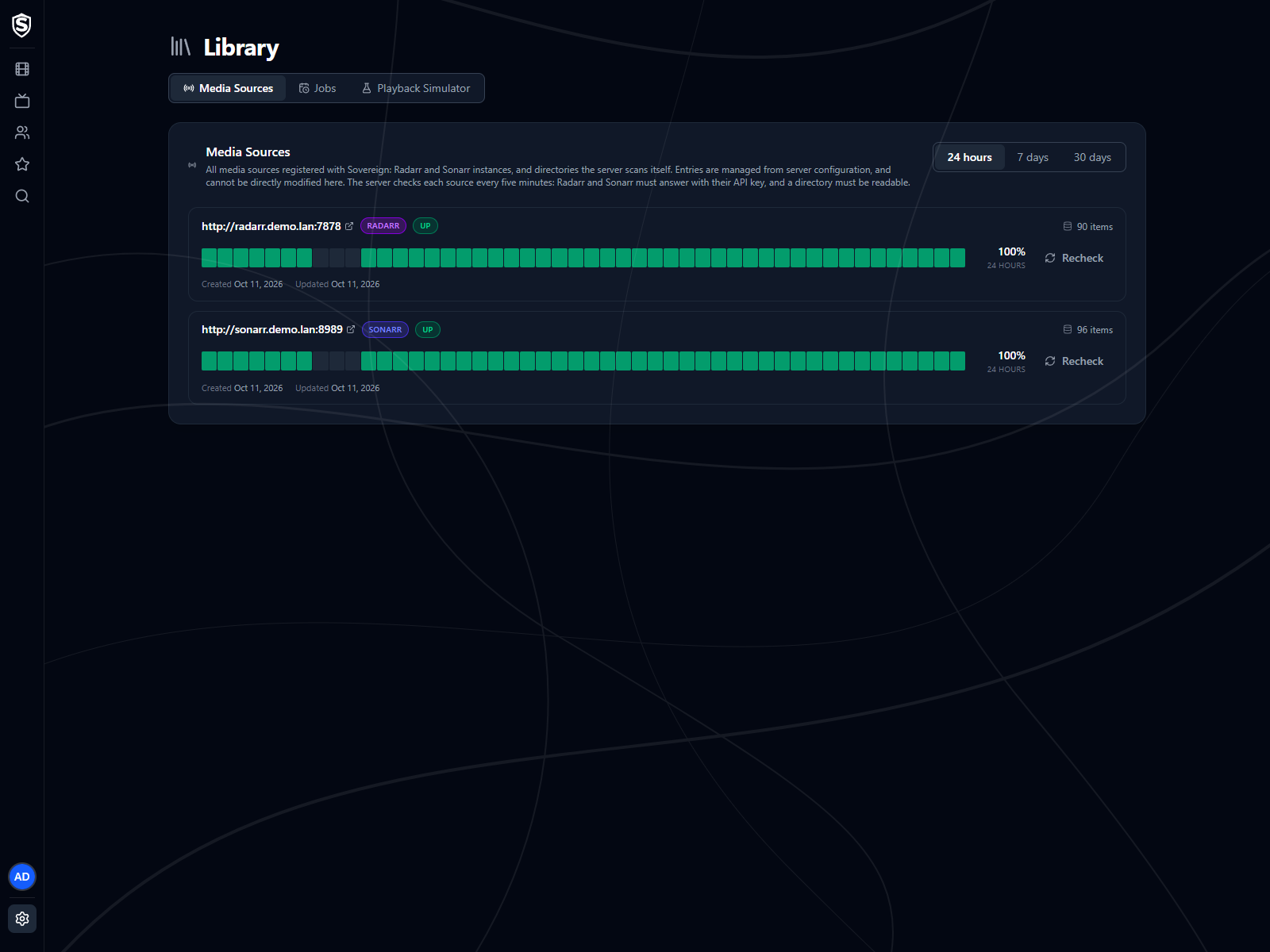
Each entry shows:
- For a Radarr or Sonarr source, the instance’s URL (linked). For a filesystem source, the directory path the server scans.
- A type badge: Radarr, Sonarr, or Filesystem with what the directory holds (Movies or Television).
- A status badge saying what the server found when it last checked the source. Hover it for how long ago that was, how long the check took, and the version Radarr or Sonarr reported or why the source isn’t up.
- An uptime strip and the source’s uptime figure, with a Recheck button that checks it again straight away (see Health and Uptime).
- How many items the source currently contributes to the library.
- A shared files badge when another source supplies some of the same files at the same paths, with the other source and the count in its tooltip. That’s what a scanned directory overlapping a Radarr library looks like; see Filesystem Media Sources.
- When the source was registered, and when it was last updated.
- For a scanned directory, a paths not imported line when the last scan found files it couldn’t import. Open it for the list.
Health and Uptime
Section titled “Health and Uptime”The server checks every source every five minutes and keeps the results, so the status you see is what the server can reach, not what your browser can. That matters whenever Radarr or Sonarr sits on a network only the server is on, or a share is mounted only on the server’s host. A Radarr or Sonarr source is up when it answers its API with the configured key. A directory is up when the server can read it.
When a source isn’t up, the badge says why:
- Unreachable - Radarr or Sonarr didn’t answer within ten seconds, refused the connection, or a proxy in front of it answered with a server error.
- Key refused - it answered, and rejected the API key in your configuration.
- Error - something else is wrong with the answer, such as a redirect to a login page or a different application at that address. Hover the badge for what it was.
- Missing - the directory doesn’t exist, or it’s empty, which is what a share that isn’t mounted looks like from the server.
- Unreadable - the directory exists, and the server isn’t allowed to read it.
- Unresponsive - the directory didn’t answer within ten seconds. A stalled network mount looks like this, and the check gives up rather than waiting for it.
The strip under each source covers the last 24 hours, 7 days or 30 days, chosen at the top of the page. Each slice is green when every check in it found the source up, amber when some did, and red when none did. A grey slice had no checks at all, because the server wasn’t running then, which isn’t the same as the source being down. The figure beside the strip is the share of checks in that window that found the source up.
Recheck runs the same check on the server immediately and adds it to the history, which is the quickest way to confirm a fix. Checks are kept for 30 days by default. Set Sovereign__MediaSourceHealth__RetentionDays to change that, or to 0 to keep them forever.
Paths Not Imported
Section titled “Paths Not Imported”A scanned directory can hold files Sovereign skips because it can’t identify them with confidence: a folder named Ninth Take (2026) when TMDb has two films by that name and year, a title TMDb doesn’t hold, a tag naming an id TMDb no longer has, or a name nothing can be read from. The server log lists them on every scan, and this panel shows the same list with what to do about each one.
Each entry shows the path under the source root, why it was skipped, what was read from the name, and, where TMDb offered candidates, each of them with the tag that would make the next scan take it. Add that tag to the folder name and the entry disappears on the next scan; so does an entry for a file you delete or rename. A television series is listed as its folder, with the number of files behind it, because a series is refused as a whole.
The list scrolls inside its card, so a directory with hundreds of skipped paths doesn’t push the sources after it off the page. Copy as TSV puts every entry on the clipboard as tab-separated text, one row per path with the full path, the reason, the candidates and the dates, ready to paste into a spreadsheet or hand to a script.
The reasons, and what fixes each:
- Ambiguous - several TMDb results match the title and year. Tag the folder with the right one.
- No close match - TMDb has results, but none match closely enough. The nearest are listed, which usually shows the name TMDb uses.
- No title - TMDb returned several results and there was no title to compare them against. Tag the folder with the right candidate.
- No results - TMDb has nothing for the title. Rename the folder to match TMDb, or tag it.
- Stale tag - the name carries a TMDb id that TMDb no longer has. Correct or remove the tag.
- No TheTVDB id - TMDb knows the series but holds no TheTVDB id for it, and the folder carries none. Add a
[tvdbid-<id>]tag. - Tag disagrees - the folder’s
[tvdbid-<id>]tag and TMDb’s answer name different shows. One of them is wrong. - Unreadable name - no title, year, provider id or episode number could be read. Name it as Filesystem Media Sources describes.
- Superseded - another file for the same title or episode was imported instead, because only the largest is. Nothing to do unless this is the one you wanted.
Titles, artwork, people and descriptions shown in screenshots are fictional and were created for illustration. Sovereign doesn't include or supply any media: it plays the library you bring.