
Video Player
Pressing Play anywhere in the interface opens the full-screen video player.
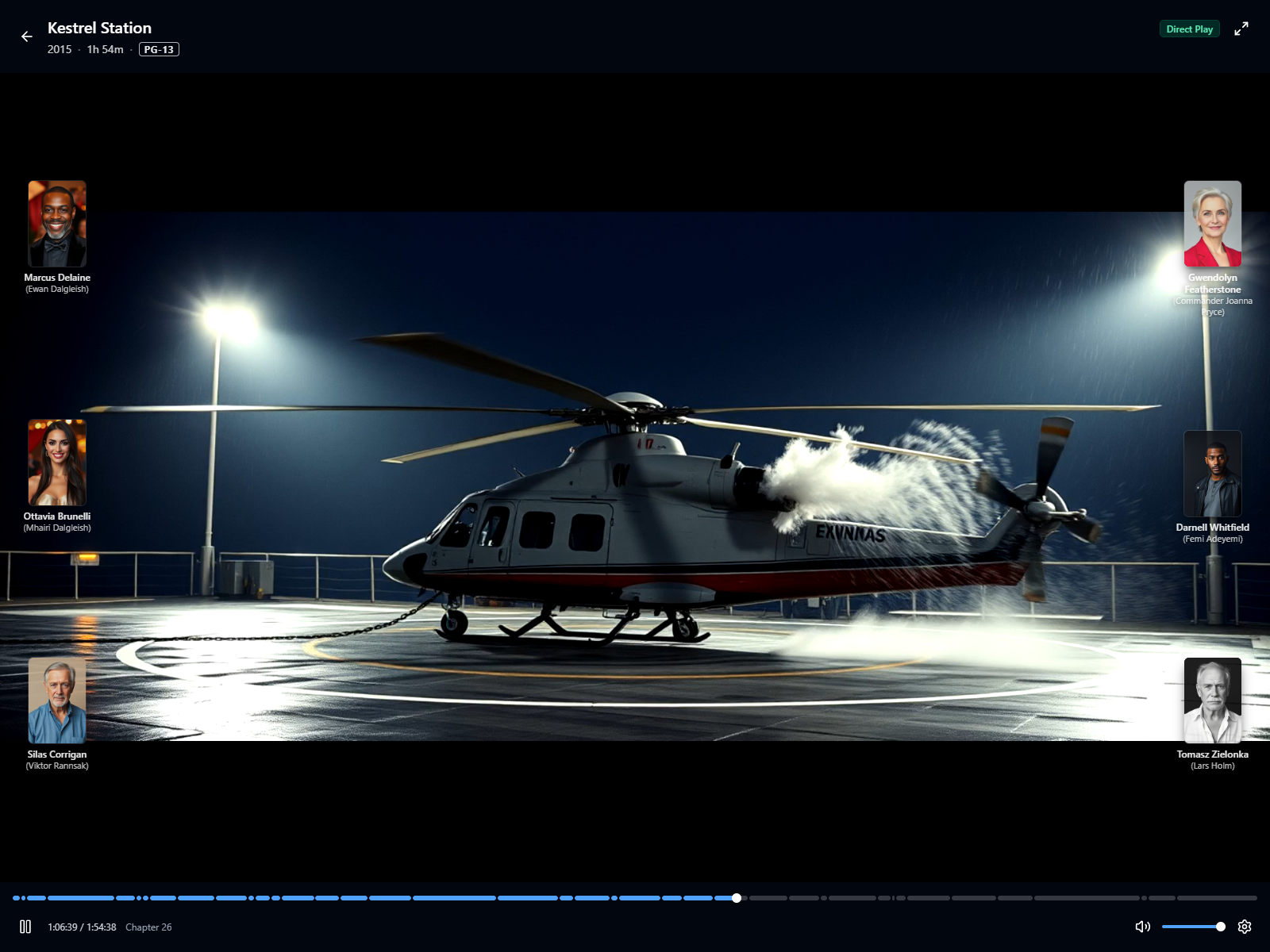
Player Controls
Section titled “Player Controls”- Title bar - the current title, year, runtime, and content rating, plus a back button to return to where you came from.
- Play mode and full screen - the top-right corner shows how the title is being delivered (Direct Play, Remux, or Transcode) next to the full screen toggle.
- Timeline - scrub anywhere in the video. Once preview thumbnails have been generated for the title, hovering the timeline shows a thumbnail of the scene at that position. On first playback a “Generating previews” badge (or “Queued for previews” while it waits its turn) stands in for the thumbnail, and “Previews unavailable” means they couldn’t be made. Trickplay covers how they’re produced.
- Chapters - when the file carries chapters, the timeline is split into a segment per chapter, hovering names the chapter under the time, and the name of the chapter you’re in sits beside the elapsed time.
- Play/Pause, elapsed / total time.
- Volume - a mute button and a volume slider.
- Settings - the gear opens a small menu with three entries: Audio track, Subtitles, and Playback info. Audio and subtitles open their list in the same menu, and are greyed out on a title that offers no choice.
While the controls are showing on a movie, portraits of up to six of its billed cast line the edges of the picture, each with the actor’s name and the character they play. Episodes don’t have a cast list, so they don’t get the portraits.
Clicking the picture plays or pauses, and so does the space bar. Escape leaves the player.
Audio and Subtitles
Section titled “Audio and Subtitles”The audio list shows every track the file carries, named by language, with 5.1 or 7.1 beside a surround track. The subtitle list shows the file’s subtitle tracks, including image-based tracks such as the PGS subtitles common on Blu-ray rips, which the player draws over the picture itself. Image-based tracks are grouped by language and named by whatever the file calls them. Picking one of those the first time can take a moment while it’s prepared; the player says so and starts drawing captions as soon as they’re ready. Subtitles covers both kinds in more detail.
The server applies your account’s preferred audio language when the stream starts, so a title carrying a matching track opens on it. Changing tracks mid-film doesn’t interrupt playback, though a seek that has to start a fresh stream puts audio back to your preferred language. A subtitle you’ve picked stays on through such a seek.
Playback Info
Section titled “Playback Info”Playback info opens the session details for what you’re watching now: the play mode, the video and audio codecs, the resolution, your position, and the bandwidth the player is measuring.
When the server had to re-encode anything, a Reason line says why in one sentence, such as “This device cannot decode the video codec”. A remux has one too, since it re-encodes an audio track. A direct play has no such line, because nothing was re-encoded. Transcoding explains every reason and what, if anything, you can do about each.
When a Title Ends
Section titled “When a Title Ends”Where Sovereign knows when the credits start, the player offers what’s next shortly after they begin, as a small card in the bottom-right corner while the credits keep playing. Otherwise the offer fills the screen when the video ends.
After an episode, the Up next card shows the next episode with a 15-second countdown (“Playing in 15s”) that starts it automatically. Play now skips the wait. On the full-screen card, Cancel leaves the player; the corner card has a dismiss button instead, so you can carry on watching the credits. Moving the mouse over the card, clicking or scrolling on it, or pressing any key stops the countdown but leaves the card where it is, and so does pausing while the credits play. The countdown also waits while the browser tab is hidden. With Autoplay Next Episode turned off in User Settings, the card still appears, just without the countdown. After the last episode of a series, the card offers similar shows instead.
After a movie, nothing starts on its own. The panel offers the next movie in its collection, with View details to open its page, and a More like this row of similar titles once the movie has ended. Over the credits, the corner card appears only for a movie with a next entry in its collection.
When Something Goes Wrong
Section titled “When Something Goes Wrong”If the stream stalls, the player tries to restart it from where you were and shows Reconnecting… while it does. When a restart works, playback carries on with no further message. After a few failed attempts it gives up and shows a Playback error message over the picture. A stream that won’t start in the first place gets a Playback could not start page with the reason and a Retry stream button.
License Notice
Section titled “License Notice”While the server’s license needs attention, a short notice video may play before the title. It can’t be skipped, so the timeline is locked until it finishes. When the server can’t play the notice video for a title, the notice bar fades in briefly as the title starts instead, and doesn’t come back for the rest of it. Licensing explains when it appears.
Playback Quality
Section titled “Playback Quality”Sovereign picks the delivery method for your device when the stream starts: it plays the file directly when the browser supports it, and transcodes on the server when it doesn’t. There’s nothing to set up for this, though the Preferences tab of User Settings lets you cap the bitrate and quality of transcoded video. Hardware Acceleration covers how to make transcoding faster.
Sovereign remembers your playback position, so a partly watched title resumes where you left off.
Titles, artwork, people and descriptions shown in screenshots are fictional and were created for illustration. Sovereign doesn't include or supply any media: it plays the library you bring.